


PowerPoint presentations are an essential tool for professionals in business, education, marketing, and more. However, creating slides from scratch can be time-consuming. The good news? With a few smart hacks, you can streamline the process, work faster, and still produce visually stunning presentations.
In this article, we’ll share 10 powerful time-saving PowerPoint hacks that every professional should know.
1. Use PowerPoint Shortcuts for Speed
Keyboard shortcuts can save you a significant amount of time when designing slides.
Here are a few must-know shortcuts:
- Ctrl + M – Add a new slide.
- Ctrl + D – Duplicate selected slide or object.
- Ctrl + Shift + G – Group selected objects.
- Ctrl + Shift + H – Ungroup selected objects.
- Ctrl + Shift + V – Paste formatting only.
Using these shortcuts can drastically cut down the time spent on repetitive tasks.
2. Master the Slide Master
Instead of editing each slide individually, use Slide Master to make universal changes across your entire presentation. To access it:
- Go to View > Slide Master.
- Edit fonts, colors, and layouts to apply changes to all slides at once.
- Save it as a custom theme for future use.
3. Align and Distribute Objects with Ease
Perfectly aligning text boxes, images, and shapes manually can be frustrating.
Use these features to arrange objects quickly:
- Select multiple objects, then go to Format > Align.
- Use Distribute Horizontally/Vertically to space objects evenly.
- Enable Guides and Gridlines for precise placement.
4. Use Templates to Save Time
Instead of starting from scratch, leverage pre-designed PowerPoint templates from SlideShopping.com. Professionally crafted templates help maintain a polished look while reducing design effort.
5. Copy Formatting with Format Painter
To maintain a consistent style, use the Format Painter tool:
- Select a formatted object.
- Click on Format Painter (paintbrush icon) in the toolbar.
- Click on another object to apply the same formatting.
- Double-click Format Painter to apply formatting to multiple objects.
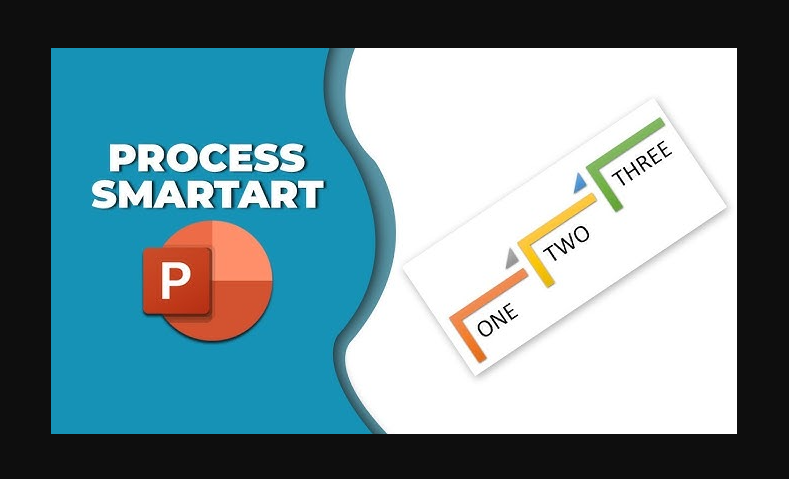
6. Use SmartArt for Quick Visuals
Creating flowcharts or diagrams manually can be tedious. Instead, use SmartArt:
- Go to Insert > SmartArt.
- Choose from various diagrams like processes, cycles, and hierarchies.
- Enter text, and PowerPoint automatically adjusts the shapes.
7. Utilize the Selection Pane for Layered Objects
If your slides have overlapping elements, use the Selection Pane to manage them efficiently:
- Go to Home > Arrange > Selection Pane.
- Rename and reorder layers to easily select hidden objects.
8. Resize Multiple Images Instantly
Instead of adjusting images one by one:
- Select all images.
- Go to Picture Format > Size and enter the dimensions.
- Use Crop to Aspect Ratio to maintain proportions.
9. Remove Backgrounds from Images
Need a transparent image without Photoshop? PowerPoint has a built-in tool:
- Select an image, go to Picture Format > Remove Background.
- Adjust the selection and click Keep Changes.
10. Export Presentations as High-Quality PDFs or Videos
Want to share your slides without losing formatting?
- Go to File > Save As > PDF to create a non-editable version.
- To convert to a video, go to File > Export > Create a Video.
- Adjust resolution and timing settings for a professional video output.
By incorporating these 10 PowerPoint hacks, you can dramatically cut down your design time while ensuring high-quality presentations. Whether you're preparing a corporate pitch, a training deck, or a marketing presentation, these shortcuts and tools will help you work more efficiently.
Looking for professionally designed templates?
Explore SlideShopping.com and take your presentations to the next level!