

CREATING AN ITEM LIST IN QUICKBOOKS DESKTOP
INTRODUCTION
If you’ve already learned WHY the Item List in QuickBooks Desktop is so important, the next step is learning HOW to set it up properly.
A well-structured Item List allows you to:
- Automate income and expense tracking
- Improve financial reporting accuracy
- Save hours of manual data entry
- Gain better insight into your business performance
In this step-by-step guide, we’ll walk through exactly how to create an Item List in QuickBooks Desktop, along with key setup tips to ensure your system is built correctly from the start.
WHAT YOU NEED BEFORE YOU BEGIN
Before creating your Item List, make sure you have:
✔ A PROPERLY STUCTURED CHART OF ACCOUNTS
Each item connects to accounts, so your Chart of Accounts should already include:
- Income Accounts
- Cost of Goods Sold (COGS) Accounts
- Inventory (If Applicable)
✔ A CLEAR LIST OF YOUR PRODUCTS AND SERVICES
Take a few minutes to outline:
- What You Sell
- How You Categorize Your Offerings
- Any Pricing Or Cost Structure
💡 Pro Tip: Planning your structure outside of QuickBooks first will save significant time later
STEP-BY-STEP PROCESS
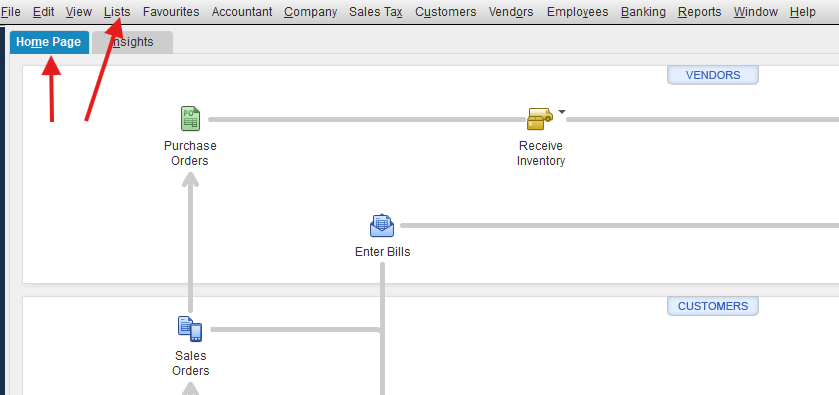
STEP 1: Open The Item List in QuickBooks Desktop
- Go to the top menu bar
- Click Lists
- Select Item List
This opens the central hub where all your items will be created and managed.
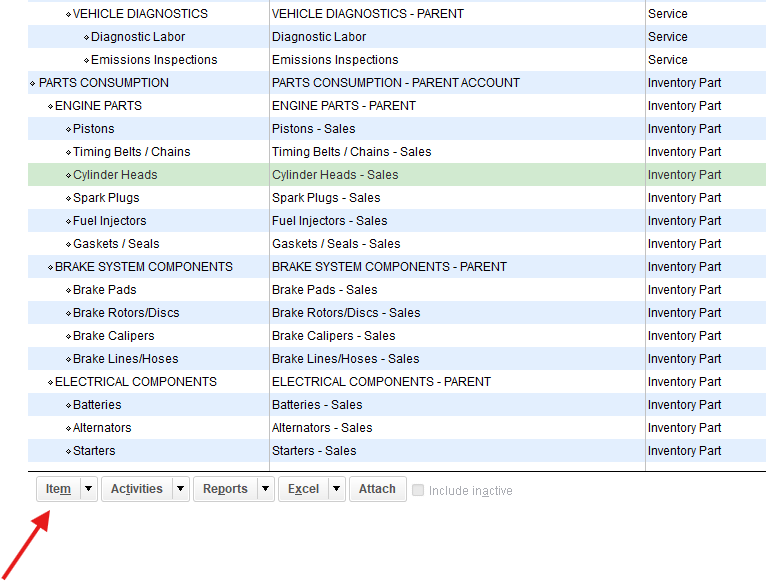
STEP 2: Create A New Item
- At the bottom left of the Item List window, click ITEM
- Select NEW
STEP 3: Choose The Correct Item Type
Selecting the correct item type is critical. The most common types include:
- SERVICE – for services you provide
- INVENTORY PART – for products you track in inventory
- NON-INVENTORY PART – for products you sell but don’t track quantities
- OTHER CHARGE – for fees like delivery or installation
💡 Choosing the wrong type can lead to inaccurate financial reporting—so take your time here.
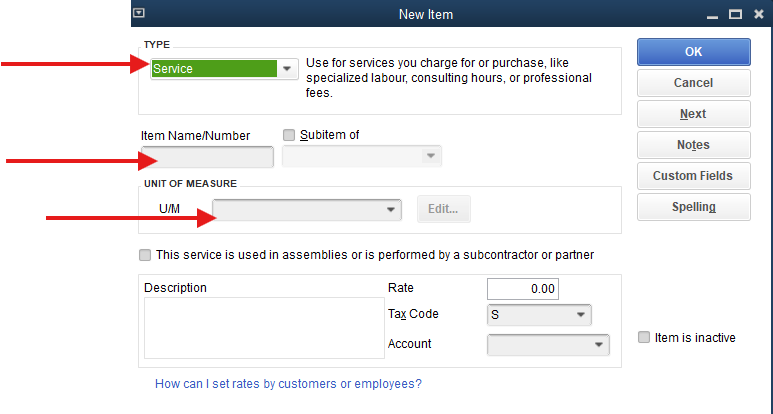
You’ll now see the NEW ITEM setup window:
(In This Example: New Service Item):
STEP 4: Enter The Item Details (Service Item)
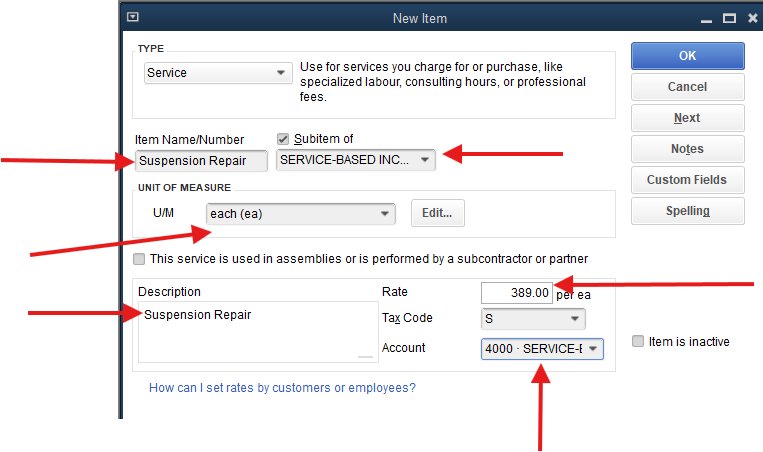
- ITEM NAME/NUMBER → Use clear, consistent naming
- SUB-ITEM → When necessary
- UNIT OF MEASURE (U/M)
- DESCRIPTION → This appears on customer-facing forms (ie. Invoices)
- RATE/PRICE PER UNIT → Charged to Customers/Clients (ie. Hourly Rate)
- TAX CODE → Taxes that will be charged on Service Sales
- INCOME ACCOUNT → Where the Sales Amounts/Revenue will be posted to
✔ Keep names structured and easy to understand
✔ Avoid vague labels like “Service” or “Product”
STEP 5: Enter The Item Details (Inventory Item)
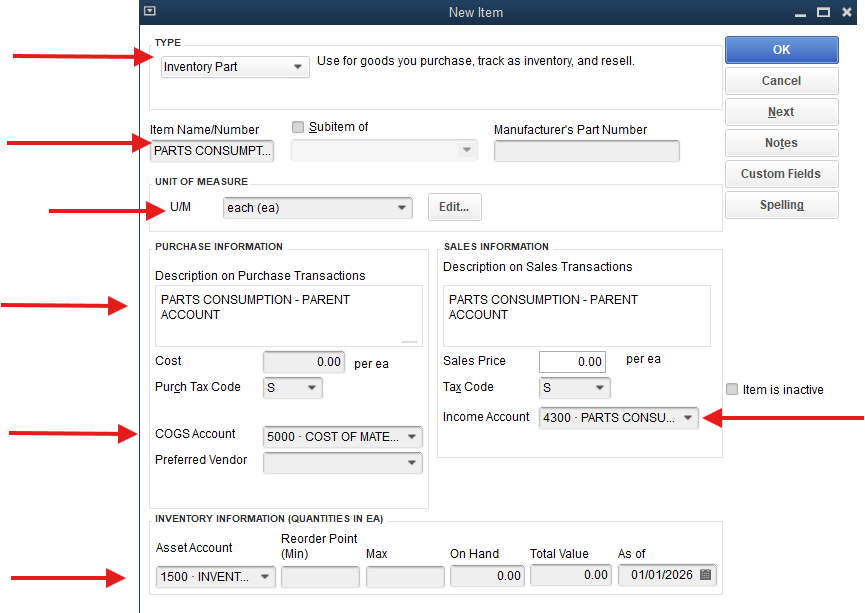
- ITEM NAME/NUMBER → Use clear, consistent naming
- SUB-ITEM → When necessary
- UNIT OF MEASURE (U/M)
- DESCRIPTION: PURCHASE TRANSACTION → Appears On Purchase Transactions (Bills)
- DESCRIPTION: SALES TRANSACTION → Appears On Sales Transactions (Invoices)
- COST PER UNIT → For Purchase Transactions
- RATE/PRICE PER UNIT → For Sales Transactions
- TAX CODE → Taxes Charged On Service Sales
- COST OF GOODS (COGS) ACCOUNT → Where Inventory Purchase Costs Are Posted To
- INCOME ACCOUNT → Where Inventory Sales Amounts Are Posted To
✔ Keep names structured and easy to understand
✔ Avoid vague labels like “Service” or “Product”
STEP 6: Save And Repeat
- Click OK to save your item.
- Repeat the process for each product or service you offer.
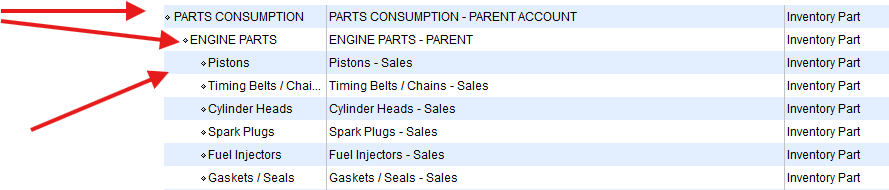
STEP 7: (Optional But Recommended) Use Sub-Items for Organization
As your business grows, your Item List can become large.
To keep things organized:
- Create PARENT CATEGORIES (e.g., “Services”)
- Add SUB-ITEMS Underneath (e.g., “Consulting”, “Installation”)
✔ This improves reporting
✔ Keeps your list clean and scalable
BEST PRACTICES FOR LIST CREATION
To ensure long-term success, follow these key best practices:
✔ USE CONSISTENT NAMING CONVENTIONS
Example:
- “Service – Bookkeeping”
- “Product – Oil Filter”
✔ AVOID DUPLICATES
- Duplicate items create confusion and messy reports.
✔ KEEP IT SIMPLE (BUT SCALABLE)
- Don’t overcomplicate your structure—but plan for growth.
✔ TEST YOUR SETUP
Create a SAMPLE INVOICE/BILL and verify:
- INCOME Posts Correctly
- COSTS Are Recorded Properly
- REPORTS Reflect Accurate Data
COMMON MISTAKES TO AVOID
❌ SKIPPING ITEM SETUP ENTIRELY
- Posting directly to accounts defeats the purpose of QuickBooks automation.
❌ INCORRECT ACCOUNT MAPPING
- This leads to inaccurate financial statements.
❌ OVERUSING GENERIC ITEMS
- You lose valuable reporting insights.
❌ DISORGANIZED ITEM LISTS
- A messy list becomes harder to maintain over time.
HOW A PROPER ITEM LIST SAVES YOU TIME
Once your Item List is set up correctly:
- Transactions become faster to enter
- Errors are significantly reduced
- Reports generate automatically with accurate data
- Month-end bookkeeping becomes much easier
For bookkeepers and business owners alike, this can mean HOURS saved every single month.
FINAL THOUGHTS
Creating an Item List in QuickBooks Desktop isn’t just a setup task—it’s a foundational step in building an efficient bookkeeping system.
When done correctly, it allows you to:
- Automate Your Workflow
- Improve Accuracy
- Gain Deeper Financial Insights
Taking the time to set it up properly now will pay off in both time savings and better decision-making down the road.
WANT TO SAVE HOURS OF SETUP TIME ???
If you’re looking for a faster way to implement a professional Item List structure, consider using our PRE-BUILT, CUSTOMIZABLE TEMPLATE designed specifically for your industry.
These templates can help you:
- Eliminate Guesswork
- Ensure Proper Account Mapping
- Standardize Your Workflow Instantly
CLICK HERE TO CHECK OUT OUR ITEM LIST LIBRARY ...
PART 3 OF THE "ITEM LIST SERIES"
SERVICE VS INVENTORY VS NON-INVENTORY
One of the most confusing parts of setting up an Item List in QuickBooks Desktop is choosing the correct ITEM TYPE, and this decision matters more than most users realize.
Selecting the wrong item type can lead to:
- Incorrect Financial Reporting
- Broken Inventory Tracking
- Misstated Cost of Goods Sold (COGS)
- Confusing And Unreliable Data
In this guide, we’ll break down each QuickBooks Desktop Item Type in simple terms so you can confidently choose the right one for your business.
If you are interested in QBO BOOKKEEPING SERVICES (REMOTE), CLICK HERE and you will be re-directed to our WEBSITE ... we offer a FREE "Discovery Meeting", where we can get to know each other and set up a plan for the best bookkeeping services for your business needs.

If you are interested in our BUSINESS/BOOKKEEPING PRODUCTS, CLICK HERE and you will be re-directed to our PAYHIP SHOP ... we offer products for your business use that will set you up for success!!!

We invite you to check out our PINTEREST PAGE, where you can find all the
business products/services that we offer.