
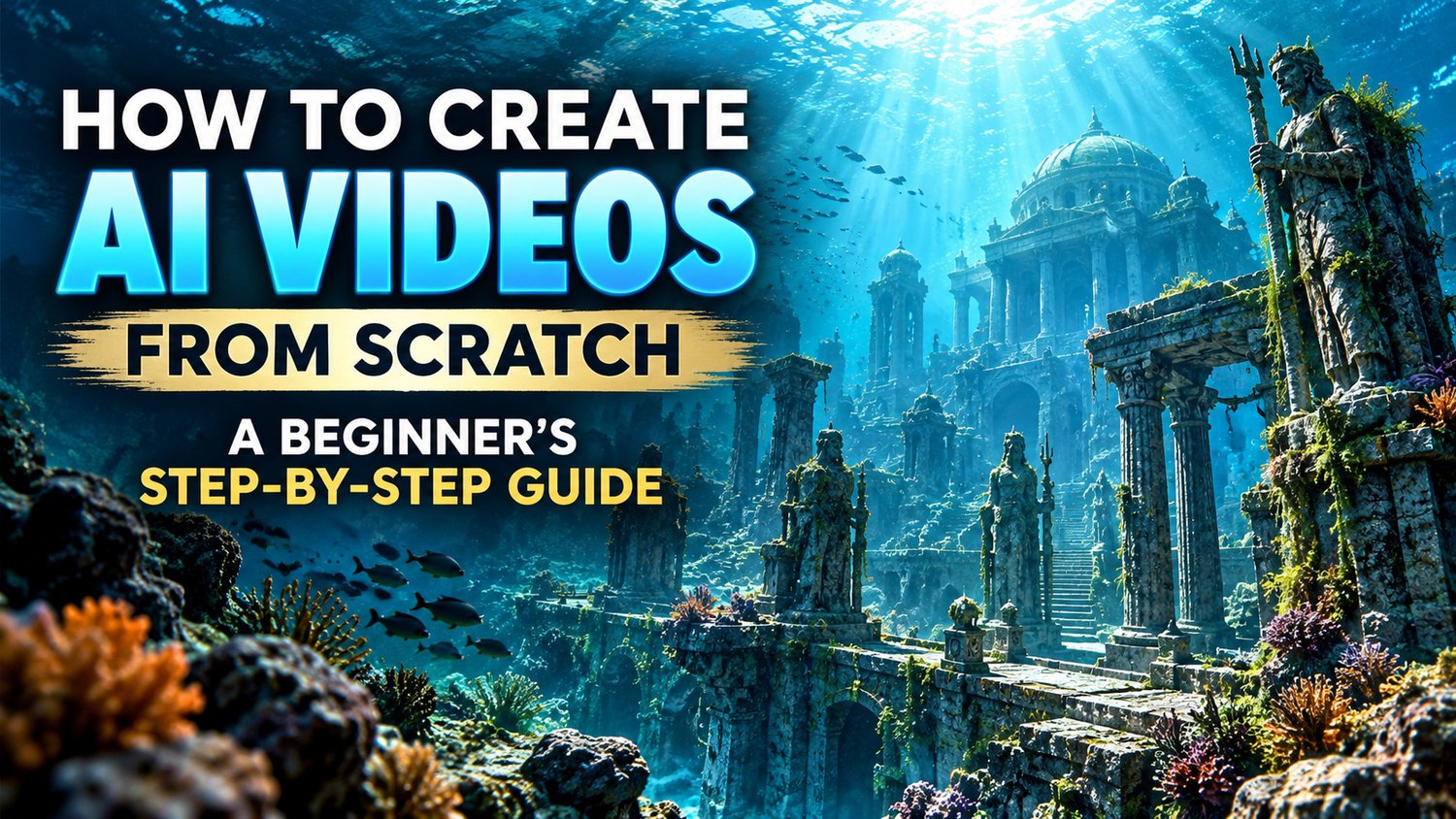
How to Create AI Videos From Scratch: A Beginner's Step-by-Step Guide
By ITSCHRISBER Creator Journal | AI Video Creation & Digital Creativity
Creating videos no longer requires an expensive camera, a professional studio, or advanced editing experience.
With the right workflow, you can use artificial intelligence to turn a simple idea into a visually engaging video for YouTube Shorts, Instagram Reels, TikTok, or your own digital brand.
But here's something important: AI tools alone don't create great content. Good storytelling, thoughtful visuals, clear editing, and consistency still matter.
In this beginner-friendly guide, you'll learn how to create your first AI video from concept to export.
Step 1: Choose One Clear Video Idea
Every successful video starts with a focused concept.
Instead of trying to explain five different topics in one short video, choose one interesting question, useful tip, or compelling story.
For example:
- Three productivity habits that make your day easier
- What if an ancient city was discovered beneath the ocean?
- How to turn a small bedroom into a creative workspace
- Three mistakes beginners make when creating AI videos
- A 30-second motivational story about starting again
Beginner tip: Choose a topic you can explain in 30–45 seconds.
For this tutorial, we'll create a short cinematic video about a mysterious city hidden beneath the ocean.
Step 2: Write a Short Video Script With AI
A script gives your video direction. Without one, even beautiful visuals can feel disconnected.
You can use an AI writing assistant to create a first draft.
Copy this prompt:
"Act as a professional short-form video scriptwriter. Create a 35-second cinematic narration about a mysterious ancient city hidden beneath the ocean. Start with a powerful hook, build curiosity, and end with a thought-provoking question. Use simple English, short sentences, and a calm documentary tone. Avoid presenting fictional details as verified history."
An example narration:
"Deep beneath the ocean, imagine a city untouched for thousands of years. Silent streets. Forgotten temples. Towers hidden beneath the waves. What stories might its walls still hold? And if such a place existed, would we be ready to uncover its secrets?"
This is a fictional concept, not a claim that such a city has been discovered.
Read your script aloud before continuing. If it sounds unnatural, simplify it.
Step 3: Turn Your Script Into Visual Scenes
Next, divide the narration into individual scenes.
For a 35-second video, start with five scenes of approximately seven seconds each.
Example storyboard:
Scene 1 — The Mystery
Aerial view of a vast ocean at sunrise, cinematic atmosphere, gentle mist.
Scene 2 — The Discovery
Camera descending through deep blue water toward faint structures in the distance.
Scene 3 — The Forgotten Streets
Ancient stone streets beneath the sea, coral-covered pillars, drifting particles.
Scene 4 — The Lost Temple
A monumental underwater temple illuminated by soft rays of sunlight.
Scene 5 — The Final Question
A distant underwater city fading into darkness, mysterious and peaceful.
Each scene should visually support the narration.
Step 4: Generate AI Images
You can create your scenes using an AI image generator that supports descriptive prompts.
Start with this example:
Image prompt:
"Ultra-realistic cinematic underwater photograph of an imagined ancient lost city, towering weathered stone temples covered with coral, mysterious submerged streets, soft sunlight filtering through deep turquoise water, drifting particles, dramatic atmosphere, detailed stone textures, wide-angle composition, realistic underwater lighting, no people, no writing, vertical 9:16 composition."
When creating the remaining images, maintain a consistent visual style.
Helpful prompt ingredients:
- Subject: What should appear?
- Environment: Where is the scene?
- Lighting: Bright, moody, warm, or dark?
- Camera angle: Close-up, aerial, wide shot?
- Style: Cinematic, documentary, photorealistic?
- Format: Vertical 9:16 or horizontal 16:9?
For short-form platforms, 9:16 is generally the most practical starting format.
Step 5: Animate Your Images Into Video
Once your images are ready, you can use an image-to-video generator to introduce movement.
Some tools offer free trials or limited credits, while others require payment. Check their current terms before choosing one.
Example animation prompt:
"Slow cinematic camera movement forward through an imagined ancient underwater city. Gentle floating particles, subtle movement in surrounding sea plants, natural underwater light rays, stable architecture, realistic water movement, smooth motion, no sudden camera shake, no morphing buildings."
Generate one short clip at a time.
Review each result carefully. AI video tools can sometimes distort objects, introduce unexpected movement, or change details between frames.
If a result looks unnatural, simplify the motion prompt and try again.
Step 6: Create Your Voiceover
Your narration helps turn separate scenes into a connected story.
You have three options:
- Record your own voice using your phone.
- Use a text-to-speech tool with a natural-sounding voice.
- Create a video without narration and communicate through on-screen text.
For a mysterious documentary, a calm and measured voice works well.
Avoid rushing the words. Leave small pauses after important phrases.
If you use an AI voice, make sure you have permission to use it and that the tool's license allows your intended use.
Step 7: Edit Your Video
You can assemble the video in an editor such as CapCut or another editing app you are comfortable using.
A simple editing workflow:
- Create a new project.
- Select a vertical 9:16 canvas.
- Import your generated video clips.
- Arrange them in the order of your storyboard.
- Add the voiceover.
- Trim each scene to match the spoken words.
- Add captions or subtitles.
- Include gentle background music if appropriate.
- Review the complete video before exporting.
Keep transitions simple. A clean cut or subtle fade often works better than excessive effects.
Music should support your narration, not overpower it. Use music you have the right to publish.
Step 8: Create a Strong Opening
The first few seconds are important because viewers decide quickly whether to continue watching.
Compare these openings:
Weak: "Today we're going to talk about an underwater city."
Stronger: "What if an entire civilization was sleeping beneath the ocean?"
The second version introduces curiosity immediately.
Your opening should promise an interesting experience without misleading the viewer.
Step 9: Export and Publish
For most vertical short-form videos, a practical export starting point is:
- Aspect ratio: 9:16
- Resolution: 1080 × 1920
- Format: MP4
- Frame rate: 30 fps, when appropriate for your footage
Check each platform's current upload requirements.
Before posting, ask yourself:
- Does the first three seconds capture attention?
- Is the narration easy to understand?
- Do the scenes match the story?
- Are the subtitles readable?
- Is the music properly licensed?
- Does the final video look good on a phone?
Publish only after watching the exported video from beginning to end.
Step 10: Improve Your Next Video
Your first video does not need to be perfect.
Pay attention to the parts of your process that took the longest and the moments where your video felt slow.
For your next project, try improving just one thing: the hook, script, visuals, voiceover, or pacing.
Consistency and experimentation will teach you more than endlessly searching for a perfect AI tool.
Common Beginner Mistakes to Avoid
Using overly complicated prompts: Clear instructions often work better than a long list of conflicting visual demands.
Changing visual styles between scenes: Maintain similar lighting, colors, and camera aesthetics.
Adding too much text: Keep captions short and readable.
Ignoring licensing: Verify that images, music, voices, and generated content can be used for your intended purpose.
Expecting one-click perfection: AI video creation still requires reviewing, selecting, editing, and correcting results.
Want a More Structured Starting Point?
If you'd prefer a guided workflow rather than starting with a blank page, explore the ITSCHRISBER AI Video Creator Toolkit.
It includes beginner instructions, ready-to-adapt video projects, prompt collections, hooks, script frameworks, and planning worksheets designed to help you organize your AI video creation process.
AI Video Creator Toolkit — $13.99
Available in the ITSCHRISBER shop.
The toolkit is a downloadable educational resource, not a video generator or a subscription to third-party AI tools.
Final Thoughts
AI video creation is becoming more accessible, but the most valuable skill is still learning how to turn an idea into a story people want to watch.
Start with one simple concept. Write a clear script. Create a few strong visuals. Edit carefully. Publish, learn, and improve.
Create Smarter. Grow Bigger.
ITSCHRISBER Creator Journal — Practical ideas, creative workflows, and digital tools for modern creators.
Comments ()