
How to Create Professional Social Media Posts Without Design Skills (2026 Guide)
You don't need to be a graphic designer to create attractive, professional-looking social media content. With the right approach, simple design principles, and reusable templates, anyone can build a consistent online presence.
Whether you're running a small business, building a personal brand, managing social media for clients, or launching an online store, your visual content plays an important role in how people perceive your brand.
But creating attractive posts every day can become exhausting.
You need to choose colors, select fonts, arrange images, write captions, and make sure everything looks consistent.
The good news? You can simplify much of this process without hiring a designer or learning complicated software.
In this guide, you'll learn practical ways to create professional social media posts, even if you're a complete beginner.
1. Why Professional Social Media Design Matters
Imagine discovering two businesses selling similar products.
The first business posts random images with different fonts, inconsistent colors, and crowded layouts.
The second uses clear headlines, consistent branding, readable text, and attractive product photographs.
Which one would make a stronger first impression?
Visual consistency helps people recognize your brand and understand your message more quickly.
Professional-looking content can support:
- Brand recognition: People become familiar with your colors, fonts, and style.
- Clarity: Your message becomes easier to understand.
- Trust: Organized, thoughtful presentation can help your business appear more credible.
- Efficiency: A consistent design system reduces the number of decisions you make for every post.
- Marketing consistency: Your social media presence feels connected rather than random.
Good design alone doesn't guarantee followers or sales. However, it can make your content easier to understand and more appealing to your intended audience.
2. Start with Three Simple Brand Elements
Before designing your first post, decide on three basic visual elements.
Choose Your Brand Colors
Select two or three colors that represent your brand.
For example, a modern business might use:
- Navy blue for professionalism
- White for clean backgrounds
- Gold for highlights and important details
A wellness brand might prefer natural green, beige, and soft brown.
The exact colors matter less than using them consistently.
Practical tip: Save your brand colors as HEX codes so you can reuse them in every design.
Select Two Fonts
You don't need five different fonts in one post.
Choose one for headings and another for body text.
For example:
- Heading: Montserrat Bold
- Body: Open Sans Regular
Use larger, bold text for the main message and smaller text for supporting details.
Create a Consistent Layout Style
Decide how your posts should generally look.
Will you use large headlines? Minimal backgrounds? Product photography? Rounded shapes?
Having a recognizable style makes content creation easier over time.
3. Use the Right Post Format for Your Message
Not every social media post needs the same design.
Different types of content serve different purposes.
Educational Posts
Share useful tips, tutorials, or industry knowledge.
Example headline:
"5 Mistakes New Business Owners Should Avoid"
Use a clear title, readable text, and a simple visual hierarchy.
Promotional Posts
Highlight a product, service, offer, or new launch.
Example headline:
"Introducing Our New Digital Planning Toolkit"
Focus on one main offer and one clear call to action.
Quote and Motivation Posts
Share short messages that reflect your brand's personality.
Example:
"Progress comes from consistency, not perfection."
Avoid crowding the design with too many decorative elements.
Customer Feedback Posts
Showcase genuine customer reviews or testimonials, with permission.
Never invent testimonials or use misleading endorsements.
Stories
Use vertical designs for announcements, behind-the-scenes content, quick tips, and interactive questions.
Stories are particularly useful for informal updates and ongoing audience engagement.
The important lesson: Choose a design based on what you want the audience to understand or do.
4. Learn the Five Basic Rules of Good Social Media Design
You don't need advanced design training to apply these principles.
Rule 1: Keep One Main Message
Each design should communicate one primary idea.
Instead of including ten different offers in one image, focus on a single product, tip, or announcement.
Rule 2: Use Visual Hierarchy
Make the most important information the easiest to notice.
A typical hierarchy is:
- Main headline
- Supporting information
- Image or visual element
- Call to action
Rule 3: Leave Enough Empty Space
Don't fill every corner with text or graphics.
Empty space helps the audience focus on important elements.
Rule 4: Make Text Easy to Read
Use strong contrast between your text and background.
Avoid tiny fonts and overly decorative typefaces.
Remember that many people view social media posts on mobile phones.
Rule 5: Stay Consistent
Reusing the same visual system across posts creates a more recognizable brand.
Consistency doesn't mean every post must look identical. It means your content should feel like it belongs to the same business.
5. How to Create Social Media Posts Using Canva or PowerPoint
Two accessible options for beginners are Canva and Microsoft PowerPoint.
Option A: Using Canva
- Open Canva and create a social media design.
- Choose the appropriate format for your platform.
- Select a layout or import a compatible editable design.
- Replace the sample text with your own message.
- Add your brand colors, images, and logo.
- Review the design on a mobile-sized preview.
- Export the finished post as a PNG or JPG.
Some Canva features or assets may require a paid plan.
Option B: Using PowerPoint
PowerPoint isn't only for presentations.
You can also use it to edit layouts containing text, shapes, photographs, and graphic elements.
A simple workflow:
- Open an editable template in PowerPoint.
- Replace the example headline and body text.
- Change the colors to match your brand.
- Insert your own photographs or product images.
- Adjust spacing and alignment.
- Export the finished design as an image.
Useful tip: If you already have editable PowerPoint templates, you may also be able to import them into Canva. Check the imported layout, fonts, and spacing carefully because formatting can sometimes change.
6. Create a Week of Social Media Content in One Session
One of the most effective ways to save time is to create several posts together.
This is called content batching.
Instead of designing a new post every day, set aside one focused session each week.
Here's an example content plan:
DayContent TypePost IdeaMondayEducational3 tips your audience can useTuesdayPromotionalHighlight one product or serviceWednesdayEngagementAsk your audience a questionThursdayBehind the scenesShow your process or workspaceFridayEducationalShare a common mistake and solutionSaturdayBrand storyExplain why you startedSundayWeekly recapSummarize a useful lesson
Start by writing your headlines and captions.
Then choose suitable layouts and customize them.
Finally, review the designs and schedule or save them for publication.
You can repeat this process every week and improve it based on audience feedback.
7. How Reusable Templates Save Time
Creating every social media post from a blank page means repeatedly making the same decisions.
Where should the headline go?
Which font should you use?
How should the image be positioned?
Where should you place the call to action?
Reusable templates solve part of this problem by giving you an existing layout to customize.
They can be especially helpful for:
- Small business owners managing their own social media
- Freelancers creating posts for clients
- Content creators developing a consistent personal brand
- Online sellers promoting products
- Beginners who want a more organized design workflow
The key is choosing templates that are genuinely editable.
You should be able to change the text, colors, images, and other important design elements to suit your brand.
8. Introducing Social Studio by ITSCHRISBER
If you're tired of starting every social media design from scratch, we've created a resource to help simplify the process.
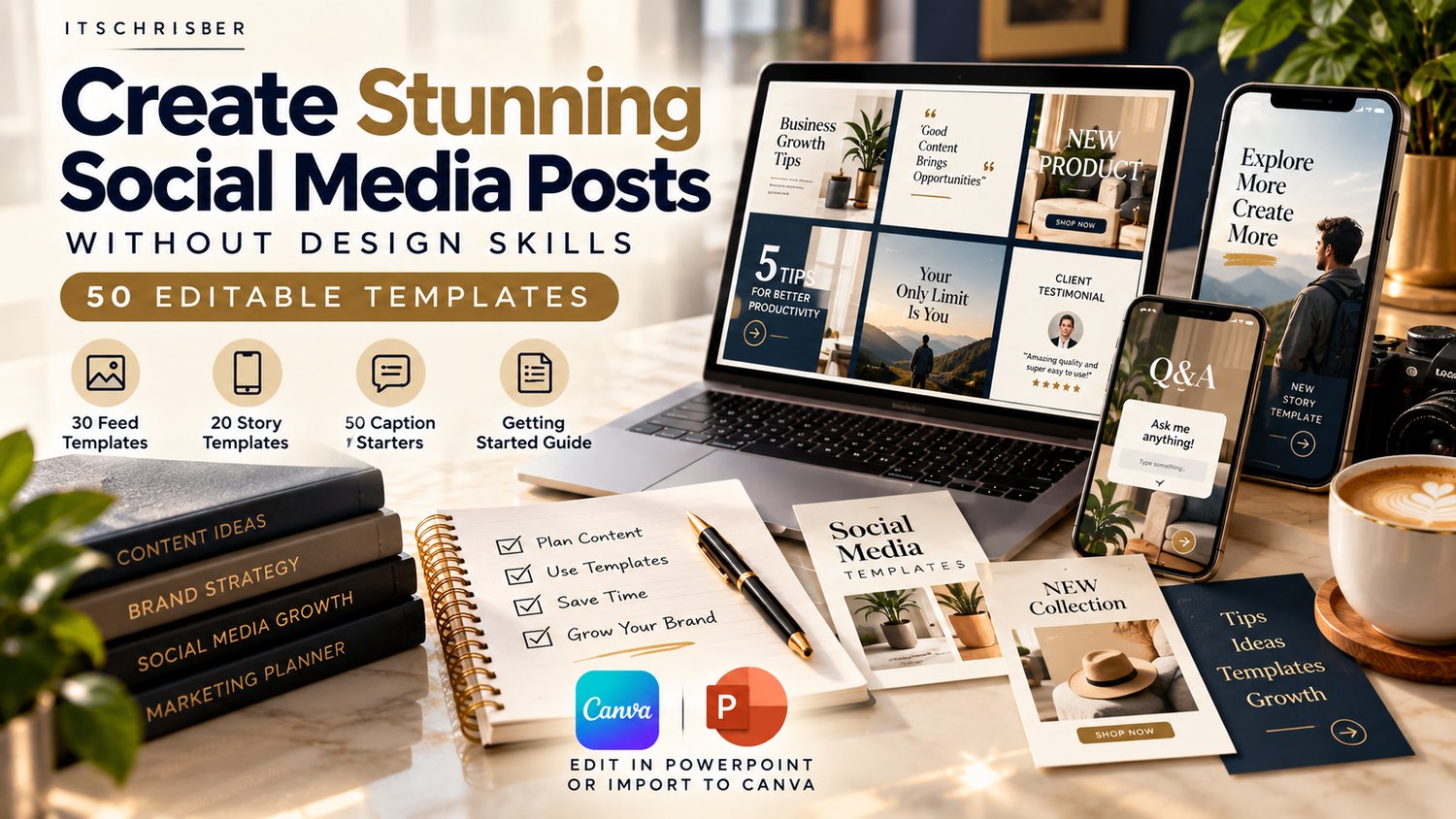
Social Studio — 50 Editable Social Media Templates is a digital toolkit designed for creators, freelancers, and small business owners who want a more consistent and efficient content workflow.
What's Included?
30 Editable Feed Templates
Layouts for creating attractive social media feed posts, including educational, promotional, and brand-focused content.
20 Editable Story Templates
Vertical designs for stories, announcements, and audience engagement.
50 Caption Starters
Writing ideas to help you begin drafting social media captions instead of facing a blank page.
Getting-Started Guide
Instructions to help you begin customizing and using your templates.
Important: How the Templates Work
Social Studio's editable design files are supplied in PowerPoint (.PPTX) format.
You can customize them using compatible PowerPoint software or import the files into Canva for further editing.
They are not native Canva template links. When importing, review the layout and fonts before exporting your final design.
Who Is Social Studio For?
This toolkit may be useful if you:
- Run a small business and create your own promotional posts.
- Manage social media content for clients.
- Want a consistent visual identity.
- Prefer editing existing layouts instead of designing everything from scratch.
- Need reusable feed and story designs.
Get Social Studio — $12.99
Explore Social Studio — 50 Editable Social Media Templates
A one-time purchase gives you access to the digital resources described on the product page. Review the product details and software compatibility before purchasing.
9. Five Mistakes to Avoid When Using Social Media Templates
Templates make designing easier, but they still require thoughtful customization.
Mistake 1: Publishing Templates Without Personalizing Them
Replace sample text and imagery with content relevant to your business.
Mistake 2: Using Too Many Different Styles
Choose a consistent group of colors, fonts, and layouts.
Mistake 3: Adding Too Much Text
Keep headlines concise and move detailed explanations into your captions when appropriate.
Mistake 4: Ignoring Mobile Readability
Always check whether your text is readable on a small screen.
Mistake 5: Expecting Design Alone to Generate Sales
Effective social media also requires relevant content, audience understanding, clear offers, and consistent engagement.
10. Your 30-Minute Social Media Design Challenge
Want to apply what you've learned?
Try this beginner-friendly exercise.
First 5 minutes: Choose your brand colors and two fonts.
Next 5 minutes: Write three post ideas for your audience.
Next 15 minutes: Customize three editable layouts using your own text and images.
Final 5 minutes: Review your designs for readability, consistency, and spelling.
You don't need to create a perfect design.
Your goal is to develop a repeatable process that makes publishing easier.
Final Thoughts
Professional social media design isn't about using the most expensive software or mastering complicated techniques.
It's about communicating clearly, maintaining visual consistency, and creating content that serves your audience.
Start with simple design principles, build a recognizable brand style, and use reusable layouts where they save time.
If you're looking for editable designs to support that workflow, explore Social Studio by ITSCHRISBER.
Get Social Studio — 50 Editable Templates for $12.99
Published by ITSCHRISBER — AI Tools, Digital Resources & Practical Guides for Creators and Entrepreneurs.
Disclosure: Social Studio is a digital product sold by ITSCHRISBER. This article contains promotional links to our own product. Purchasing it supports our business. The educational guidance in this article is available free of charge.
Comments ()