


Summary
Adobe released Lightroom 9.5 and Lightroom Classic 15.5 on August 4, 2026, and several of the changes are unusually relevant to real estate photography.
The cloud-based Lightroom desktop app now includes Generative Expand, a Firefly-powered tool that can extend an image beyond its original borders, generate missing pixels, create new aspect ratios, and fill transparent areas left after perspective correction. Adobe also gives users the choice between Firefly Fill & Expand and a non-generative Content-Aware Fill option.
That sounds almost purpose-built for a problem real estate photographers encounter regularly.
You straighten an interior.
Correct the verticals.
The transformation pushes part of the frame outside the original image.
Now you either crop tighter or move the image into Photoshop and repair the empty area.
Generative Expand can make that job much faster.
There is also an obvious risk.
A real estate photograph is being used to describe an actual property. When an AI tool extends the edge of the photograph, it may generate wall, flooring, cabinetry, landscaping, windows, furniture, fencing, architecture, or other physical details that were never recorded by the camera.
Zillow addressed this issue directly in July, warning that AI-generated listing imagery can misrepresent a property and emphasizing that listing photographs should accurately show the home buyers will encounter in person.
My recommendation is to adopt the new editing controls, but use Generative Expand conservatively on factual property media.
Use it to solve presentation problems where the generated material cannot change a buyer’s understanding of the property. Be much more cautious when the missing area contains actual architecture or site information. For an MLS or property-listing photograph, I would rather crop slightly tighter than let AI invent part of the house.
The other August improvements are less dramatic but may be more useful every day. Both Lightroom and Lightroom Classic now include improved Feather and Edge controls for masks. Lightroom Classic 15.5 also adds better crop visibility and a new Render to DNG workflow.
For working real estate photographers, those smaller controls may ultimately save more time than the headline AI feature.
Table of Contents
- What Adobe Released
- Lightroom and Lightroom Classic Are Not Getting the Same Features
- What Generative Expand Actually Does
- Why This Feature Is So Relevant to Real Estate Photography
- The Perspective-Correction Problem
- Where Generative Expand Can Be Useful
- Where I Would Avoid It
- The Line Between Correction and Fabrication
- Zillow’s Current Position on AI Listing Images
- Use Content-Aware Fill Before Generative Fill When Appropriate
- Do Not Use AI to Fix Bad Capture Habits
- Generative Expand for Vertical Social Content
- Why Social Media Gives You More Flexibility
- Keep the Original Image
- Feather and Edge May Be the Bigger Everyday Upgrade
- How Edge Works
- How Feather Works
- Practical Masking Uses for Real Estate Photography
- Improved Cropping in Lightroom Classic
- What Render to DNG Does
- When Render to DNG Could Be Useful
- When I Would Keep the Original RAW Workflow
- Should Real Estate Photographers Update Now?
- A Safer AI Editing Policy for a Photography Business
- A Practical Lightroom 9.5 Workflow
- What I Would Adopt Immediately
- What I Would Use Carefully
- What I Would Avoid
- Frequently Asked Questions
What Adobe Released
Adobe released Lightroom 9.5 and Lightroom Classic 15.5 on August 4.
The two applications overlap, but the feature sets are not identical.
Lightroom 9.5
Adobe lists the major changes as:
- Generative Expand
- New Feather and Edge controls for masking
- Additional camera and lens support
- Bug fixes and stability improvements
Lightroom Classic 15.5
Adobe lists:
- Feather and Edge masking controls
- Improved cropping with adjustable image opacity
- Render to DNG
- Catalog-reliability improvements
- New camera and lens support
- Bug fixes
That distinction is important because many professional real estate photographers still build their main workflow around Lightroom Classic.
Generative Expand is part of Lightroom 9.5. Adobe’s Lightroom Classic 15.5 announcement does not list Generative Expand as a Classic feature.
Classic users still received useful editing improvements, but do not update expecting the exact same toolset.
What Generative Expand Actually Does
Generative Expand extends the photograph beyond the pixels the camera originally recorded.
Adobe says the new Firefly-powered feature can be used to:
- Recover poorly framed photographs
- Create different aspect ratios
- Reconstruct missing edges
- Fill transparent areas left by perspective corrections
- Expand images for social and marketing formats
Adobe offers two fill approaches.
Firefly Fill & Expand
This creates multiple AI-generated variations for the expanded region.
Content-Aware Fill
This fills the expanded area based on surrounding image information rather than using a generative Firefly result, and Adobe says this option does not consume generative credits.
For a general photographer, the difference is mostly technical.
For a real estate photographer, it can become an accuracy decision.
Why This Feature Is So Relevant to Real Estate Photography
Perspective correction is part of our normal workflow.
Real rooms contain vertical walls.
Architectural photography generally looks cleaner when those verticals remain vertical in the final image.
Even when the camera was close to level during capture, a small perspective adjustment may still be necessary.
The problem appears after transformation.
You correct:
- Vertical perspective
- Rotation
- Horizontal distortion
- Lens distortion
and the image moves inside the canvas.
Empty triangular areas can appear around the edges.
Historically, the choices were usually:
- Crop tighter.
- Move into Photoshop and repair the missing area.
- Accept a slightly weaker perspective correction.
- Capture with enough excess width that correction does not matter.
Generative Expand adds another option.
That is genuinely useful.
It is also the point where photographers need good judgment.
The Perspective-Correction Problem
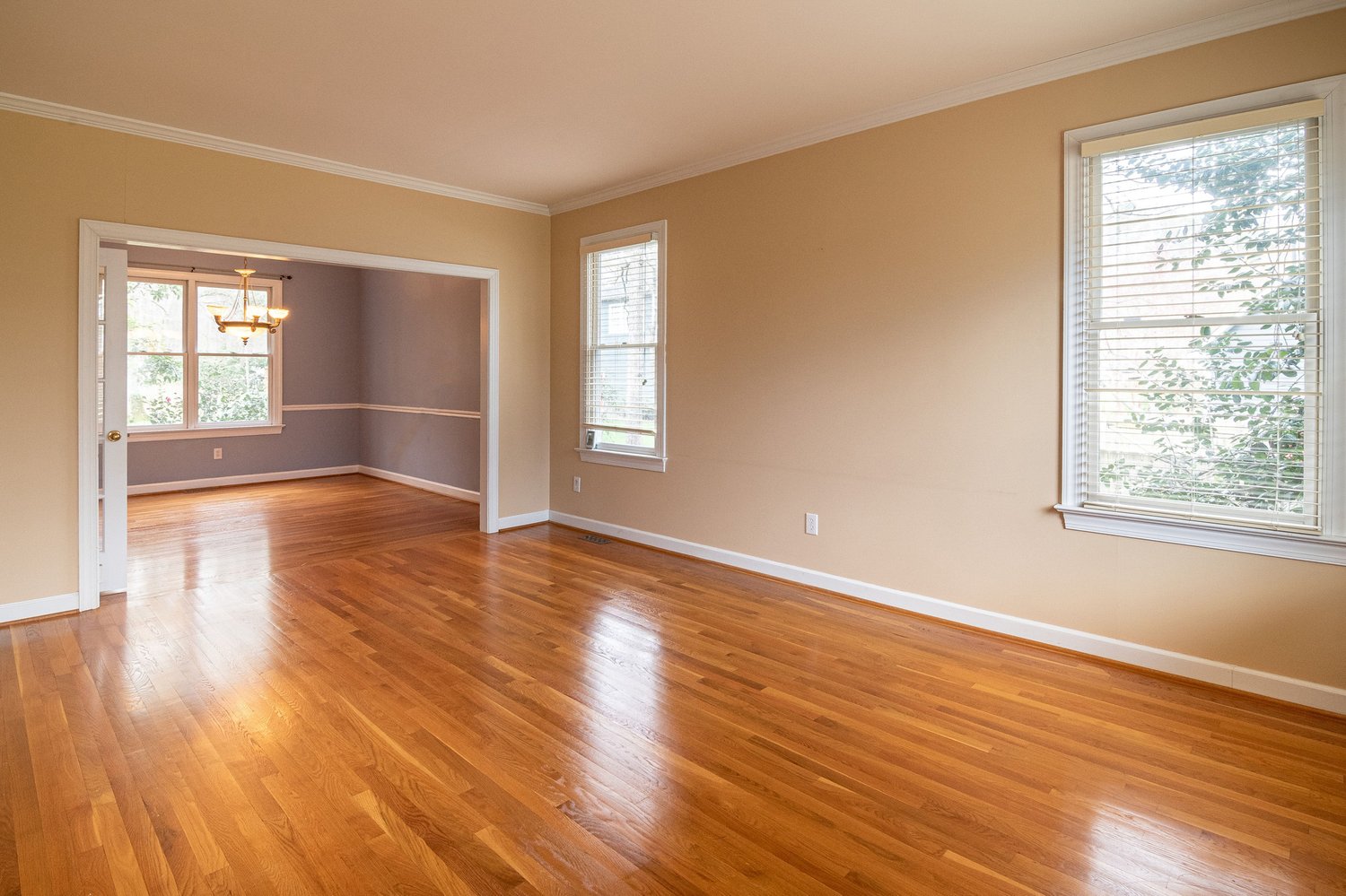
Imagine a bedroom photographed from near the doorway.
The composition is good.
You correct a small vertical lean.
After transformation, a narrow triangular gap appears along the upper-left edge of the photograph.
If that missing region contains only a plain ceiling beside an otherwise continuous ceiling, an intelligent fill may recreate something visually indistinguishable from what almost certainly existed beyond the frame.
Now imagine the same gap runs through:
- A window
- Cabinetry
- Stair railing
- Fireplace
- Exterior roofline
- Neighboring house
The AI no longer needs to recreate a simple texture.
It needs to decide what physical structure belongs there.
That is a very different use.
Professional Tip
Before using Generative Expand on a property image, ask one question: Could the generated area change the viewer’s understanding of the actual property?
If the answer is yes, I would avoid generating that area for listing use.
Where Generative Expand Can Be Useful
There are several situations where the tool has real potential.
Small Background Gaps After Perspective Correction
A thin edge containing:
- Clear sky
- Uniform wall
- Ceiling
- Simple floor texture
may be an appropriate candidate when the generated result can be verified against the actual scene.
Even then, inspect it closely.
AI can create strange repeated patterns in areas that initially look simple.
Social Media Aspect Ratios
A horizontal property photograph may need more sky above the house to fit a vertical promotional layout.
If the generated area contains only additional sky or other non-property background, Generative Expand can be a useful production tool.
Website Banners
A designer may need negative space beside the property for:
- Headline
- Logo
- Call to action
Expanding the surrounding sky or simple background can create that space without aggressively cropping the building.
Marketing Graphics
An image being transformed into a graphic treatment has a different function from a factual MLS photograph.
That gives the photographer more room creatively, provided the final design does not create a deceptive representation of the property.
Where I Would Avoid It
I would be very cautious about Generative Expand when the tool has to invent actual property information.
That includes extending:
- Kitchen cabinetry
- Countertops
- Rooms
- Windows
- Doors
- Staircases
- Fireplaces
- Roofs
- Driveways
- Pools
- Fences
- Landscaping
- Neighboring buildings
- Views
Consider an exterior.
The original photograph ends just beside the garage.
Generative Expand creates another six feet of driveway and continues the landscape bed.
The result may look convincing.
It is still a generated interpretation of a physical property.
A buyer can reasonably treat that information as real.
That is the problem.
The Line Between Correction and Fabrication
Real estate photography has always involved editing.
We correct:
- White balance
- Exposure
- Perspective
- Lens distortion
- Color
- Sensor spots
- Temporary distractions
The arrival of generative tools makes the boundary less obvious because the software can now create believable physical content very quickly.
I use a simple standard.
The finished listing photograph should remain a trustworthy representation of the property the client is advertising.
Correcting a color cast does not create another bedroom.
Balancing a bright window does not add another window.
Fixing perspective does not move a wall.
Generating architecture can.
That is the distinction I want photographers to understand.
Zillow’s Current Position on AI Listing Images
Zillow published a specific statement about AI-generated listing imagery on July 22.
The company says listing photographs should accurately represent the home and warns that generative AI can make deceptive alterations faster and harder for consumers to identify. Zillow specifically points to adding or changing property features as a misleading use of AI.
Zillow also describes a more transparent approach to virtual staging in its own products: the staged version is labeled and paired with the original so the shopper can compare them.
That is a useful principle far beyond Zillow.
If an image materially changes what the property actually contains, disclosure becomes important.
Your local MLS, brokerage, state rules, client contracts, and publication platform may impose additional requirements.
Check them.
Common Mistake
Assuming that because an AI result looks realistic, it is appropriate for a listing. Visual quality and factual accuracy are separate questions.
Use Content-Aware Fill Before Generative Fill When Appropriate
One interesting part of Adobe’s implementation is the choice between Firefly and Content-Aware Fill.
Adobe says Content-Aware Fill works from surrounding image information and does not consume generative credits.
For simple correction work, I would try the least aggressive tool first.
Suppose perspective correction leaves a narrow gap containing a white wall.
Content-Aware Fill may solve it cleanly without asking a generative model to imagine additional content.
That does not make every Content-Aware result automatically appropriate.
It can still duplicate textures or objects.
Inspect the result.
But the general workflow makes sense:
Capture well → correct perspective → crop when practical → use conventional fill when appropriate → use generative tools only when the use case actually justifies them.
Do Not Use AI to Fix Bad Capture Habits
Generative Expand should not become permission to photograph carelessly.
Give yourself working room around the composition.
When shooting interiors, remember that perspective correction may tighten the frame later.
If the final composition feels perfect only because every edge is already touching the frame in camera, there may be no room left for correction.
Capture a little insurance.
That is especially important around:
- Tall walls
- Doorways
- Kitchen islands
- Cabinetry
- Large windows
- Exterior rooflines
The best generated pixel is still the pixel you actually photographed.
Generative Expand for Vertical Social Content
This may be one of the most commercially useful applications.
Clients increasingly need both horizontal listing media and vertical marketing content.
Suppose you have a strong horizontal exterior.
The agent now wants a 9:16 Story graphic.
Cropping the horizontal photograph may remove half the house.
Generative Expand can potentially add additional sky above and foreground below so the house fits more naturally within the vertical canvas.
That can work well.
But look at what the tool is generating.
Extending Sky
Usually low risk when the sky itself is not central factual property information.
Extending Grass
More caution.
The tool can change landscaping.
Extending Driveway
More caution again.
The generated area may imply a property dimension that was never photographed.
Extending the House
I would avoid it.
When the architecture reaches the border, recapture vertically when possible.
Why Social Media Gives You More Flexibility
A branded Instagram graphic and an MLS photograph do not necessarily serve the same function.
The listing image acts as evidence of the property.
A promotional design can be more graphical.
It may contain:
- Text
- Graphic overlays
- Color treatment
- Cropped imagery
- Extended background
- Design elements
That gives the photographer or marketing team more creative freedom.
Keep the central property accurate.
If the final design uses generative editing heavily enough that a reasonable viewer could misunderstand what is real, label or design it clearly as promotional artwork rather than presenting it as untouched property photography.
Keep the Original Image
When experimenting with generative tools, keep the original capture accessible.
That gives you:
- Accuracy reference
- Client comparison
- MLS fallback
- Future re-edit option
- Record of what the camera actually saw
Do not create a workflow where the only surviving version of the property is the generatively altered one.
Storage is inexpensive compared with recreating a listing shoot.
Feather and Edge May Be the Bigger Everyday Upgrade
Generative Expand gets the headline.
The new mask controls may matter more to a working real estate photographer.
Adobe added Feather and Edge controls to masking in both Lightroom and Lightroom Classic.
Adobe defines them simply:
Feather softens the edge of the selected mask.
Edge expands or contracts the boundary of the selected mask.
That gives photographers more control after an automatic mask has already been created.
This is useful because AI selections are often close without being perfect.
How Edge Works
Imagine Lightroom selects the architecture in an exterior photograph.
The mask stops a few pixels inside the roofline.
Previously, you might need to:
- Brush the missing edge manually
- Add another selection
- Live with the imperfect mask
The new Edge control gives you a quick way to move the entire selection boundary outward or inward.
Adobe describes it as expanding or contracting the edges of the mask.
That is simple.
It is also useful.
How Feather Works
A technically precise mask can still look artificial when the transition is too hard.
Feather softens that boundary.
Real scenes rarely have every tonal transition behaving like a cutout.
A little feathering can help local adjustments feel more natural.
The important phrase is a little.
Too much feathering can spill adjustments across:
- Wall edges
- Window frames
- Furniture
- Trim
- Sky
Zoom in and inspect.
Practical Masking Uses for Real Estate Photography
Exterior Sky and Architecture
An architecture or sky selection may benefit from slight edge adjustment so exposure or color changes meet the roofline more naturally.
Windows
When a window region needs local exposure adjustment, cleaner mask boundaries can reduce obvious halos.
Mixed-Lighting Interiors
Masks can isolate architectural areas receiving different light.
The goal is usually subtle color correction rather than turning each part of the room into a separate visual effect.
Floors and Walls
Selective tonal work can help balance a bright wall or dark flooring without moving the entire image globally.
Exterior Vegetation
When landscaping is too dark relative to the structure, a controlled mask can lift it without making the whole exterior unnaturally bright.
The update does not remove the need to inspect the mask.
It makes refinement easier.
Improved Cropping in Lightroom Classic
Lightroom Classic 15.5 also improves the crop workflow.
Adobe says photographers can temporarily adjust the photo’s opacity while cropping so that cropped-out areas remain easier to see during composition.
This sounds minor.
I think it is genuinely useful for architectural editing.
When correcting perspective and refining a crop, you often want to know:
- How much room exists beyond the crop?
- Is a doorway being clipped?
- Could the frame shift slightly left?
- Do I have enough ceiling?
- Am I losing the edge of a cabinet?
Seeing more of the hidden image makes those decisions easier.
No AI required.
What Render to DNG Does
Lightroom Classic 15.5 introduces Render to DNG.
Adobe describes it as a way to create a rendered DNG with the current edits permanently applied. The result becomes a non-RAW version that can serve as the foundation for additional editing.
Think of it as creating a new edited starting point.
Your original RAW file can remain intact.
The rendered DNG contains the baked result of the edits applied before rendering.
When Render to DNG Could Be Useful
There are some situations where I can see it fitting into a professional workflow.
Creating an Editing Checkpoint
You may complete a substantial first-stage correction and want a new file from which to continue.
Handoff
A rendered DNG can make sense when another part of the workflow needs a finished interpretation rather than the original RAW plus a complicated collection of editing instructions.
Complex Projects
Architectural, builder, and commercial work sometimes develops through multiple stages of processing.
A rendered file can create a clear separation between stages.
I would still retain the original RAW.
The whole value of RAW is the information and flexibility it preserves.
When I Would Keep the Original RAW Workflow
For ordinary residential production, I would not add another rendered file simply because the feature exists.
A straightforward listing workflow benefits from simplicity.
Import.
Edit.
Blend where needed.
Finish.
Export.
Adding more files creates:
- More storage
- More naming
- More versions
- More opportunities for confusion
Use Render to DNG when it solves an actual production problem.
Do not turn a useful tool into another step every photograph must pass through.
Should Real Estate Photographers Update Now?
My answer is generally yes, but update like a working professional.
Do not discover a software problem thirty minutes before twelve properties need to be delivered.
Before changing the main production machine:
- Back up the Lightroom Classic catalog if you use Classic.
- Make sure current projects are backed up.
- Update.
- Open several normal real estate RAW files.
- Test your presets.
- Test masks.
- Test Photoshop handoff if that is part of your workflow.
- Export several files.
- Confirm your normal delivery presets.
Adobe says both August releases include bug fixes and stability improvements.
That does not remove the value of testing your own workflow.
Plugins, operating systems, external editors, custom presets, and production habits differ from one photographer to another.
A Safer AI Editing Policy for a Photography Business
As AI tools spread across Lightroom, Photoshop, property platforms, and virtual-staging services, I think real estate media companies need an internal rule before a client asks.
Mine would be approximately this:
Routine Corrections
Allowed when they preserve the real property.
Examples include normal:
- Exposure
- White balance
- Perspective
- Lens correction
- Color correction
- Temporary-distraction cleanup
AI-Assisted Reconstruction
Use cautiously.
Examples include filling small crop or transformation gaps.
Verify the result against the actual property.
Generated Physical Features
Do not use them in factual listing photography.
Examples include generating or enlarging:
- Windows
- Rooms
- Landscaping
- Pools
- Driveways
- Countertops
- Cabinetry
- Views
- Architecture
Virtual or Conceptual Imagery
Keep it separate and disclose it appropriately.
Examples include:
- Virtual staging
- Remodel concepts
- Future landscaping
- Design visualization
A company rule makes individual editing decisions much easier.
A Practical Lightroom 9.5 Workflow
Suppose you photograph a living room and the final file needs minor perspective correction.
Step 1 — Make the Basic RAW Adjustments
Correct:
- Exposure
- Highlights
- Shadows
- White balance
- Lens profile
Step 2 — Correct Perspective
Straighten the architecture.
Step 3 — Evaluate the Crop
Can the image simply be cropped slightly tighter without weakening the composition?
If yes, do that.
Step 4 — Evaluate Missing Areas
Are they:
- Simple wall?
- Ceiling?
- Sky?
Or do they contain real property features?
Step 5 — Use the Least Aggressive Solution
When appropriate, try conventional filling before generative expansion.
Step 6 — If You Use Generative Expand, Verify It
Compare with:
- Original RAW
- Adjacent bracket
- Memory of the room
- Other frames from the property
Step 7 — Inspect at 100%
Look for:
- Repeated textures
- Strange trim
- Warped lines
- Incorrect shadows
- New objects
- Broken geometry
Step 8 — Decide Whether the File Is Appropriate for Listing Use
If you have any doubt that the generated region accurately describes the property, crop instead.
That last decision matters more than saving twenty seconds.
What I Would Adopt Immediately
Feather and Edge Controls
These improve a normal editing function without changing what the property contains.
Use them.
Improved Crop Visibility in Classic
Small workflow improvement, very little downside.
Use it.
Generative Expand for Non-Factual Background Space
Useful for:
- Social layouts
- Banners
- Extra sky
- Design compositions
Use carefully and inspect.
What I Would Use Carefully
Generative Expand Around Interior Architecture
The closer the generated area gets to:
- Doors
- Trim
- Cabinets
- Windows
- Fixtures
- Furniture
the more verification matters.
Content-Aware Fill on Property Features
It is non-generative, but it can still duplicate or alter real content.
Inspect it.
Render to DNG
Useful when the workflow needs a new rendered starting point.
Unnecessary for most ordinary listing files.
What I Would Avoid
Expanding the House Itself
Do not let AI decide what architecture continues outside the original frame.
Creating More Yard
Land is part of the property.
Creating a Better View
The buyer deserves the actual view.
Extending a Pool or Patio
Physical dimensions matter.
Generating Missing Furniture in a Furnished Listing
That can change how buyers understand the room.
Fixing Poor Composition Entirely in AI
Capture remains the foundation.
Frequently Asked Questions
When was Lightroom 9.5 released?
Adobe released Lightroom 9.5 on August 4, 2026.
What is the biggest new feature?
The headline feature is Generative Expand, which can extend a photograph beyond its original boundaries using Adobe Firefly.
Does Lightroom Classic 15.5 have Generative Expand?
Adobe’s August Lightroom Classic 15.5 announcement does not list Generative Expand. Classic 15.5 instead highlights improved masking controls, crop visibility, Render to DNG, catalog improvements, camera/lens support, and bug fixes.
Can Generative Expand fill empty areas created by perspective correction?
Yes. Adobe specifically lists filling transparent gaps left after perspective corrections as one intended use.
Is Generative Expand good for real estate photography?
It can be useful, particularly for simple missing background areas and marketing crops. I would avoid allowing it to invent physical property features in factual listing images.
What is the difference between Firefly Expand and Content-Aware Fill?
Adobe says Firefly Fill & Expand generates AI variations, while Content-Aware Fill uses surrounding image content and does not consume generative credits.
What does the new Edge control do?
Adobe says Edge expands or contracts the boundary of a mask.
What does Feather do?
Feather softens the edge of a selected mask.
Why would real estate photographers use Edge?
It can help refine automatic mask boundaries around architecture, sky, windows, flooring, walls, or other local selections.
What is Render to DNG?
Lightroom Classic 15.5 can create a rendered DNG with the current edits permanently applied, giving you a non-RAW file that can serve as the basis for further editing.
Does Render to DNG replace my RAW file?
It creates a new rendered file. I would retain the original RAW as the archival capture.
Does Zillow allow AI-generated listing photos?
Zillow says listing photographs should accurately represent the property and warns that generative AI can create misleading changes. Its own virtual-staging approach emphasizes labeling and comparison with the original image.
Can I use Generative Expand for Instagram graphics?
Yes as a creative production tool, but keep the property itself accurate. Extending simple background or sky is very different from generating additional house, yard, or amenities.
Should I use AI to turn a horizontal room photo into vertical?
Only when the generated areas can be used without changing the factual property. When the room or architecture needs to be invented, capture a real vertical frame instead.
Should I update Lightroom Classic?
The new masking and crop controls are useful. Back up your catalog and test the update through your actual workflow before depending on it for a full production day.
Can AI replace better composition in camera?
No practical software improvement changes the value of capturing enough room around a composition, keeping the camera level, and choosing the correct viewpoint in the field.
Recommended REPT Training
Episodes 5–8 — Editing Workflow
The new Lightroom tools fit best after the fundamentals are already clear.
You should understand:
- RAW adjustment
- Exposure
- White balance
- HDR
- Photoshop
- Blending
- Perspective correction
- Final finishing
before generative tools become part of the workflow.
The purpose of AI should be to make a sound editing process more efficient, not to replace the process.
Explore the complete Real Estate Photography Training course:
Free REPT First Listing Starter Kit
Complete Real Estate Photography Training
For the deeper workflow through equipment, exteriors, interiors, editing, delivery, and professional production:
Adobe — “Lightroom Classic v15.5 Is Here: Better Masking Controls, Render to DNG, and More”
Published August 4, 2026. Adobe’s official Lightroom Classic announcement covering Feather and Edge masking controls, crop opacity, Render to DNG, catalog improvements, camera/lens support, and fixes.
Open Adobe Lightroom Classic source
Adobe Help Center — “Lightroom Classic Masking Tool”
Updated August 7, 2026. Adobe documentation defining the new Edge control as expanding or contracting a mask boundary and Feather as softening mask edges.
Open Adobe masking documentation
Zillow — “Zillow’s Take on AI-Generated Listing Photos, and Why Transparency Matters”
Published July 22, 2026. Zillow’s current position on AI-generated listing imagery, property accuracy, virtual staging, and transparency.