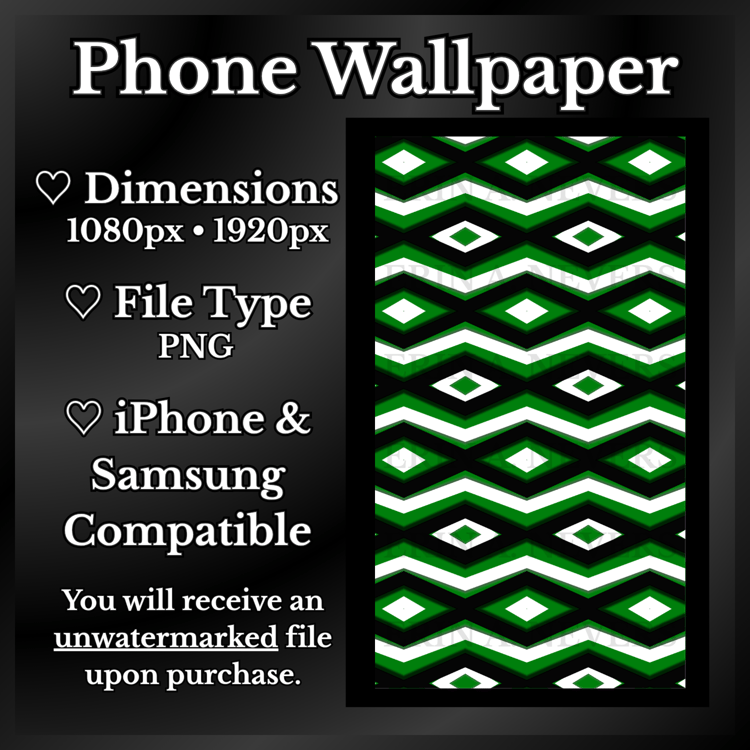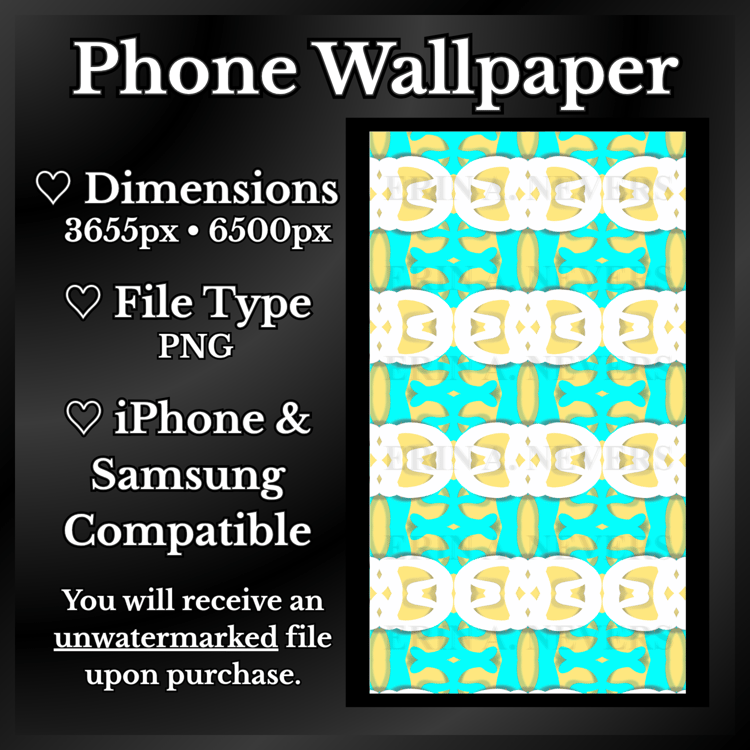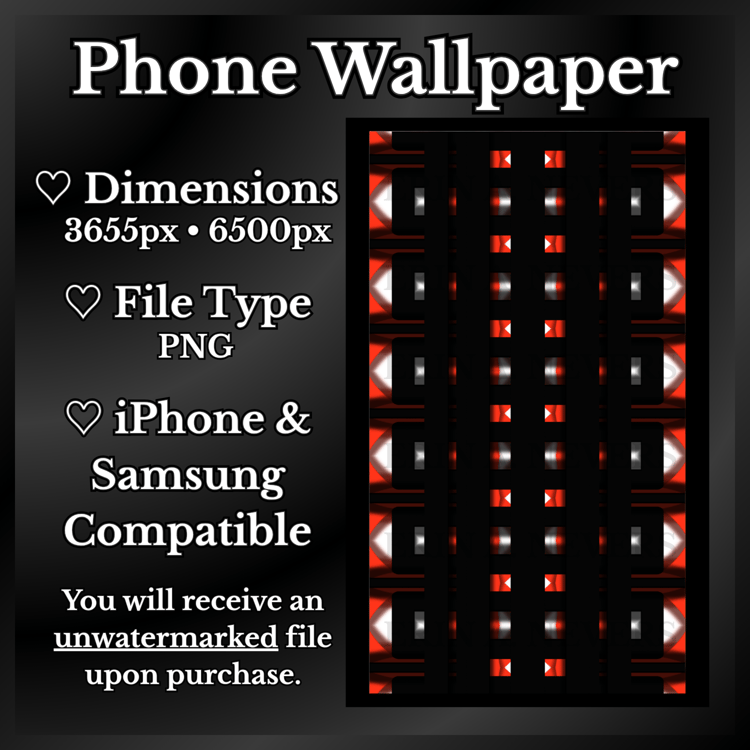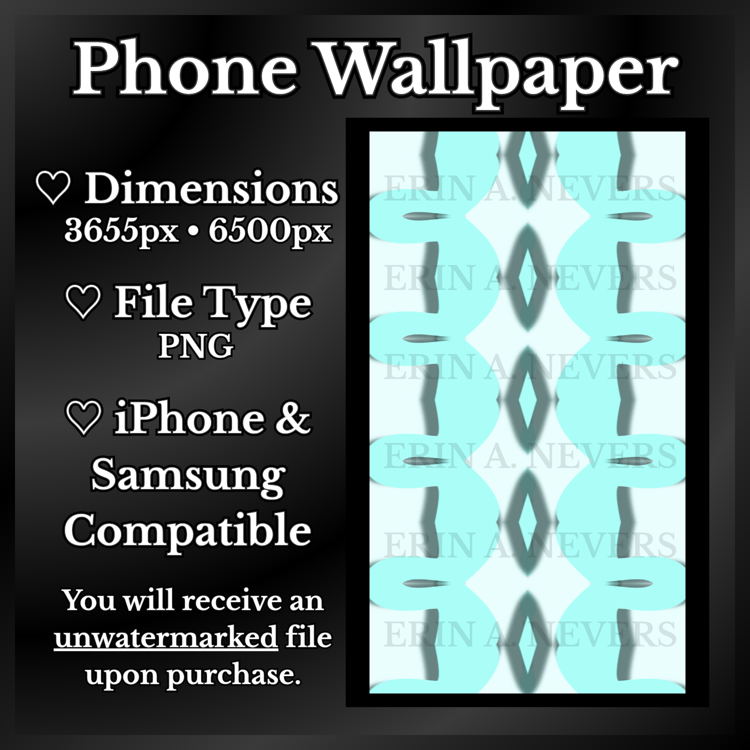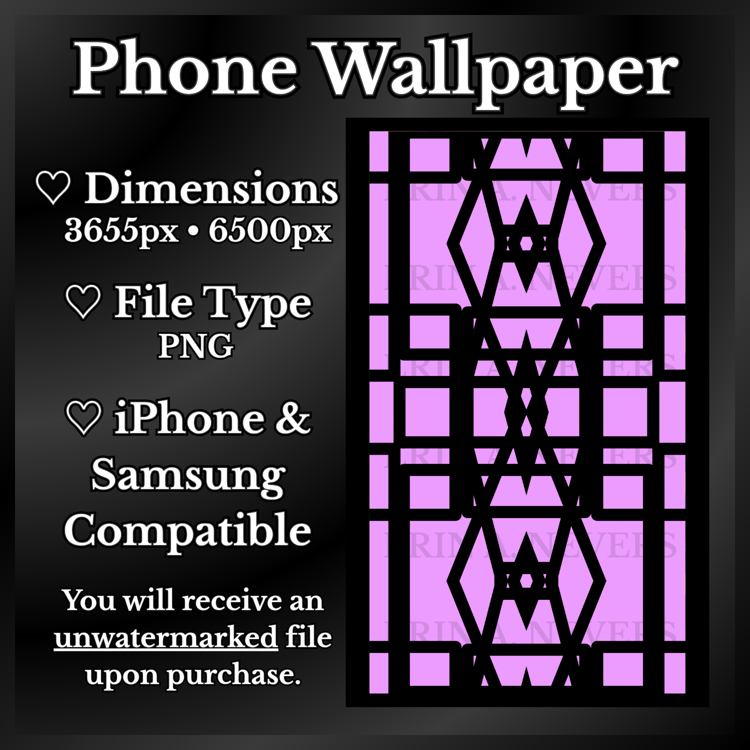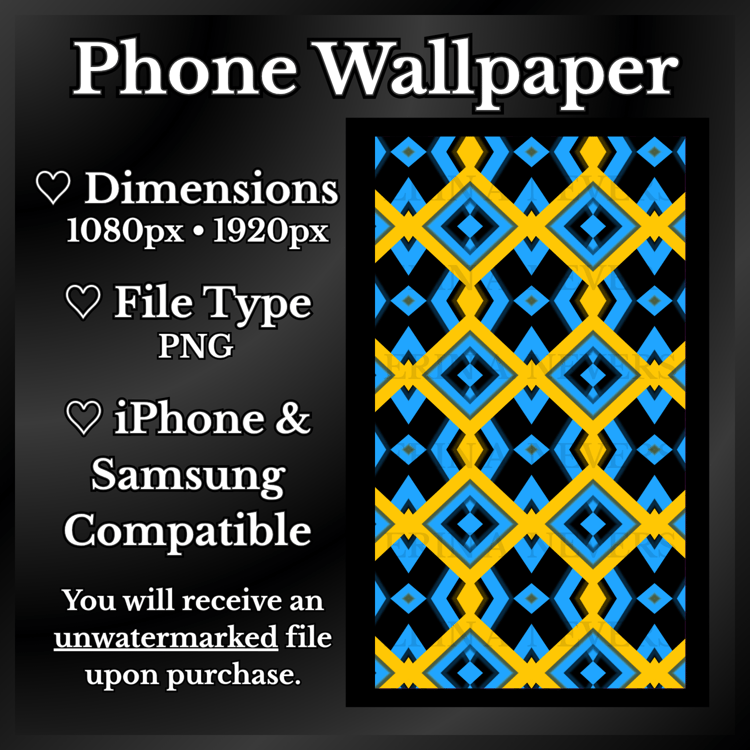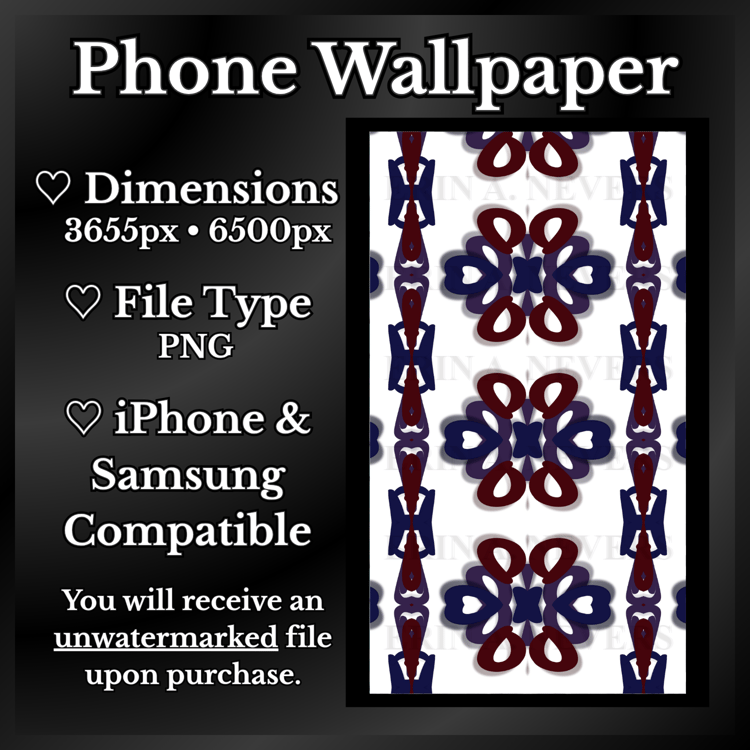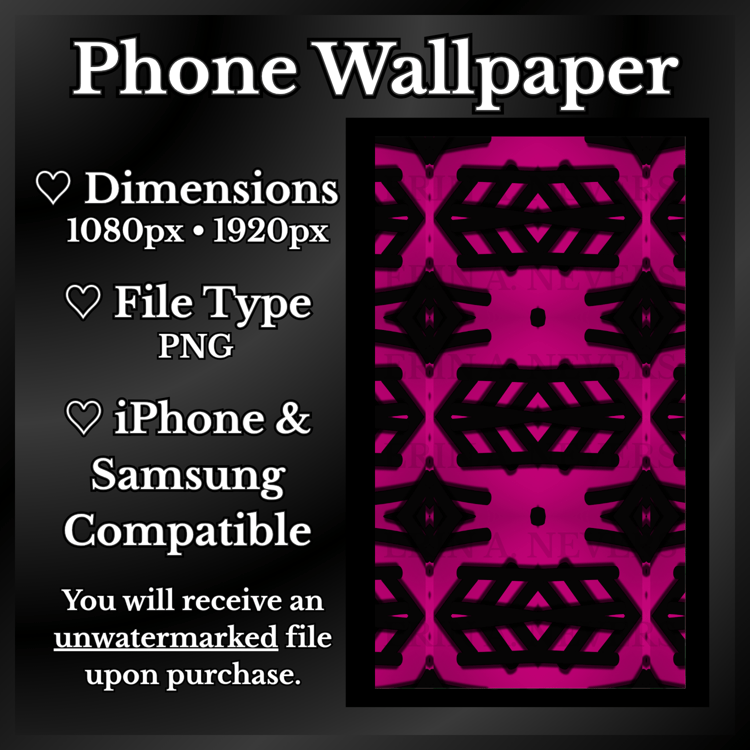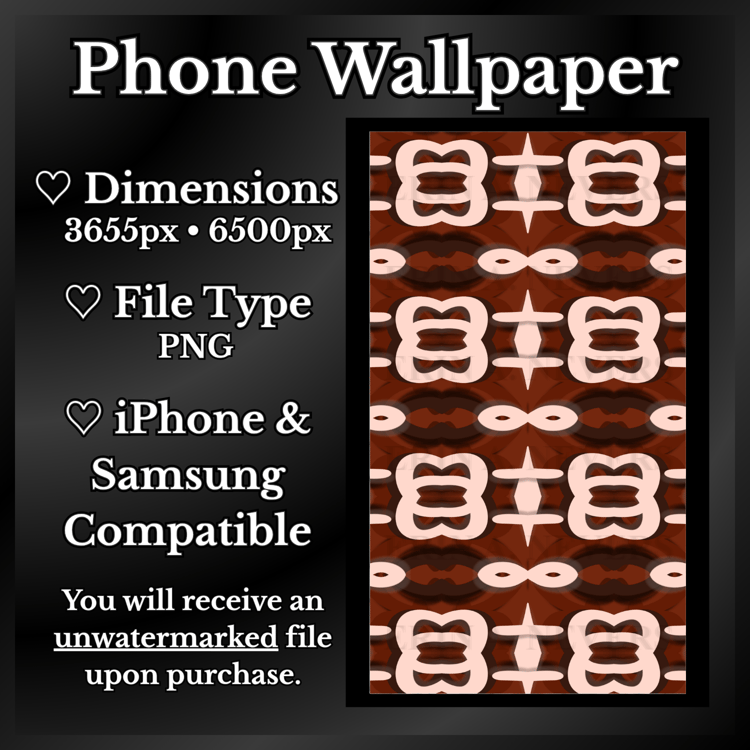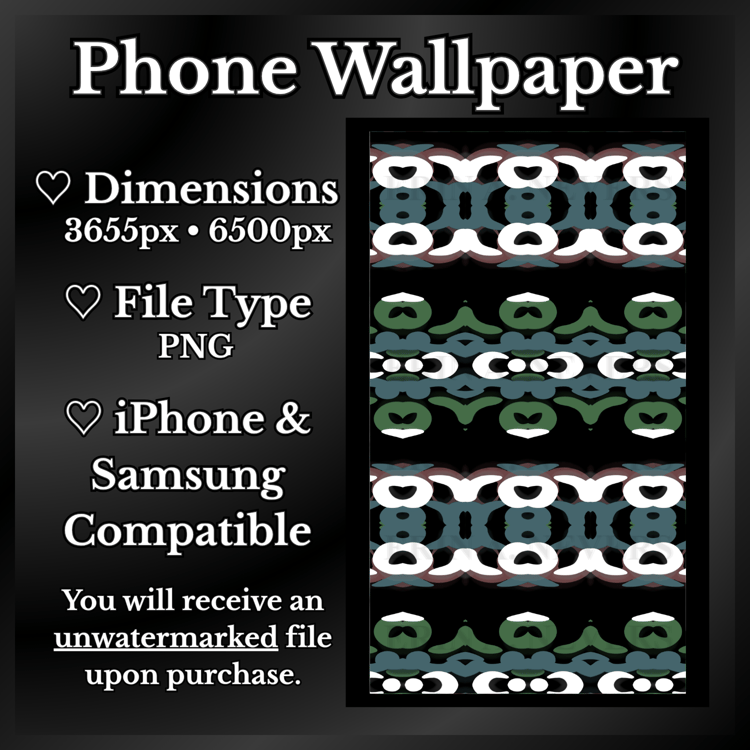

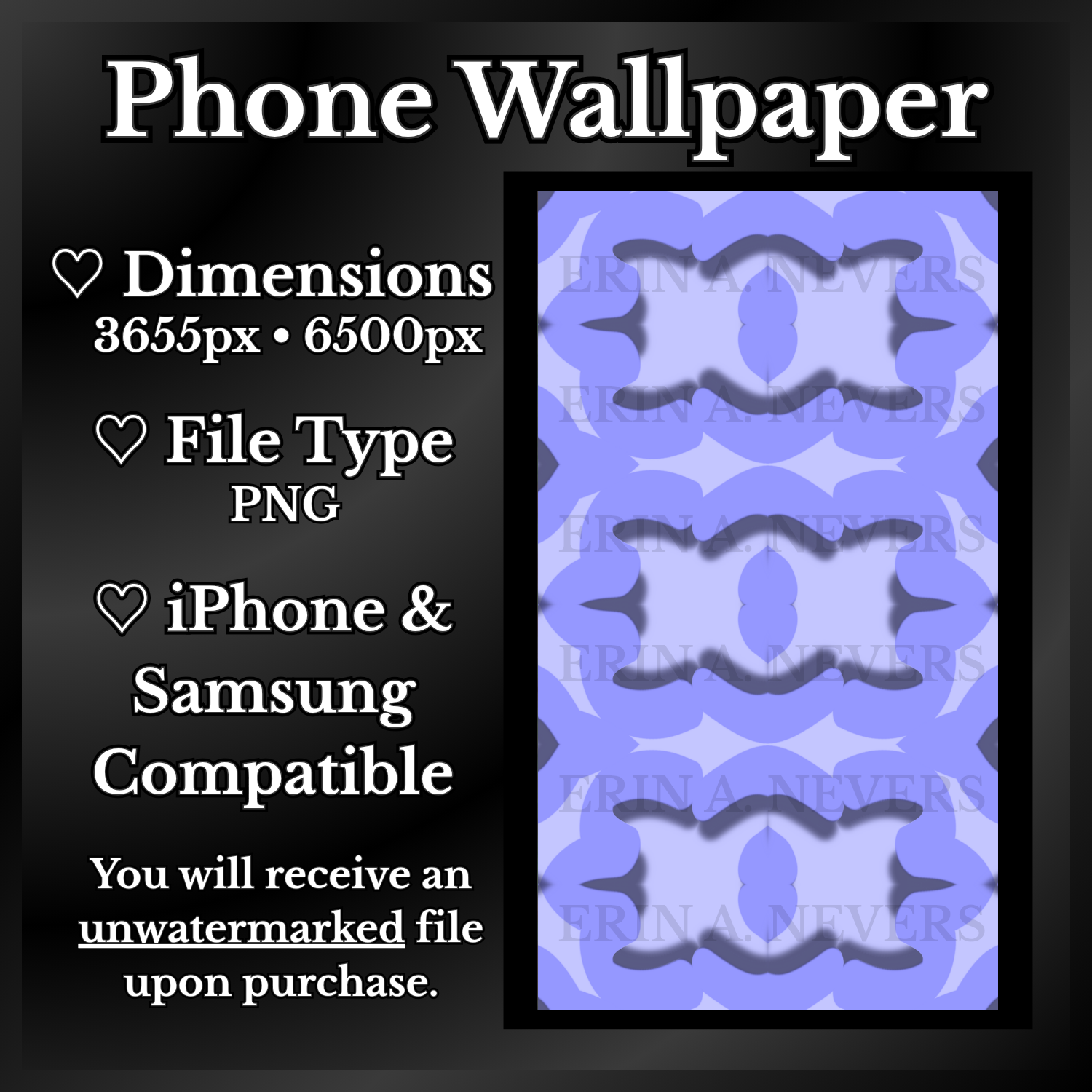
Pattern Phone Wallpaper 127
How to Set A Particular Photo As Your Wallpaper for Apple Phones
1.) In the "Settings" App, tap "Wallpaper."
2.) Tap "Add New Wallpaper."
3.) Tap Photos, People, Photo Shuffle, or Live Photo. You can also choose from the Weather & Astrology, Emoji, and Color Categories.
4.) Customize your wallpaper further if you want, then tap "Add."
5.) Tap "Set as Wallpaper Pair" and your selection will be seen on both the Home and Lock Screens. Tap "Customize Home Screen" to create a separate Home Screen Wallpaper that can be edited.
How to Set A Particular Photo As Your Wallpaper for Samsung Phones
1.) Open up the "Gallery" App on your phone.
2.) Look for the specific photo you want and tap on it.
3.) On the bottom right corner of your screen, tap the vertical ellipses (the three vertical dots).
4.) Tap "Set As Wallpaper."
5.) Choose what you want to set the wallpaper as (Ex: Lock Screen, Home Screen, Lock and Home Screens, Always on Display, or Call Background).
6.) Align the photo to your liking, or pinch in and out to zoom.
7.) Tap "Done."