
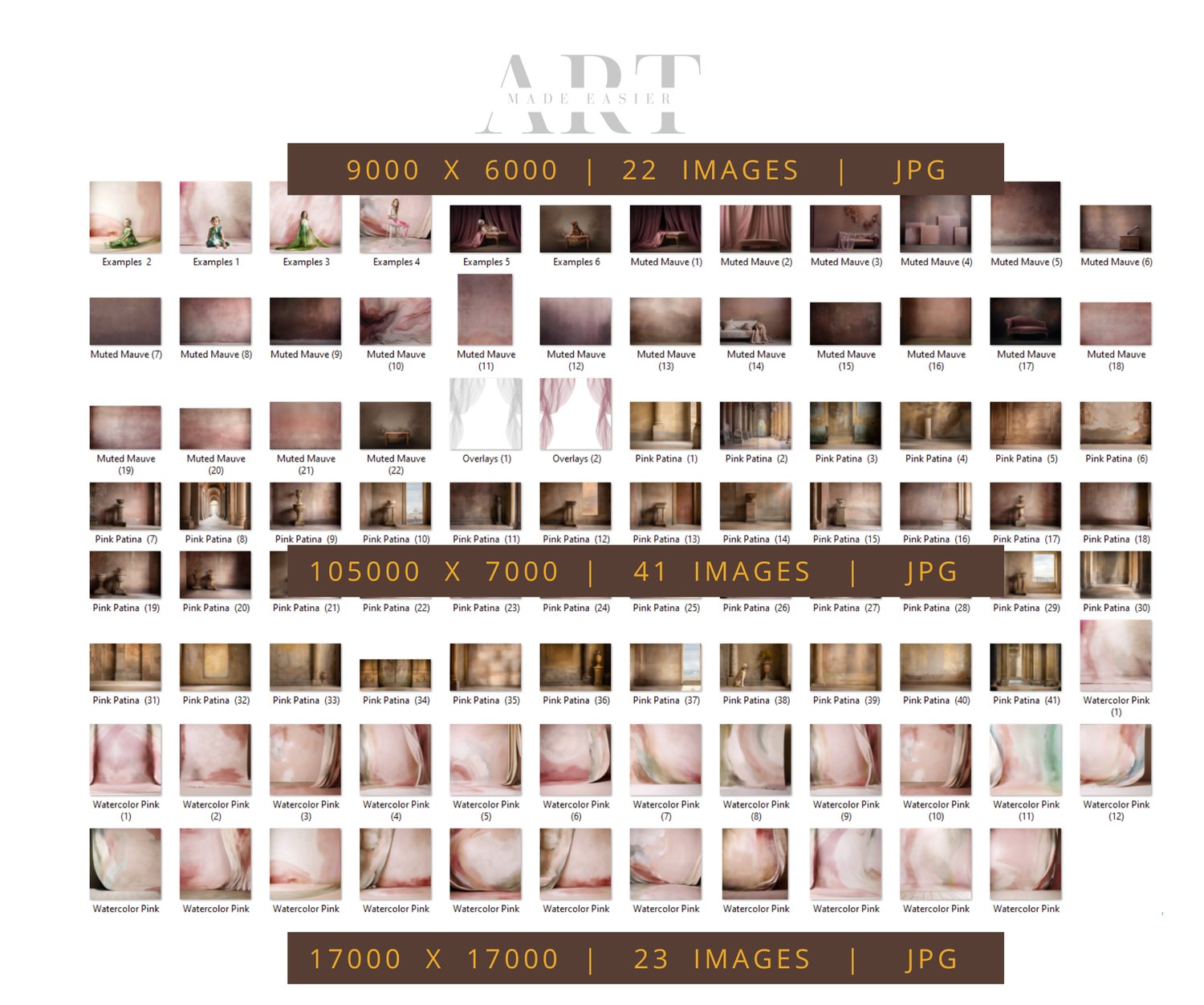
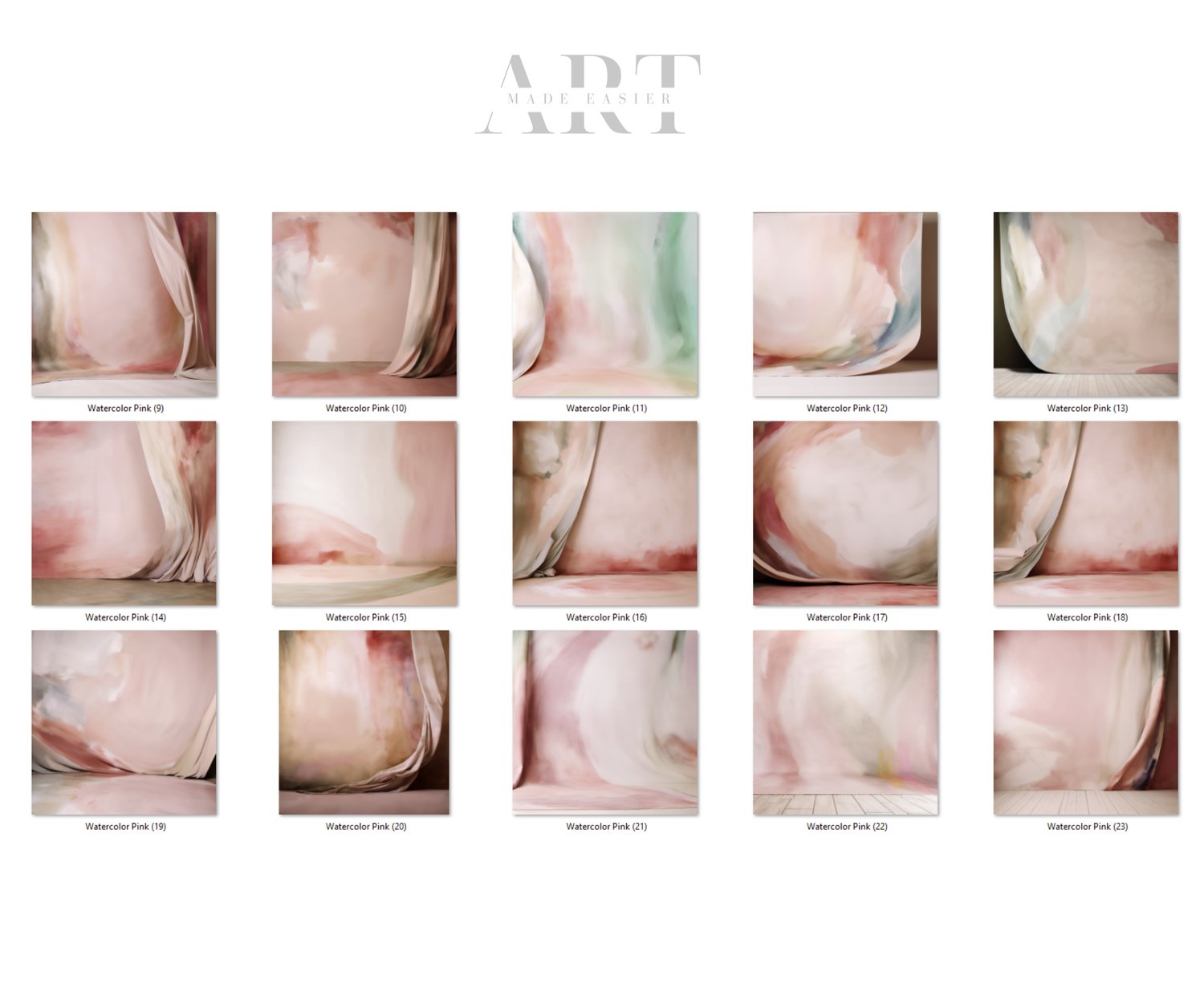
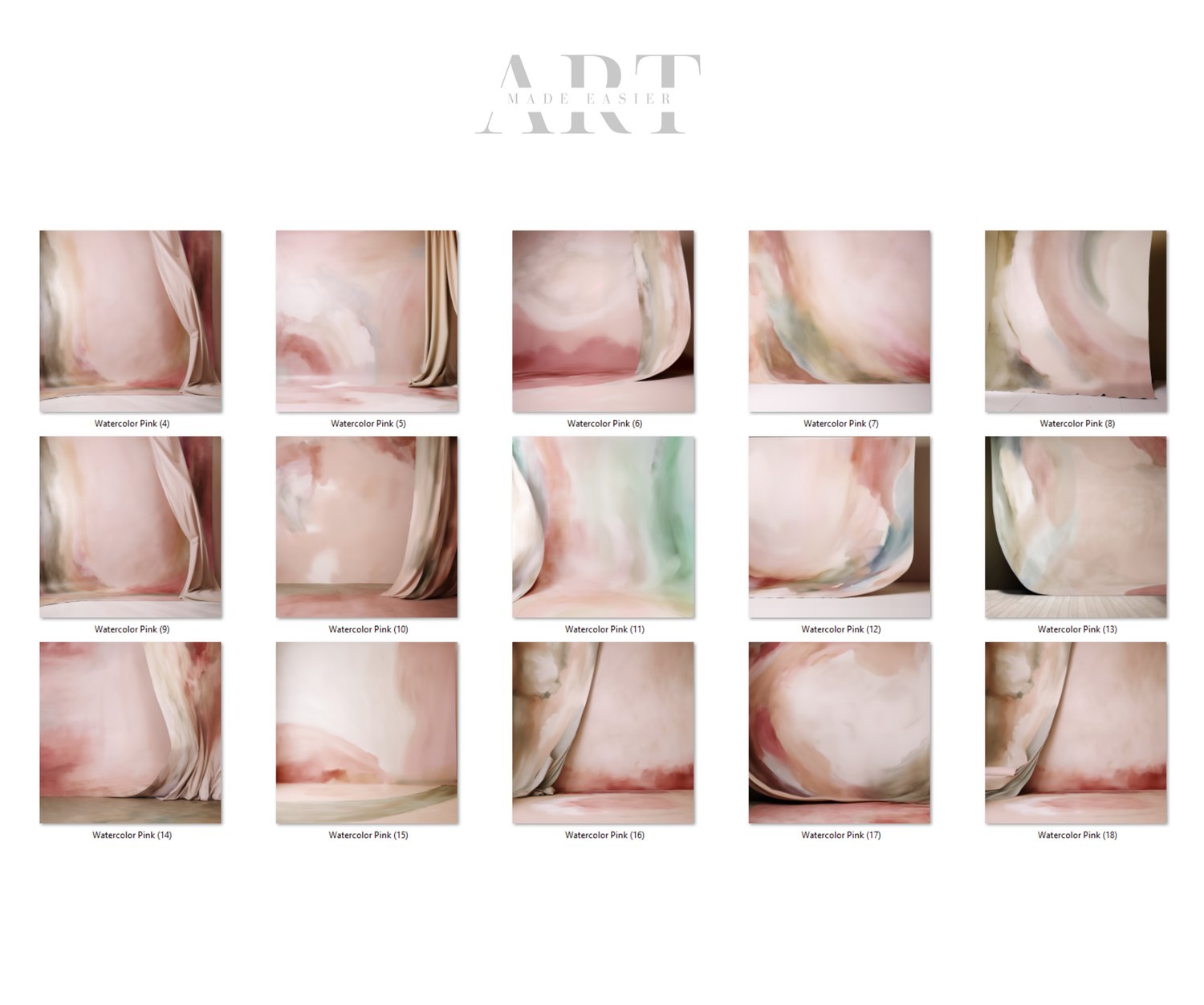
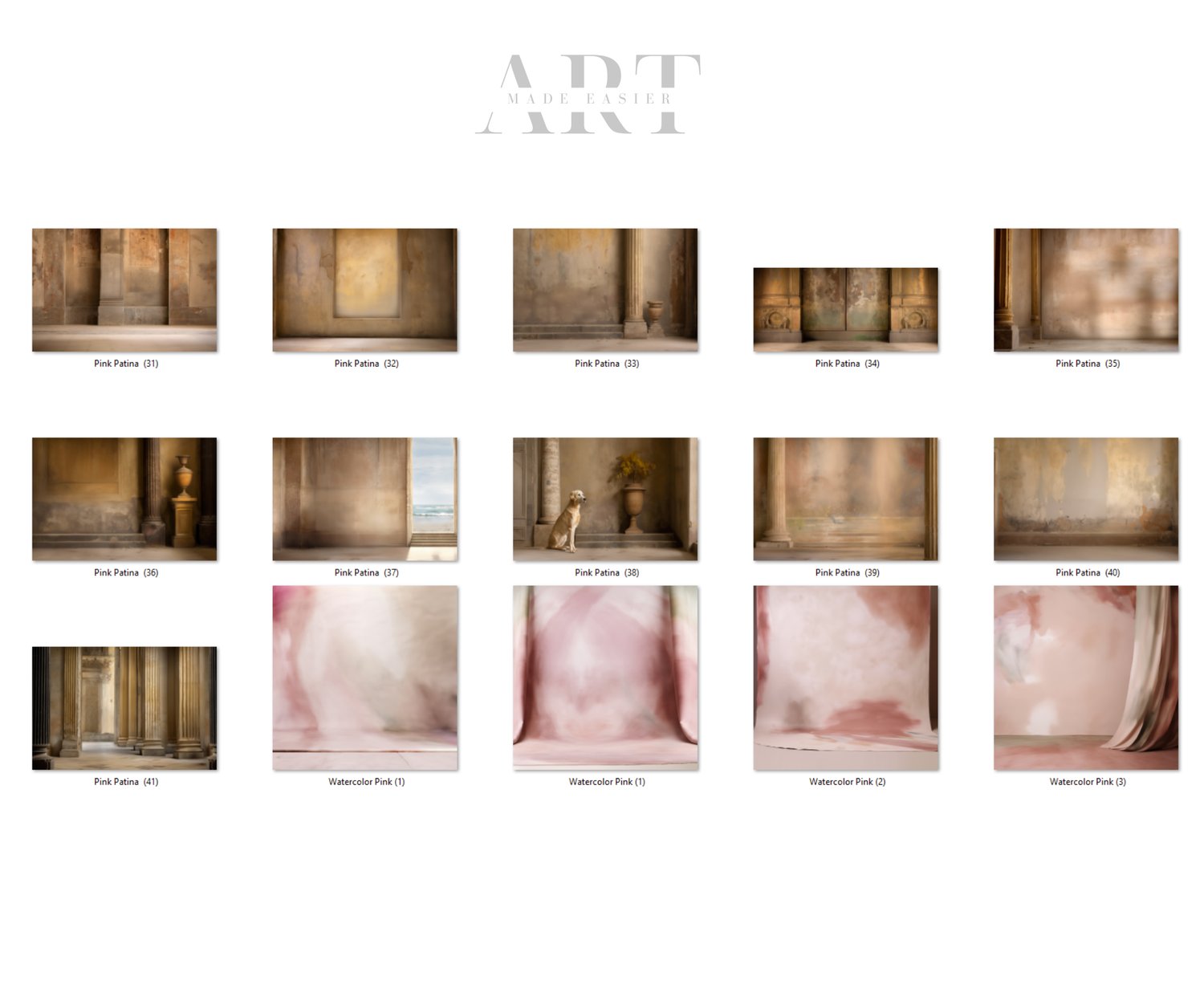
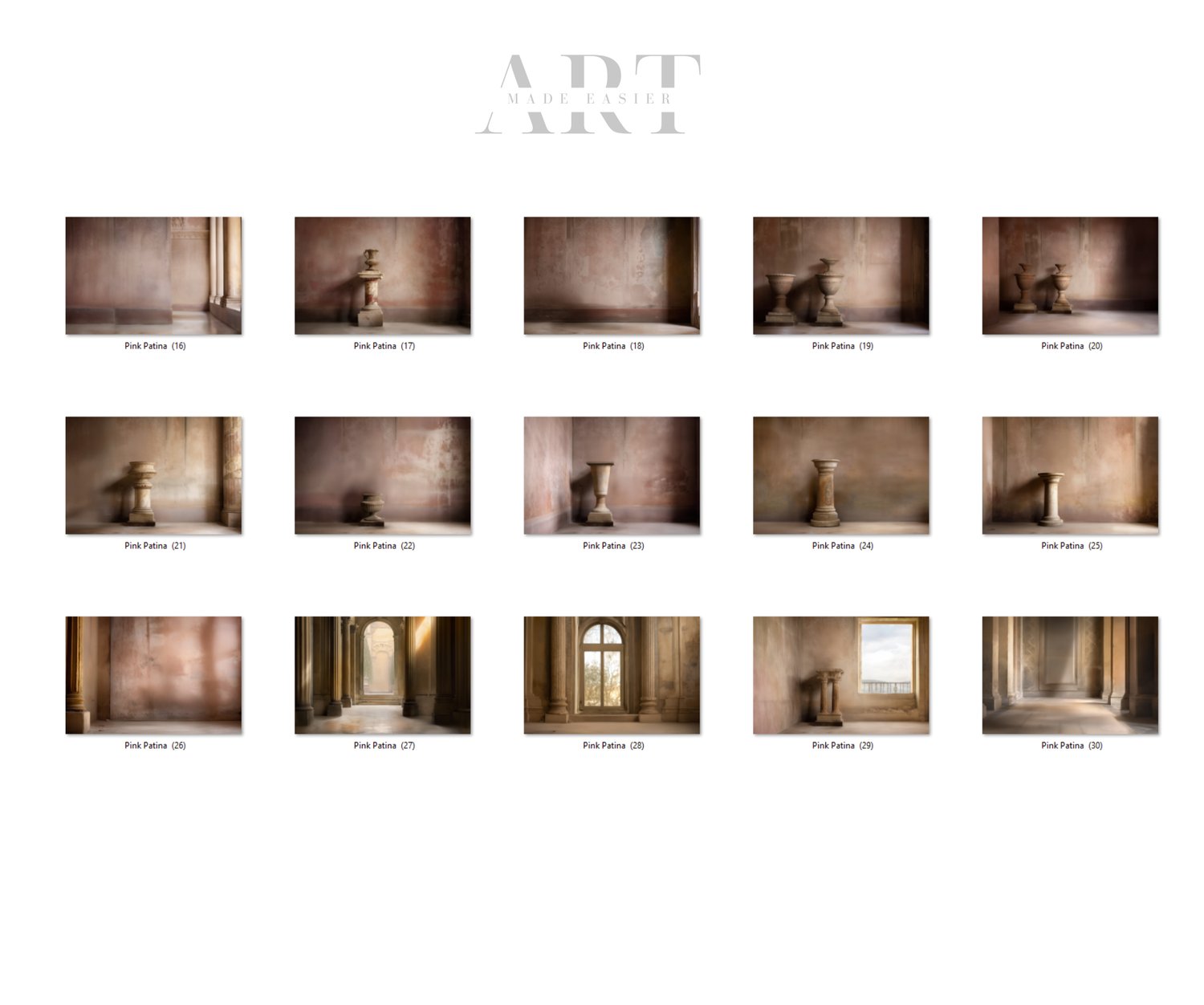
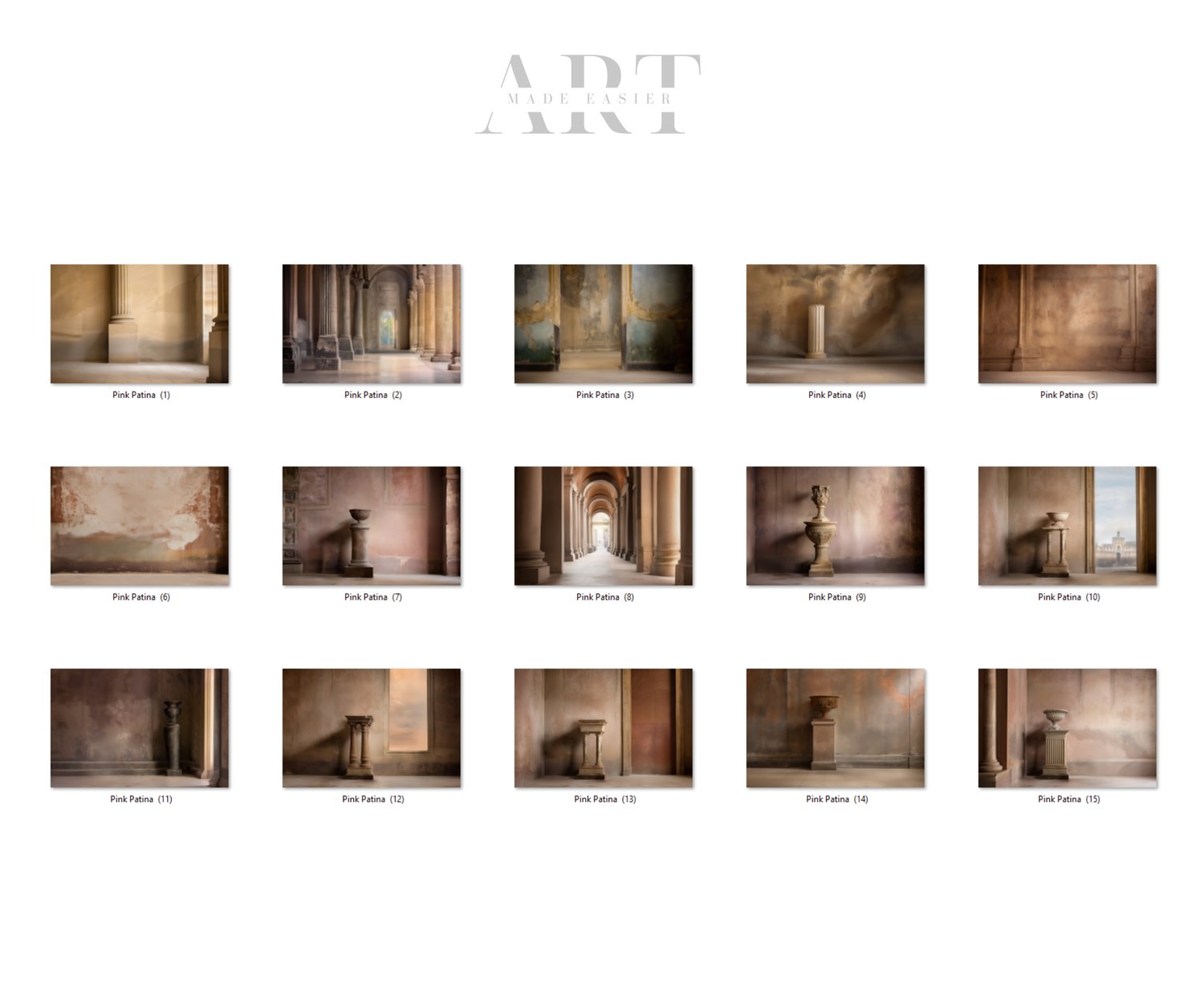
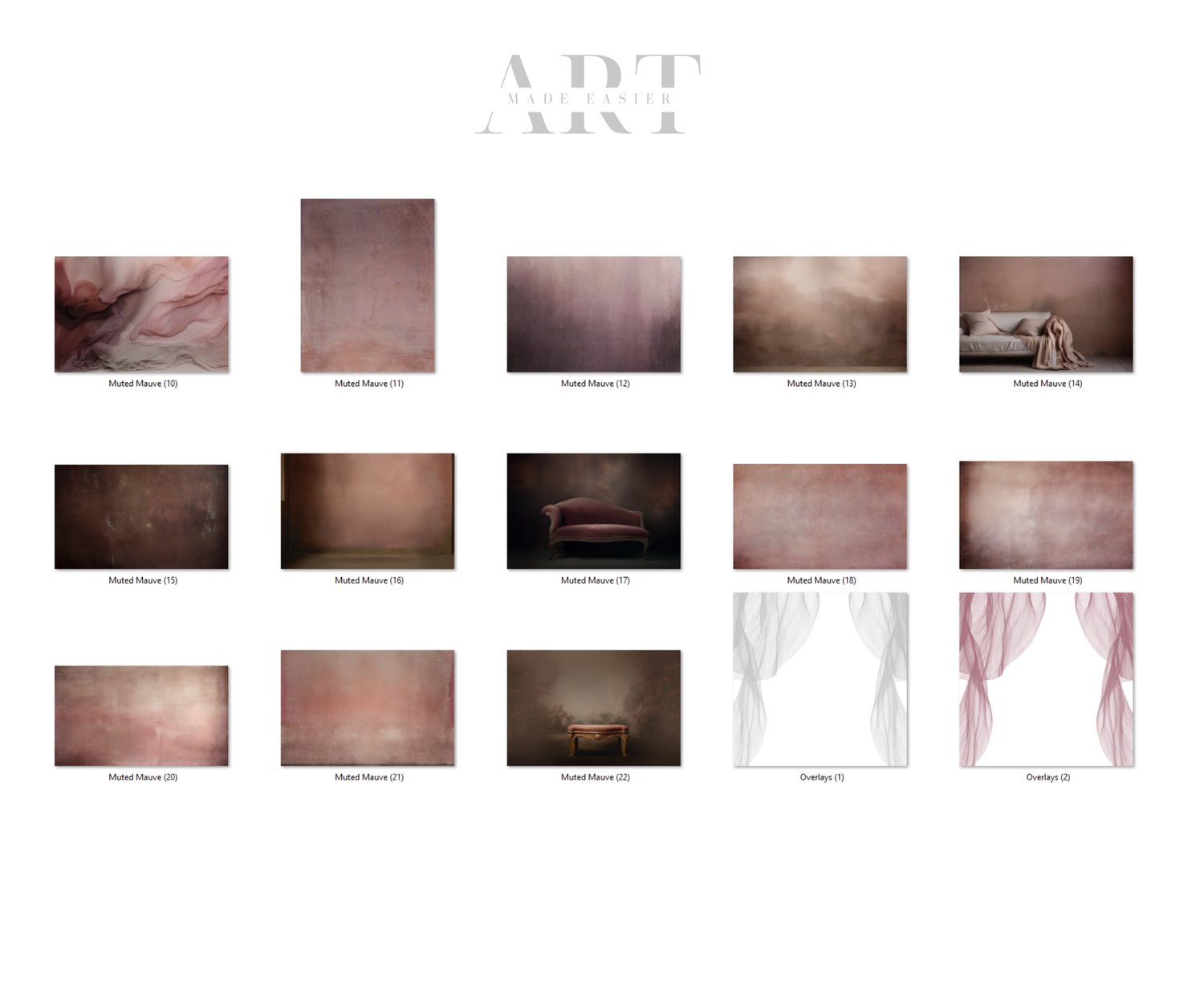

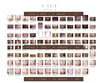
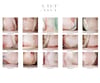
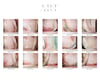
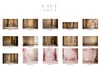
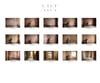
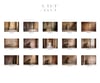
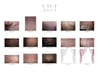
Pastel Pink Texture Bundle, Soft Blush Background Pack, Fine Art Backdrop Set, Digital Download
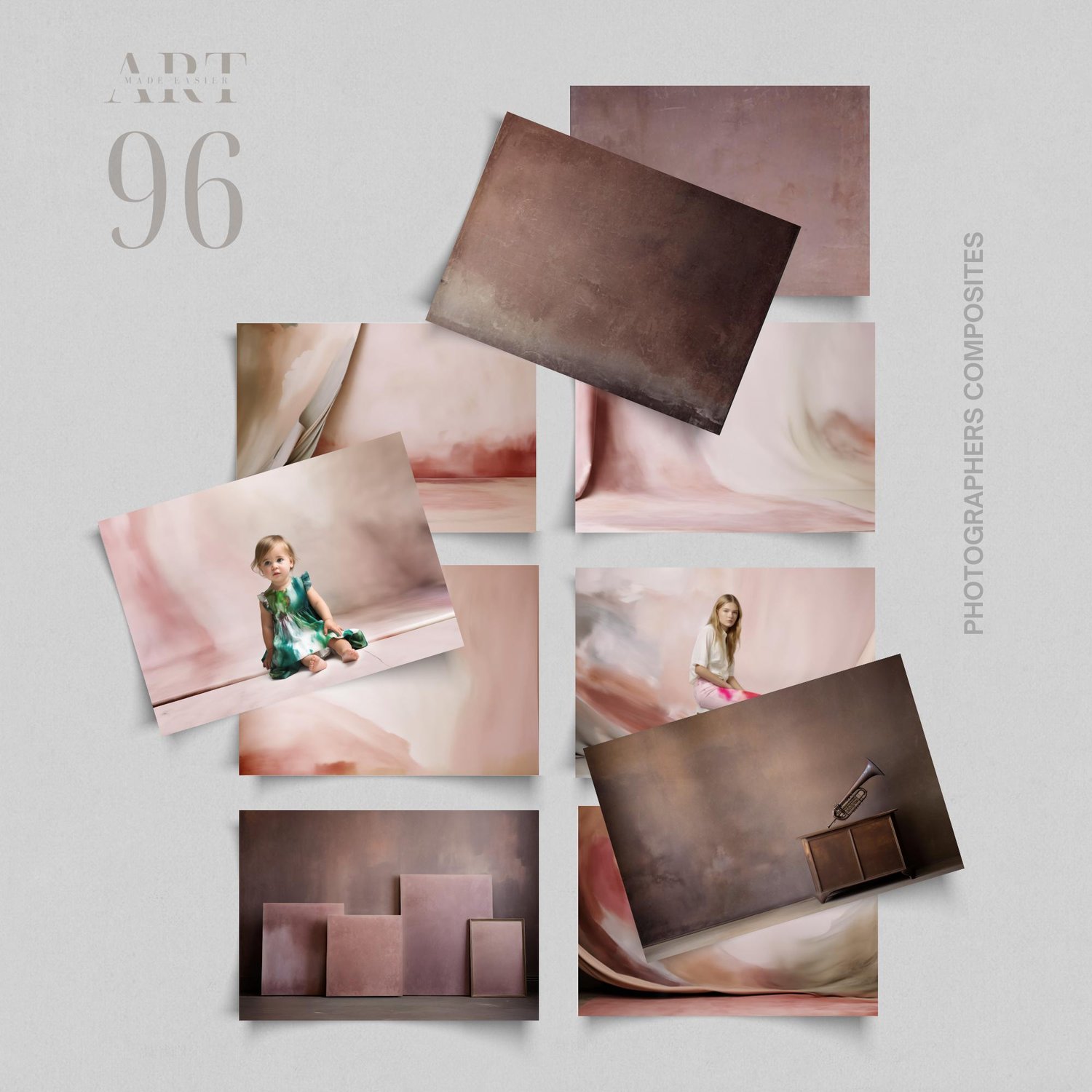
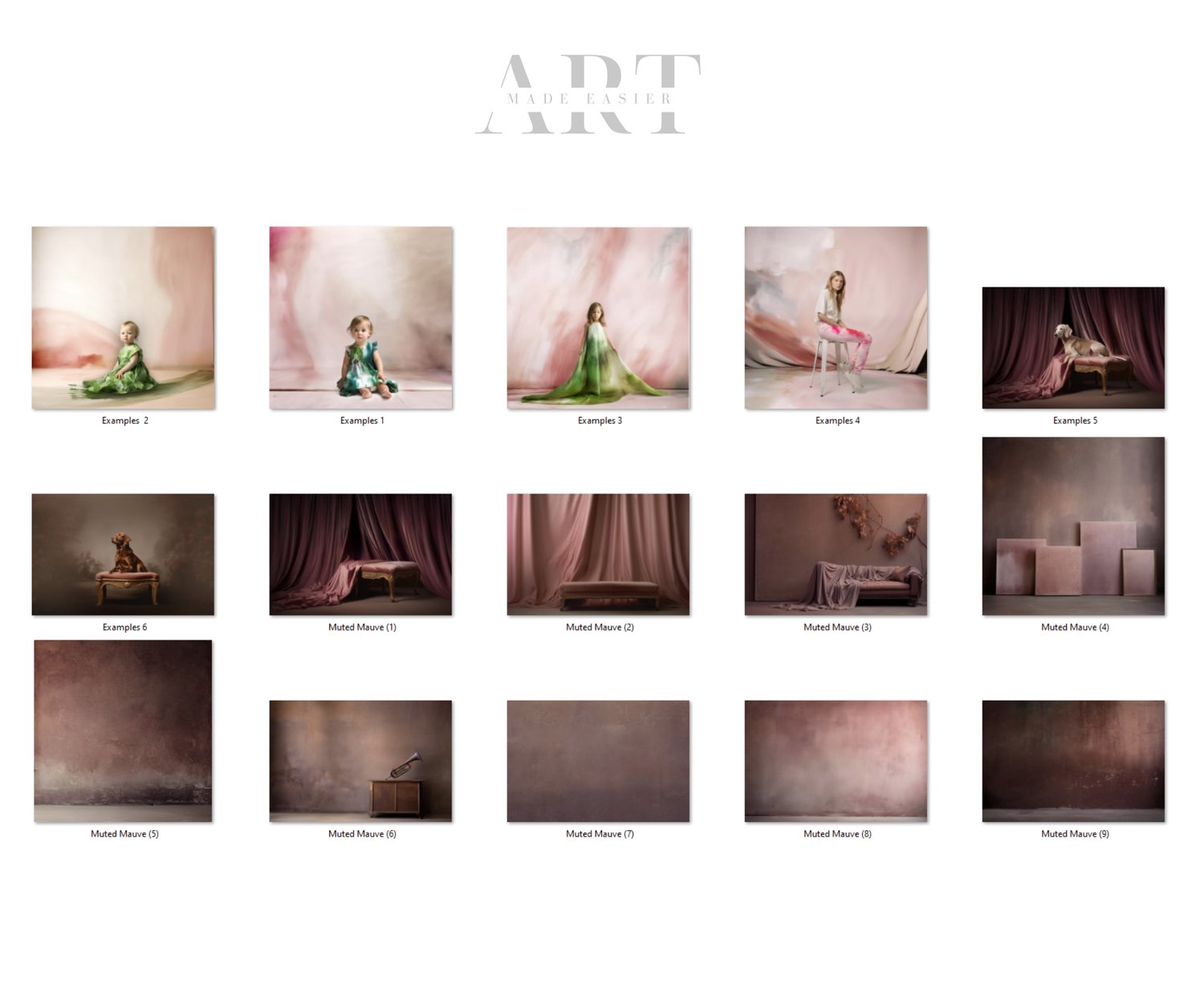
Transform your portraits with this dreamy Pink Watercolor Background & Room Texture Collection, inspired by soft European charm and timeless artistry. This set includes Greece-inspired digital backdrops featuring subtle patina, aged plaster, and painterly texture that bring depth and elegance to any composite. Alongside the softer pinks, you’ll also find a selection of rich mauve textured backgrounds, perfect for seamless background replacements in fine art photography, children’s portraits, and editorial-style edits. Whether you’re building a romantic scene, a stylized studio look, or an imaginative storytelling portrait, these high-quality textures add atmosphere, color harmony, and a touch of artistic luxury to every image.
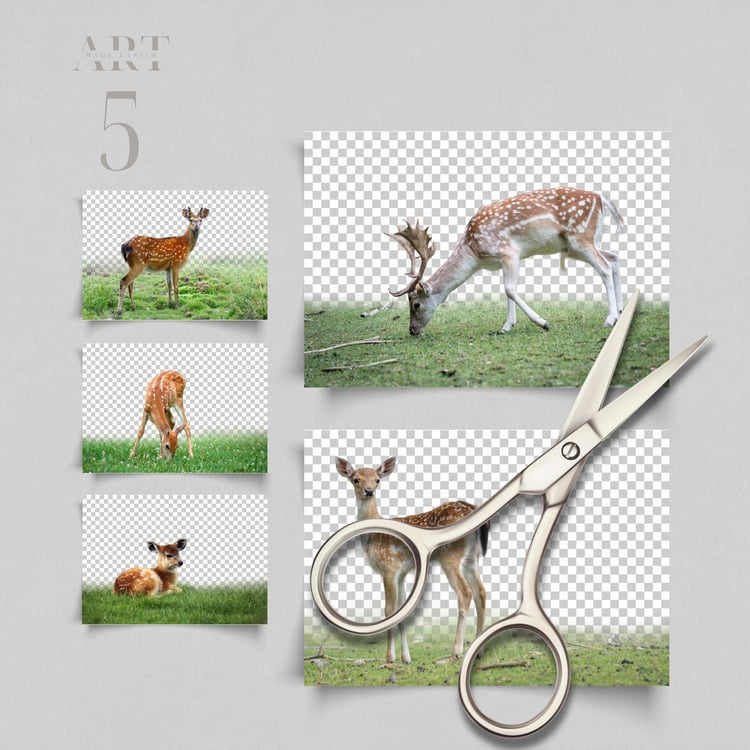
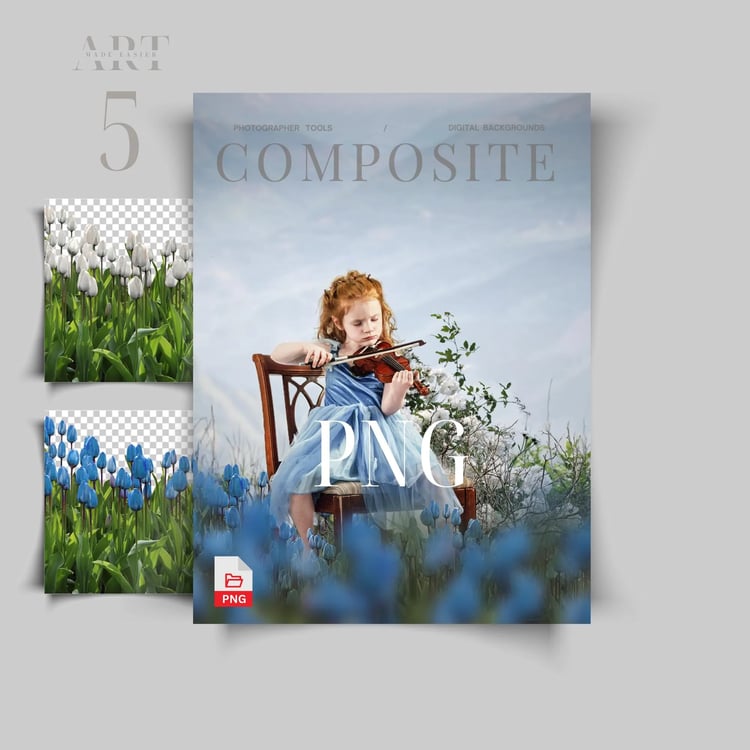
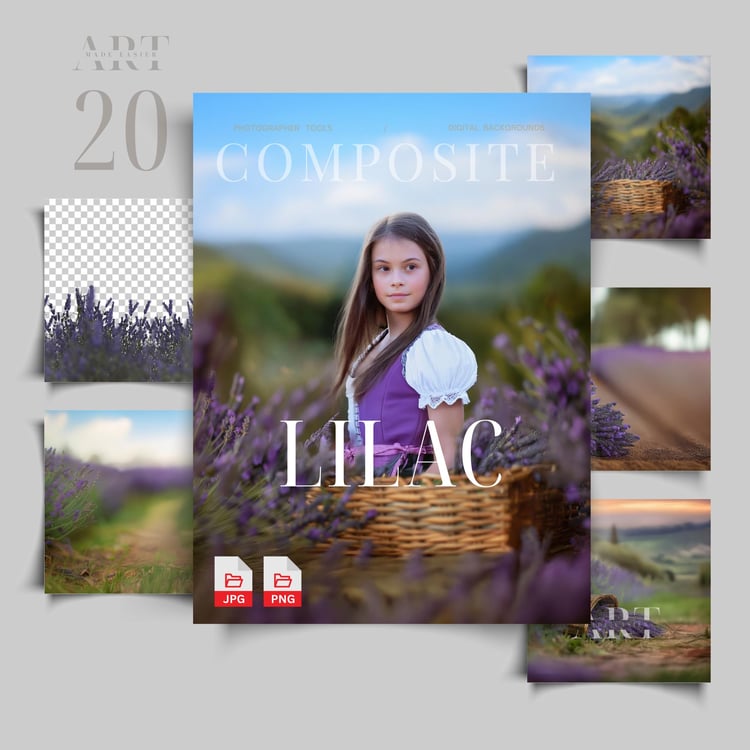
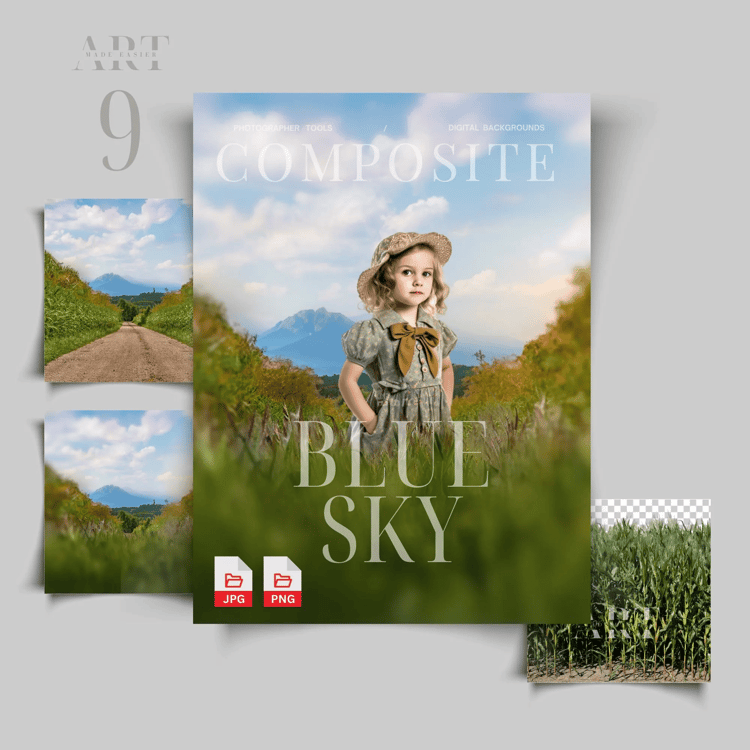
Made for Easy Compositing
Photographing your subject on a light or white background makes blending extremely simple. And with Photoshop’s Generative Fill, creating seamless transitions is easier than ever:
✔️Generative Fill allows clean transitions around hair and clothing
✔️Generative Fill takes care of the natural shadow integration
✔️Generative Fill creates soft edge blending that eliminates harsh cutouts
✔️Generative Fill allows perfect edges in seconds
With these tools, you can create stunning winter masterpieces right from home — no studio required.
📥 How to Download
Your purchase includes a PDF containing the download link to the full set of winter backgrounds.
Simply open the PDF, click the link, and download your backgrounds instantly.
🚫 Digital Product – No Returns
Because this is a digital download, returns cannot be accepted.
However, if you have any issues accessing or using your files, please reach out — I’m always happy to help and resolve problems quickly.
Thank you!
— Meranda Devan
⭐ Follow My Work
STUDIO Composites On Pinterest - https://bit.ly/3TkDKD0
PNG Composites on Pinterest - https://bit.ly/48Ff9gs
BLUE Composites on Pinterest - https://bit.ly/3uLxrPu
BROWN Composites On Pinterest - https://bit.ly/3V4xNuZ
GREEN Composites On Pinterest - https://bit.ly/3TjRX30
More Composites - Pinterest - https://bit.ly/3UZQd09
My Discontinued Free Composites - https://bit.ly/freecomposites
- Follow My Pinterest: https://bit.ly/artmadeeasiercomposites
- Follow My Facebook profile - https://bit.ly/artmadeeasierfacebook
- Follow My Pixabay - https://bit.ly/MerandaDevanPixabay
- Art Made Easier On Etsy - https://www.etsy.com/shop/Artmadeeasier
📝 No Refunds Purchase Policy
Please review the product description before purchasing. All composites are created for Photoshop, and JPG/PNG files may be compatible with other editing programs, but PSD files require Photoshop specifically. These products are intended for photographers and artists comfortable with layers, masks, blending, transformations, and basic editing techniques.
If you encounter difficulties with your download or files, message me anytime — I’m happy to assist.
🎨 Photoshop Compositing TIPS For Artists
• Use Generative Fill
Select around your subject using the Lasso Tool and click Generate. This creates smooth, natural transitions around hair, clothing, and edges. It also removes the need to manually create shadows between the subject and background.
• Background Removal Tools
• PhotoRoom is excellent for clean extractions and handles hair very well.
• PicWish often cuts out hair better than Photoshop and returns a large, clean file.
• Use Levels Adjustment Layers
A Levels layer helps darken, matte, or brighten your image to match the composite. Erase areas where the natural light should remain bright.
• Lower the Overlay Opacity
Reduce the opacity of your overlay or duplicate it and paint back details at full opacity. This softens edges and avoids a cutout look.
• Adjust Highlights in Camera Raw
Use Camera Raw to fine-tune highlights, shadows, and blacks for better blending.
• Use Curves Adjustments
Clip a Curves layer to your object or PNG to lighten or darken only that piece without affecting the entire image.
• Create Shadows on a Blank Layer
Paint shadows on a blank layer set to Overlay. Sample the subject’s hair or clothing color, blur the shadow, and lower the opacity.
• Use Generative Fill to Clean Edges
Select problematic areas and type “remove”. AI often blends edges more seamlessly than manual retouching.
• Use a Spotlight Light PNG
Light PNG overlays add depth. Place the light in the correct direction, blur it, and erase from the face.
• Add a Final Matte Layer
A slight matte effect ties the composite together and gives a fine-art finish.
• Replace Color for Tone Changes
Go to Image > Adjustments > Replace Color to shift tones and match the background palette.
• Match Brightness and Matte with Levels
Clip a Levels layer to the PNG or object and use sliders to match contrast, darkness, or matte softness.
• Add a Light Color Balance Layer
Color Balance helps match the overall tones of the composite for a cohesive final image.
These techniques help your portraits blend beautifully with the winter backgrounds, creating consistent, painterly results.
🔑 Keywords
pink texture, pink backdrop, mauve texture, mauve backdrop, light pink texture, blush texture, pastel pink bg, pink wall texture, pink concrete bg, digital pink room, pink background, mauve overlay, pink photo overlay, texture overlay, editing texture, backdrop texture, pink composite, mauve composite, high res texture, digital backdrop, photo backdrop, photography texture, texture pack, texture bundle, studio backdrop, portrait backdrop, pink editing bg, soft pink texture, dusty pink texture, pink grunge texture, mauve grunge texture, pink painterly bg, fine art texture, pink matte texture, background replacement, pink overlay pack, mauve overlay pack, room texture overlay, indoor texture bg, pink digital wall, blush backdrop, soft mauve backdrop, pink gradient texture, pink fabric texture, pink paper texture, pink vintage texture, texture for photoshop, photo editing texture, composite texture, photographer background