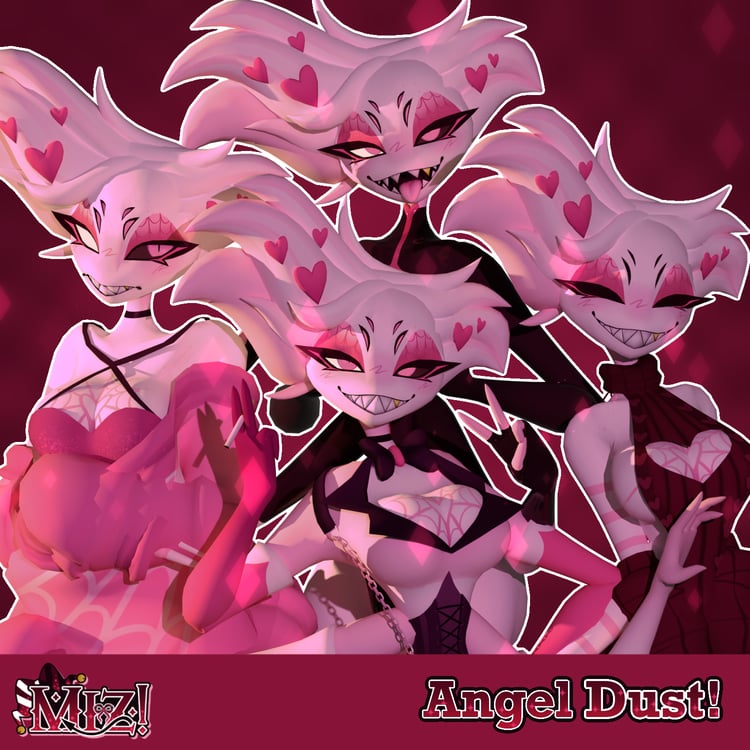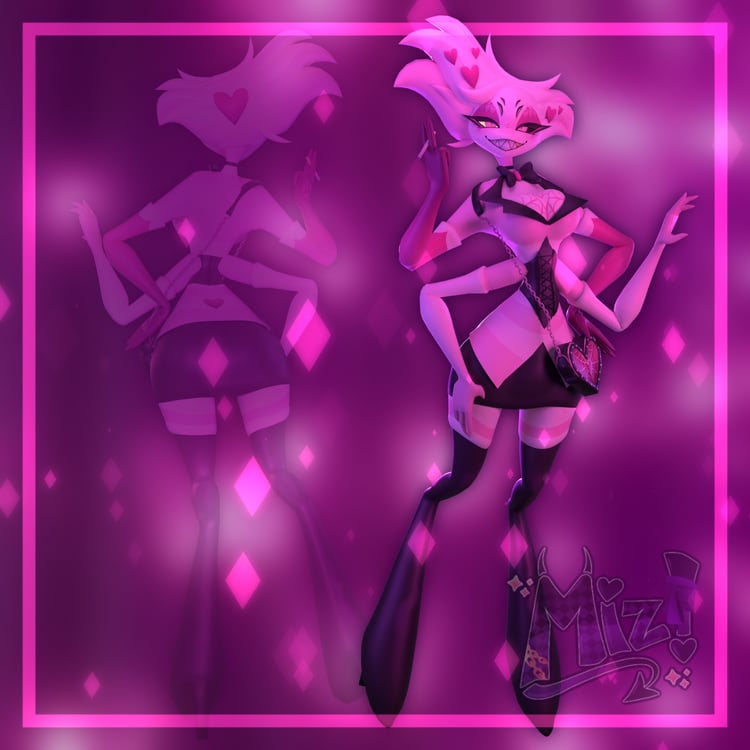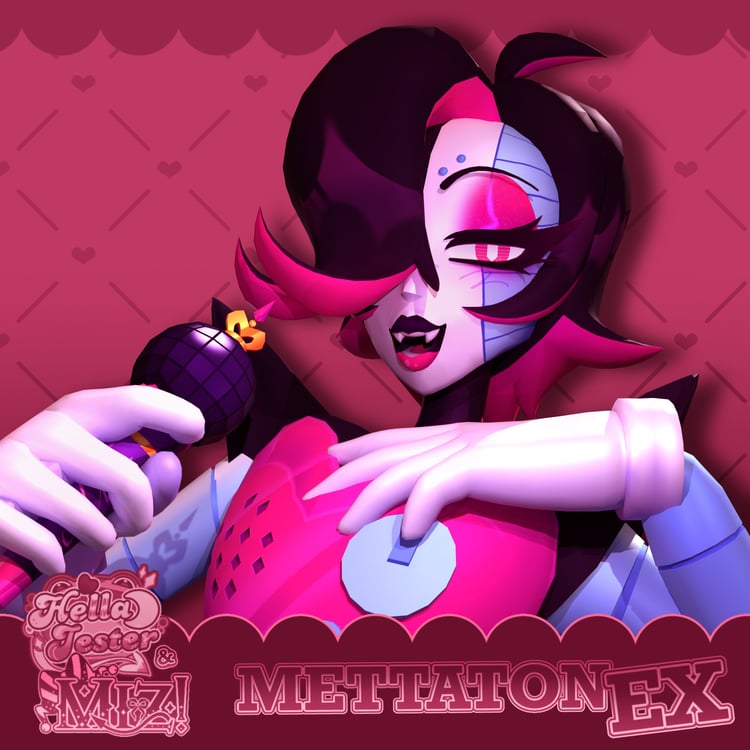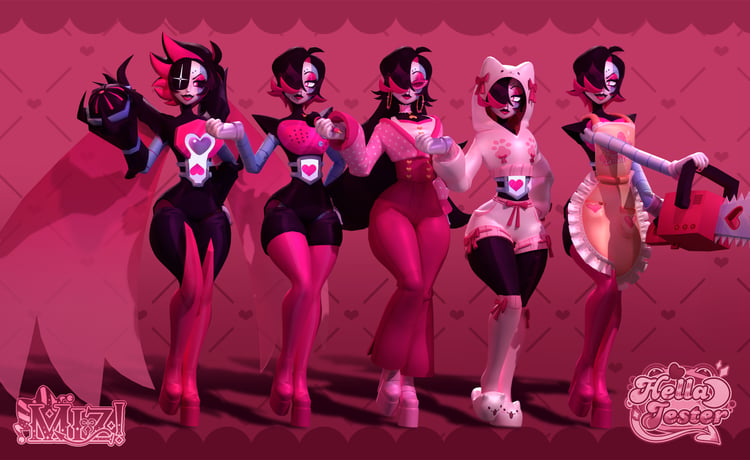

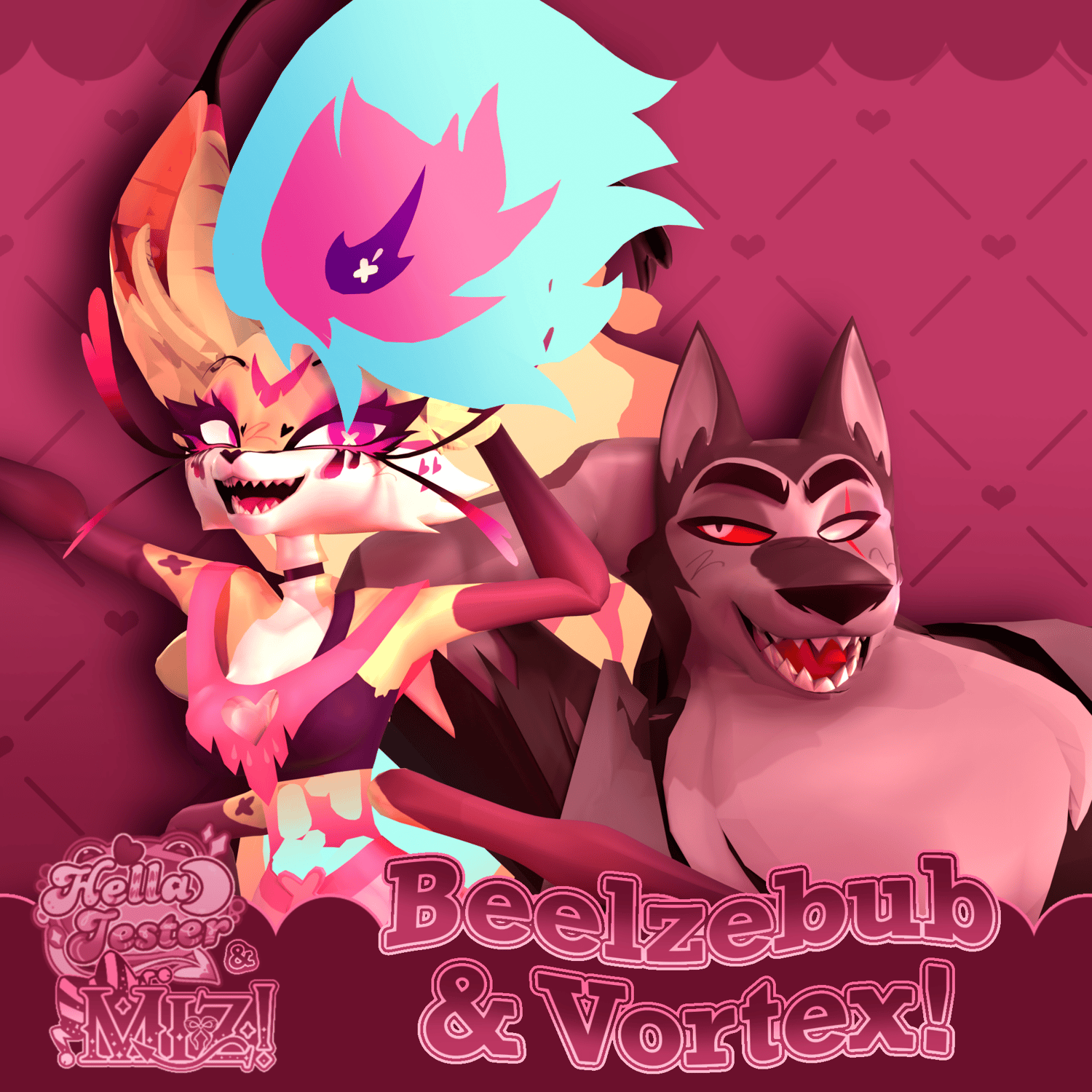
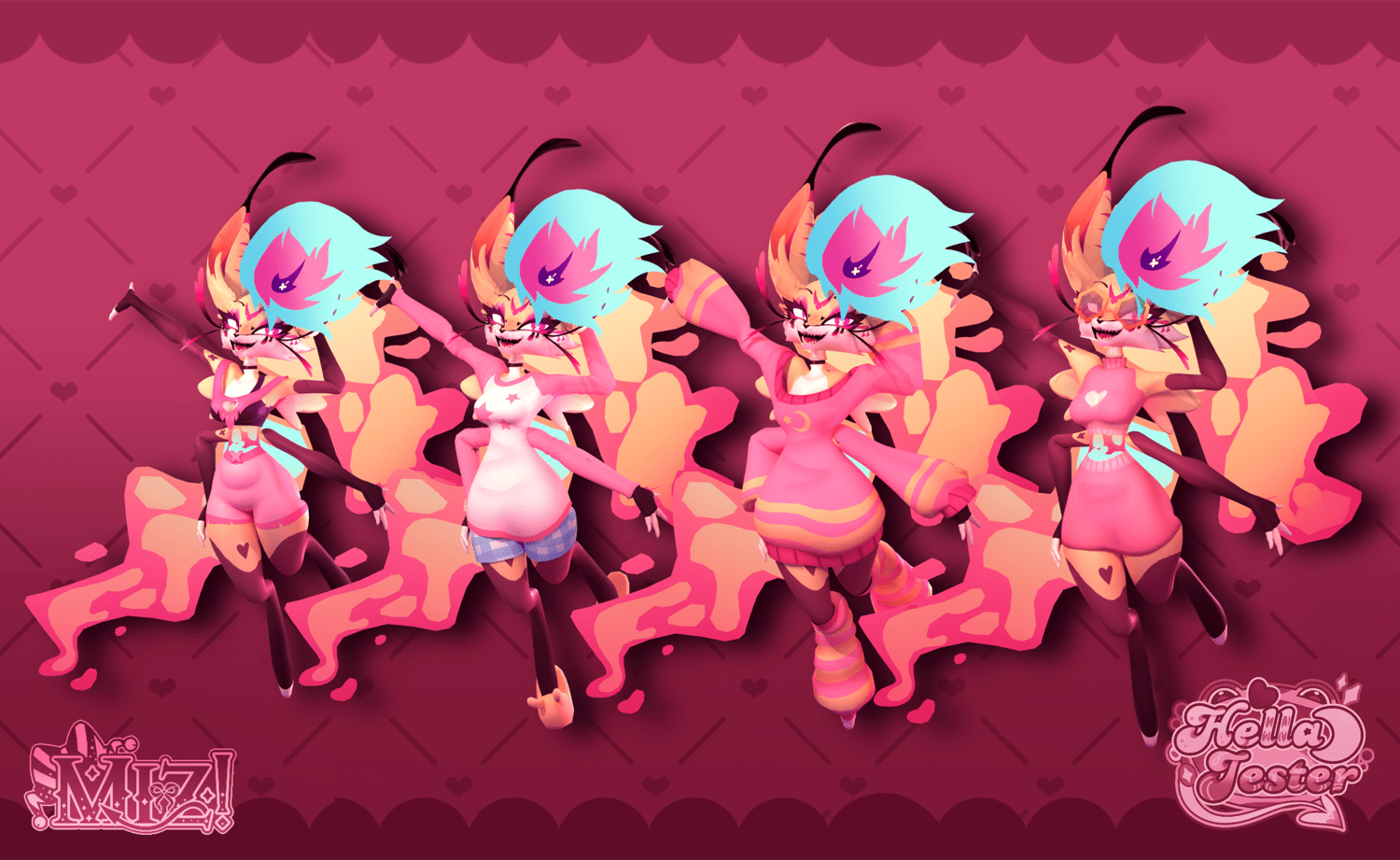
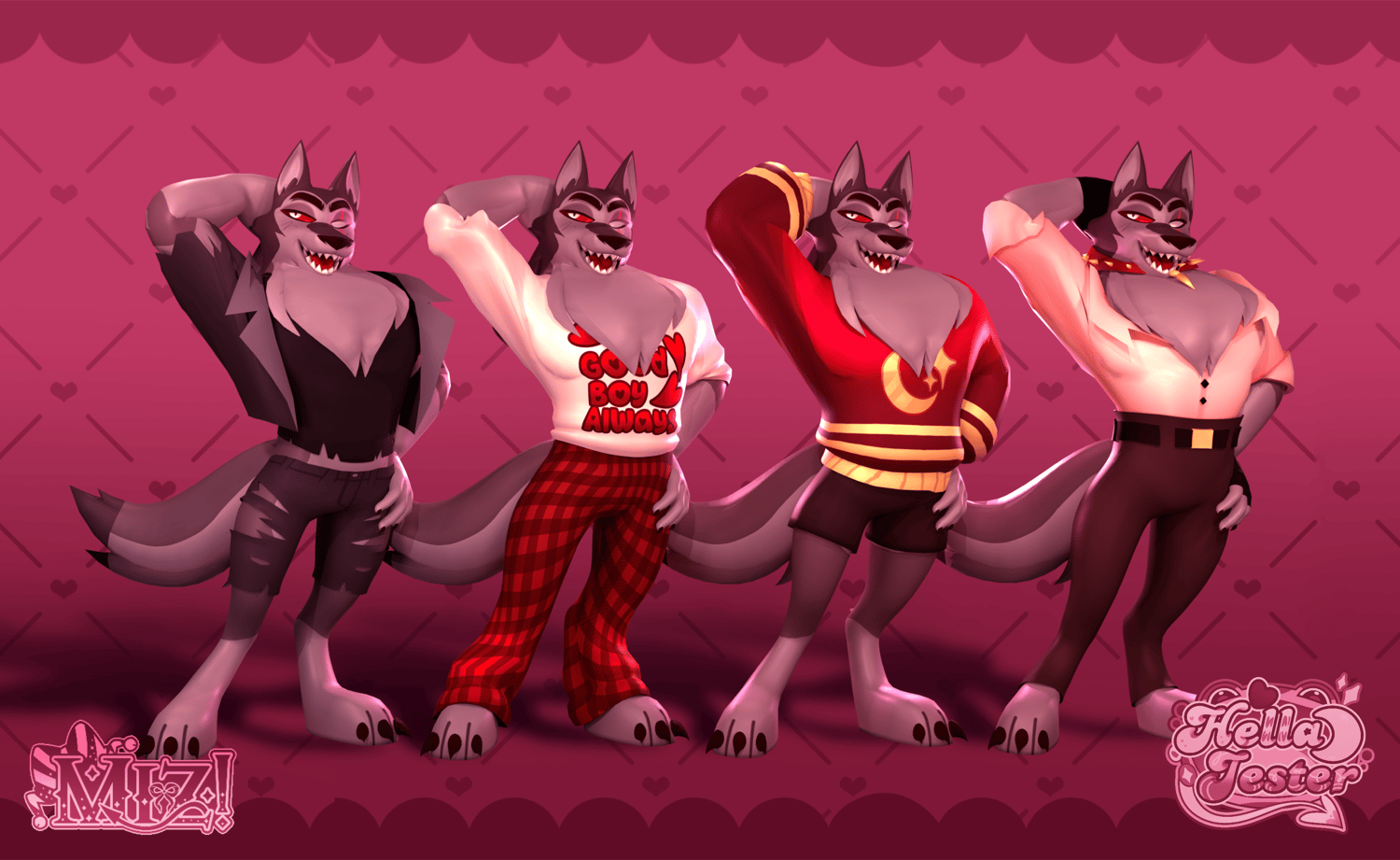
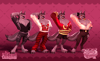
♡ Beelzebub & Vortex! ♡ (PC & QUEST)
VRChat ready model, assets created by Miz!
Please welcome another collaborative piece with HELLAJESTER/ALYACHAN13!! They've been a huge help lately, and I appreciate them dearly! All design choices by HellaJester,! Additional textures & menu icons also by HellaJester!
For this avatar, I used Poiyomi 10.0.29, ThryEditor 2.74.4 (this comes with the newest version of Poiyomi), VRChat SDK 3.10.6, VRCFury 1.1483.0 & Unity 2022.3.22f1!
To ensure this model works in Unity, please install:
ʚɞ — PoiyomiToonShader 10.0.29
ʚɞ — VRCFury 1.1483.0
ʚɞ — GoGoLoco 1.8.6 by franada
♡ Beelzebub Features ♡
ʚɞ — FBT ready
ʚɞ — GoGo Loco
ʚɞ — Face Tracking
ʚɞ — NEW Gesture lock, and expression wheel!
ʚɞ — Default, sleepwear, comfy, & party outfits!
ʚɞ — Body sliders / Smaller chest/bigger chest, smaller thighs/bigger thighs, & weight slider
ʚɞ — Choker on/off
ʚɞ — Sliders / Face fur, Ears, Lava, Wings
ʚɞ — Props / Beelzejuice, cotton candy, candy martini, glut-honey bottle, red party cup, honey pie
ʚɞ — Extra / Bottom arms on/off & lock, wings flap animation, & color swatches!
♡ Vortex Features ♡
ʚɞ — FBT ready
ʚɞ — GoGo Loco
ʚɞ — Face Tracking
ʚɞ — NEW Gesture lock, and expression wheel!
ʚɞ — Default, sleepwear, comfy, & party outfits!
ʚɞ — Body sliders / Bigger chest, smaller thighs/bigger thighs, & weight slider
ʚɞ — Default jacket on/off
ʚɞ — Sliders / Ears
ʚɞ — Props / Beelzejuice, phone, cotton candy, glut-honey bottle, red party cup, lunch sack
ʚɞ — Extra / Tail control, sunglasses, phone screen on/off
BASE IS INCLUDED!
♡ Upload Step-by-Step Guide ♡
1︰✦ — Create a new project using the VRC Companion using the latest Unity version 2022.3.22f1. name it whatever you'd like.
2︰✦ — Open the project, and import Poiyomi 10.0.29, VRCFury 1.1483.0, and GoGoLoco 1.8.6 before continuing.
3︰✦ — Begin by importing the PC unity package. Open the folder labeled "!!! OPEN ME !!!" and open the unity scene located in that folder. Open the VRChat SDK on the top, log in, and begin uploading the PC version of the avatar FIRST. Make sure there is no blueprint ID in the avatar descriptor before uploading, or you will run into issues.
4︰✦ — After uploading the first version of the model (PC version), import the second Unity package containing the quest version. Copy the ID from the model (if you can't find it, open the VRChat SDK, click on "content manager", and copy the ID listed there). Paste the ID into the blueprint ID box on the QUEST version of the model.
5︰✦ — After importing and checking the blueprint ID for the quest version, switch build in the VRChat SDK to android and upload. (IGNORE THE SDK AND CONTINUE TO UPLOAD IF IT TELLS YOU "AVATAR UNCOMPRESSED SIZE IS TOO BIG".)