
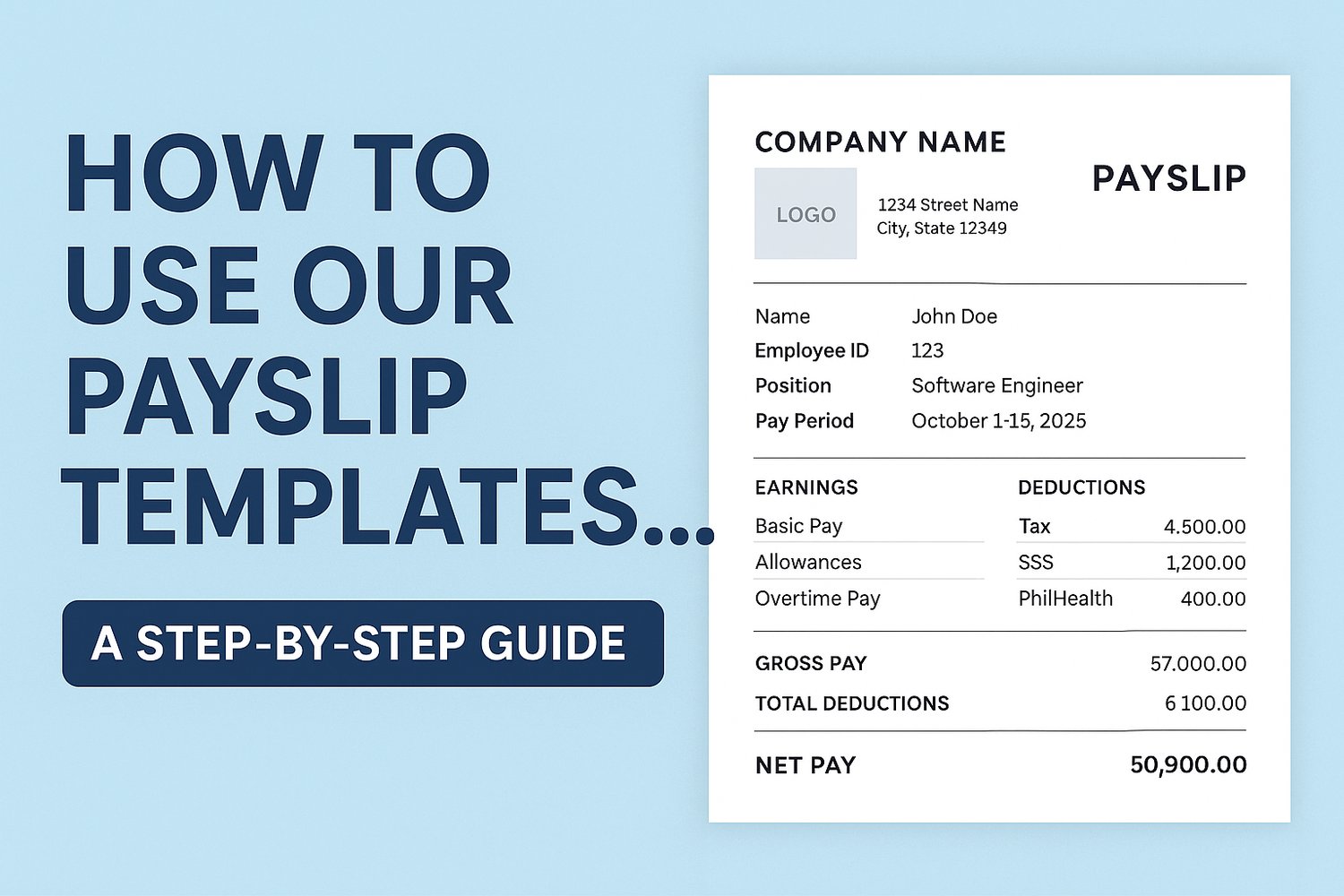
How to Use Our Payslip Templates in Excel:
A Step-by-Step Guide
If you’re looking for a simple and reliable way to create professional payslips for your employees, our editable Excel Payslip Templates are perfect for you. Whether you’re a small business owner, an HR staff member, or a freelancer who needs to issue payslips, these templates save time and reduce errors — thanks to built-in automatic computations.
In this guide, we’ll show you how to download, edit, and use our templates so you can generate payslips quickly and easily.
Why Use Our Payslip Templates
Here’s what makes our Excel templates stand out:
- ✅ Ready-to-Use Format: No need to design from scratch.
- ✅ Editable Fields: You can customize employee details, company info, and pay components.
- ✅ Built-In Computations: Automatic calculation for gross pay, deductions, and net pay.
- ✅ Professional Layout: Clean and organized for printing or digital sharing.
- ✅ Budget-Friendly: One-time purchase that you can reuse anytime.
Step-by-Step Guide: How to Use the Template
1. Download the Template
After purchasing, you’ll receive a link to download the Excel file.
- Save it on your computer in a secure folder.
- Open it with Microsoft Excel (or any compatible software such as Google Sheets, though Excel is recommended for full functionality).
2. Open and Explore the Template
When you open the file, you’ll notice:
- A header section for your company name, logo, and address.
- Employee information fields (e.g., name, position, pay period).
- Earnings and deductions table with formulas already set up.
- A computation area that automatically calculates totals.
👉 Tip: Hover over the cells with small red triangles to see notes or instructions we’ve included.
3. Customize Company & Employee Details
Replace the sample text with your actual information:
- Company Name and Logo
- Employee Name, ID, and Position
- Pay Period (e.g., October 1-15, 2025)
You only need to enter these details once per payslip.
4. Input Salary and Other Figures
The template includes fields for:
- Basic Pay
- Allowances
- Overtime Pay
- Deductions (like taxes, SSS, PhilHealth, etc.)
Simply type the numbers in the provided cells — the built-in formulas will handle the calculations for you.
5. Check the Automatic Computation
Our template automatically calculates:
- Gross Pay (total before deductions)
- Total Deductions
- Net Pay (the final amount the employee will receive)
👉 No need to create formulas yourself — just double-check the figures you entered.
6. Save or Print the Payslip
Once you’re satisfied with the details:
- Click File > Save As to keep a record for each pay period.
- Use Print Preview to check the layout before printing on A4 or Letter-size paper.
- You can also export it as a PDF to share digitally.
Pro Tips for Best Results
- 💾 Always keep a master copy of the original template. Duplicate it for each new payroll period.
- 🔒 Protect cells with formulas to prevent accidental changes.
- 🔄 Keep Excel updated to avoid compatibility issues.
- 📂 Organize your payslips in folders by month or pay period for easy tracking.
Final Thoughts
Using our Excel Payslip Templates saves you time, reduces manual errors, and makes your payroll process stress-free. Whether you manage a small team or handle regular payroll, you’ll find this tool reliable and easy to use.
👉 Ready to simplify your payroll process?
Download your Payslip Template today!