

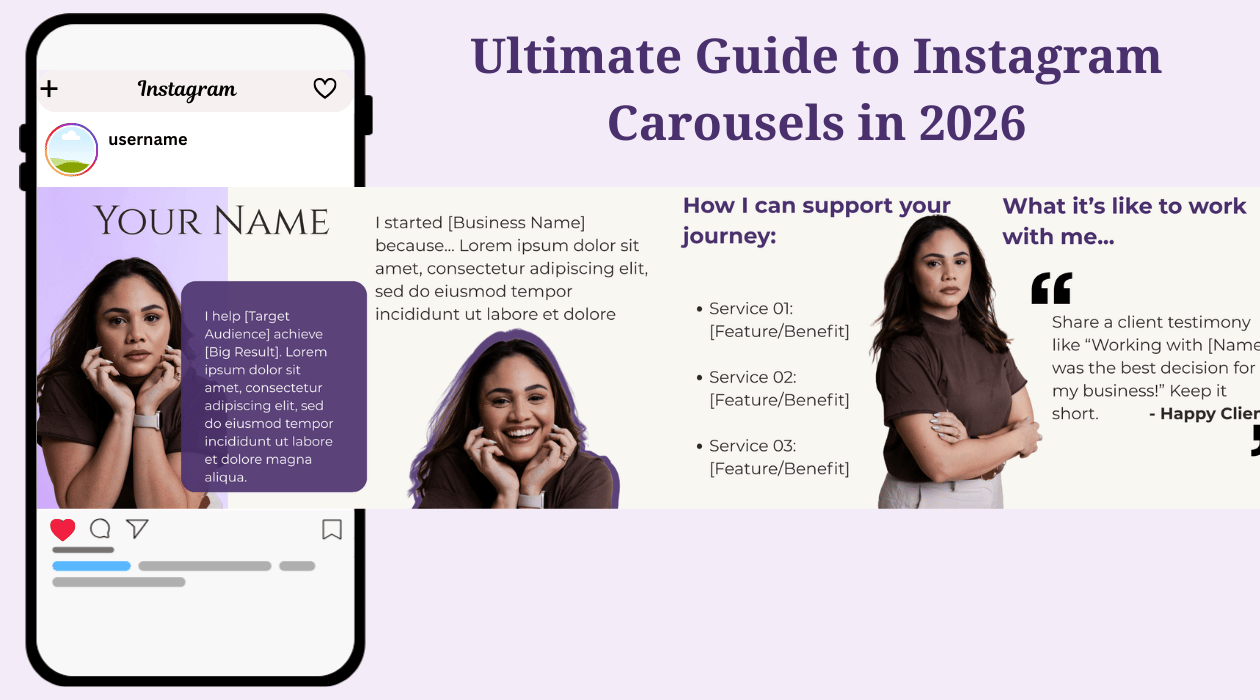
What is an Instagram Carousel?
An Instagram carousel is a single post that allows users to swipe through multiple images or videos. It’s one of the most engaging formats on the platform because it keeps users on your content for a longer period of time.
How to Create a Carousel Post?
You don’t need to be a professional designer to make high-quality carousels. Popular web-based tools include Canva, Adobe Express, and Figma. For those who want more advanced control, industry-standard software like Adobe Photoshop, Illustrator, or Canva's Affinity are excellent choices.
The Instagram Carousel Limit
As of now, the maximum limit for an Instagram carousel is 20 slides. This gives you plenty of room to tell a deep story or share a comprehensive "how-to" guide.
What is the "Perfect" Number of Slides?
There is no "magic number." The ideal length depends entirely on your content and your audience's attention span. Focus on providing value; if you can say it in 5 slides, don’t stretch it to 10.
How to Get More Views on Your Carousel?
- The Hook: Your first slide needs a powerful "hook" to stop the scroll.
- The "Second Chance" Rule: Adam Mosseri, Head of Instagram, noted that if a user sees your carousel but doesn’t swipe, Instagram will show them the post a second time, but starting on the second slide. Therefore, your second slide needs to be just as "stop-worthy" as the first.
- Add Music: Adding a trending track can make your carousel eligible to appear in the Reels tab, significantly increasing your potential reach.
What is the Best Size for a Carousel?
The most effective size for an Instagram slide is 1080 x 1440 pixels. This takes up the most screen real estate.
If you are designing a "seamless" carousel (where the image continues across slides), you need to multiply the width by the number of slides. For example, a 2-slide seamless post would be 2160 x 1440 pixels.
How to Create Seamless Carousel Posts?
The "Seamless" effect is essentially an optical illusion. You design a single "panorama" and then slice it into equal parts so that when a user swipes, the image appears continuous.
- In Canva: You can use the "Image Splitter" from the app section.
- In Illustrator: You can set up multiple side-by-side artboards or use one long artboard and use the "Slice Tool" to divide it before exporting.
- Online Splitters: There are many tools that allow you to upload one long image and split it into perfectly sized squares or portraits.
Always double-check the "seams" on your phone before posting. If your math is off by even 1 pixel, you’ll see a tiny white line between slides!
How to Reorder Posted Carousel Slides?
Instagram announced that starting from March 2026, you can reorder your posted carousel slides. Click on edit, then long-press and drag to change the order of the slides. You cannot add media to an already posted carousel.
Comments ()