
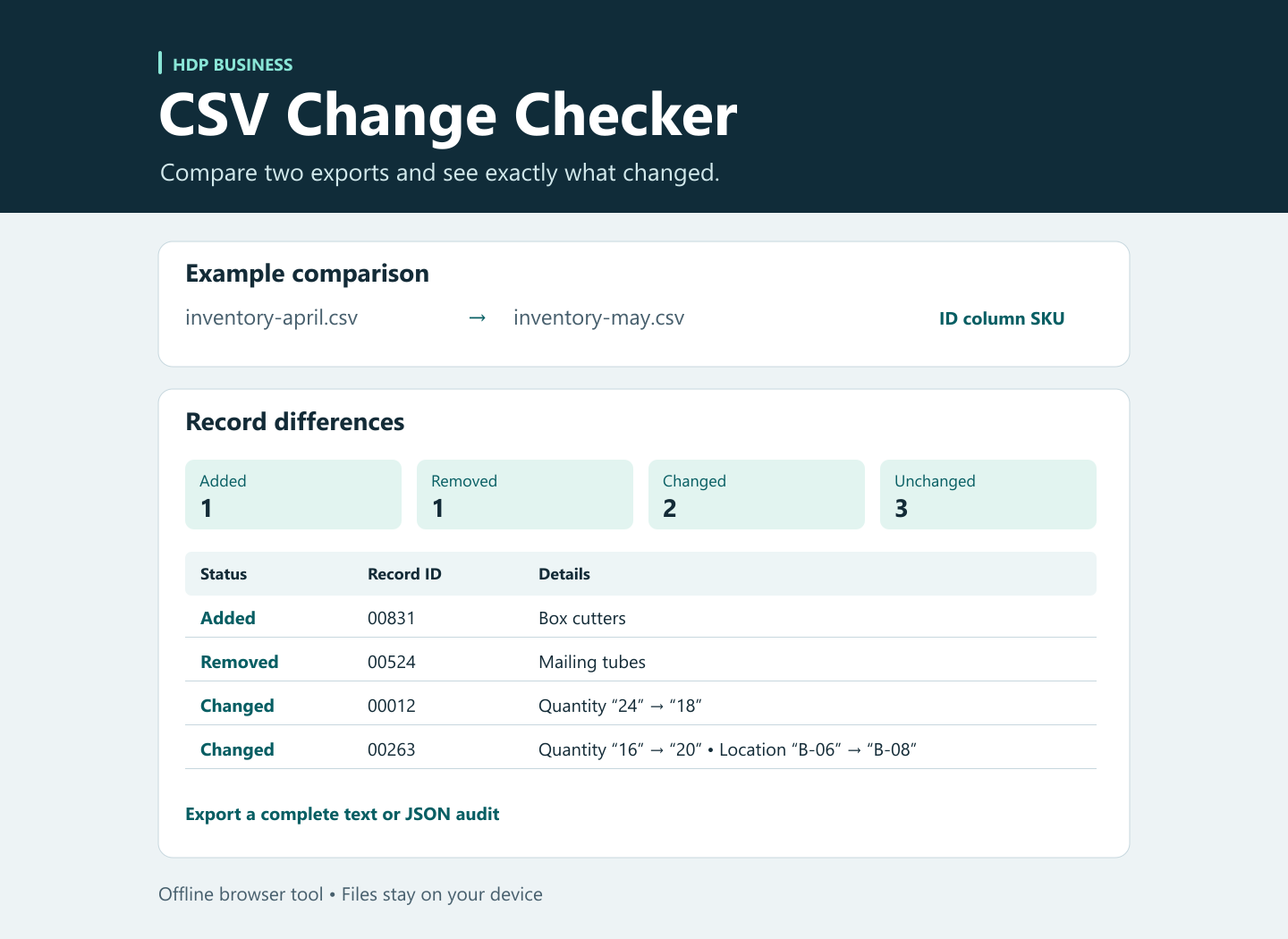
Before a bulk price update, compare the original product export with the file you plan to import. Check which records changed, then look at the specific fields on each changed row.
Keep the original CSV and pick a stable ID
Save a copy of the original export before editing. Use an ID that identifies one row in both files, such as a unique variant SKU. Keep identifiers as text so a spreadsheet preserves leading zeros. If an ID is blank or duplicated, resolve it before comparing. Matching by ID lets you reorder rows without confusing one product with another.
Review the changes before you import
Here’s what a small comparison using fictional catalog data found:
• SKU 0012. The price changed from $24.00 to $18.00. This was planned.
• SKU 0087. The notebook appears only in the original export. Check that its absence from the proposed file is intentional.
• SKU 0200. The price stayed the same and the vendor changed from River Goods to blank. Check whether the vendor should be kept.
• SKU 0304. The project log appears only in the proposed file. Verify that it belongs in the update.
A missing row or a blank cell can have different effects depending on your importer. For example, Shopify can clear an existing value when a non-required field is blank in an import that overwrites matching products. Check the import rules before you apply changes. Shopify product import instructions
Save a record of the review
Keep the two CSVs and a change report together so someone else can check what you approved. The CSV Change Checker compares two UTF-8 CSVs in a desktop browser and exports a text or JSON report. It runs offline and keeps the files on your device. The $9 listing includes a gallery preview and a sample audit.