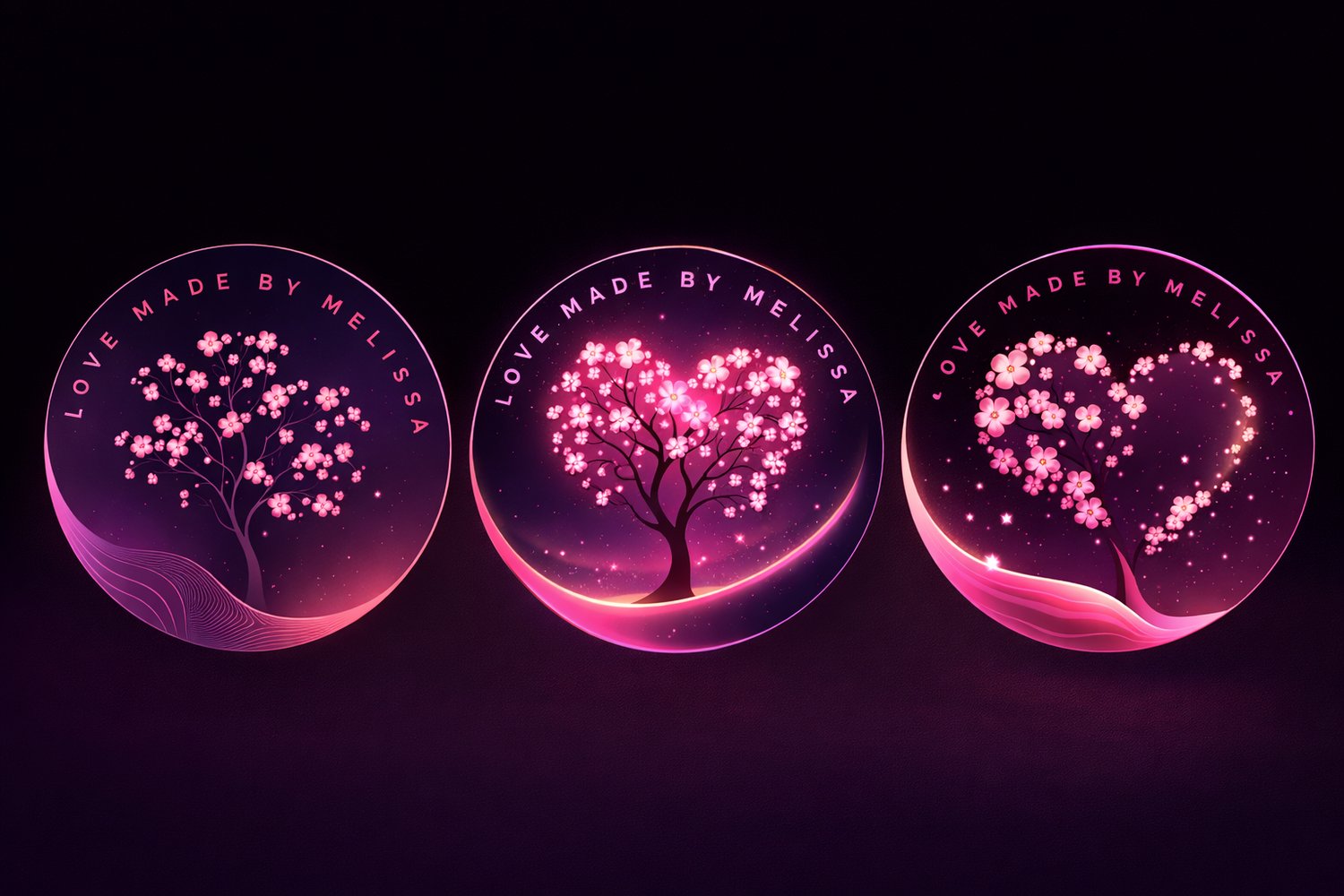

If you’ve ever wanted to make your own stickers—whether for printing, digital planners, or selling online—Canva makes it incredibly easy, even if you’re a beginner.
In this step-by-step guide, I’ll show you exactly how to create stickers in Canva, add a professional sticker border, and download them correctly for printing or digital use.
👉 Be sure to save the Pinterest graphic linked here so you can follow along visually!
Why Use Canva to Make Stickers?
Canva is one of the best tools for sticker creation because:
- It’s beginner-friendly
- No design experience required
- Works for printable and digital stickers
- Great for small businesses, Etsy sellers, and planners
You can use Canva to create:
- Printable stickers
- Digital planner stickers
- Cricut or Silhouette print-then-cut stickers
- Stickers to sell on Etsy or Payhip
Step 1: Create Your Sticker Design
Start by opening Canva and creating a new design.
You can use:
- Canva Elements (icons, shapes, illustrations)
- Text with fun fonts
- Your own uploaded artwork or PNGs
💡 Tip: Simple designs work best for stickers—bold shapes, clean lines, and bright colors.
Step 2: Add a Sticker Border (The Magic Step ✨)
This is what gives your design that classic sticker look.
- Select your design
- Click Edit Image
- Choose Shadows → Glow
Set the glow settings:
- Color: White
- Blur: 0
- Transparency: 100
- Size: Adjust until it looks like a sticker border
This creates a clean, printable outline around your design.
Step 3: Remove the Background (Optional)
If your design has a background you don’t want:
- Use Background Remover (Canva Pro feature)
This step is optional, but it’s especially helpful for:
- Die-cut stickers
- Digital stickers
- Print-then-cut projects
Step 4: Download Your Stickers Correctly
To make sure your stickers work properly, download them the right way:
- File type: PNG
- Transparent background: ✔️ (if available)
- Quality: High
PNG files are best for:
- Printing stickers
- Digital planner stickers
- Selling as digital downloads
Step 5: Print or Sell Your Stickers
Once your stickers are downloaded, you can:
- Print at home using sticker paper
- Use Cricut or Silhouette print-then-cut
- Sell digital stickers online
- Create sticker sheets or individual designs
Many creators sell Canva-made stickers on:
- Etsy
- Payhip
- Their own websites
Bonus Sticker Tip 💡
Always leave a little space around your design when creating stickers.
This makes cutting easier and gives your stickers a more professional finish.
Final Thoughts
Creating stickers in Canva is simple, fun, and opens the door to so many creative and business opportunities. Whether you’re making stickers for yourself or planning to sell them, Canva is a powerful tool that makes the process easy.
📌 Don’t forget to check out the Pinterest graphic linked here and save it for later!
Want More Canva Tutorials?
If you loved this guide, be sure to:
- Follow along on Pinterest
- Save the tutorial pin
- Check back for more Canva, digital product, and small business tips
Check out my site to see sticker designs you can use and make.