
With Python, PyMuPDF, and Google Colab, you can easily extract specific pages from a PDF and save them as a new PDF. This is useful when you need to extract individual chapters, sections, or selected pages.
1. Install PyMuPDF
Run this cell first:

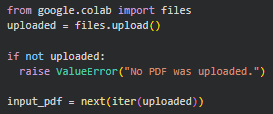
2. Upload your PDF
Import Google Colab's file upload tool and select your PDF:
3. Open the PDF
Import PyMuPDF and open the uploaded file:
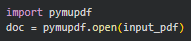
Note: PyMuPDF uses zero-based page indexing.
Page 1 = index 0
Page 2 = index 1
Page 3 = index 2
4. Select the pages to extract
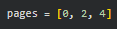
Specify the pages you want to extract.
For example, this selects pages 1, 3, and 5:
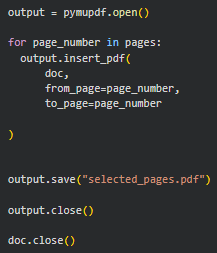
5. Create a new PDF
Create a new PDF and copy the selected pages into it:
6. Download the new PDF
Once the PDF has been created, download it to your computer:

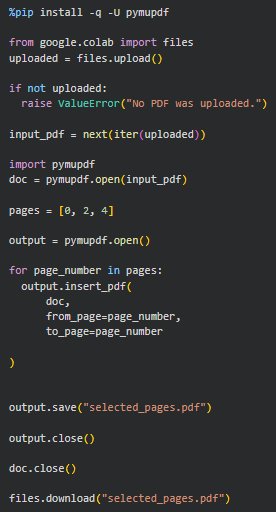
Complete Example
Open the notebook
Open the Google Colab notebook for this PDF mini-guide and run the code as you follow along.
Ready to put this into practice? Check out the Python and PDF resources in our store.
More PDF Python Resources
Want to learn how to Split a PDF into Separate PDF Pages in Google Colab?
Check out this mini-guide: How to Split a PDF into Separate PDF Pages in Google Colab.
Comments ()