

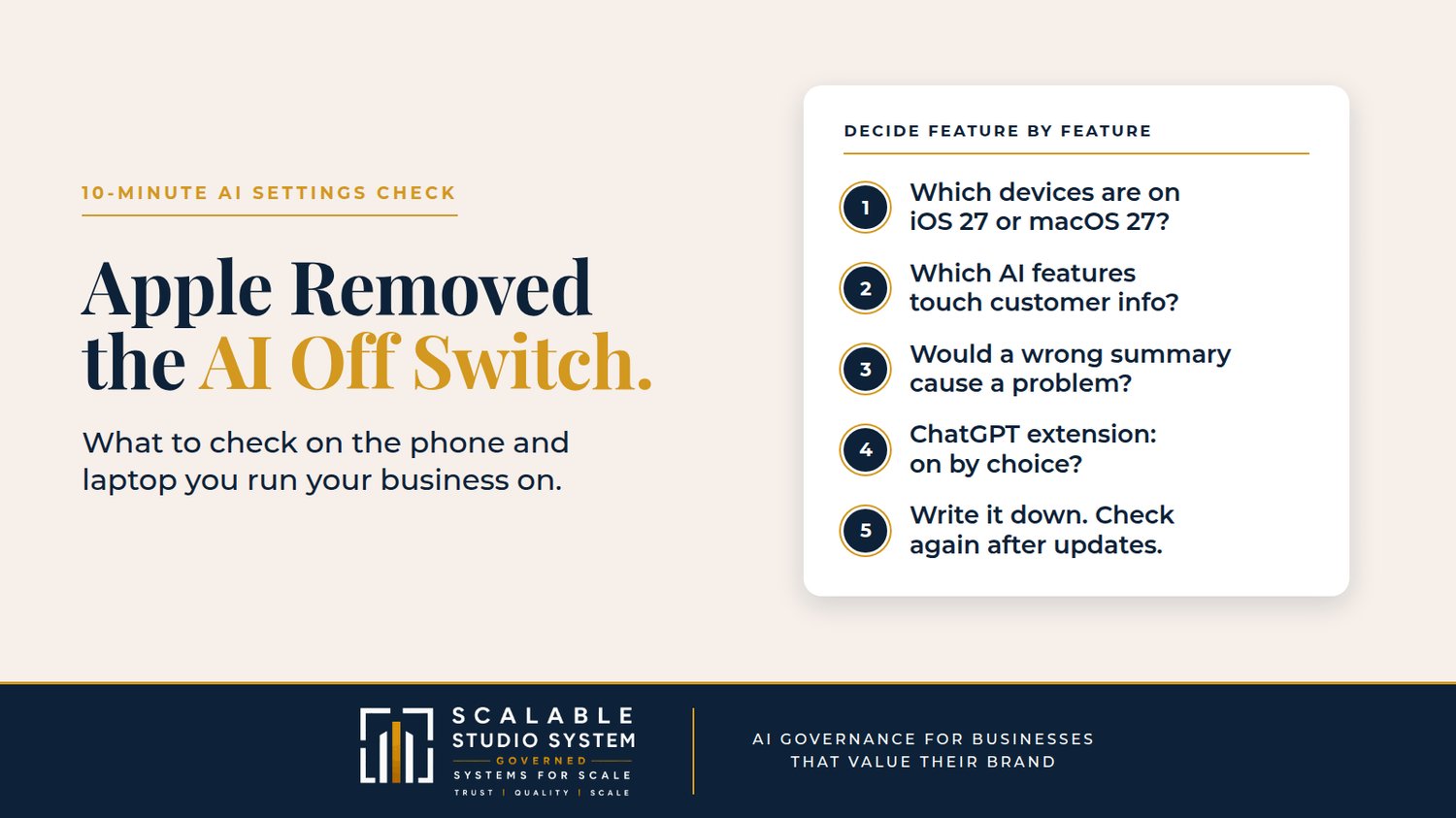
With iOS 27 and macOS 27, there's no longer one setting that turns Apple Intelligence off. The AI features stay on unless you switch them off one at a time. This week, a developer's free tool for doing what Apple's settings no longer do drew wide attention. You probably don't need it. But if customer emails, client texts, or orders come through your iPhone or Mac, it's worth ten minutes to decide which AI features you actually want running.
Most AI tools in a small business got there because someone chose them. Apple Intelligence is different. It came with a software update, and as of this fall, turning it off is no longer a single decision.
What happened
Until this year, iPhones and Macs had one Apple Intelligence switch. On iOS 26 and earlier, a single toggle turned all the features off and removed the on-device AI models to free up storage.
That switch is gone in iOS 27 and macOS 27. Apple's own guides now list the AI features one by one: summaries in Mail, Messages, and notifications, Smart Replies, writing tools, image creation, the newer Siri, and extensions that connect to outside AI providers like ChatGPT. Each has its own setting. On the Mac, one count puts the total at roughly ten settings spread across System Settings and several apps.
Turning those features off also doesn't remove the AI models from your device. On macOS 27, they stay on disk, taking up about 12 GB.
That's what set off this week's news. A developer's free, open-source tool called RemoveMacAI got wide coverage. It turns Apple Intelligence off on macOS 27, deletes the downloaded models, and stops the Mac from downloading them again. It runs from the command line, which tells you something: the simple way to do this no longer exists in Apple's settings.
Why it matters
The default changed. Before, "AI on or AI off" was one choice you could make once. Now, AI features are on unless you go find each one, and new features can arrive with future updates.
That doesn't make Apple Intelligence bad. Some people find the writing tools and summaries genuinely useful. The point is that a feature you never chose is still a feature you're responsible for when it touches your business.
Summaries are the clearest example. They're designed to shorten things, and shortening means leaving things out. Apple itself labels notification summaries with a warning that they may contain errors. In early 2025, Apple paused summaries for news and entertainment apps after the BBC complained that one had misrepresented its reporting. A summary that drops a detail from a news alert is embarrassing. A summary that drops the delivery date, the dollar amount, or the "please don't" from a customer message is a business problem.
The ChatGPT extension is the other one to look at. Apple describes these extensions as third-party AI providers. When you send a request through one, it goes to a company other than Apple.
What it means for a small business
If you're a solo operator or a small team, your iPhone and Mac probably aren't "business devices" in any formal sense. They're just the devices you run your business on. Customer emails, client texts, order notifications, and supplier messages all land in the same place as everything else.
That's exactly where AI summaries, Smart Replies, and writing suggestions now show up by default.
You don't have to turn it all off. A sensible setup for many businesses might keep writing help on, turn summaries off in the inbox where customer details matter, and leave the ChatGPT extension off unless you use it on purpose. The right answer depends on how you work. What matters is that it's an answer you chose, not one an update chose for you.
And because updates can change what's on, a choice you don't write down is a choice you'll have to remake from memory.
What to do next
Set aside about ten minutes. Use Apple's own support guide for turning off and restricting Apple Intelligence features (linked in the sources below), since menu locations can shift between updates.
- Check which devices are on the new software. Any iPhone on iOS 27 or Mac on macOS 27 no longer has the single off switch. Include every device that gets business email, messages, or order alerts.
- List the AI features that touch customer information. Start with summaries in Mail, Messages, and notifications, plus Smart Replies. These are the ones that sit between you and what a customer actually said.
- Decide feature by feature. For each one, ask: Does it touch customer details? Would a wrong or incomplete version cause a problem? Do I actually use it? If the answers are yes, yes, and no, turn it off.
- Keep the original one tap away. If you leave summaries on, treat them as a preview, not the message. Open the original before you quote a price, confirm a date, or promise anything.
- Decide on the ChatGPT extension on purpose. If it's on, use the same rule you'd use for pasting into any outside AI tool: no customer details you wouldn't want to share with another company.
- Write it down. One line per device is enough: which AI features are on, which are off, and why. Re-check that list after every major software update.
That last step is the one most people skip, and it's the one that keeps this from becoming a yearly surprise.
If you want the same discipline for the AI you use on purpose, the projects you run in ChatGPT or Claude, Scalable Studio System's Build Your AI Project God Mode — Complete Kit ($97, on Payhip) is built around it. Its Organize stage sets up a source-of-truth structure for your project's documents. Its Evolve stage sets a maintenance rhythm: after material work, monthly, after a material change, and quarterly. It's a framework for organizing your AI projects, not a guide to device settings, but it's the same habit: decide how your AI should work, write it down, and check it when things change.
The AI that comes with your devices is still AI in your business. It's worth choosing what it does.
Sources
- Help Net Security — RemoveMacAI turns off Apple Intelligence on macOS 27 and deletes its models https://www.helpnetsecurity.com/2026/10/05/removemacai-turn-off-apple-intelligence/
- Apple Support — Block access to Apple Intelligence features in Screen Time on Mac https://support.apple.com/guide/mac-help/mchlb2e44f94/mac
- iThinkDiff — How to turn off Apple Intelligence features on iOS 27 https://ithinkdiff.com/how-to-turn-off-apple-intelligence-features-ios-27-2/
- Gizmodo (via Yahoo Tech) — Apple Pauses AI Notification Summaries That Spread Fake News https://tech.yahoo.com/ai/articles/apple-pauses-ai-notification-summaries-120309983.html