

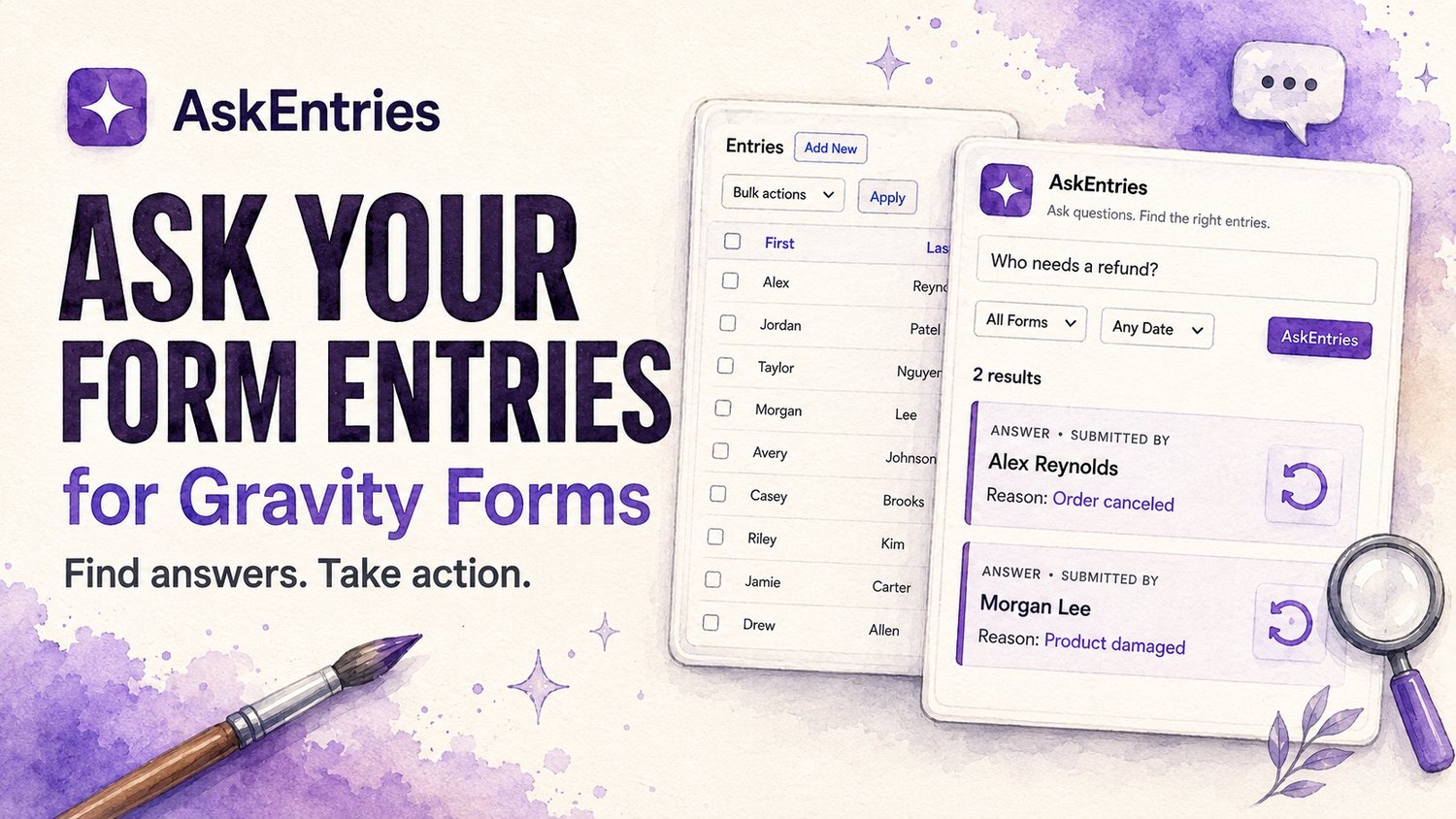
AskEntries vs. Traditional Search vs. Cloud LLMs: Find Answers—and Act on Your Gravity Forms Entries
Collecting submissions is only the beginning. The harder work comes later: finding related requests, understanding long messages, and deciding which entries need attention.
Traditional search helps when you know what to look for. Cloud-based large language models can help with summaries and generated responses. AskEntries for Gravity Forms connects discovery with everyday entry management: ask a question, review the supporting submissions, select relevant results, and take action inside WordPress.
AskEntries now lets you search one Gravity Form or entries across all your forms in a single search from the WordPress admin. Ask a question in plain language, review ranked entries and supporting passages, then open the original submissions or take supported actions. Bulk notes, reviewed email, read/unread and star controls, and adjustable relevance filtering remain part of the workflow.
SEARCH ONE FORM OR ALL FORMS FROM WORDPRESS ADMIN
If related requests arrive through several Gravity Forms, you can search across all forms at once instead of opening each Entries screen and repeating the same question. You can also limit the search to one form when you need a narrower answer.
For example, ask “Who needs help installing an add-on?” across your support, contact, and onboarding forms. Review each relevant result and its supporting text, then open the original entry to check the full submission. Filters for read status and common date ranges can narrow the search.
WHEN CUSTOMERS DESCRIBE THE SAME PROBLEM DIFFERENTLY
Imagine receiving these messages:
“I was charged twice.”
“Please return the payment to my card.”
“Can you send the money back?”
“I purchased the wrong license and need reimbursement.”
Searching for “refund” may miss submissions that never use that word. You could try several searches, but that becomes time-consuming as entries accumulate.
AskEntries lets you start with the question:
“Who is requesting a refund?”
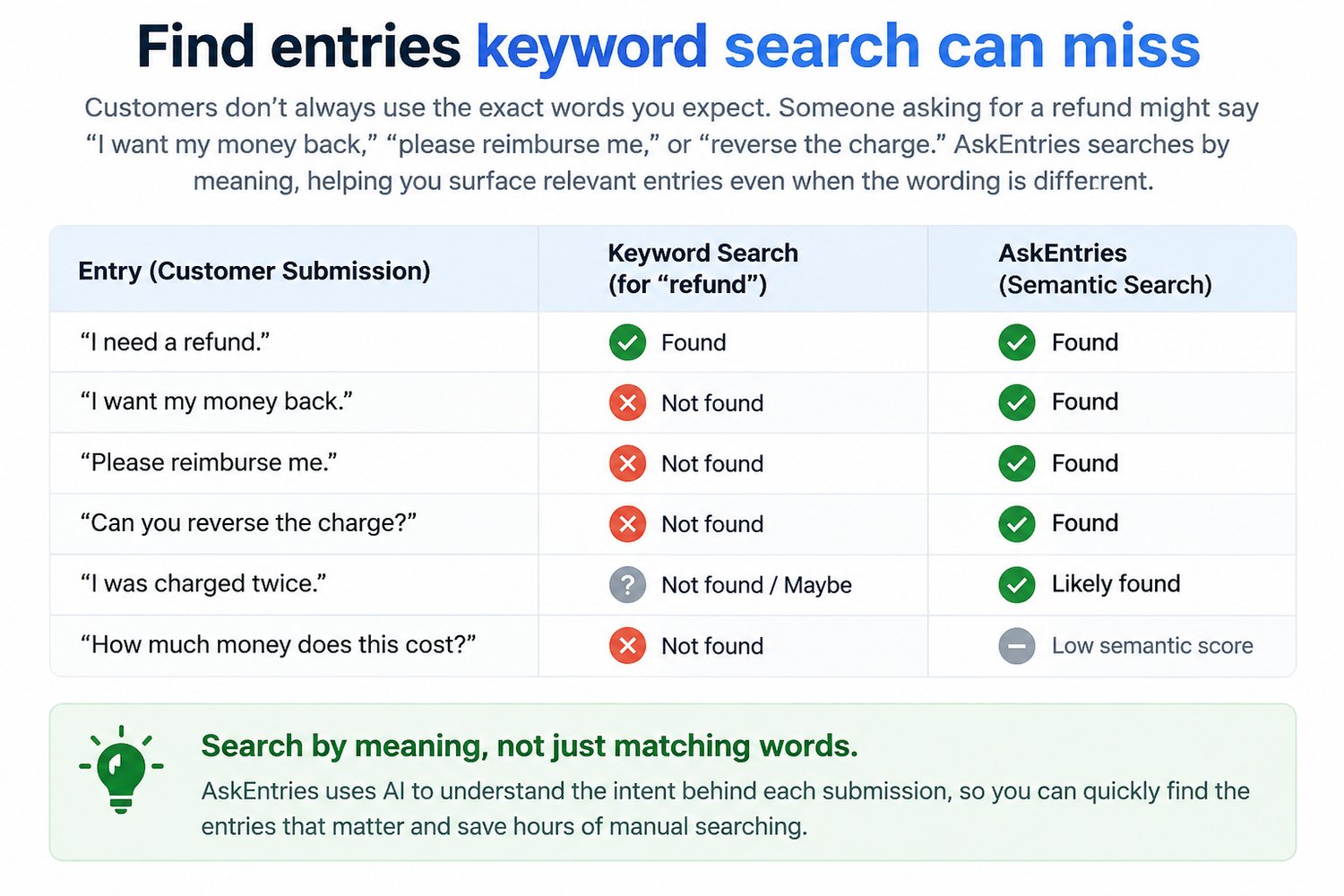
It uses semantic matching to find related submissions, even when their wording differs. You can then review the original supporting passages before deciding what to do.
WHERE TRADITIONAL SEARCH STILL WINS
Exact search remains the right tool for a known email address, order number, name, or phrase. Native entry filters also help narrow the list by date and status.
If you already know the value you need, there is little reason to load an AI model to find it.
AskEntries complements that workflow. It is useful when you know the problem or question—but not the words people used to describe it.
ANSWERS WITH SUPPORTING CONTEXT
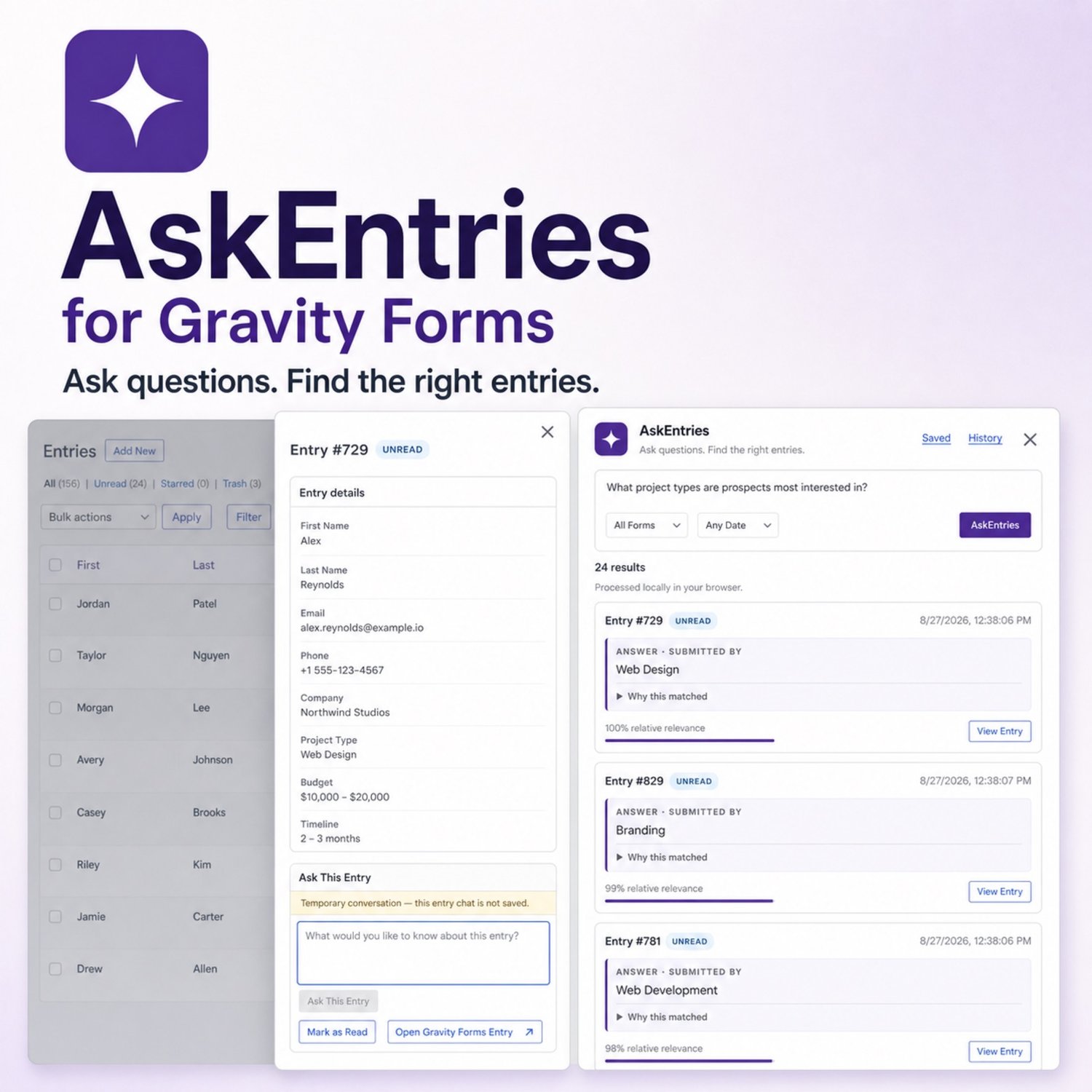
AskEntries displays structured results with:
• Entry identifiers
• Extracted answers or relevant snippets
• Supporting passages with highlighted answers
• Relative relevance scores
• Links to the source entries
• Submission dates and read status on freshly loaded results
For example, a customer might write:
“Please return $249 to the original payment method.”
A question such as “How much did this customer request back?” can surface the amount while keeping the supporting text available.
Answers still need review. Semantic retrieval can find an imperfect match, and extractive models can select an incomplete or incorrect passage.
NEW: ADJUST MINIMUM RELEVANCE
The Minimum Relevance control lets you filter already-ranked results at:
60% • 70% • 75% • 80% • 85% • 90% • 95%
Changing the threshold updates qualifying results immediately without rerunning the question.
Use a lower threshold to explore more possible matches or a higher threshold to focus your review. Result and selection counts help you see what will be included.
Relevance is a relative ranking signal—not a probability that an answer is correct. An entry showing 95% relevance is not a guarantee of 95% accuracy.
If you raise the threshold, selected entries that no longer qualify are automatically deselected.
NEW: TAKE ACTION ON SELECTED ENTRIES
Select individual entries, the current results page, or all qualifying results across pages. Then open the floating Entry Actions panel to:
• Add a note
• Send a personalized email
• Mark entries read or unread
• Star or unstar entries
Actions run in bounded batches with progress updates and summaries showing successes, skips, and failures.
For example, you could find refund requests, review the matches, select relevant entries, and add an internal note recording the next step.
AskEntries helps organize the work. It does not issue refunds or make the decision for you.
PERSONALIZED EMAIL WITHOUT LEAVING THE WORKFLOW
Bulk email lets you follow up with selected submissions.
Write your subject and message, then review recipient counts and masked email addresses before confirming. AskEntries sends to selected entries with a valid Gravity Forms Email field; check the recipient preview before sending, particularly when results come from different forms.
Both the subject and message support native Gravity Forms merge tags and shortcuts such as:
Hi {name:first},
Thank you for contacting us. We have received your request and will follow up shortly.
Your email: {email}
Shortcuts use the first matching field type. If your form contains multiple Name or Email fields, use Gravity Forms’ native field-ID merge tags to identify the field you want.
Email uses your site’s configured WordPress mail service, including compatible SMTP configuration, with the default site admin-email sender. It sends your custom message rather than resending existing form notifications.
When the mail service accepts a message for sending, AskEntries adds an entry note containing its subject and masked recipient—not the message body. Acceptance for sending does not guarantee inbox delivery.
A CLEANER, MORE FOCUSED WORKSPACE
The floating actions panel sits beside the main results drawer and uses clear, larger buttons.
Opening entry details closes the actions panel. Opening actions closes entry details. This keeps the workspace focused while preserving your result list.
Inside an entry panel, you can:
• Review readable Gravity Forms field values
• Ask questions about that specific submission
• Change its read status
• Open the original Gravity Forms entry
Entry-specific conversations are temporary and cleared when their panel closes.
SAVE QUESTIONS AND PICK UP WHERE YOU LEFT OFF
Saved Questions lets you add, edit, rename, reorder, remove, and rerun questions for each WordPress user and form.
Device-local history keeps up to 25 compact result sets per form. You can:
• Restore cached results
• Resume a question on its last viewed results page
• See which entries you opened
• Remove individual history items
• Clear all history
• Run the question again against current entries
Cached results reflect the earlier query. Use Run Again when you need current entries.
History contains questions, snippets, relevance scores, and related identifiers—not full entry payloads. It stays in that browser and does not synchronize across devices.
HOW ASKENTRIES COMPARES WITH CLOUD LLM TOOLS
AskEntries uses browser-side semantic retrieval and extractive question answering. It finds relevant text and selects answers from submissions.
A cloud LLM integration may be a better fit when your goal is to generate a report, draft a response, translate content, or synthesize information across several sources. Its capabilities, costs, and data handling depend on the provider and integration.
Choose traditional search when:
• You know the exact email address, identifier, or phrase.
• You need a straightforward, predictable lookup.
Choose AskEntries when:
• People describe similar requests in different words.
• You need one search across several forms instead of repeating it form by form.
• You need to find a detail inside a long submission.
• You want supporting passages available for verification.
• You want to add notes or email selected results.
Consider an LLM solution when:
• You need generated writing or translation.
• You want a broad narrative report.
• Your workflow requires synthesis across multiple sources.
AskEntries does not require an OpenAI, Gemini, or Anthropic API key. There are no per-question external LLM API charges for its entry analysis.
BROWSER-SIDE PROCESSING AND PRACTICAL LIMITS
AskEntries analyzes entry text inside the authenticated administrator’s browser. Model files download when needed, but submission text is not included in those download requests.
Background preparation and browser caching can reduce later loading delays. Initial model downloads and processing time still depend on the device and connection.
To protect browser resources, each query considers up to the newest 1,000 matching entries and 6,000 passages. This limit also applies when the search scope includes all forms, so a query does not scan an unlimited archive.
Every confidence-qualified entry within that loaded dataset can appear. There is no fixed 24-result ceiling.
File fields can contribute readable field values, but AskEntries does not currently read the contents of uploaded images or documents.
Entry access and bulk actions require the relevant Gravity Forms permissions. Requests use authenticated WordPress REST nonces.
WATCH ASKENTRIES IN ACTION
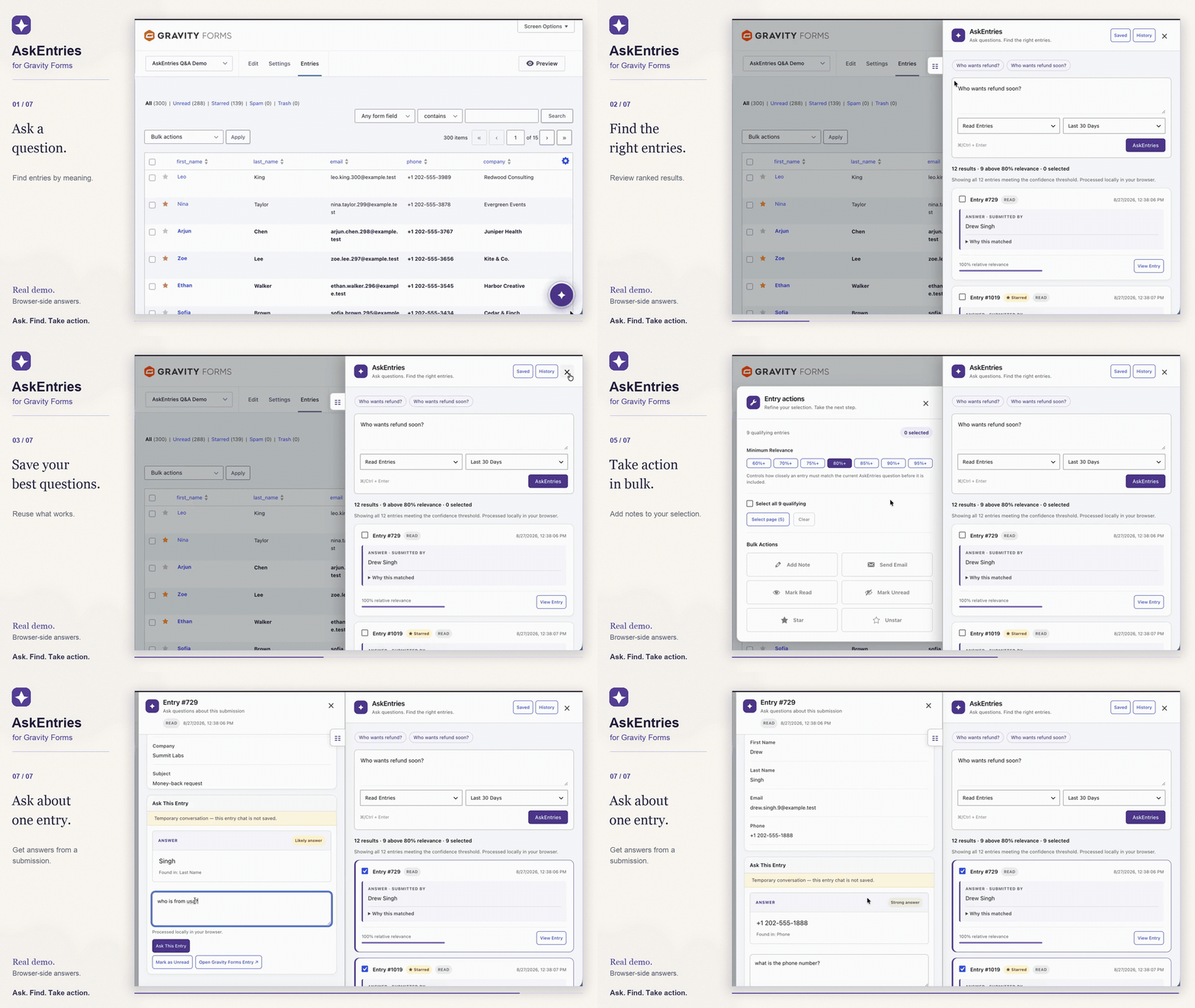
See refund searches, saved questions, history, relevance filtering, bulk notes, email, and individual-entry questions in this short demonstration:
FIND THE REQUEST. CHECK THE EVIDENCE. TAKE THE NEXT STEP.
AskEntries is designed for administrators handling support requests, leads, surveys, quotes, applications, and long intake submissions.
Use exact search when you know the value. Use AskEntries when you need to find related meaning, inspect the source, and work through matching entries.
Get AskEntries for Gravity Forms:
Requirements: WordPress 6.5+, Gravity Forms 3.0+, PHP 8.0+, a supported modern browser, and a valid AskEntries license. Gravity Forms is required separately.
Comments ()