

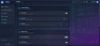
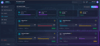
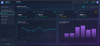
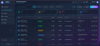
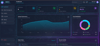
Glass Morphism Dashboard
NEXUS AI - Automatic Robot Management System
A high-tech themed Robot Management System with integrated analytics and advanced AI control capabilities. Built with Next.js 16, TypeScript, and a stunning glassmorphism UI design.

🚀 Features
🔐 Authentication
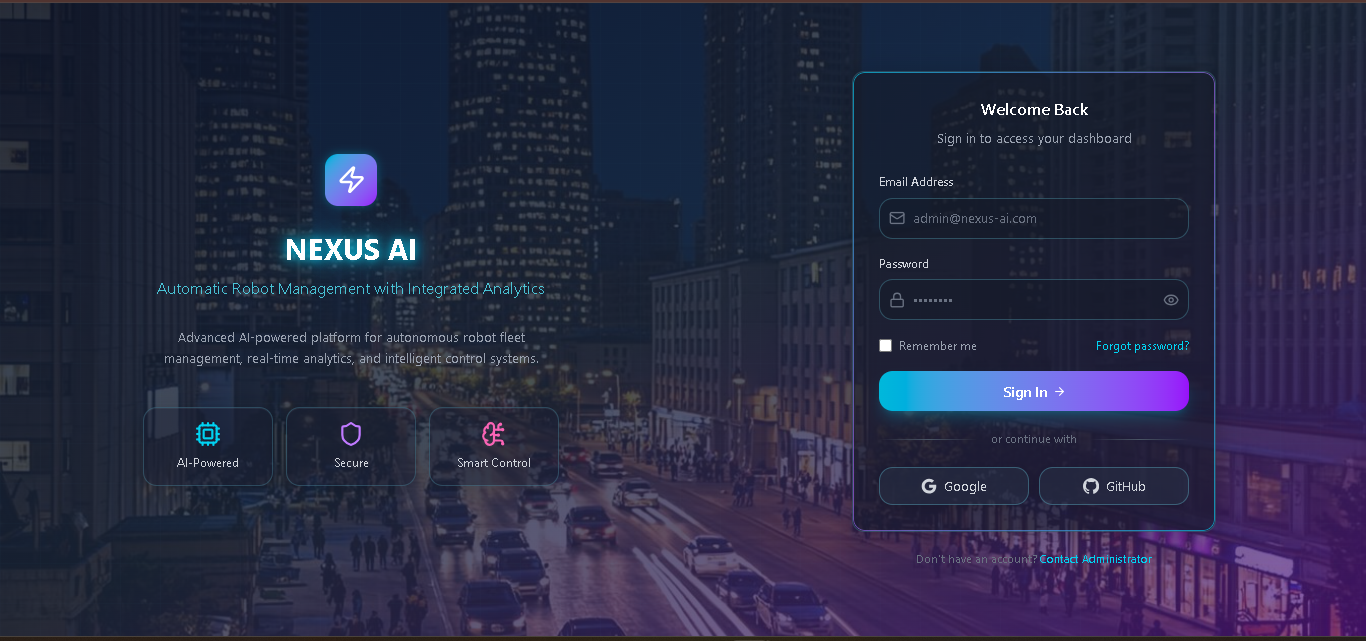
- Login Page with full-size cyberpunk background
- Form validation (email format, password requirements)
- Remember me functionality
- Forgot password option
- Social login buttons (Google, GitHub)
- Session persistence across page refreshes
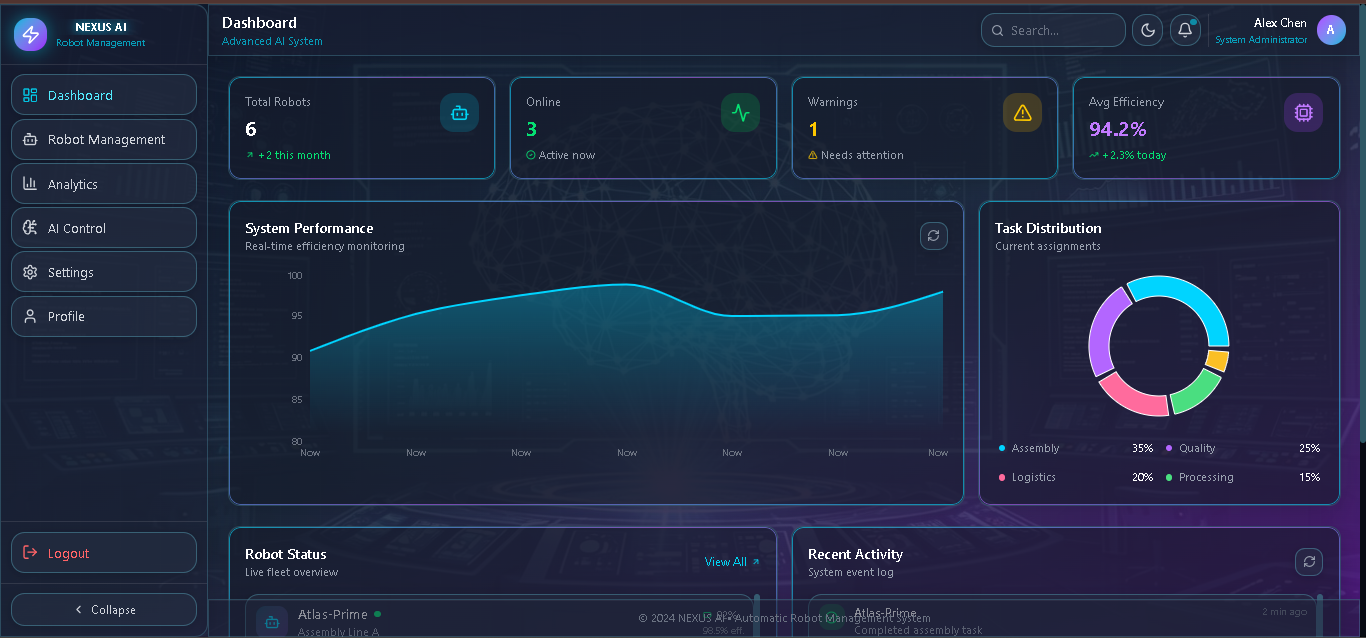
📊 Dashboard
- Real-time Statistics Cards
- Total Robots count
- Online/Active robots
- Warning alerts
- Average efficiency
- Live Performance Chart - Auto-updates every 5 seconds
- Task Distribution Pie Chart
- Robot Status List - Click to view details
- Recent Activity Feed - Click for more info
- Manual refresh capability
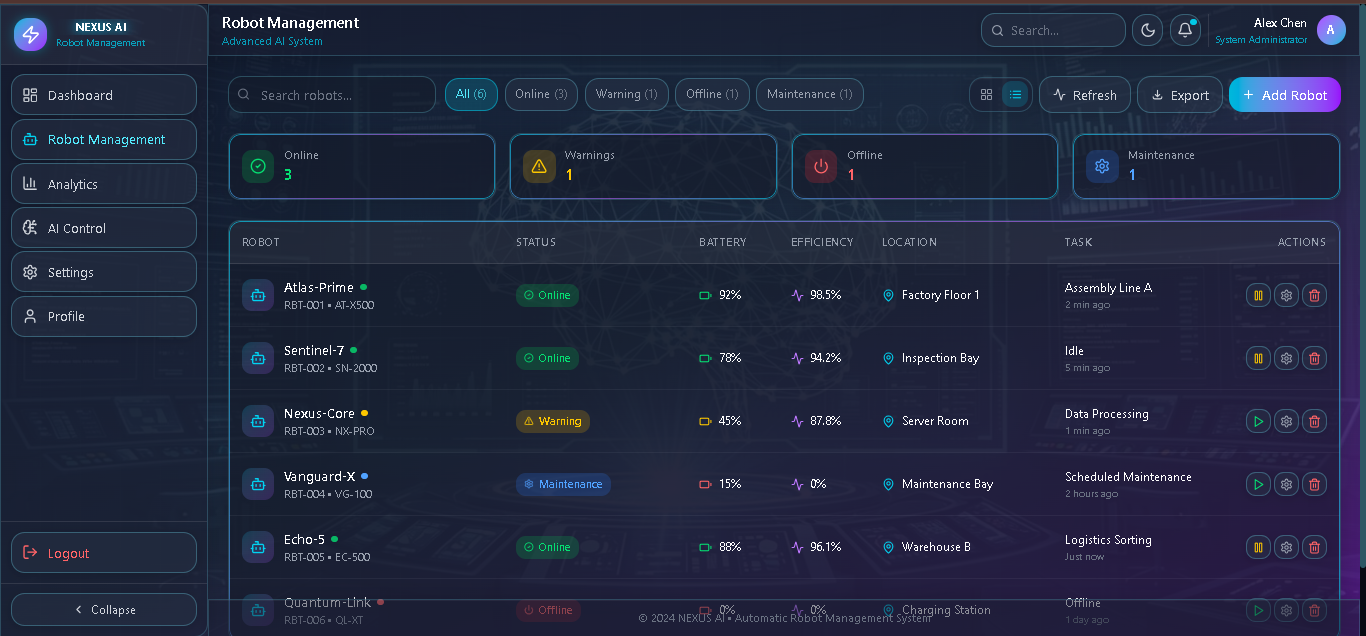
🤖 Robot Management
- Dual View Modes
- Grid View - Card-based layout with detailed info
- List View - Table-style with compact rows
- Search & Filter
- Search by name, ID, or location
- Filter by status (All, Online, Warning, Offline, Maintenance)
- Robot Actions
- Add new robots via modal form
- Edit robot configuration
- Toggle robot status (Start/Pause)
- Delete robots with confirmation
- Export robot data as JSON
- Robot Details Modal
- Full statistics display
- Battery and efficiency metrics
- Current task information
- Quick action buttons
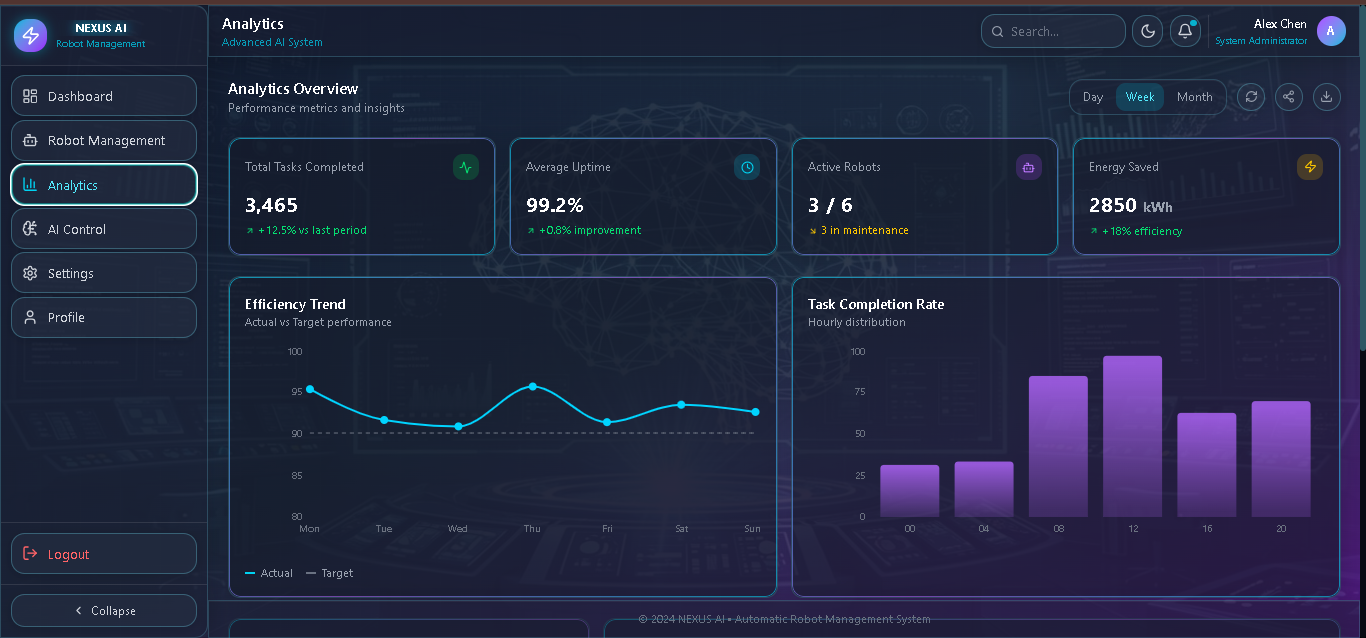
📈 Analytics
- KPI Dashboard
- Total tasks completed
- Average uptime percentage
- Active robots count
- Energy savings
- Interactive Charts
- Efficiency trend (Line chart)
- Task completion rate (Bar chart)
- Performance metrics (Radar chart)
- Energy analytics (Area chart)
- Time Range Selector - Day, Week, Month views
- Export Reports - Download analytics as JSON
- AI Insights - Actionable recommendations
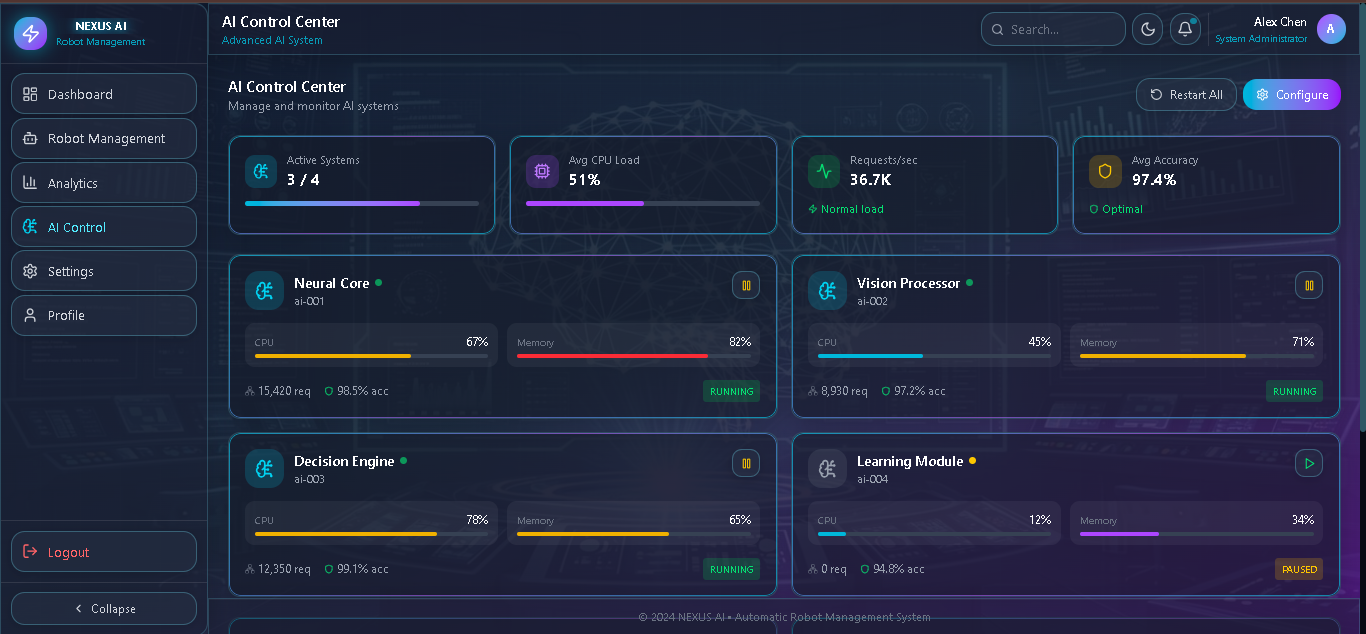
🧠 AI Control Center
- System Monitoring
- Neural Core
- Vision Processor
- Decision Engine
- Learning Module
- Real-time Metrics
- CPU usage with color-coded indicators
- Memory usage
- Requests per second
- Accuracy percentages
- Quick Actions
- Start/Pause all systems
- Restart all systems
- Rebalance load
- Clear cache
- Command Terminal
- Interactive command input
- Available commands: help, status, restart, clear
- Real-time log output
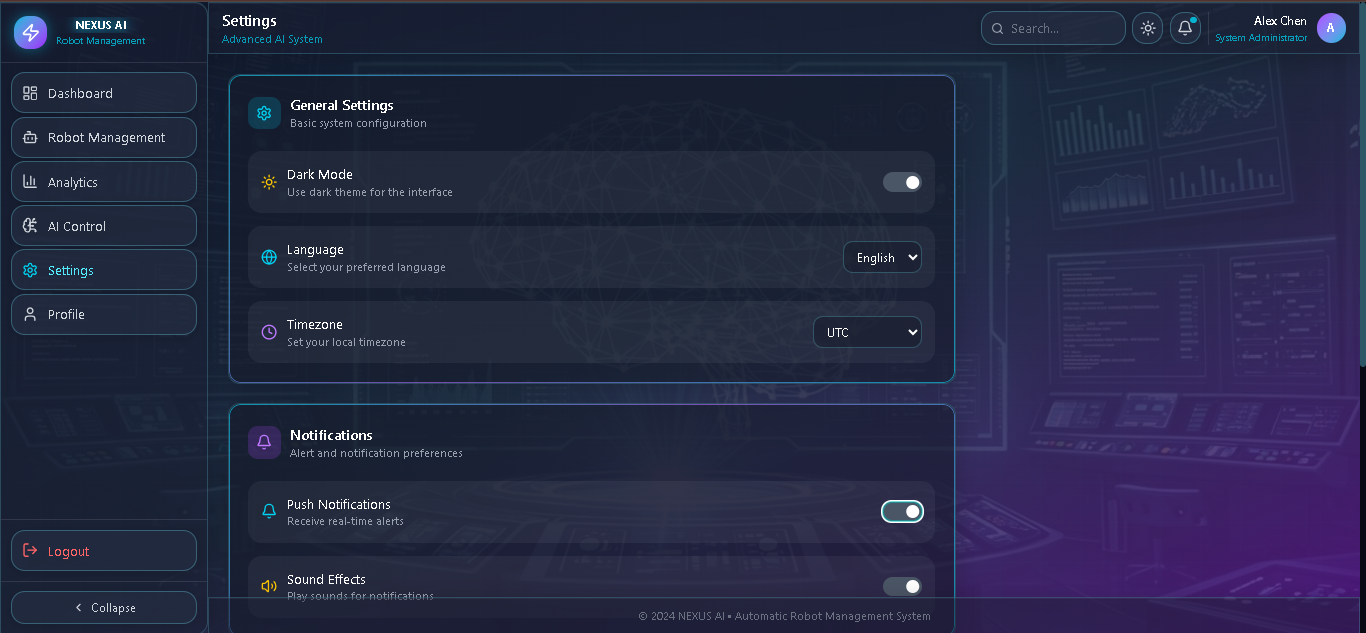
⚙️ Settings
- General Settings
- Dark/Light mode toggle
- Language selection (EN, ZH, JA, KO)
- Timezone configuration
- Notifications
- Push notifications toggle
- Sound effects toggle
- System
- Auto-update toggle
- Export settings (JSON)
- Import settings from file
- Reset to defaults (with confirmation)
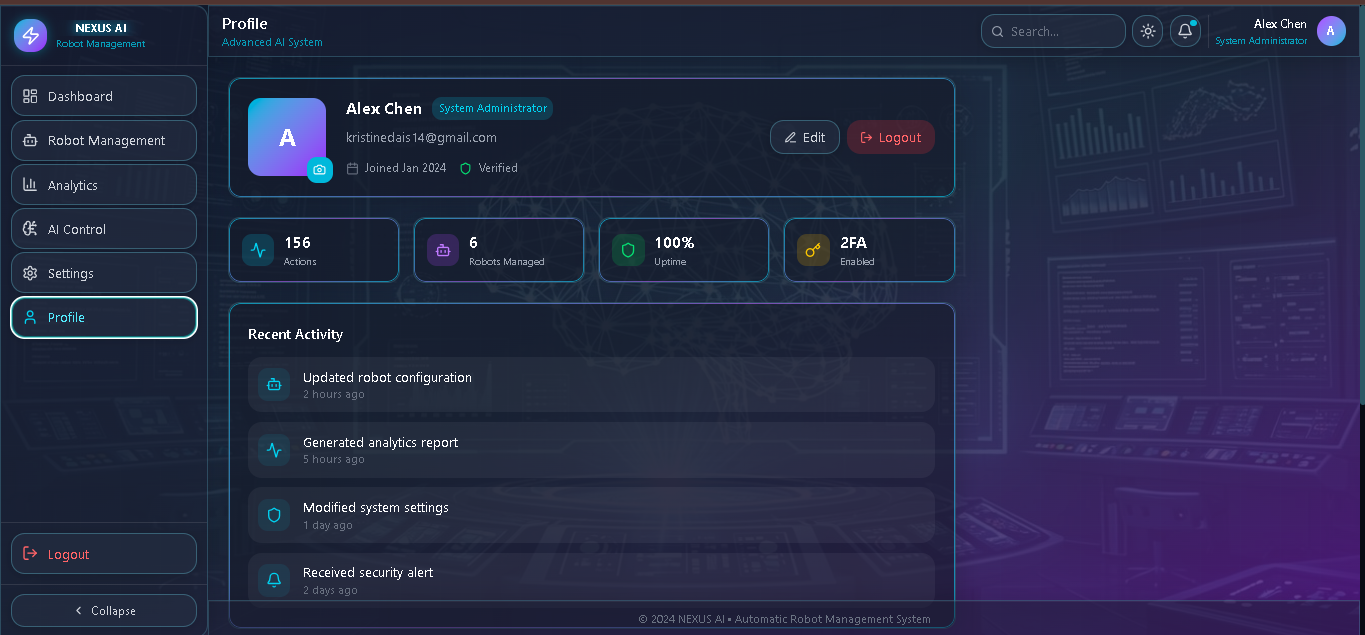
👤 Profile
- User Information Display
- Avatar with edit option
- Name and role
- Member since date
- Activity Statistics
- Actions count
- Robots managed
- Uptime percentage
- Security Options
- Change password
- Two-factor authentication status
- Email verification status
- Edit Profile - Update name and email
🎨 UI/UX Features
- Glassmorphism Design
- Transparent cards with blur effects
- Gradient borders
- Neon glow effects
- Full-size Background Images
- AI-generated cyberpunk backgrounds
- Dark overlay for readability
- Grid pattern overlay
- Responsive Layout
- Desktop sidebar navigation
- Mobile app drawer with hamburger menu
- Adaptive grid layouts
- Theme Support
- Dark mode (default)
- Light mode toggle
- Interactive Elements
- Hover effects on all buttons
- Loading states with spinners
- Toast notifications for all actions
- Confirmation modals for destructive actions
🛠️ Tech Stack
- Framework: Next.js 16 (App Router)
- Language: TypeScript 5
- Styling: Tailwind CSS 4
- UI Components: shadcn/ui (New York style)
- Icons: Lucide React
- Charts: Recharts
- State Management: Zustand with persist middleware
- Fonts: Geist Sans, Geist Mono
📦 Installation
Prerequisites
- Node.js 18+ or Bun
- npm, yarn, pnpm, or bun
Clone the Repository
bash
git clone <repository-url>
cd nexus-ai-robot-management
Install Dependencies
bash
# Using bun (recommended)
bun install
# Using npm
npm install
# Using yarn
yarn install
# Using pnpm
pnpm install
🚀 Running the Application
Development Mode
bash
# Using bun
bun run dev
# Using npm
npm run dev
# Using yarn
yarn dev
# Using pnpm
pnpm dev
The application will be available at http://localhost:3000
Production Build
bash
# Build the application
bun run build
# Start production server
bun run start
Other Commands
bash
# Run linter
bun run lint
# Database operations (if using Prisma)
bun run db:push # Push schema changes
bun run db:generate # Generate Prisma client
bun run db:migrate # Run migrations
bun run db:reset # Reset database
📁 Project Structure
text
nexus-ai/
│ └── robots-bg.png
├── src/
│ ├── app/
│ │ ├── globals.css # Global styles & glassmorphism
│ │ ├── layout.tsx # Root layout
│ │ └── page.tsx # Main application page
│ ├── components/
│ │ ├── layout/
│ │ │ ├── Sidebar.tsx # Desktop navigation
│ │ │ ├── AppDrawer.tsx # Mobile navigation
│ │ │ └── Header.tsx # Top header
│ │ ├── pages/
│ │ │ ├── LoginPage.tsx
│ │ │ ├── DashboardPage.tsx
│ │ │ ├── RobotsPage.tsx
│ │ │ ├── AnalyticsPage.tsx
│ │ │ ├── AIControlPage.tsx
│ │ │ ├── SettingsPage.tsx
│ │ │ └── ProfilePage.tsx
│ │ ├── modals/
│ │ │ └── ModalManager.tsx # All modal components
│ │ └── ui/
│ │ └── toast-container.tsx
│ ├── store/
│ │ └── app-store.ts # Zustand state management
│ └── lib/
│ └── utils.ts # Utility functions
├── prisma/
│ └── schema.prisma # Database schema
├── tailwind.config.ts
├── next.config.ts
└── package.json
🎮 How to Use
Getting Started
- Login: Use any email and password (min 6 characters) to login
- Dashboard: View real-time statistics and robot status
- Navigation: Use the sidebar (desktop) or hamburger menu (mobile)
Managing Robots
- Navigate to Robot Management from the sidebar
- Search: Enter name, ID, or location in the search box
- Filter: Click status buttons to filter by robot state
- View Modes: Toggle between Grid (📊) and List (☰) views
- Add Robot: Click "Add Robot" button and fill the form
- View Details: Click any robot card/row to see full details
- Edit: Click "Configure" to modify robot settings
- Delete: Use the trash icon (with confirmation)
Viewing Analytics
- Navigate to Analytics from the sidebar
- Select time range (Day/Week/Month)
- Click on KPI cards for more details
- Click on insights for recommendations
- Export data using the download button
AI Control
- Navigate to AI Control from the sidebar
- Toggle individual systems on/off
- Use quick actions for bulk operations
- Type commands in the terminal (try help)
- Monitor real-time metrics
Settings
- Navigate to Settings from the sidebar
- Toggle preferences (dark mode, notifications, etc.)
- Select language and timezone
- Export/Import settings
- Reset to defaults if needed
Profile
- Navigate to Profile from the sidebar
- Click "Edit" to modify your information
- Manage security settings
- View activity history
- Logout when done
🎨 Customization
Changing Background Images
Replace the images in public/images/:
- login-bg.png - Login page background
- dashboard-bg.png - Main application background
Modifying Theme Colors
Edit CSS variables in src/app/globals.css:
css
:root {
--primary: oklch(0.7 0.15 190); /* Cyan */
--accent: oklch(0.6 0.2 300); /* Purple */
--cyber-cyan: oklch(0.7 0.15 190);
--cyber-purple: oklch(0.6 0.2 280);
}
Adding New Pages
- Create component in src/components/pages/
- Add route type to PageType in src/store/app-store.ts
- Add navigation item to sidebar/drawer
- Add case to renderPage() in src/app/page.tsx
📝 Notes
- Data Persistence: Settings and login state persist in localStorage
- Mock Data: Robot data is simulated for demonstration
- No Backend Required: All data is managed client-side
- Responsive Design: Works on desktop, tablet, and mobile devices
- Accessibility: Includes ARIA labels and keyboard navigation
📄 License
MIT License - Feel free to use this project for personal or commercial purposes.
🤝 Contributing
Contributions are welcome! Please feel free to submit a Pull Request.
📧 Support
For issues or questions, please open an issue on the repository.