
2019 Microsoft Word 1-4 Basic Features
You don't have to convince your administration to buy another expensive program. You don't have to write any new assignments or figure out how to grade it. Whether you just want to teach basics or you are preparing students for the MOS certification, these lessons will get your students there--whether they are in your classroom or at home, provided they have access to Office or 365. Lessons are all inclusive, self-directed and include step by step videos--perfect for teaching live, blended, or strictly online. For a fraction of the price.
Welcome to the first installment of my new Word 2019 Video Tutorial Lessons! This bundle contains lessons 1-4 in my 8 part series, with a focus on all the most common and basic features in Word. They are also a stepping stone to preparing students to take the MOS Certification test. I took and passed the 2019 MOS test three times before writing these lessons to ensure that they cover everything you need to know to pass! The first four lessons are also great for teaching the program without the certification.
These lessons are designed to be used in a blended learning format, where students learn at the own pace. The teacher acts as more of a guide to help students who get stuck or need additional one-on-one help, but students are responsible for their own learning and pacing.
These lessons are a great way to teach Microsoft in a home format as well, provided students have access to Word or Office 365. I used this model during the second half of the 2019-2020 school year and still had a high passing rate on the MOS test. These lessons were classroom tested in my own classroom in the fall of 2020 with a 95% passing rate.
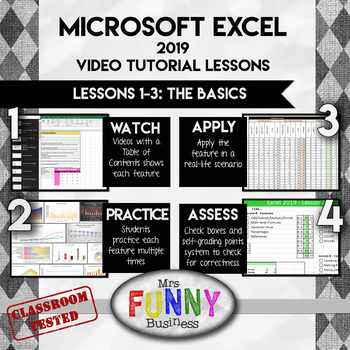
Step 1: WATCH - Students begin by opening the lesson video, which has a table of contents and allows them to learn about each feature and skip to where they need to be. Some students may be able to skip entire sections if they already know that features, while others can watch sections multiple times if they are having difficulty or need to go back. The video does not show them their assignment step by step, but shows them how to do each feature. They must then use that knowledge to figure out how to use it themselves in their own assignment.
Step 2: PRACTICE - Students then open the Lesson Excel sheet and go to the practice section, usually comprising 4-5 different mini-lessons labeled by letter. Following the step by step directions, students practice the feature several times until they are confident using it. Students may print the final results or turn them in digitally. A key is provided for a quick perusal by teacher to grade--I never spend more than a few seconds grading each one.
Step 3: APPLY - After practicing, students can apply their knowledge in a real-world application where they use the skills they have just learned to create something in Word.
Step 4: ASSESS - At the end of each lesson, students go to the practice page and check the boxes of each feature if they can remember how to use it and feel confident with it.
This bundle includes Lessons 1-4, which are designed to teach the most common and useful features in Word. Lesson 5-6 focuses on the MOS certification, going deeper into Word and focusing on the "weird" things that are on the test but not always used be the average user. Lessons 7-8 will include advanced features that are not on the MOS test but will be of interest to your faster students who want a challenge. They will include things like mail merge, labels, and the developer tab.
I have tried to write these lessons like an accordion--with room to expand and contract as the student needs require. Gifted students can go as quickly as they like and will have advanced lessons to keep them challenge. Slower students can go at their own pace as well, with a teacher more free to spend time with them as needed. The solution videos included are another way of making the lessons simpler for slower students who need more scaffolding.
Lesson 1 - Teaches the "universal features" that are used in Word, Excel and PowerPoint, like copy and paste, shapes, font size, etc. It's the quickest of all my lessons and is a great first lesson for the quarter.
Lesson 2 - Focuses on the concept of text vs. images and how the interact differently. The main focus in on images and wrapping, and the different ways to use text, smartart, etc.
Lesson 3 - Focuses on space utilization - how to change the spacing of a document, but also comparing and contrasting three major ways of using space: Tabs, Tables, and columns. Students also use text boxes to move information to a desired location.
Lesson 4 - Goes over some less used file features such as options and file properties, as well as a few deeper concepts not yet covered. The application is a great review of what they have learned in all four lessons.
Exams - Finally, I have included a final exam if you wish to test your students via multiple choice rather than the MOS test. This test is 30 questions and has an A and B version which are similar but not exactly the same. The key for these tests are also included.
This download also includes the non-internet based mp4 files as well, just in case you do not have internet access of the site is temporarily unavailable.