

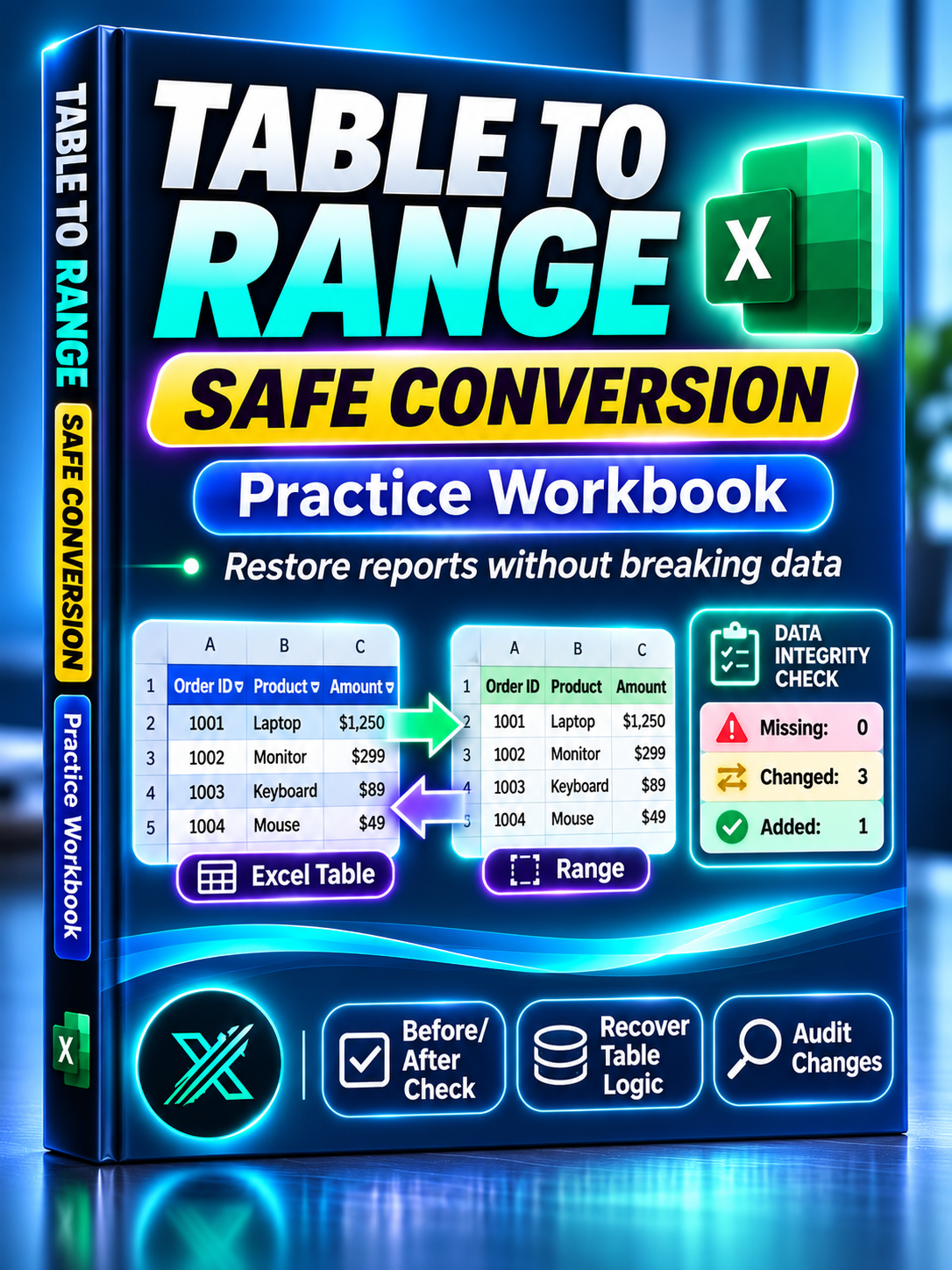
Excel Table to Range Workbook — Safe Conversion & Data Integrity Checker
Excel Table to Range Workbook — Safe Conversion & Data Integrity Checker
Convert Excel Tables to normal ranges, restore your reports, and catch data changes before they become costly mistakes.
Converting an Excel Table to a regular range seems simple — until your report stops including new records, formulas lose their structured references, or important data changes go unnoticed.
This practical Excel workbook helps you understand what happens during table conversion, restore your reporting structure, and verify that your data remains consistent.
More than a tutorial file, it includes a reusable before-and-after data integrity checker.
What's Included
1. Hands-On Conversion & Recovery Practice
Work through a realistic Excel reporting scenario and learn how to:
- Convert an existing Excel Table into a normal range
- Understand which Table features disappear
- Recognize when reports stop including new records
- Restore an Excel Table without deleting your data
- Reconnect structured references to your report
- Verify that calculations include newly added records
Includes a prepared practice environment and working report.
2. Before & After Data Comparison
Compare two versions of a dataset to identify differences that may be missed by simply checking grand totals.
- Compare records using unique order IDs
- Identify missing records
- Detect newly added records
- Flag changes in existing records
- Identify duplicate IDs
- Review inconsistent or invalid data
The checker uses separate Before and After input sheets, allowing you to examine changes without modifying your original source files.
3. Data Integrity Audit Center
Review your comparison results in one organized worksheet.
- Summary of detected differences
- Record-level change indicators
- Revenue and cost reconciliation
- Data consistency checks
- PASS and REVIEW status indicators
Instead of manually comparing every row, use the audit results to focus on records requiring attention.
4. Formula Recovery Reference
Get practical examples showing how to restore dynamic Excel reports after converting ranges back into Tables.
Learn the difference between ordinary cell references and structured Table references — and why rebuilding the Table alone may not fully restore the original reporting behavior.
5. Quick Start Guide
Simple instructions help you understand the practice sheets, prepare before-and-after datasets, and interpret the audit results.
Why Get This Workbook?
The real risk isn't losing your table formatting. It's trusting a report that no longer includes all your data.
A report can appear correct while silently excluding new transactions or overlooking modified records.
This workbook gives you both a practical conversion exercise and a reusable comparison tool to help investigate those problems.
Useful for anyone who regularly imports, converts, maintains, or reviews Excel datasets.
Who Is It For?
- Excel users working with imported data
- Business and financial analysts
- Reporting specialists
- Operations and administrative teams
- Professionals checking spreadsheet exports
- Anyone maintaining reports built around Excel Tables
How to Use
- Open the workbook and review START_HERE.
- Practice conversion and recovery using LIVE_ORDERS and LIVE_REPORT.
- Explore the original data in BEFORE_DATA.
- Place the dataset you want to compare in AFTER_DATA, following the included structure.
- Review AUDIT_CENTER for missing, added, changed, or duplicated records.
- Use FORMULA_REFERENCE to understand the reporting and recovery logic.
File Details
- One Excel workbook (.xlsx)
- 7 organized worksheets
- Excel Table conversion practice
- Before-and-after data comparison
- Data integrity audit
- Formula recovery examples
- Designed for Excel 2021
- No VBA macros required
Protect your data. Restore your reporting logic. Catch discrepancies before trusting the final numbers.
Digital download. Microsoft Excel recommended.
Note: The workbook compares datasets entered into its prepared worksheets. It does not automatically scan or repair external Excel workbooks.