
Column Size Manager for Revit | Automated Structural Column Resizing & Alignment
The Problem:
In standard Revit workflows, resizing a structural column automatically scales its geometry evenly around its centroid. For exterior, edge, and corner conditions, this default behavior forces the outer column faces to pull away from established grid lines and building perimeters. Re-establishing flush edge conditions requires manually utilizing the Align tool face-by-face, which costs BIM engineers and modelers hours of tedious, repetitive clicking on large-scale structural projects.
The Solution / Features:
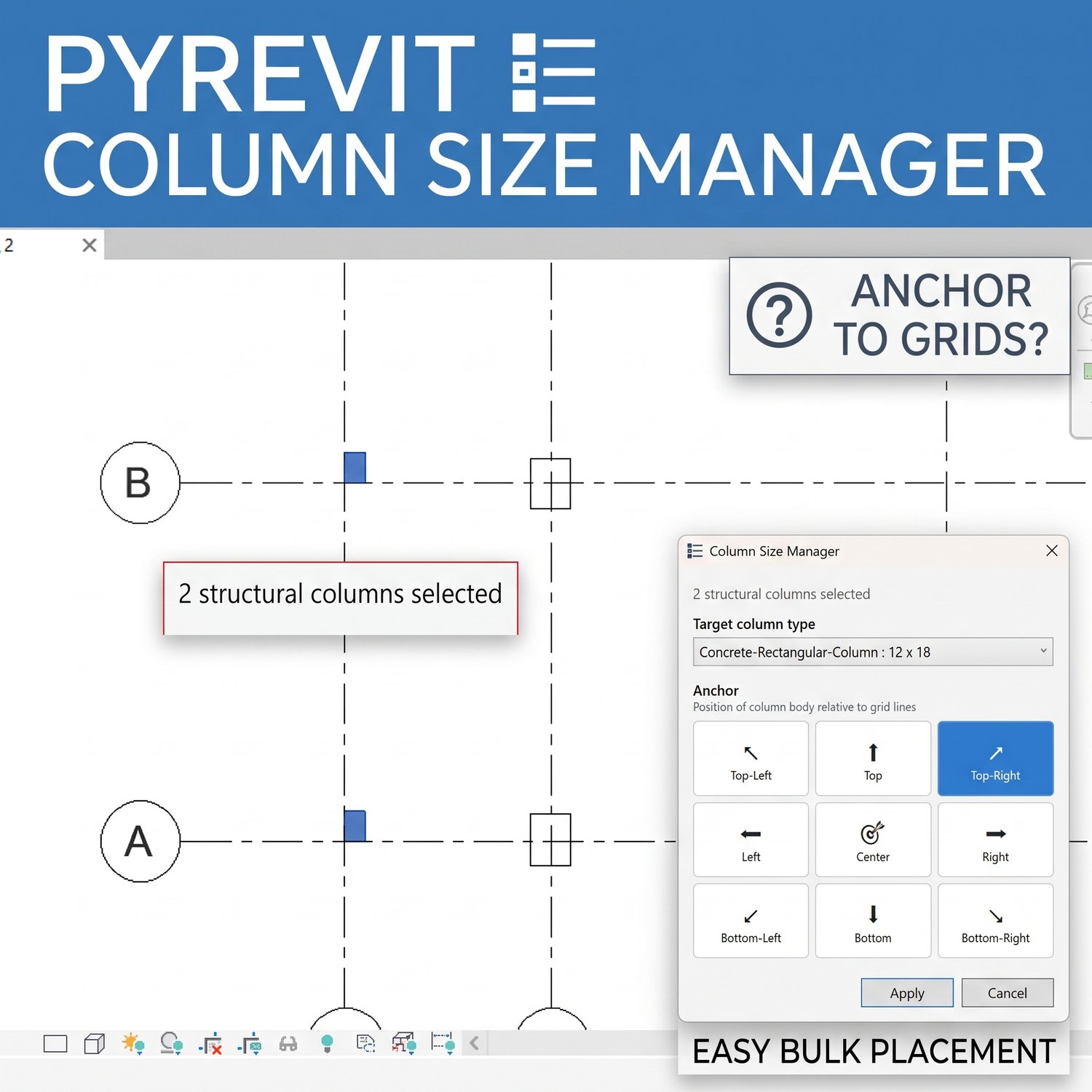
The Column Size Manager automates the process of resizing columns while keeping specific faces perfectly locked to their grids. By utilizing a highly visual interface, users can batch-resize columns and maintain structural alignment in a single action.
- Intuitive 3x3 Anchor Widget: Visually define the exact alignment condition (e.g., Top-Right, Bottom, Left, Center) before resizing.
- Batch Processing: Select and process multiple columns simultaneously based on their specific perimeter or corner condition.
- Zero-Gap Grid Snapping: The script mathematically shifts the geometry during the type change to ensure faces remain perfectly flush with your grid lines.
- Automated Shift Reporting: Instantly receive a detailed bounding box and coordinate shift report after every run.
Compatibility:
- Autodesk Revit (2020 and newer recommended)
- Requires pyRevit installation
Brief How-To:
- Select the structural columns you need to resize in your Revit model.
- Launch the Column Size Manager tool.
- Select your target column type/size from the generated dropdown menu.
- Click the appropriate anchor node on the 3x3 widget to dictate which faces should remain locked in place.
- Click "Apply" to instantly resize and align all selected columns.