
InDesign - Create and link individual text anchors automatically
This is an inDesign script which tackles the sometimes tedious task of linking Text (such as an index) to Text Anchors (such as headings). It has the option of putting a list of the links into a text box along with the page number (with a TAB before it) where they can be found, this is ordered by the page number they appear in. Very useful for building a quick index/content page of linked topics or chapter headings etc. Ideal for a large catalogue, it'll save you a bunch of time.
Place the Script in your Script Panels folder so that InDesign can see it.
How to use
__________
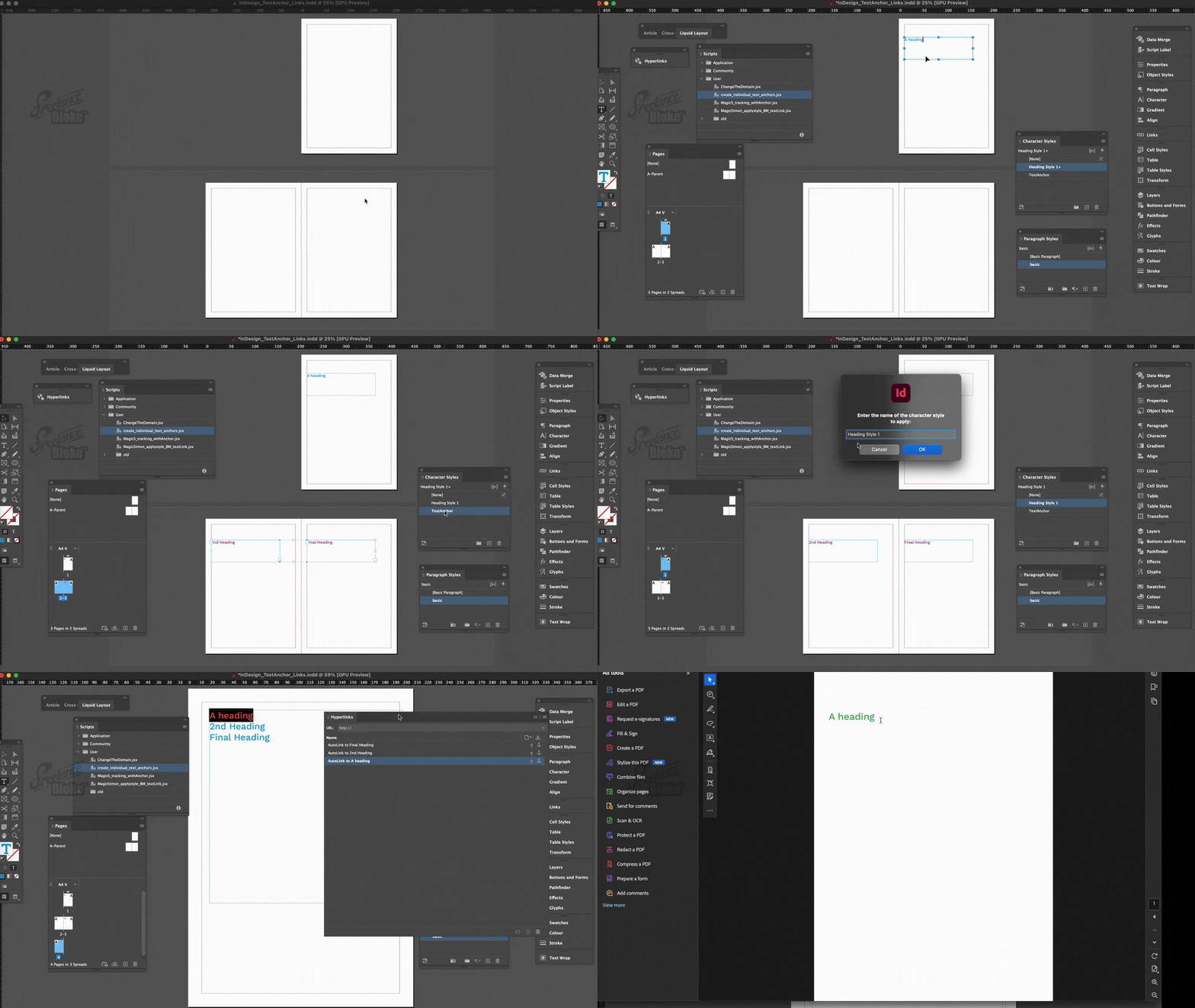
Any headings or text which you want to be made into an anchor needs to be assigned a Character Style (from the stylesheet) which is called TextAnchor. This needs to be created and you can style it however you wish, I find it useful to assign a designated colour to it so that I can see which headings I've applied it to.
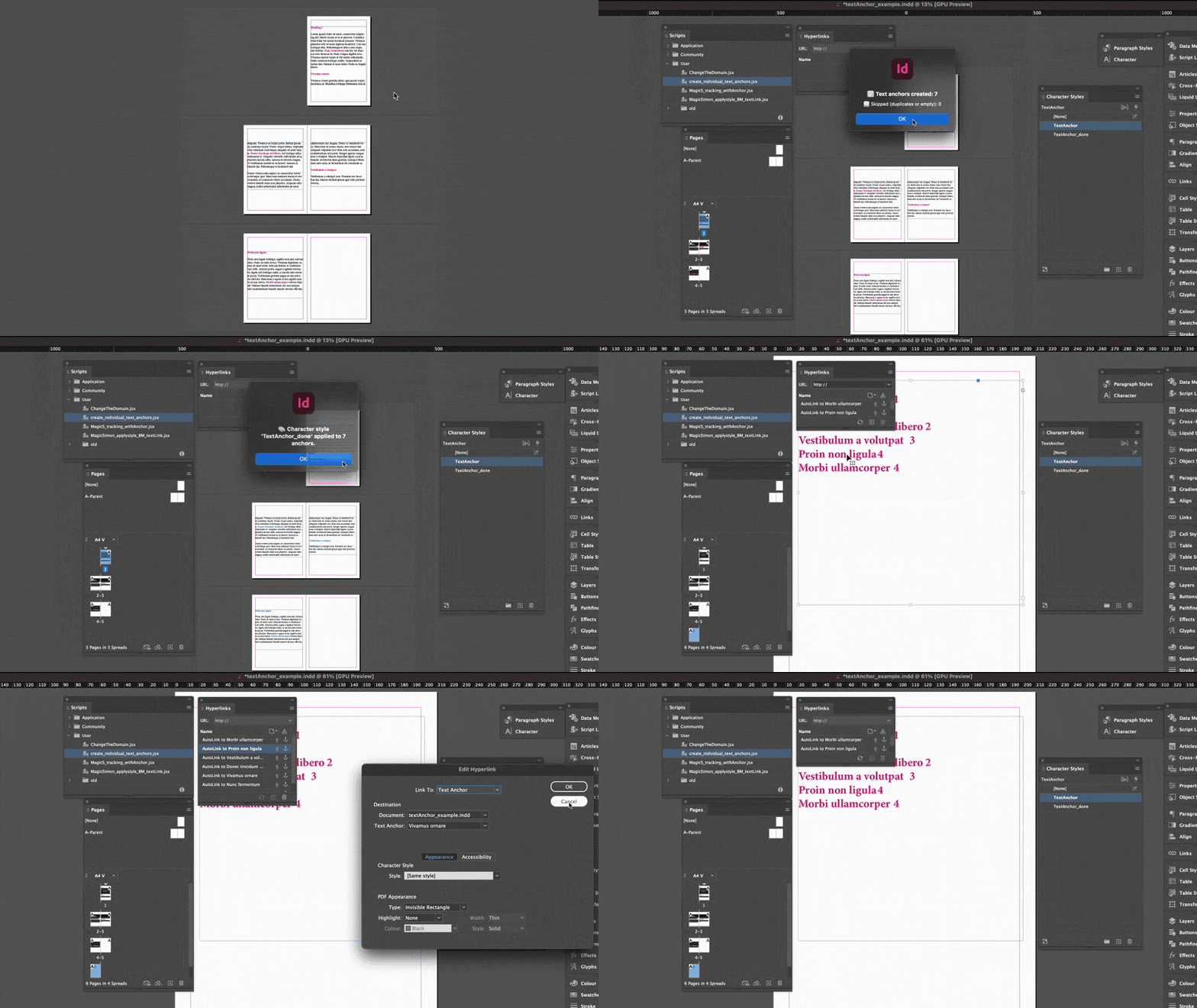
When you run the script – and after it completes the first task of finding your headings and making them into Text Anchors – it then asks you which Character Style you would like to apply to the headings it has just made into Text Anchors. So you can either leave this (and then later change the style sheet called TextAnchor to what you need it to be), or you can set up a Character Style which is more suited to your final requirements (for example changing the text colour to something to suit your design). Simply enter the exact name of the Character Style that you want the script to use for all your newly made Text Anchors.
The final part of the script is that it gives you the option of making an Index of all your new Text Anchors and pasting this list into a text box. The text it pastes has hard returns, each line of text links to the Text Anchor of the same name and the page number where it can be found (with a TAB before it that you can of course go on to adjust the location of). You can then format these however you wish. The text box should appear on the final page of your inDesign document (I've added it onto the final page but you can move it to the first or second and the links are unaffected).
I've supplied an example InDesign file so that you can play with the method before using it for real.
---------
Thanks for looking, I can't offer support at this price, if it doesn't work then please apply for a refund.
Made by freelancebloke.com