
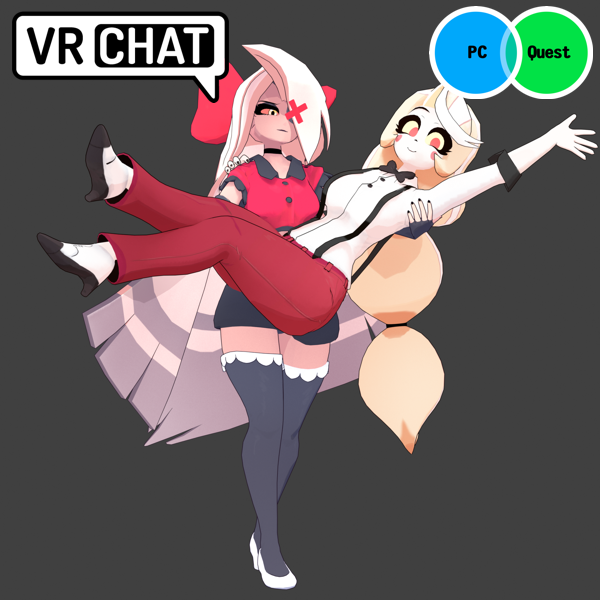

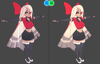

Charlie & Vaggie VRChat Full Body Tracking 3D Model
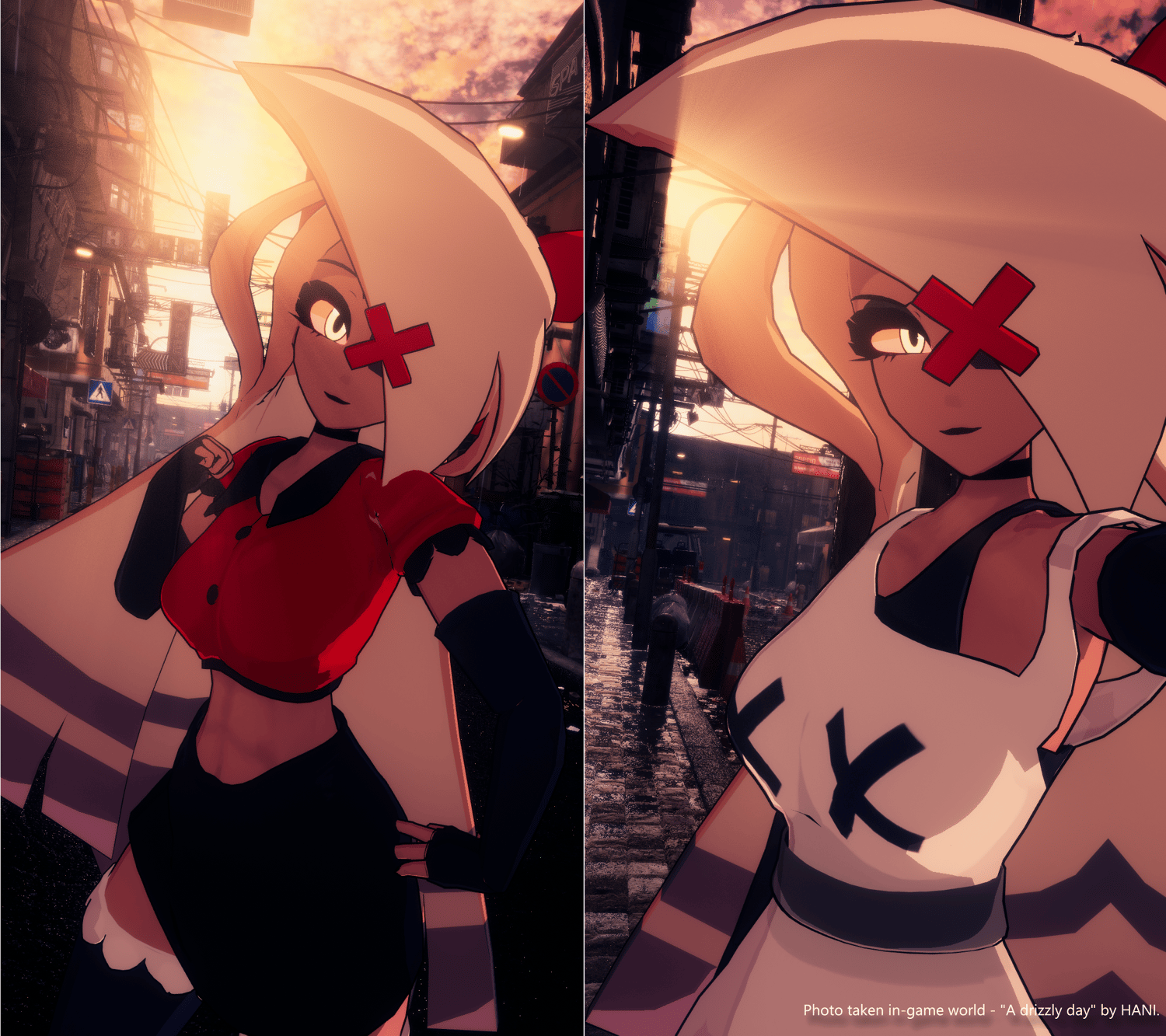
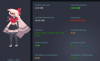
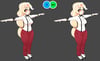
Hazbin Hotel inspired Vaggie model designed for VRChat!
Model Specs & Features
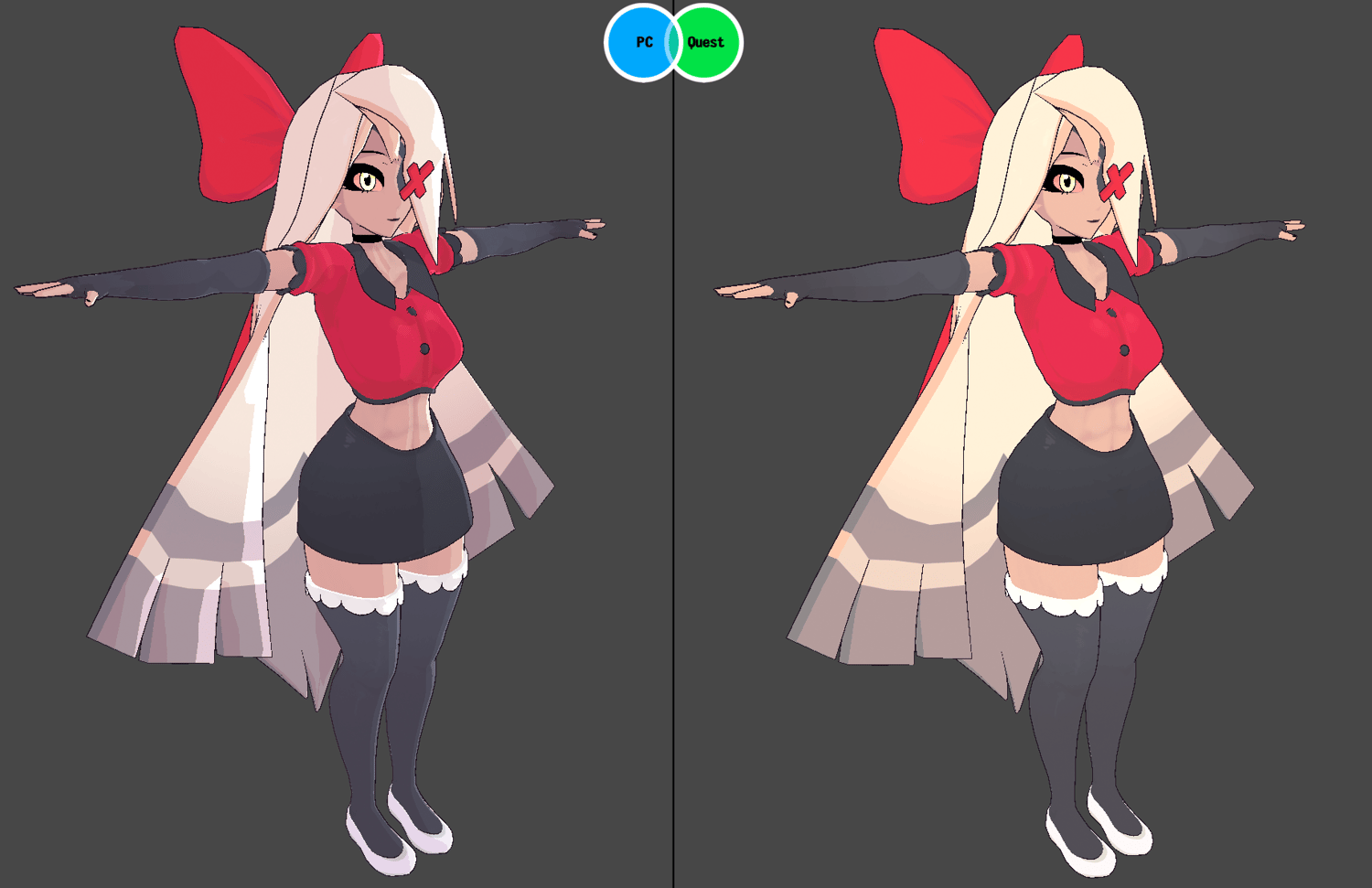
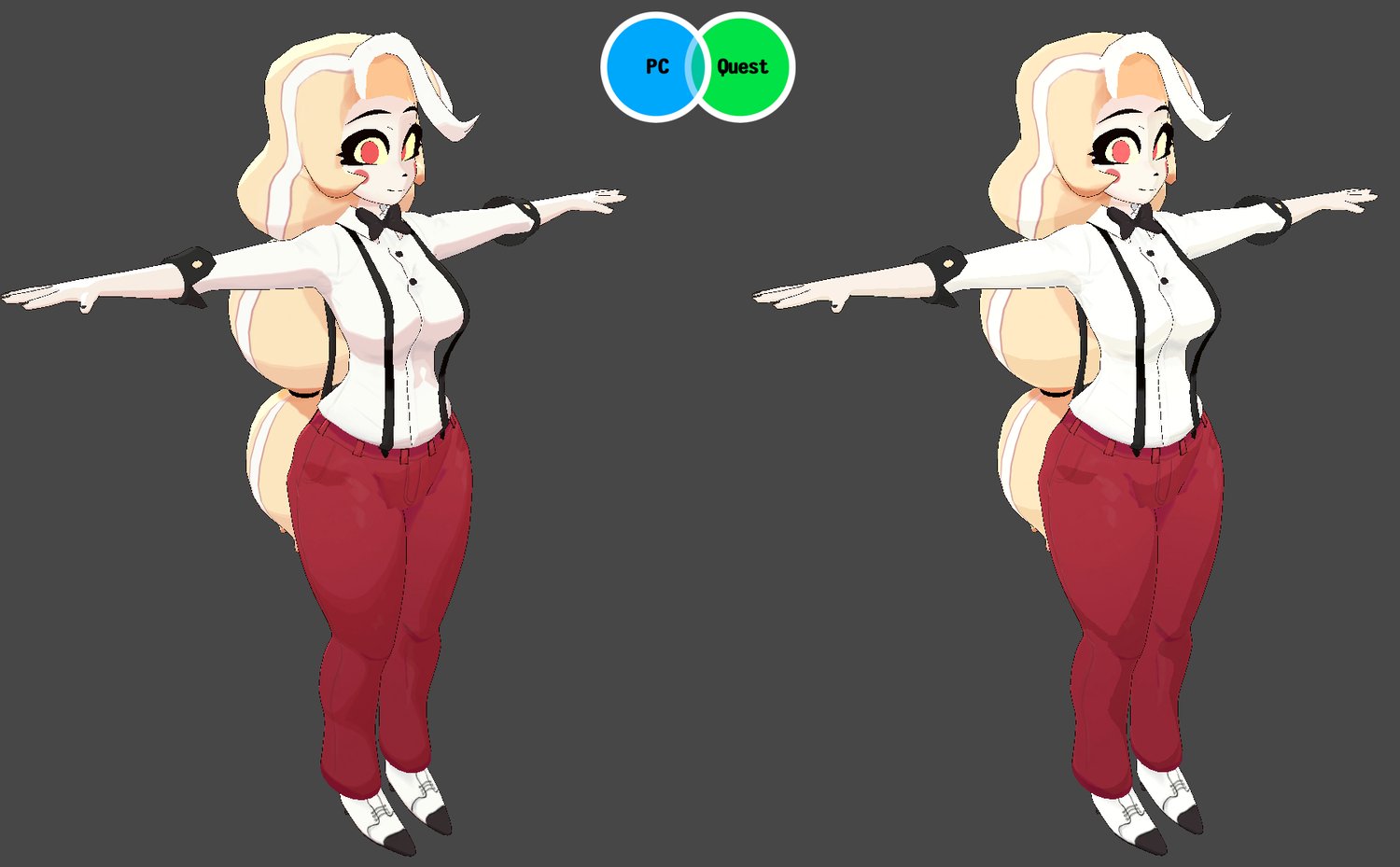
- PC & Quest Support
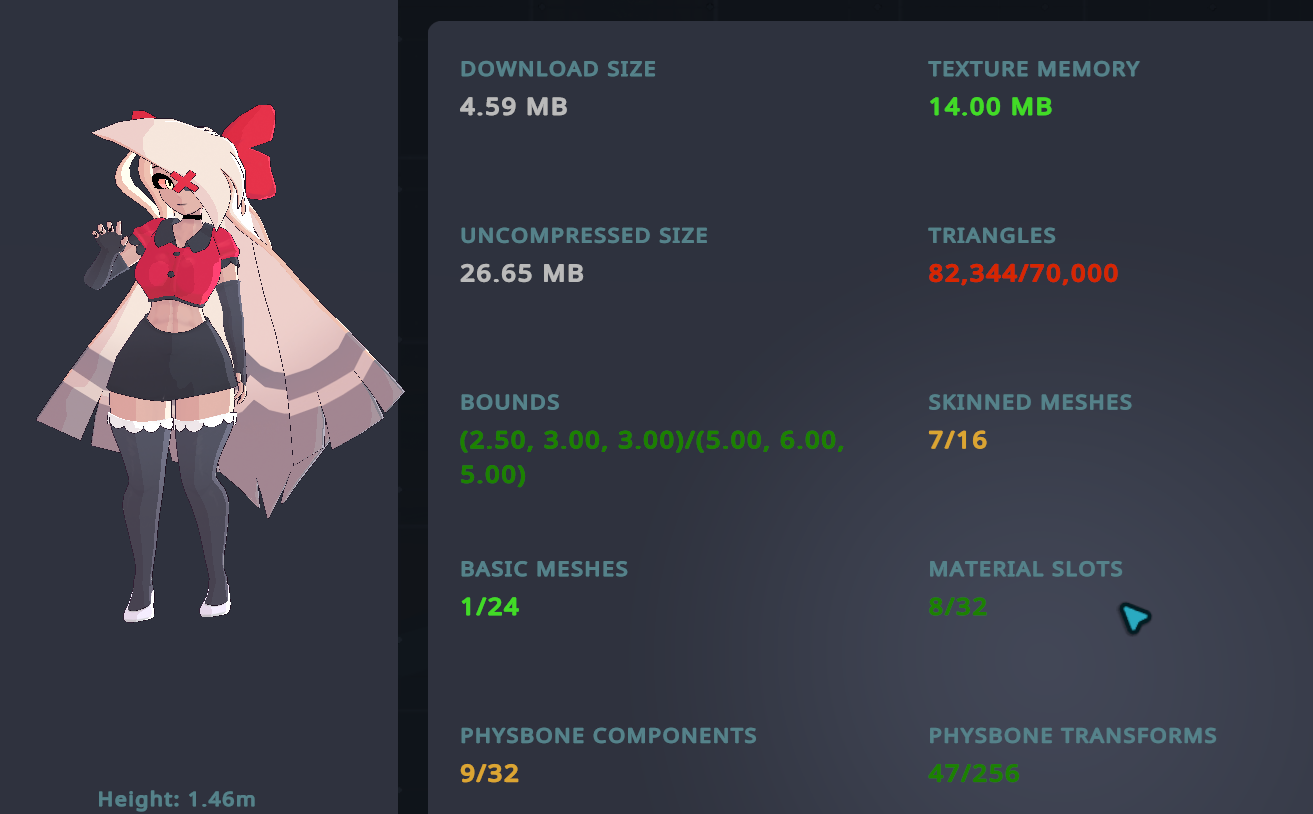
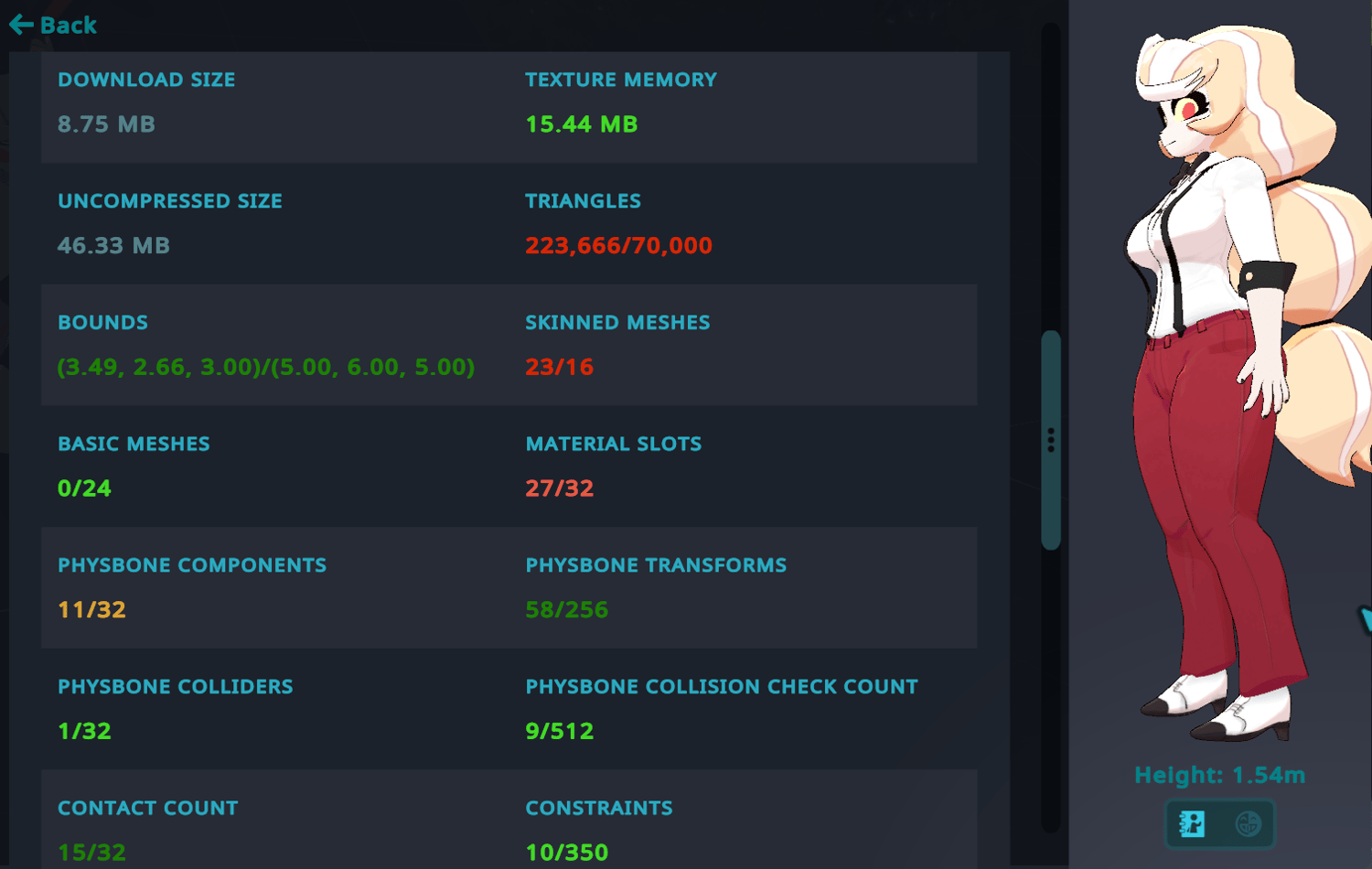
- Charlie 224k tris | Vaggie 82k tris
- Charlie 3 Materials | Vaggie 2 Materials
- Full Body Tracking
- Physbone Support
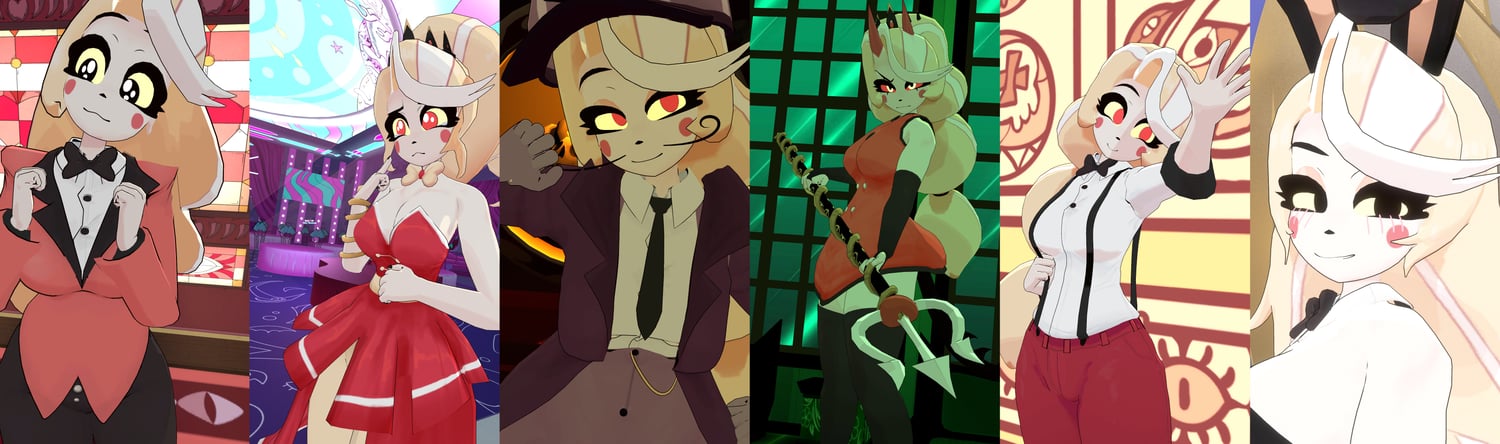
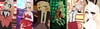
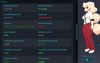
- Charlie 7 Outfits | Vaggie 2 Outfits
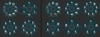
- 8 Custom Facial Gestures
- Viseme Support
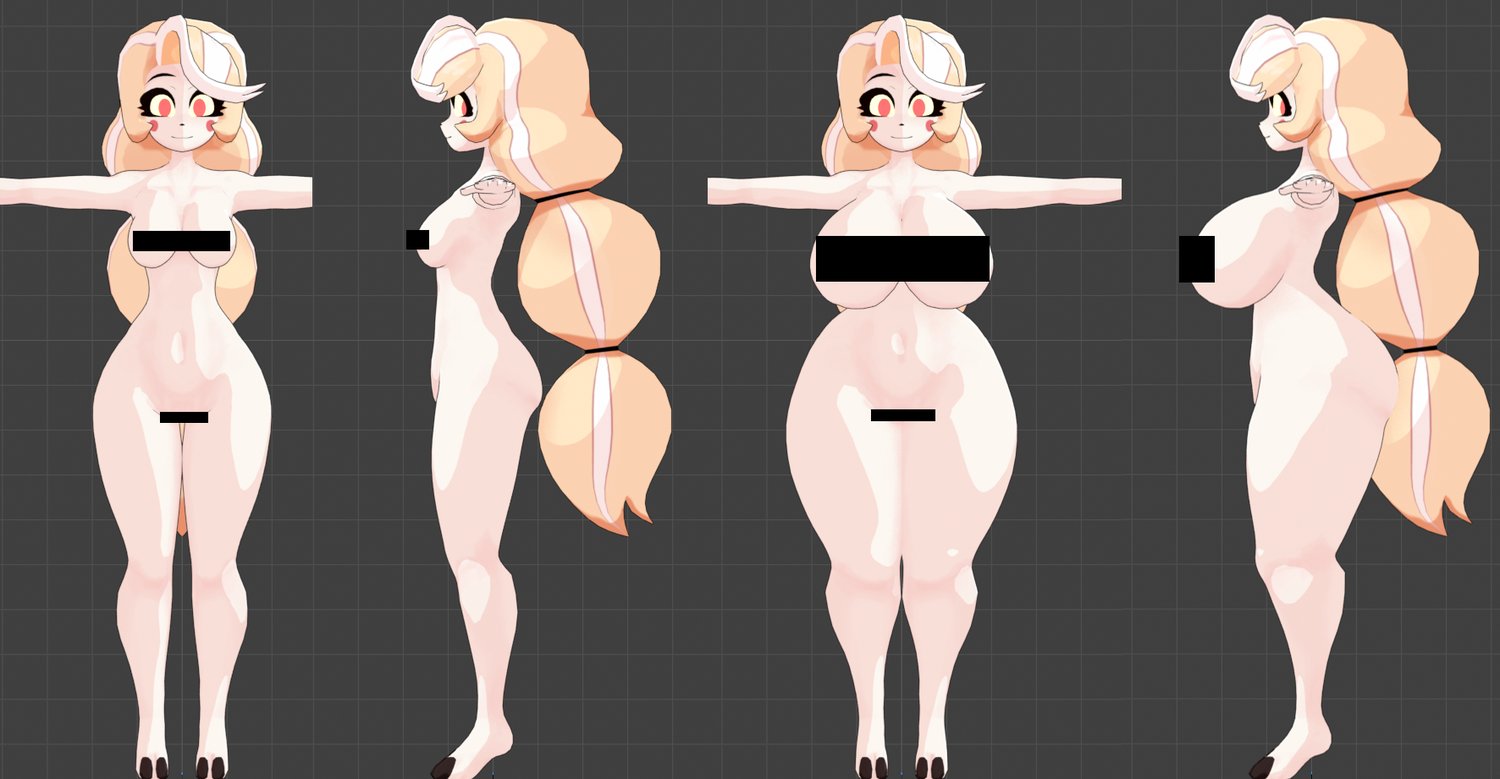
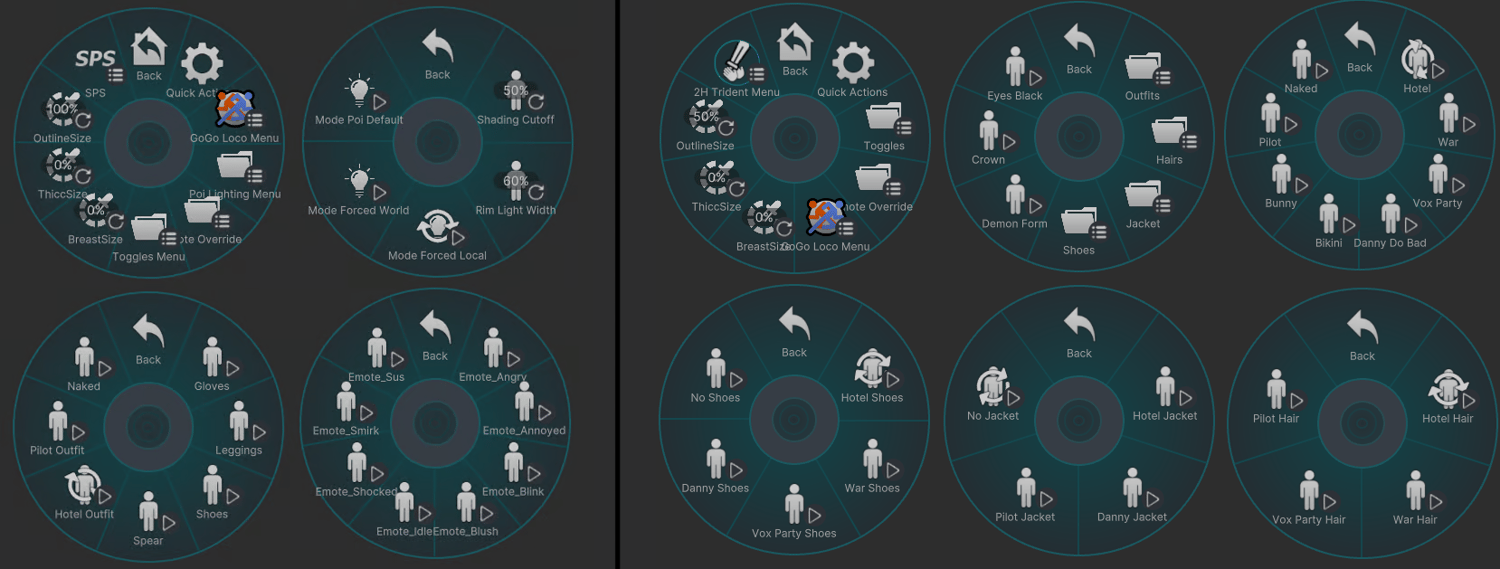
- Breast & Thiccness & Outline Size Sliders
- Gogo Loco (1.8.1) w/Fly by Franada
- SDK3 (+ Unity 2022)
- Poiyomi Toon Shader
- VRCFury
- 2H Weapon system by Liindy (Charlie's Trident)
- FK rig only
Changelog
Charlie
- 1.0.1 - Fixed a ton of clipping issues
- 1.0.2 - Fixed a ton of rigging issues
- 1.0.3 - Added banner picture
Vaggie
- 1.0.1 - Fixed missing undergarment for Hotel outfit
- 1.1.0 - Added Underwear outfit, Added Shorten Hair slider, slight mesh adjustments, fixed missing textures in Blender zip
- 1.2.0 - Updated GogoLoco to 1.8.6, fixed leggings clipping issue around the foot, adjusted model rig to A-pose
- 1.3.0 - Updated Quest's Toon Shader, Fixed mesh broken symmetry, small adjustments to mesh, optimized texture compression
- 1.3.1 - Attempt to fix hand gesture locking issues
- 1.3.2 - QoL rigging update and various improvements
INSTRUCTIONS FOR VRCHAT PC
1 Download Unity Hub
2 Make a new Avatar project with VRChat Creator Companion (VCC)
https://vrchat.com/home/download
3 (Optional) Import VRCFury for SPS
4 (Optional) Import Poiyomi Toon Shader (8.1):
https://github.com/poiyomi/PoiyomiToonShader/releases
5 Import my provided .unitypackage file
6 Open Avatar_PC scene, login using the VRChat SDK, build & upload!
INSTRUCTIONS FOR VRCHAT QUEST (CONT.)
1 Copy the Avatar ID that generated after uploading to PC
(In the VRChat SDK, click on the Content Manager tab, you'll see "Copy ID")
2 Click on the Avatar_Quest scene and attach/paste the Avatar ID
(In the Inspector, on the Pipeline Manager component, you'll see "Blueprint ID", then click Attach)
3 Click on File > Build Settings... > Android > Switch Platform
(Delete _PoiyomiShaders folder if you imported to help speed up the process)
4 Open the VRChat SDK and build & upload again!
Please do not make public.
Please do not redistribute.
Contact
Twitter:https://twitter.com/Shadsterwolf