

OBS Stream Deck Software
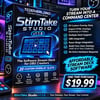
StimTake Studio Deck Basic Edition — The Affordable Streamer Deck for OBS
Your stream. Your overlays. Your control.
The room cheers. You click a slot. A banana rocket takes off across your stream.
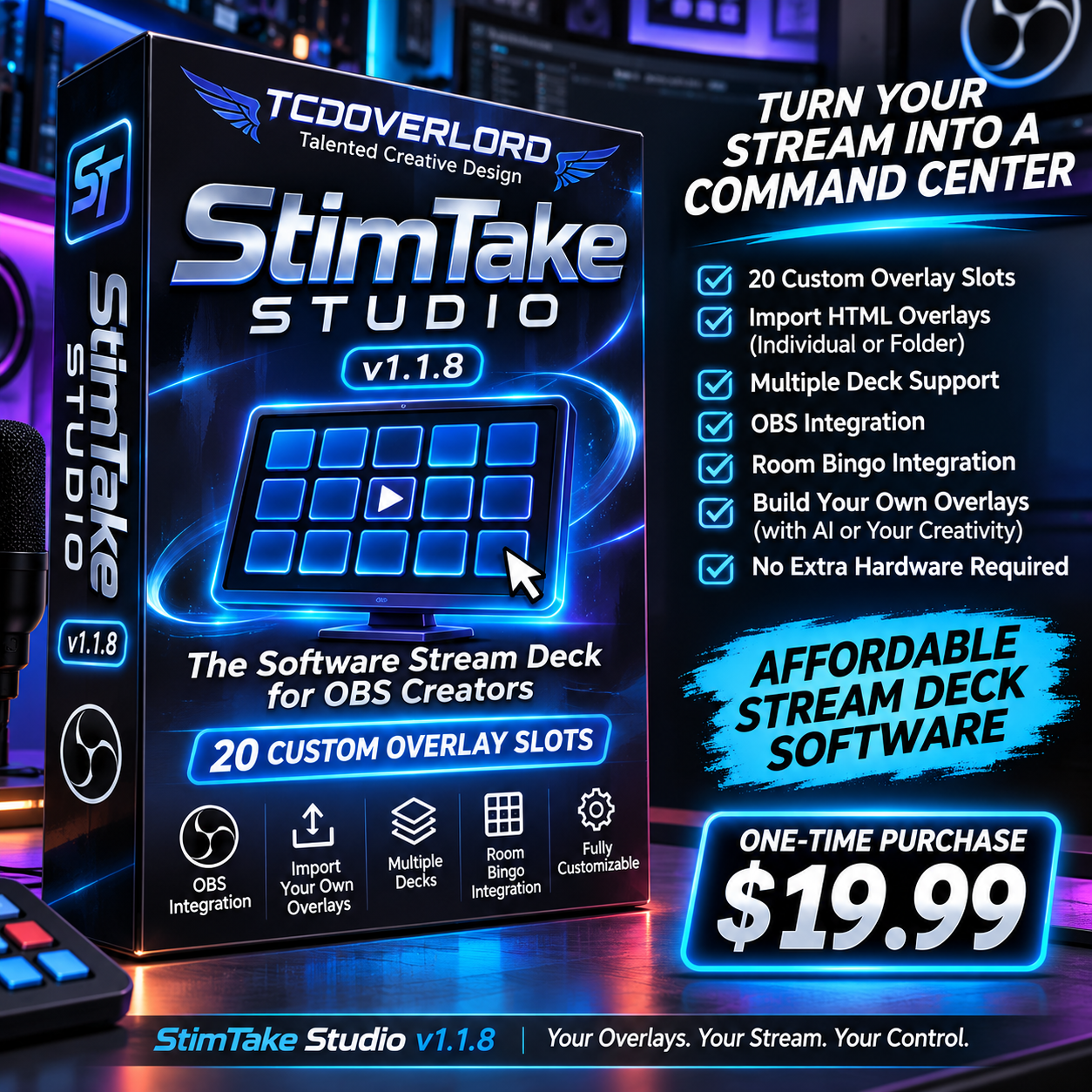
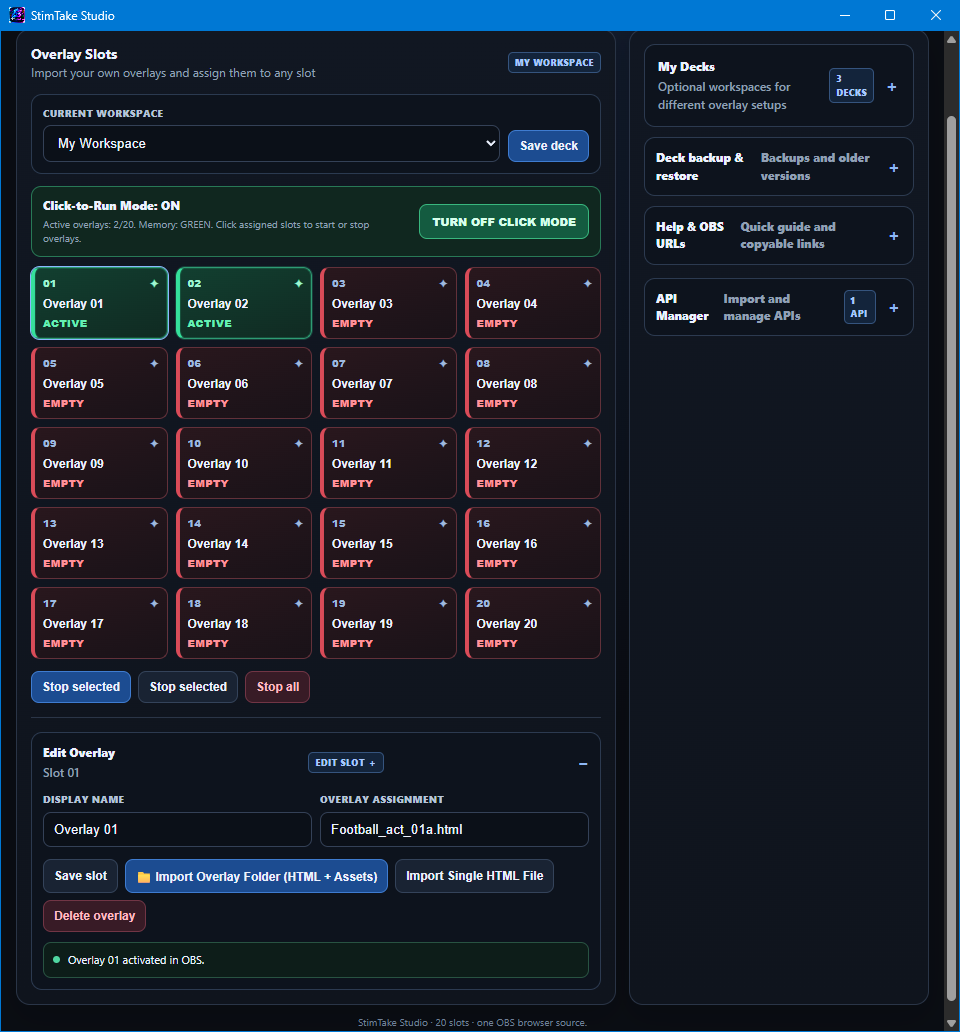
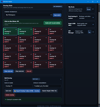
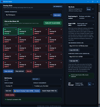
StimTake Studio Deck Basic Edition gives you 20 customizable overlay controls on the Windows PC you already own. Pick a deck for tonight’s show, connect it to OBS through one Browser Source, and launch your effects as the moments happen.
🎬 Run your show from one deck
- 20 interactive overlay slots — Keep your favorite animations and celebrations ready to launch.
- Multiple decks — Set up a deck for viewer shout-outs, another for game night, and one for your biggest show.
- Custom HTML overlays — Import individual HTML files or entire overlay folders with their artwork and audio.
- OBS Browser Source integration — Connect one Browser Source and control which overlays appear from StimTake.
- Room Bingo integration — Host a game from Studio and show it on stream with the compatible Room Bingo package.
🍌 Build your own deck or import a pack
Start with your own overlays or load a compatible pack like Monkey & Banana. A full deck import brings in the overlay files, slot assignments, and display layers together. Turn on Click-to-Run Mode and choose when each effect plays.
Basic Edition is designed for manual OBS overlay control on Windows.
🔗 Set up your OBS Browser Source
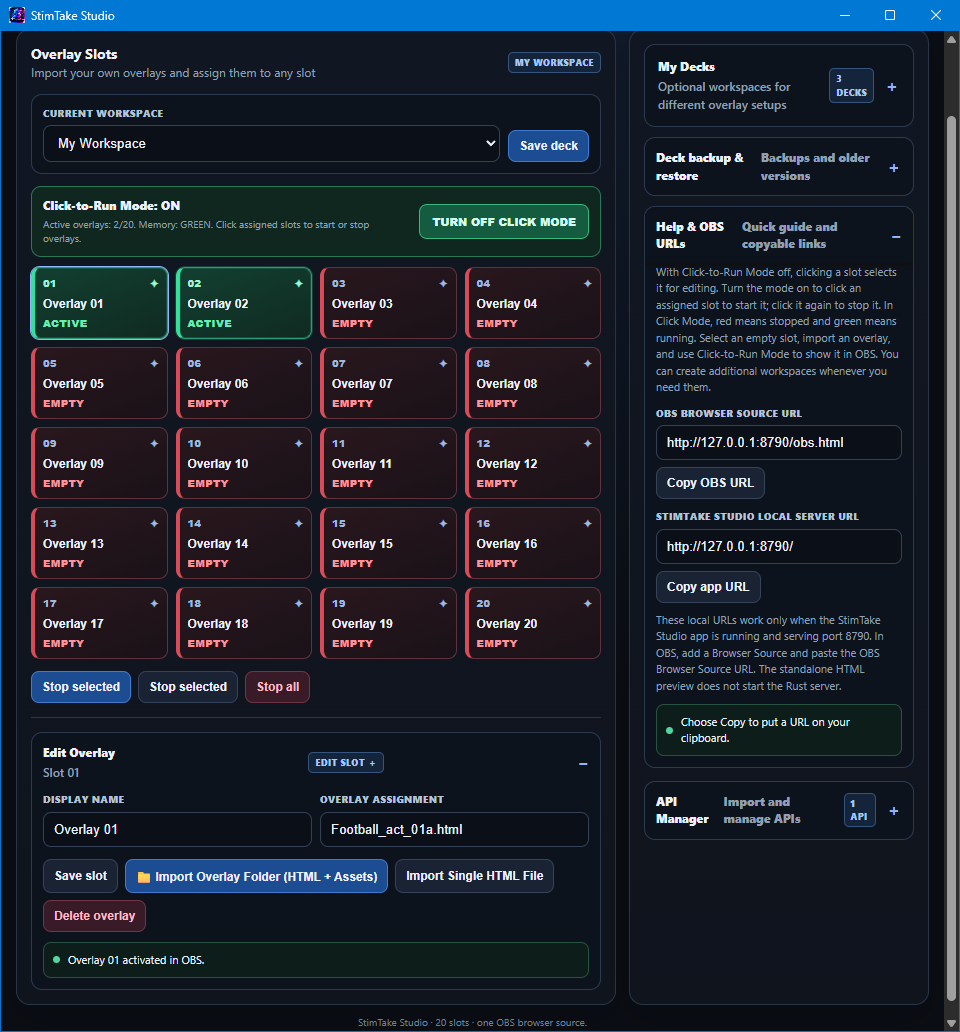
- Open StimTake Studio and select your deck.
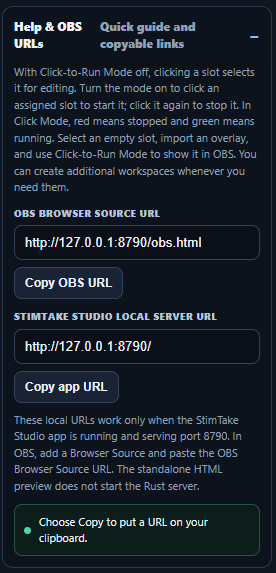
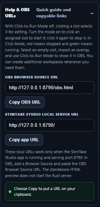
- Expand Help & OBS URLs, then click Copy OBS URL. You can also copy the main overlay URL below.
- In OBS, go to Sources → + → Browser. Name the source StimTake Overlays, leave Local file unchecked, and paste the URL into the URL field.
- Match the Browser Source dimensions to your OBS canvas. For a 1080p scene, use 1920 × 1080. Put the Browser Source above your camera or gameplay source in the OBS Sources list.
- Keep Studio running on the same PC. Turn on Click-to-Run Mode, then click an assigned slot to test it. Click it again to stop the overlay.
Main overlay — Paste this into your OBS Browser Source.
http://127.0.0.1:8790/obs.html
Studio controls — Open this in a browser on the PC running StimTake.
http://127.0.0.1:8790/
Room Bingo host controls — Use the Room Bingo button in Studio or open this URL in a browser.
http://127.0.0.1:8790/bingo.html
Room Bingo stream display — If you install and start the compatible Room Bingo package in API Manager, use the package’s OBS Browser Source link in a separate OBS Browser Source. For the StimTake Room Bingo package, that URL is:
http://127.0.0.1:8790/api/packages/room-bingo/obs.html
Product details
- Version — 1.1.8.1
- Platform — Windows 10 and Windows 11, 64-bit
- Integration — OBS Studio
- Delivery — Digital ZIP with the Windows installer, deck transfer tool, and offline guides
- Purchase — One-time payment
Give your next show its own deck.
Patch notes — Version 1.1.8.1 · November 19, 2026
The Windows installer in this download includes the November 19 update.
- Import complete overlay decks — Load a compatible deck ZIP with its assets, slot assignments, and display layers.
- Export portable deck ZIPs — Share a deck, package it for sale, or move it to another computer.
- Create and restore full backups — Save your decks, overlay files, and Studio settings. This update removes the previous 60 MB backup limit.
- Switch chat notification sounds on or off — Preview the chime with Test sound. Live chimes require a compatible external tool that forwards chat events to StimTake.
- Open the new START-HERE guide — Follow the included steps for installation, OBS setup, deck transfers, and backups.