







AVF FilmGrade 5.1.6 — DaVinci Resolve — Windows
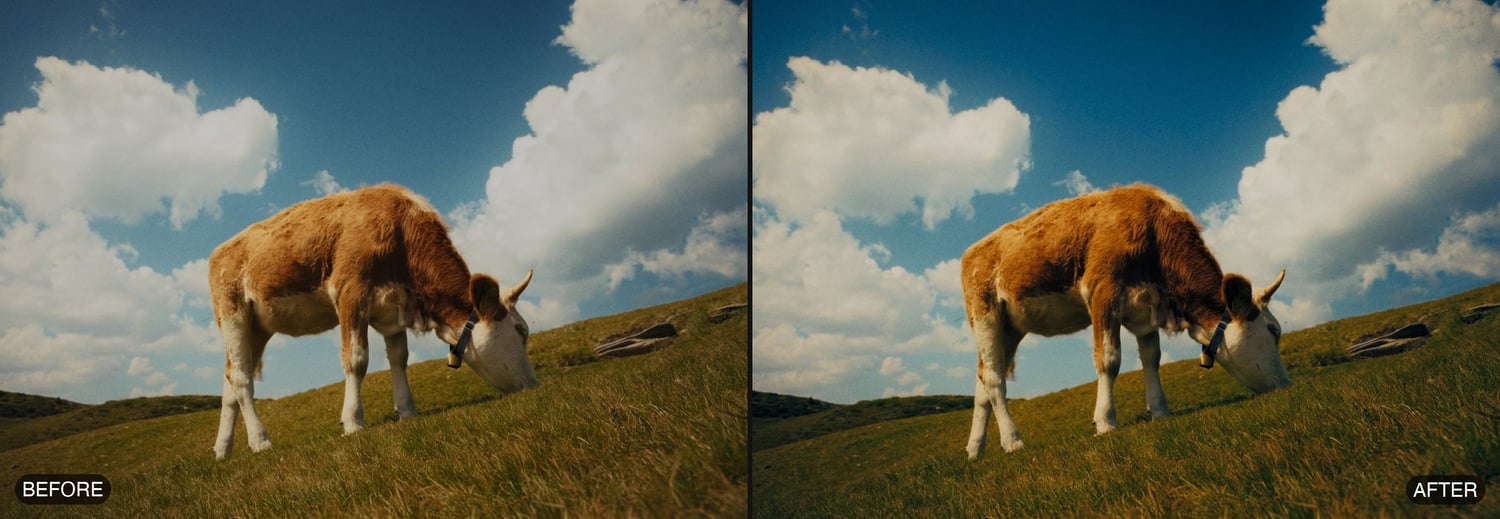
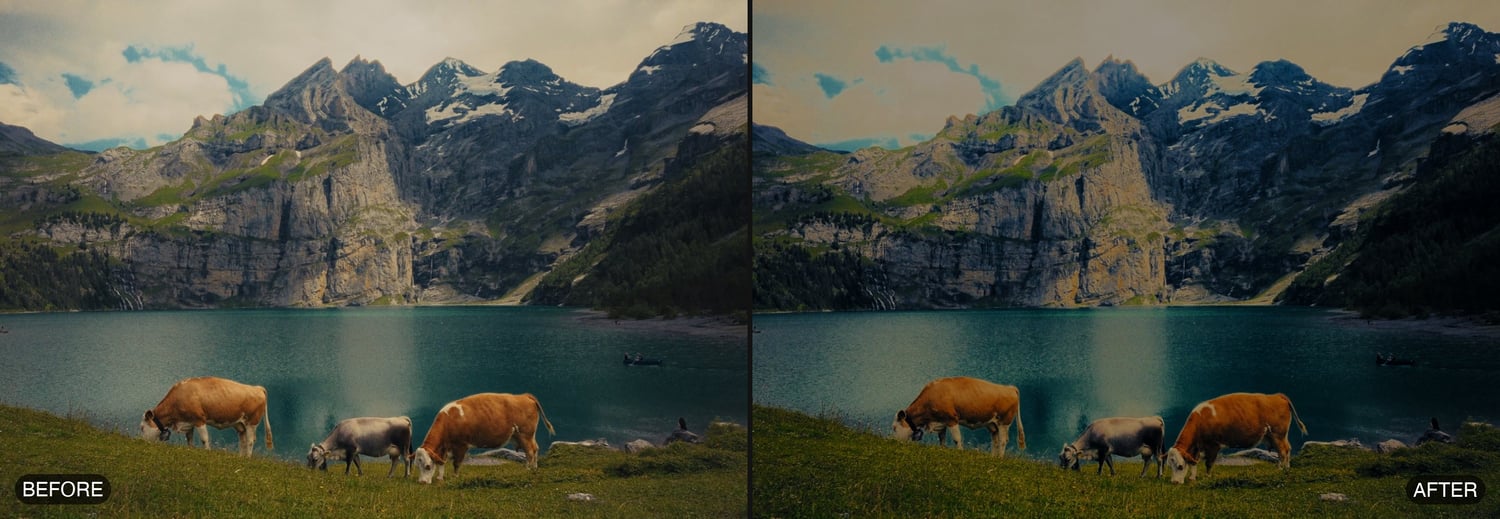
A complete cinematic colour grade in a single node for DaVinci Resolve on Windows, by Anurag — A Video Productionz (@av_filmmakerr).
This is the Windows build for DaVinci Resolve. AVF FilmGrade puts three grading engines in one plugin, applied in order, so you get the whole look from one control panel instead of a stack of nodes.
THREE PAGES, ONE NODE
1 · GRADE — Exposure, Highlights, Blacks, Temperature, Contrast, Pivot, Midtones; a Film Look section (shadow, midtone and highlight tints with Split) and Clean Whites & Blacks.
2 · HUE — hue and amount for Shadows, Midtones and Highlights, plus all eight colours (Red, Orange, Yellow, Green, Cyan, Blue, Purple, Magenta), each with a Show view so you see exactly what you are touching.
3 · DENSITY — Colour Density per channel, Richness with saturation coupling, Film Contrast, Gamma, Print Density, Shadow Toe and Highlight Rolloff.
Switch pages from the PAGE menu at the top and the other pages stay out of your way. Every section has its own Reset, and Reset Page puts a page back to new.
SKIN THAT ACTUALLY HOLDS UP
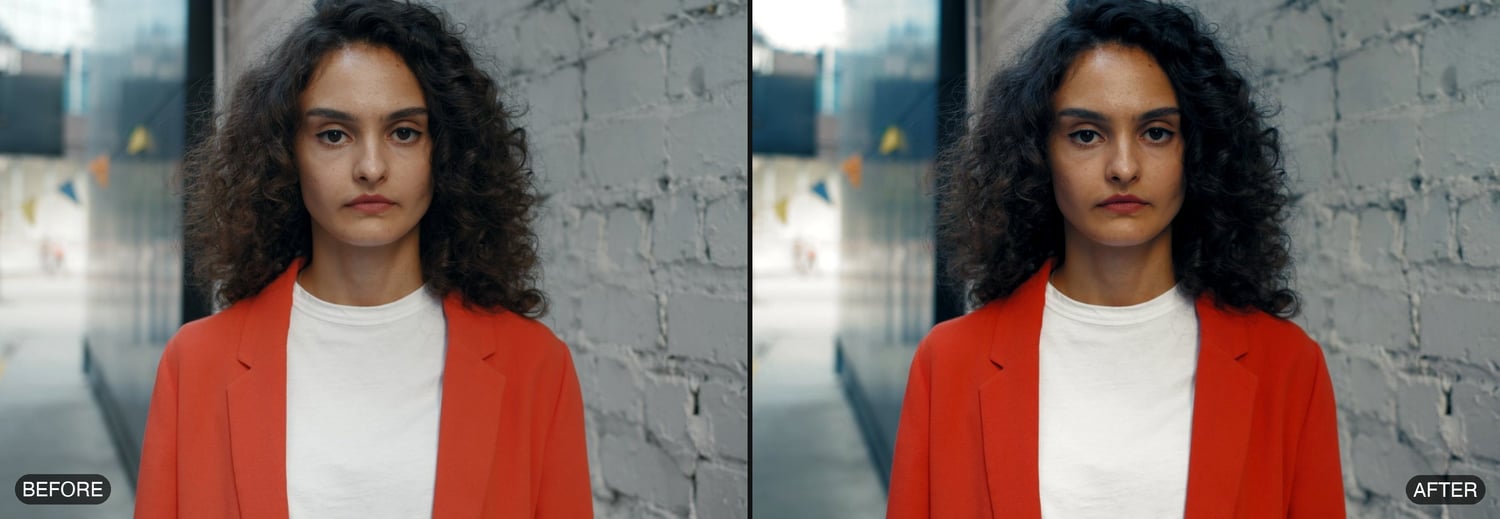
Most film looks fall apart on faces. FilmGrade finds skin in the original footage, before any page grades it, using a measured skin key in Oklab: a band along the skin line, relative to brightness, so it works the same in shadow and in sunlight. Pale walls, sand, rock, orange paint, red clothes and red hair stay out of it.
• Show Skin turns everything but the skin one flat grey, so your vectorscope shows the skin alone.
• Skin Tone Target and Skin Range aim and narrow the selection; Skin Blur softens its edge.
• Skin Hue, Skin Saturation and Skin Exposure finish the skin after the whole grade.
• The selection is settled frame to frame, so it does not flicker or blotch on compressed footage, and it costs the speed of one frame, not three.
COLOUR MANAGEMENT
Set the footage's Input Colour Space and the Output Colour Space, or leave Output on Timeline (automatic) and the plugin asks Resolve what the timeline is. Tone Mapping included. The grade runs in one colour space throughout, exactly like three DCTL nodes in a row.
MY PRESETS
Save a look with Save Preset, load it on any clip from the My Preset menu, send a .avfpreset file to anyone who has FilmGrade, or drop files into the Presets Folder. Three starter looks are included: AVP Default, LowLight Warm and Clean Commercial.
EXPORT LUT
Bake the whole grade, all three pages, to a .cube 3D LUT at 17, 33 or 65 points, written for your Input and Output Colour Space and saved straight into Resolve's LUT folder.
REQUIREMENTS
• DaVinci Resolve 18 or later — free or Studio
• Windows 10 or 11, 64-bit
• An NVIDIA (CUDA), AMD or Intel (OpenCL) graphics card
INSTALLING
Copy the plugin folder into C:\Program Files\Common Files\OFX\Plugins. The kit holds two short install documents — one for copy and paste in File Explorer, one with a single line to paste into PowerShell — plus a GPU check tool, the Install & User Guide PDF and the licence agreement. Windows asks you to click Continue; there is no installer to allow.
In Resolve it appears under OpenFX → AVP Tools → AVF FilmGrade 5.1.6.
No licence keys, no activation, no internet check. Buy it once and it works on your machines.
TESTED ON
Built from the same code as the Mac version, which is tested and plays back in real time on the GPU. The Windows build ships with a GPU check tool but has not yet been verified on a retail PC. If it does not run on your machine, email me — you get a fix or a full refund.
This listing is the Windows build for DaVinci Resolve only. The Mac build and the Premiere Pro & After Effects builds are sold separately.