

iOS last played game widget (Steam/PS/Xbox) for Scriptable
This script lets you add a widget to your iPhone and Mac display that will automatically show the last game you played on Steam, PS, and Xbox.
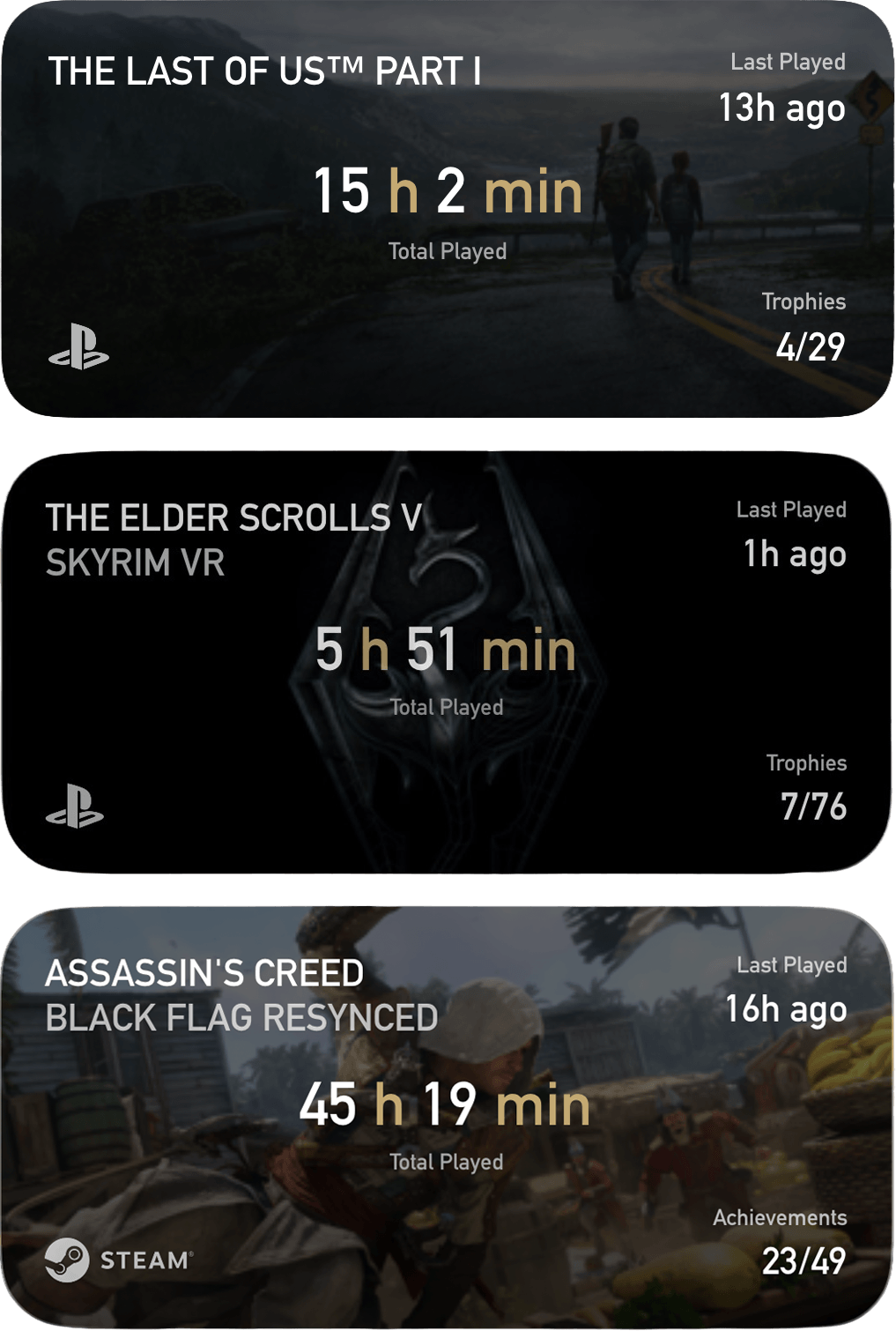
How to Set It Up, Step by Step:
You only need to set up the platforms you actually use. If you're PlayStation only, skip the Steam and Xbox steps entirely.
What you need first
Scriptable, a free app from the App Store. It's what actually runs the widget.
Step 1: Get the script into Scriptable
Open Scriptable and tap the plus button to make a new script. Delete whatever's in the empty editor and paste in the whole script. Give it a name you'll recognize, something like "Game Widget" works fine.
Step 2: Steam
If you play on Steam, you'll need two things: an API key and your Steam ID.
Get an API key at steamcommunity.com/dev/apikey. It just needs any domain name typed in, doesn't matter what, "localhost" works.
Find your Steam ID at steamid.io. Paste your profile URL in and it'll spit out a long number called steamID64.
One more thing that trips people up: your Steam profile needs "Game details" set to public in your privacy settings, otherwise the API just returns nothing. Steam settings, Privacy Settings, Game details, set to Public.
Drop both values into the steam section near the top of the script, apiKey and steamId64. Steam's already switched on by default, so that's all you need.
Step 3: Xbox
Xbox doesn't have an official API for this kind of thing, so this uses a community service called OpenXBL instead. Go to xbl.io, sign in with your Microsoft account, and generate an API key from your dashboard there.
Paste that key into openXblKey in the xbox section. That's it, Xbox is already enabled by default.
Step 4: PlayStation
This one's a bit more involved since Sony doesn't officially support this either. You need something called an npsso token, which is basically a way of proving to the script that you're logged into your PSN account without giving it your password.
While logged into playstation.com in a browser, visit this URL: ca.account.sony.com/api/v1/ssocookie
It'll show you a small bit of text like {"npsso":"a bunch of characters here"}. Copy just the characters inside the quotes, that's your token.
Paste it into npsso in the psn section. Same as the others, it's on by default.
If you don't play on one of these platforms, you don't have to do anything special, just leave that section's key as the placeholder text and the script quietly skips it.
Heads up on this one: because it's not an official API, there's a chance Sony changes something on their end at some point and this breaks until someone updates the script. Steam and Xbox are on steadier ground since they're built on real (if unofficial, in Xbox's case) public APIs.
Step 5: nicer background art (optional)
By default the widget uses each platform's own artwork for the background, which usually has the game's logo and title baked right into the image. If you'd rather have clean art without any text on it, there's a free service called SteamGridDB that catalogues game art specifically tagged as logo-free.
Make a free account at steamgriddb.com, then go to steamgriddb.com/profile/preferences, find the API tab, and generate a key. Drop it into the steamGridDB section near the top of the script.
This works for all three platforms, not just Steam, since the widget searches by game name. If SteamGridDB doesn't have anything for a particular game, it just falls back to the platform's own artwork automatically, so there's no downside to turning this on.
Step 6: test it
Before putting it on your home screen, hit the run button at the bottom of the script in Scriptable. You should see a preview of the widget with whatever you played most recently. If something's off or it says no games found, there's a little log icon that shows up after running, tap that and it'll usually tell you exactly what went wrong.
Step 7: add it to your home screen
Long press an empty spot on your home screen, tap the plus in the corner, search for Scriptable, and pick the medium size widget. Once it's placed, long press it, choose Edit Widget, and under Script pick the one you just made.
That's it. It refreshes itself every few minutes on its own, no need to open the app again unless you're changing settings.
A couple of honest caveats
The widget looks at whichever platform you last played on and shows that one, comparing timestamps across everything you've enabled. If you play multiple platforms, whichever has the most recent activity wins.
iOS widgets don't refresh instantly or on a perfectly fixed schedule, that's an Apple thing, not specific to this script. A few minutes of lag after you close a game is normal.
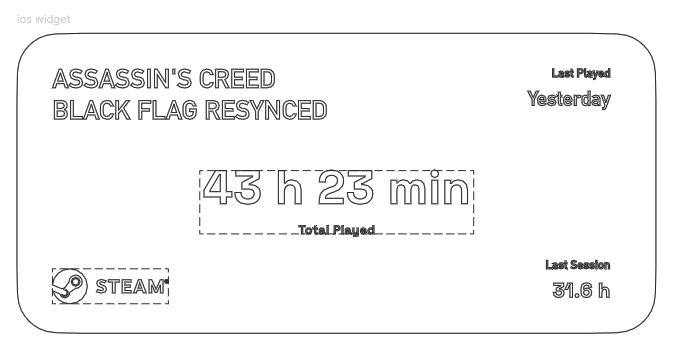
Designed with love in Figma