

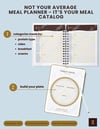
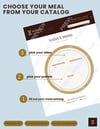
The Winnow Meal Catalog
The Winnow Meal Catalog
A catalog, not a calendar — pick your meal by mood, not by schedule.
Most meal planners are built the same way: they decide for future-you, and if the day doesn't go as planned, the whole system feels unusable. The Winnow Meal Catalog works differently. It's a bank of meals you already know you'll eat — organized once, then chosen from freely, based on your actual energy that day, not a date on a grid.
What's inside (5 pages):
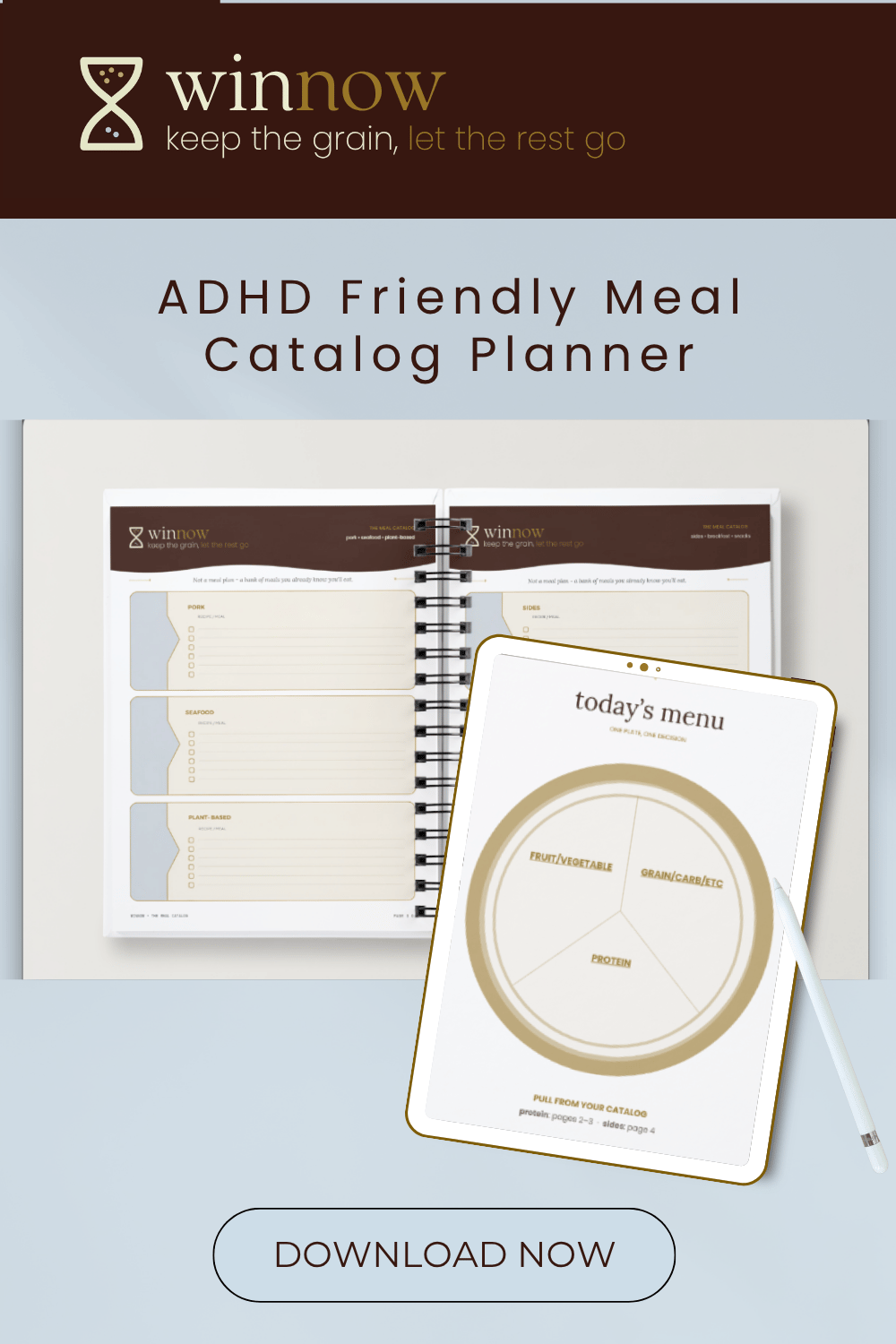
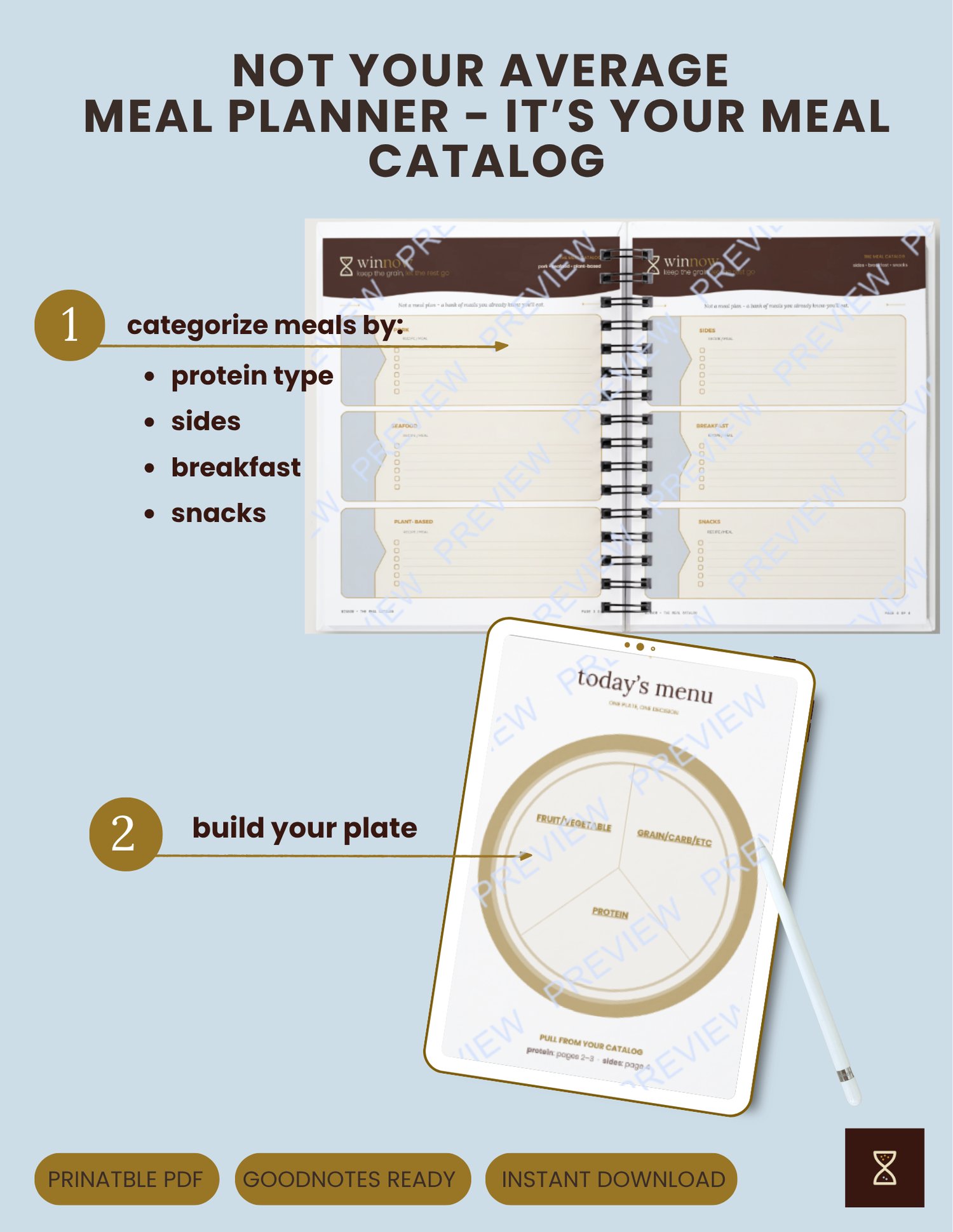
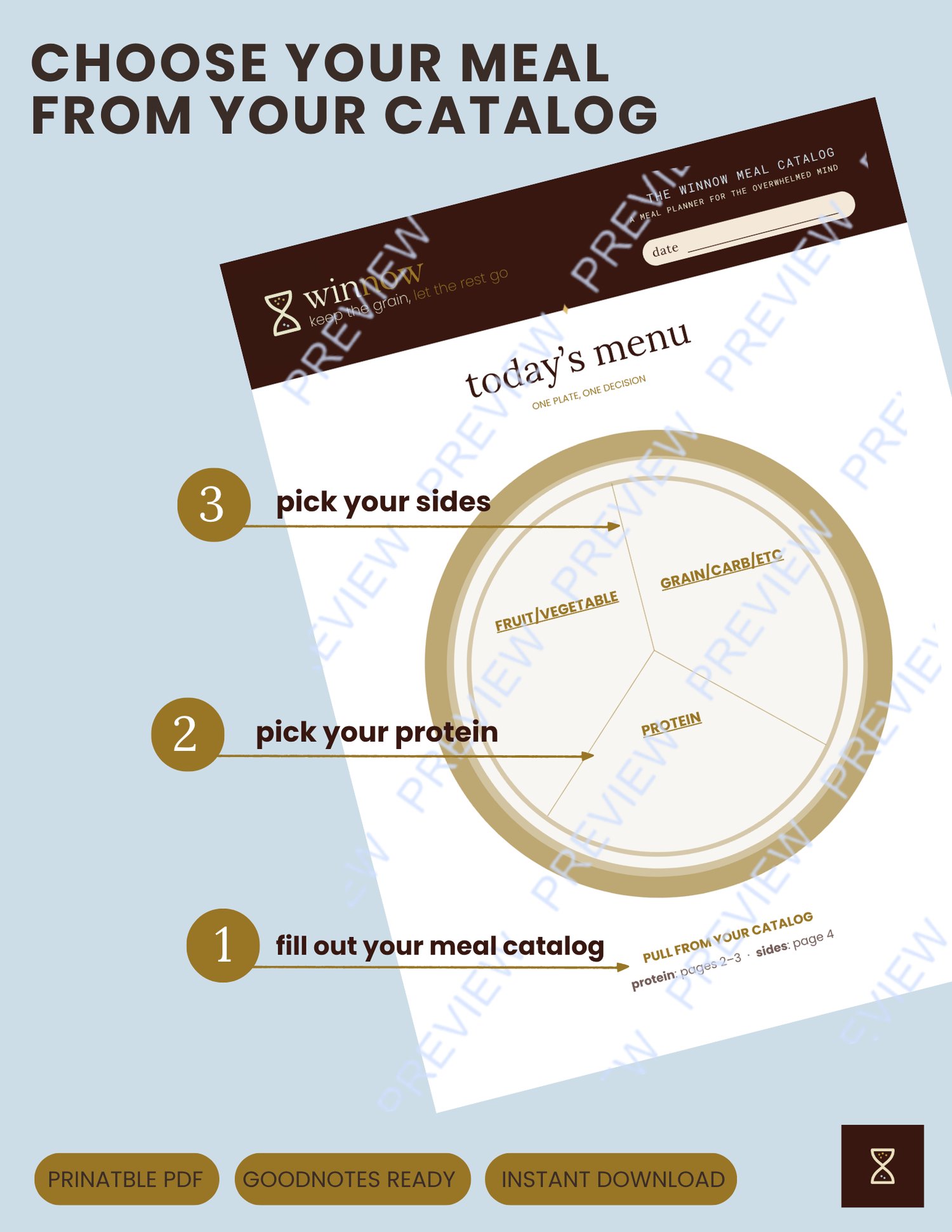
- Today's Plate — a plate visual to fill in your pick for the day: one protein, and your sides. a simple visual, no overthinking required.
- Proteins are split into Beef, Chicken, Turkey, Pork, Seafood, and Plant-Based — each with its own dedicated space to write recipe names, not ingredients.
- Sides, Breakfast, and Snacks — same catalog structure, so nothing gets left as an afterthought
- Other section and shopping list
Why a catalog instead of a planner:
- No pressure to eat what was "supposed" to happen today — every meal on the list stays valid tomorrow, next week, whenever.
- Pick based on your mood and energy, not a schedule.
- Fill it in weekly/monthly/ or whenever you get sick of the meals
- Built with ADHD brains in mind: fewer decisions = less overwhelm
Format:
- Instant digital download (PDF)
- Print it and keep it on the fridge, or drop it into GoodNotes/Notability and reuse it digitally
- Includes a full instructions page walking through exactly how to use it
How to Use It Digitally in GoodNotes
1. Download the file from your purchase confirmation email or the platform’s download link — it’ll save as a PDF (usually to your device’s Files/Downloads folder).
2. Open the GoodNotes app on your iPad or tablet.
3. Tap the ”+” (New) button on your library screen, then choose “Import PDF.”
4. Locate the Winnow Reset file in your Files app (check Downloads, or wherever your device saves downloaded files) and select it.
5. GoodNotes will import it as a new document — this becomes your template. Rename it something like “Winnow Reset — Template” so you don’t accidentally write on your only copy.
6. To reuse it daily: open the template, tap Share → Duplicate, and rename each new copy with the date. This keeps your original blank and gives you a fresh page every time.
7. Use the Pen tool to fill it in by hand, just like paper — or switch to the Text tool if you prefer typing directly into each section.
Tip: If you want the Reset to live in a recurring daily planner instead of a one-off document, you can also insert it as a page template inside an existing GoodNotes notebook via Document Settings → Add Page → Import.