
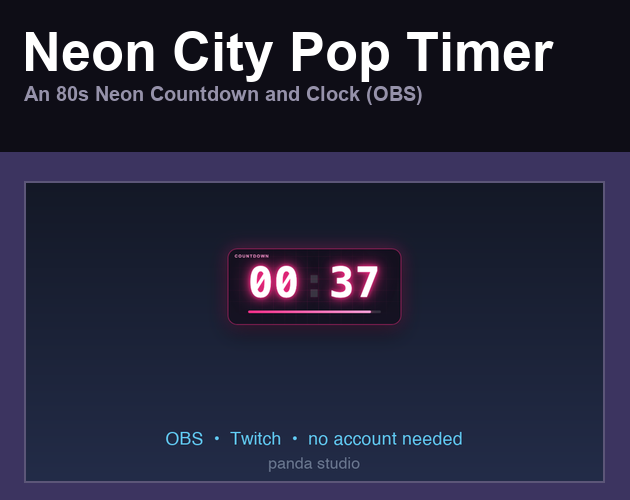
Neon City Pop Timer — An 80s Neon Countdown and Clock (OBS)
Please read first: what this does NOT do
- The timer does not start by itself: it runs only after you press "Start" in the panel, and after OBS is reopened it starts paused (the remaining time is kept). At 0 it simply stops: no sound, no scene switch, and it does not end your stream.
- Viewers can extend the time only when "Let viewer comments extend the time" is ticked in the panel. By default a comment with the keyword "add time" adds 30 seconds, a gift adds 60 seconds whatever its amount, and extensions stop after 20 until you press "Reset". Comments come from OneComme (a free app) or, with ?twitch=yourchannel at the end of the view.html address, from Twitch chat. There is no direct YouTube connection (YouTube works through OneComme).
- The panel must be added to OBS as its own Browser Source and used with Interact. If you open it in Chrome or another browser it keeps separate settings, and changes there never reach OBS.
Twitch channel names must be 4–25 characters: letters, numbers and _. Anything else after ?twitch= is ignored and nothing connects.
A countdown and elapsed-time clock in an 80s neon city pop palette.
Use it for starting-soon screens, breaks, speedruns or timed segments. Drawn with code, so the glow stays clean at 1080p, 1440p and 4K alike.
- In one folder: view.html (the timer), panel.html (the control panel) and lib/. No server.
- Countdown length, 8 colour themes, number size and label text are set from the control panel, no file editing.
- Runs offline. No external fonts, no CDN, nothing that can break later.
HOW TO SET UP 1. Unzip the whole folder and keep it together (lib/ must stay next to view.html). 2. In OBS add a Browser Source, tick "Local file" and choose view.html (about 520 x 280, transparent background). 3. Add panel.html as a second Browser Source the same way as view.html (both as a URL, or both with "Local file" ticked), about 700 x 1000. Drag it outside the black canvas in the OBS preview so it is not streamed, then right-click it > Interact. Set a time and press Start. Do not open panel.html in Chrome: Chrome and OBS keep their settings separately, so changes made there never reach OBS. Optional, to let Twitch chat add time: untick "Local file" for both sources, use their file:/// addresses with ?twitch=yourchannel at the end of view.html's address, and tick "Let viewer comments extend the time" in the panel. Commercial use is fine. Reselling the files is not.