
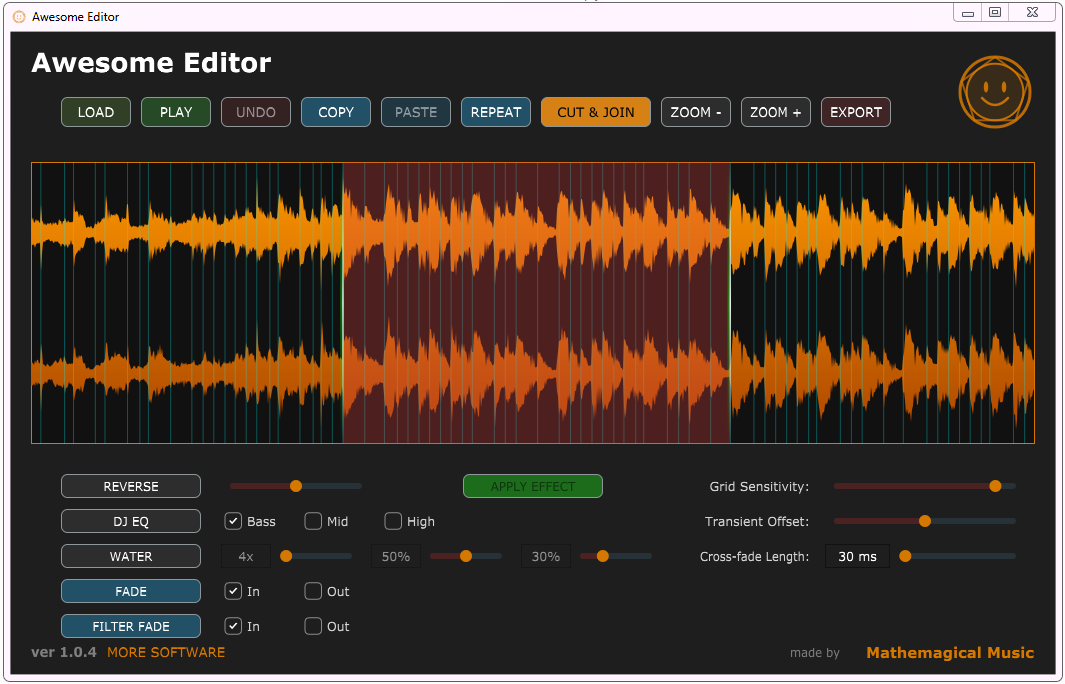
Awesome Editor - Desktop
If you have a complete track with audio problems in some places, with this tool you can just cut those parts of the track out, replace them with other parts of your track, or process them in various other ways.
It creates hit points which your audio selector snaps to, and clever cross-fades when editing to prevent clicks or pops. It is possible to do this is a DAW, but it is time consuming, this tool speeds up your workflow greatly.
OS: Windows 7 to 11 (64-bit).
Mac not currently supported.
Desktop Installation: No installation needed! Simply place the .exe file on your desktop and double-click to run. Windows Defender may show a blue "Windows protected your PC", click "More info" and "Run anyway".
HOW TO UPDATE: If you own it already, update to the latest version by downloading the Free Demo, it will always be unlocked on your system. If it is not unlocked, search your email for your old unlock code, it will work forever.
BASIC WORKFLOW:
1: Select a part of your track, use the "grid sensitivity" and "offset" sliders to adjust how it snaps.
2: Press play to it in a loop
3: Adjust the start and end points until it loops smoothly and makes musical sense.
4: Use the "Fade Length" slider to adjust the cross-fades at the start and end of your loop.
5: Delete, Copy and Paste, Repeat or apply an effect to the selected audio.
6: The cross-fades that you set in step 4 will ensure that there are no clicks in the new audio.
CONTROLS:
Left Mouse Click: Start playback anywhere in your track.
Left Mouse Click and Hold: Select a part of your audio to process; it will snap to the hit points.
Left Mouse Double click: Deselect audio previously selected.
Right Mouse: Click and drag the track left or right when zoomed in.
Mouse Wheel: Zoom into the track.
Mouse Wheel: Fine tune sliders by tiny amounts.
LOAD: Load a track.
PLAY: Play the track. (Space bar).
UNDO: Undo what you have done multiple times if needed. (Ctrl Z).
COPY: Copy a selected piece of audio. (Ctrl C).
PASTE: Paste a copied piece of audio into your track; it will add it perfectly using cross fades. (Ctrl V).
REPEAT: Repeat selected piece of audio. (Ctrl D).
CUT & JOIN: Delete the selected audio and automatically fix the space. (Delete or backspace).
ZOOM: Zooms in and out. (Mouse wheel).
EXPORT: Exports your finished track. DISABLED IN DEMO MODE.
REVERSE: Reverses the selected audio, offset the new loop with the slider.
DJ EQ: Behaves like the EQ mute buttons on a DJ mixer.
APPLY EFFECT: Applies reverse or dj eq after previewing, it can also apply both of them at once.
FADE: Fade the selected audio in or out.
FILTER FADE: Low pas filter that fades the selected audio in or out.
Grid Sensitivity: Use this slider to create more or less hit points, setting it to 0 will remove all hit points.
Transient Offset: Move the grid to line up with the start of your kick drums.
Cross-Fade length: Adjust the length of the fade in and out at the start and end of the selected audio.