
Reaper TTS Voice Cues Generator
Instant Spoken Prompts & Beat‑Accurate Countdowns for Your LIVE REAPER Projects
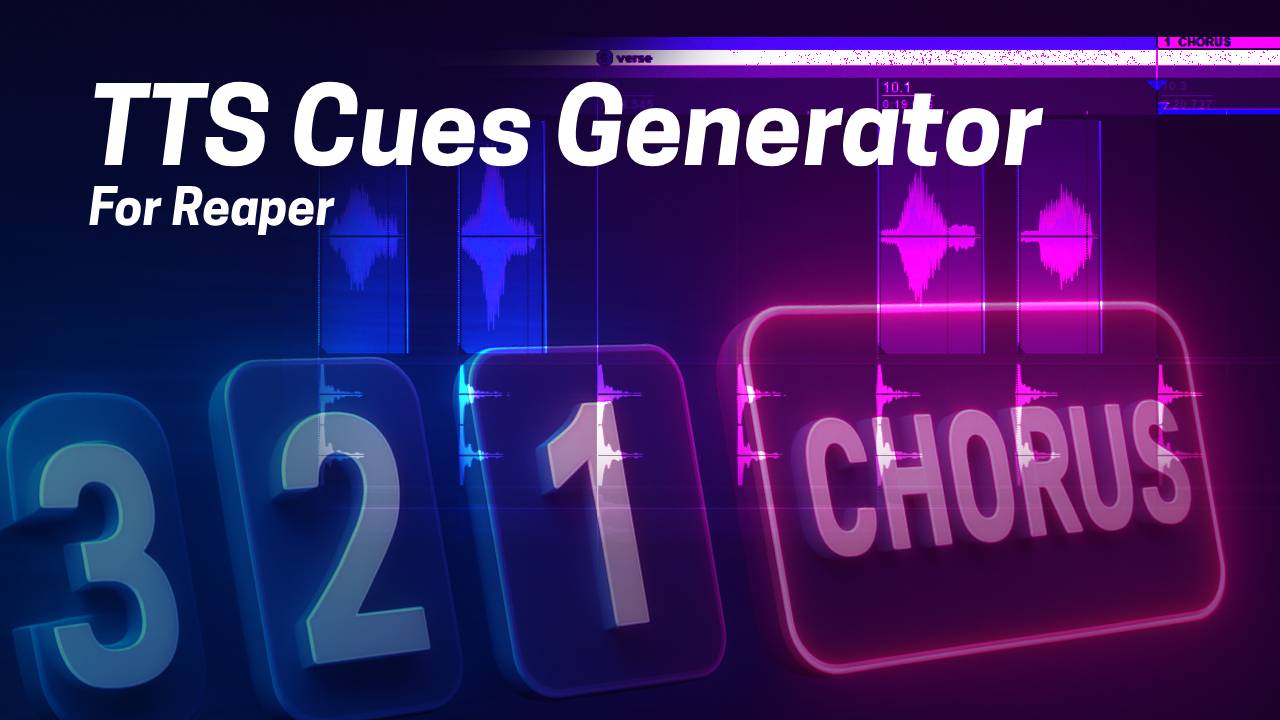
CHORUS 3. 2. 1. ... TTS Cues Manager converts your REAPER markers or regions into professional AI-voiced prompts and beat-synced countdowns, very convenient for live use. No manual recording or sample management needed. Powered by UnrealSpeech premium voices, your cues sound natural and clear.
Intelligent caching reuses existing files for instant generation. Change voice, language, speed, or pitch at will; the script rebuilds only what's necessary. Install today and let your arrangement announce itself so you can focus entirely on performance, producing, and creativity.
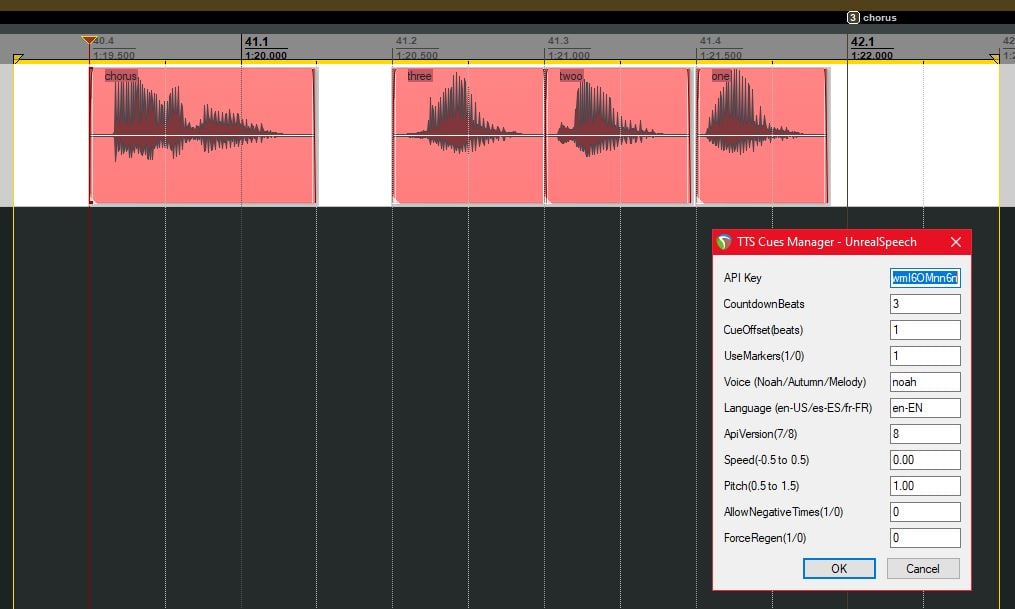
Imagine every section of your song announcing itself automatically with studio-quality voices: "Intro… 3-2-1", "Verse… 3-2-1", "Chorus… 3-2-1". No manual recording. No dragging old samples around. One script run, and a clean "Cues" track appears with perfectly timed spoken labels and musical count-ins, aligned to your tempo map.
TTS Cues Manager turns project markers or regions into premium MP3 voice cues using UnrealSpeech AI technology. It delivers:
- Speed: One-click generation of all section announcements plus rhythmic beat countdowns.
- Premium Quality: 37+ natural-sounding AI voices including Noah, Autumn, Melody, and Jasper.
- Multi-Language Support: English (US/UK), Spanish, French, Chinese, Hindi, Italian, and Portuguese.
- Precision: Countdown placement uses local BPM and always lands exactly on beats.
- Intelligent Timing: Main cue at marker minus (count × 2 + offset) beats for perfect spacing.
- Auto-Retry: Automatic second pass if API calls fail, with no dialog interruption.
- Smart Caching: Reuses existing MP3s in your project folder, saving API calls and time.
- Auto-Trimming: Removes leading (0.5s) and trailing (0.7s) silence automatically.
- Clean Rebuilds: Clears the "Cues" track before each run, eliminating stale leftovers.
- Portable Settings: Saved in the script directory and work across all projects.
- Flexible Overrides: Per-marker customization of voice, count, text, and offset.
- Artists, players, narrators and editors instantly know “what’s next”, while you stay focused on performance and sound quality.
Artists, players, narrators and editors instantly know "what's next", while you stay focused on performance and sound quality.
What the Script Does
- Reads either markers or regions (you choose) from the current REAPER project.
- Optionally restricts processing to the active time selection (loop), considering only entries inside or overlapping for regions.
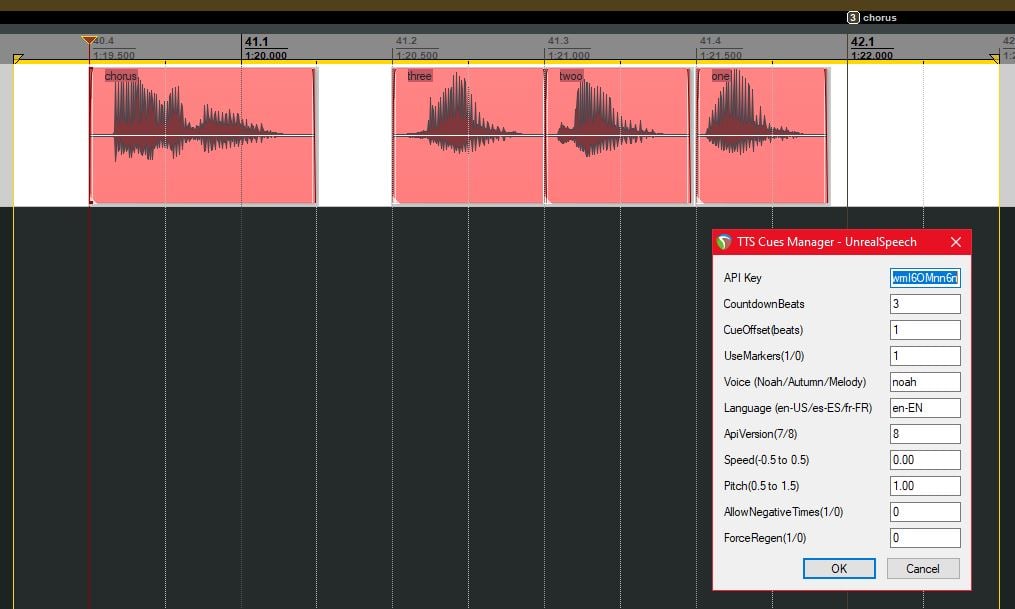
- For each entry, generates one main spoken cue using the UnrealSpeech API with natural AI voices, plus a countdown sequence: count_3, count_2, count_1 (configurable).
- Places the main cue (count × 2 + offset) beats before the marker. For example, with count=3 and offset=0, the main cue appears at marker-6 beats, while "1" appears at marker-1 beat.
- Creates a dedicated "Cues" track (cleared at the start) and reuses existing MP3 files from the [project]/tts_cues/ cache unless ForceRegen is enabled.
- Auto-trims silence from the start (0.5s) and end (0.7s) of each cue.
- If any tokens fail, auto-retries by performing a full automatic second pass.
- Saves all configuration in a script directory JSON file, so your next project opens with the same defaults.
FAQs
Q: How much does it cost?
A: UnrealSpeech offers a free tier with 3,000,000+ characters (approximately 150,000-300,000 cues). Most users never exceed this limit. You can get a free API key at unrealspeech.com.
Q: Can I use this offline?
A: No, the script requires internet for API calls. For offline TTS, use the eSpeak version instead.
Q: Can I adjust the timing between main cue and countdown?
A: Yes, use the CueOffset parameter. Setting CueOffset=0 places the main cue at marker-6 beats (standard). CueOffset=1 places it at marker-7 beats (more space), and CueOffset=-1 places it at marker-5 beats (tighter spacing).
Q: Can I mix multiple voices?
A: Yes, use the |voice=VoiceName| syntax per marker or region. For example: "Intro|voice=Noah|", "Verse|voice=Autumn|", "Chorus|voice=Melody|". Available voices include Noah, Autumn, Melody, Jasper, Hannah, Daniel, Caleb, Emily, Ivy, Luna, and 27+ more.
Q: Do I lose old cues when clearing the track?
A: Yes, the track is intentionally reset for accuracy. If you need legacy cues, duplicate the track before running the script.
Q: Will changing speed or pitch regenerate files?
A: Yes, filenames embed speed and pitch values, so different settings produce clean, separate files in cache.
Q: Does it work in Dutch (Nederlands)?
A: No, UnrealSpeech does not support Dutch. For Dutch voices, use the eSpeak version with nl+m3 or nl+f3 voices.
Q: Why did some cues fail?
A: Check the ReaScript console (View → ReaScript console) for error messages. [DRY] failed: ... - HTTP 401 means your API key is incorrect. [DRY] failed: ... - no-api-key means the API key field is empty. [DRY] failed: ... - API call failed indicates an internet connection issue. The script automatically retries once—check the console for persistent failures.
Q: Can I force the main cue exactly at the marker?
A: Not directly—current logic places it (count × 2 + offset) beats earlier. Use count=0 and offset=0 for minimal lead (main @ marker-0, no countdown).
Q: How do I get better pronunciation?
A: Use custom text override. For example: "BVs|text=Background vocals|", "GTR|text=Guitar solo|", "SFX|text=Sound effects|".
Recommended Workflow
- Get an API key by signing up at unrealspeech.com (free tier available).
- Map your project tempo, especially if it's variable.
- Add markers or drop regions for each musical section.
- Optionally create a time selection covering your preparation range.
- Run the script by going to Actions → TTS Cues Manager - UnrealSpeech.
- Configure once by entering your API key, choosing a voice, and setting defaults.
- Generate by clicking OK and watch the "Cues" track populate.
- Listen and adjust CountdownBeats or CueOffset if needed.
- For your next project, settings are preserved automatically.
Installation Guide
Requirements:
- REAPER 6.0+
- curl (pre-installed on Windows 10+, macOS, and Linux—verify with curl --version)
- UnrealSpeech API key (get a free key at unrealspeech.com)
Installation steps:
- Download tts_cues_manager_unrealspeech.lua and place it in your REAPER Scripts folder. On Windows, this is C:\Users[YourName]\AppData\Roaming\REAPER\Scripts. On macOS, it's ~/Library/Application Support/REAPER/Scripts/. On Linux, it's ~/.config/REAPER/Scripts/.
- Load it in REAPER by going to Actions → Show action list → ReaScript → "Load ReaScript..." and selecting the file.
- Optionally assign a shortcut by right-clicking and selecting Set shortcut (for example, Shift+Alt+T).
- Get your API key by visiting unrealspeech.com, signing up for the free tier (3M+ characters), and copying your API key from the dashboard.
- For your first run, add markers or regions to your project, run the script, paste your API key in the first field, configure the voice (try Noah or Autumn), set Language to en-US, and click OK.
- Verify by checking the "Cues" track—it should contain MP3 items with voice plus countdown.
Settings Reference
Dialog Fields:
- API Key (default empty): Your UnrealSpeech API key, for example sk_xxxxxxxxxxxx.
- CountdownBeats (default 3): Number of countdown beats, such as 0 for none, 3 for 3-2-1, or 4 for 4-3-2-1.
- CueOffset (default 0): Extra beats before countdown, with 0 being standard and 1 providing more space.
- UseMarkers (default 1): Process markers (1) or regions (0).
- Voice (default Noah): UnrealSpeech voice name, such as Noah, Autumn, Melody, or Jasper.
- Language (default en-US): Language/locale code, including en-US, es-ES, fr-FR, or zh-CN.
- ApiVersion (default 8): API version 7 or 8, with 8 being recommended for 37+ voices.
- Speed (default 0.00): Speech speed from -0.5 to 0.5, with 0 being normal.
- Pitch (default 1.00): Voice pitch from 0.5 to 1.5, with 1.0 being normal.
- AllowNegativeTimes (default 0): Allows cues before time 0 when set to 1.
- ForceRegen (default 0): Ignores cache and regenerates all files when set to 1.
File Locations:
- Settings: [ScriptFolder]/tts_cues_settings.json (portable across projects)
- Audio Cache: [ProjectFolder]/tts_cues/*.mp3 (per-project)
- Cues Track: Auto-created in your project
Popular Voice Recommendations
Male Voices:
- Noah: Clear, neutral style. All-purpose (recommended).
- Jasper: Deep, authoritative tone. Best for professional announcements.
- Daniel: Warm, friendly character. Ideal for casual/upbeat projects.
- Caleb: Balanced, natural speech. Perfect for narration/voiceover.
Female Voices:
- Autumn: Natural and balanced. All-purpose (recommended).
- Melody: Energetic and bright. Suited for upbeat/pop music.
- Hannah: Smooth and professional. Excellent for corporate/training.
- Emily: Soft and gentle. Great for ballads/mellow content.
Try them all! Different voices suit different projects. Run with ForceRegen=1 to test various options.
Per-Marker Customization
Use the |parameter=value| syntax in marker or region names:
- "Intro" uses default settings.
- "Verse|count=4|" applies a 4-beat countdown.
- "Chorus|voice=Melody|" uses the Melody voice.
- "Bridge|text=Bridge section|" uses custom spoken text.
- "Outro|voice=Jasper|count=5|" applies multiple overrides.
- "Spanish|language=es-ES|voice=Mateo|" uses a Spanish voice.
Available overrides:
- voice=VoiceName: Override the default voice
- count=N: Override countdown beats
- offset=N: Override cue offset
- text=Custom text: Override spoken text for better pronunciation
- language=xx-XX: Override language (must match voice nationality)
Troubleshooting
All Cues Failed / 0 Items Placed:
Check that:
- Your API key is correct (copy the entire key including the sk_ prefix)
- Your internet connection is active
- curl is installed (run curl --version in terminal)
- Markers/regions exist in your project
- UseMarkers setting matches your marker type (1=markers, 0=regions)
To view detailed errors, open View → ReaScript console and look for [DRY] failed: [filename] - [error message].
Voice Sounds Wrong / Robotic:
For English, use:
- Voice: Noah
- Language: en-US
Wrong combination (won't work):
- Voice: Noah
- Language: es-ES (Noah doesn't speak Spanish!)
Correct combination for Spanish:
- Voice: Mateo
- Language: es-ES
Important: Language must match voice nationality. Check the voice list for details.
Cues Have Silence at Start/End:
Automatic trimming is enabled by default:
- Start trim: 0.5s
- End trim: 0.7s (API v8) or 0.2s (v7)
If silence persists, adjust in the script at lines approximately 247-249:
- trimMs = 0.7 (increase start trim)
- tailMs = 1.0 (increase end trim)
Cues Not Aligned with Beat:
Check that:
- Project tempo is set correctly
- Markers are quantized to the beat grid
- No tempo changes between the main cue and marker
To adjust timing:
- Increase CueOffset to move the entire cue sequence earlier
- Decrease CueOffset to move it later
- Change CountdownBeats to adjust spacing
"API Key Missing" Error:
Solution:
- Get your key from unrealspeech.com
- Copy the entire key including the sk_ prefix
- Paste it in the first field with no spaces or quotes
- Settings are saved automatically for your next run
Script Runs But No Audio Plays:
Check that:
- The "Cues" track exists and is not muted
- Items are visible on the track (purple/pink blocks)
- Clicking on an item shows the MP3 source in media item properties
- The file exists in the [ProjectFolder]/tts_cues/ folder
- REAPER can play MP3 files (test with drag-drop)
Advanced Tips
Tip 1: Test Voice Settings First Start with 2-3 markers and test different voices before processing your entire project. Use ForceRegen=1 to regenerate.
Tip 2: Batch Processing Settings save to the script directory—open a new project, run the script, and the same settings are applied automatically.
Tip 3: Export Cues Separately Render the "Cues" track to a separate file for use in:
- Click tracks for live shows
- Reference audio for remote sessions
- Video production sync
Tip 4: Speed Adjustment for Tempo
- For fast songs (150+ BPM): Use Speed: 0.2 (faster speech)
- For slow ballads (under 80 BPM): Use Speed: -0.2 (slower, clearer)
Tip 5: Custom Text for Abbreviations Get better pronunciation with custom text:
- "GTR|text=Guitar|"
- "BGV|text=Background vocals|"
- "SFX|text=Sound effects|"
- "FX|text=Effects|"
System Requirements
Operating Systems:
- Windows 10/11
- macOS (Intel & Apple Silicon)
- Linux (Ubuntu, Debian, Arch, etc.)
Software:
- REAPER 6.0+ (tested on 6.x and 7.x)
- curl (pre-installed on all modern OS)
- Internet connection (for API calls)
Alternative Versions:
- eSpeak Version: For Dutch voices and offline use
Made with love for the REAPER community. Powered by UnrealSpeech Premium AI Voices.
Alternative offline version with eSpeak:
Installation Guide
- Install eSpeak (Windows) from: https://github.com/espeak-ng/espeak-ng/releases/download/1.49.2/espeak-ng-x64.msi
- install MBROLA voices when you want others than standard english in C:/Program Files/eSpeak/espeak-ng-data/mbrola (see info numediart/MBROLA-voices: Data files of mbrola speech synthesizer voices)
- Place tts_cues_manager_espeak.lua (TTS Cues Generator) into your REAPER Scripts folder.
- REAPER: Actions → ReaScript → “Load…” → select the script.
- Assign a shortcut (e.g. Shift+Alt+T).
- Prepare markers/regions; optional time selection.
- Run the script, configure UI fields, click OK.
- Review the “Cues” track; render or mute as desired.