
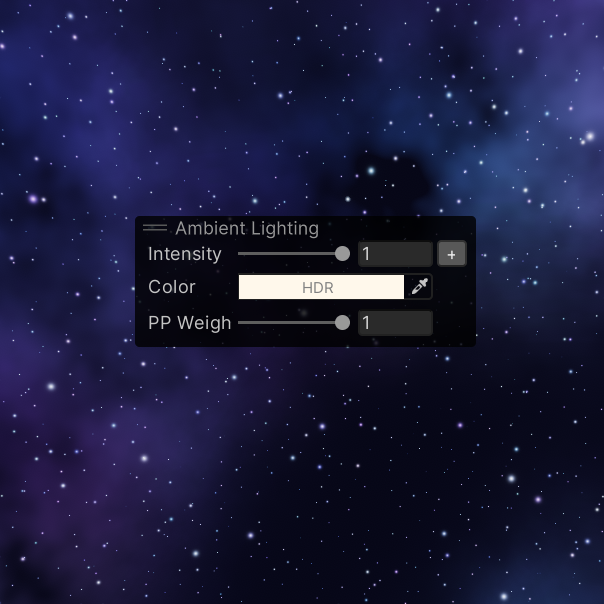
✨Ambient Lighting Overlay Menu
A small but useful Unity Editor tool for quickly adjusting your world’s lighting and atmosphere directly from the Scene View.
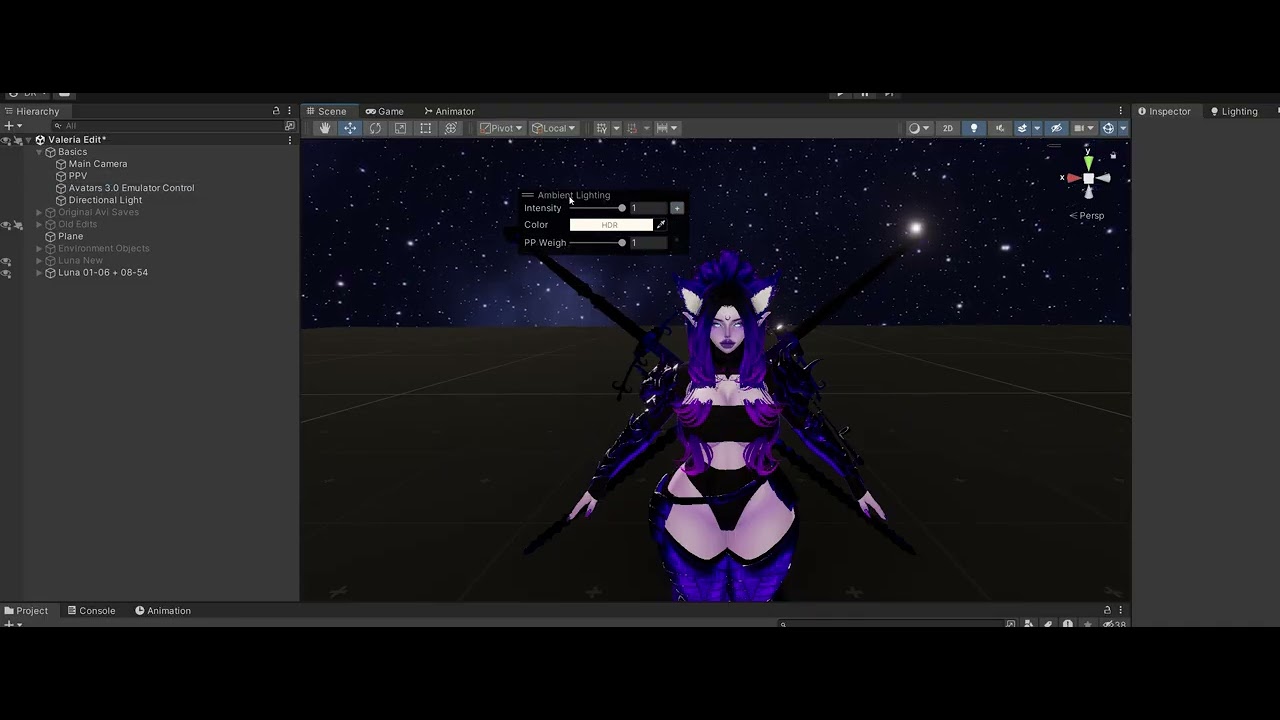
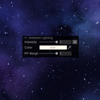
Ambient Lighting adds a compact overlay to your Unity Scene View, letting you control your assigned Directional Light and Post Processing Volume without constantly searching through your hierarchy or inspector.
Perfect for VRChat creators, Unity environment artists, and anyone who frequently tweaks scene mood, exposure, lighting color, or post-processing strength while working.
✨ Features
🌞 Directional Light Control
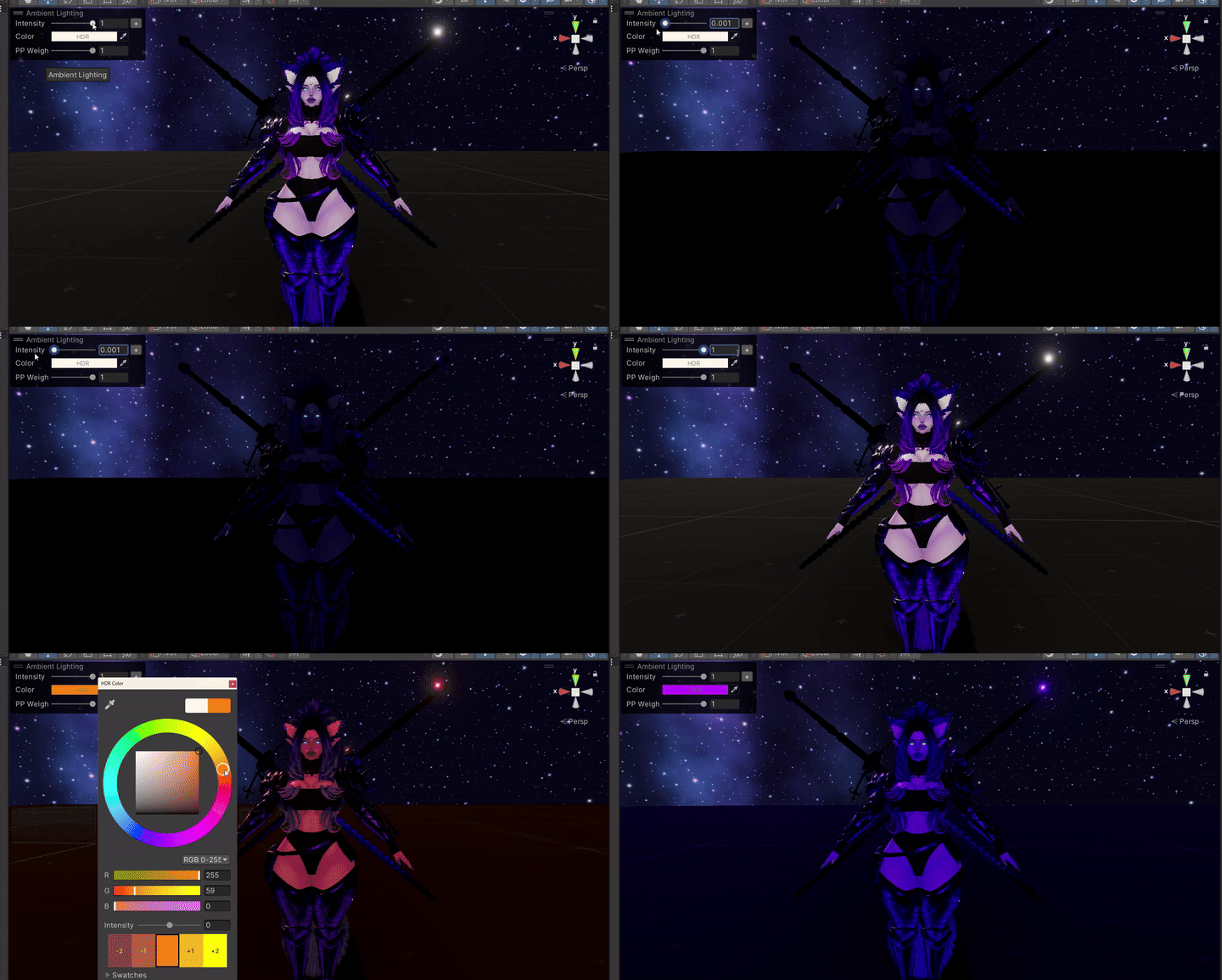
Quickly adjust your scene’s main directional light intensity from a Scene View overlay.
🎨 Light Color Picker
Change your directional light color directly from the overlay to test different moods, times of day, or fantasy lighting setups.
🌌 Post Processing Weight Slider
Assign a Post Processing Volume and control its Weight value with a simple slider.
💾 Remembers Assigned Objects
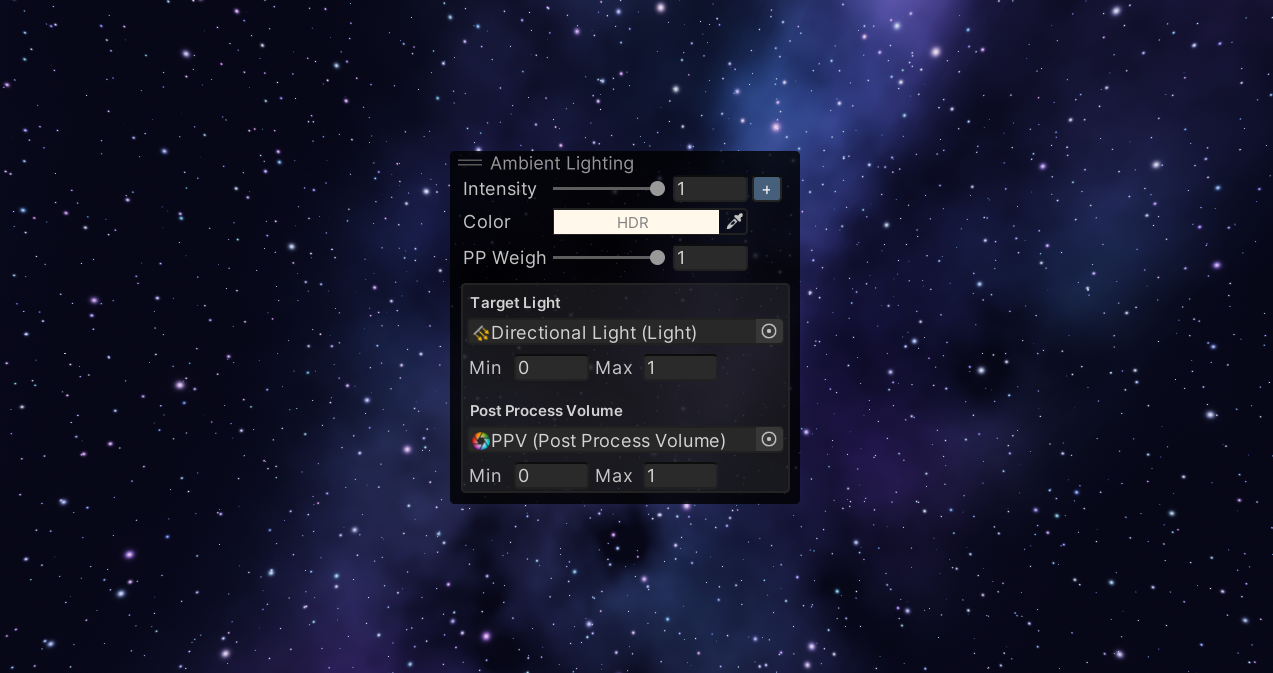
Your assigned Directional Light and Post Processing Volume are saved between Unity openings, so you do not have to reassign them every time.
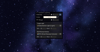
⚙️ Advanced Foldout Settings
Assign your target light and PPV, and adjust slider min/max values from a compact advanced section.
🧩 Scene View Overlay Integration
The tool appears directly as a Unity Scene View overlay, keeping your lighting controls close to your workflow.
↩️ Undo Support
Changes to light intensity, light color, and post-processing weight are recorded through Unity’s Undo system.
📦 Installation
- Download the Unity package.
- Import the package into your Unity project.
- Open your Scene View.
- Open the Scene View overlay menu.
- Enable Ambient Lighting.
- Assign your Directional Light and Post Processing Volume in the advanced section.
- Done!
🛠️ How to Use
After enabling the overlay, assign your scene’s Directional Light and optional Post Process Volume.
You can then quickly control:
- Directional Light intensity
- Directional Light color
- Post Processing Volume weight
The assigned objects are saved automatically, so the overlay is ready to use again after reopening Unity.
📋 Requirements
- Unity Editor
- Built-in Render Pipeline
- Post Processing Stack v2 package if you want to use the Post Process Volume slider
This tool was made for Unity Editor workflows and is especially useful for VRChat projects.
⚠️ Notes
This is an Editor-only tool. It does not add runtime scripts to your world and does not affect performance in-game.
The Post Processing control uses Unity’s PostProcessVolume component from the Post Processing Stack v2 package.
💜 Made by CyberLuna
A small quality-of-life tool for faster lighting and atmosphere editing in Unity. ^^
📜 License
This asset is for personal use only.
You may use this tool in your own Unity projects, including personal VRChat projects and private project workflows.
You may not resell, redistribute, reupload, share, modify for resale, include in asset packs, or claim this tool as your own.
Commercial redistribution, paid sharing, or repackaging of this tool is not allowed.
By purchasing or downloading this asset, you agree to these license terms.