


Sinking Funds Tracker – Spreadsheet for Excel & Google Sheets (Irregular Income Friendly)
Stop letting "surprise" expenses wreck your budget. Car repairs, Christmas, vet bills, insurance premiums: you know they're coming, so this tracker helps you save for them a little at a time.
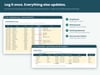
List up to 15 sinking funds with a goal and a target date. Every time you move money in or out, log it in a few seconds with dropdowns. The Dashboard then shows how much you've saved, how far along each fund is, how many months are left, and exactly how much to set aside each month to hit every goal on time.
Made for real-life income, including tips, gig work, freelance invoices and uneven paychecks. Type in what you just earned and the Paycheck Splitter divides it across your funds based on what each one still needs. If you have a slow month, the monthly targets recalculate on their own.
No macros or add-ons. Just open it and start.
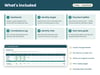
WHAT'S INCLUDED
- 1 spreadsheet file (.xlsx) with 5 tabs:
- Start Here: a 5-minute setup guide, color key and Google Sheets instructions
- Dashboard: total goal, saved, still needed, overall progress, per-fund progress bars, months left, needed per month, status and a Paycheck Splitter
- Funds Setup: up to 15 funds with goal, target date, starting balance and notes, plus a custom category list
- Contributions Log: room for 500 deposits and withdrawals, with fund and type dropdowns
- Monthly View: net saved per fund for each month of any year, plus deposit and withdrawal totals
- Example funds and entries so you can see how it works (delete them when you're ready)
- Print-ready pages
HOW TO USE IT
Excel (Windows, Mac or Excel for the web): download the .xlsx file and open it. Go to Funds Setup and replace the example funds with your own, then add deposits and withdrawals in the Contributions Log. The Dashboard and Monthly View update automatically. Only type in the cream-shaded cells; everything else is a formula.
Google Sheets: in Google Drive, click New > File upload and choose the .xlsx file. Open it, then go to File > Save as Google Sheets. All formulas, dropdowns and progress bars carry over. Then follow the same steps as above.
It also opens in LibreOffice Calc. It uses only functions that both Excel and Google Sheets support.
NOTE
This product was made with AI assistance.
Personal use only. This is a budgeting tool, not financial advice.