

UK Sole Trader Bookkeeping Spreadsheet 2026/27 – Self Assessment Tax Calculator, SA103, Mileage & MTD | Excel + Google Sheets
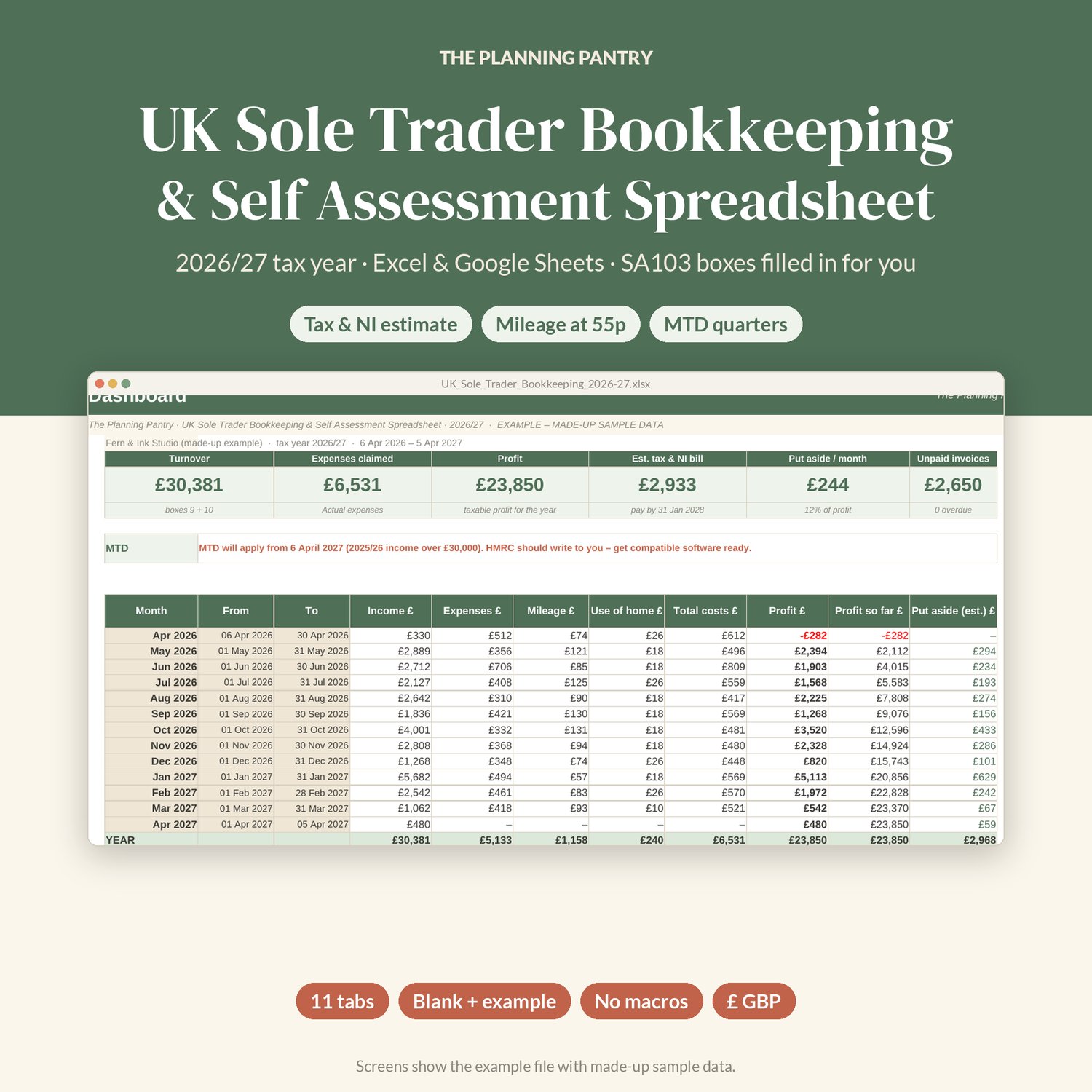
Bookkeeping and Self Assessment in one UK spreadsheet. Log income, expenses, mileage and invoices. Every expense is mapped to its SA103 box, and you'll see your monthly profit and an estimated tax and NI bill for 2026/27. Works in Excel and Google Sheets.
January doesn't have to be a scramble. Spend a few minutes a week on this spreadsheet and when it's time to file, the figures for your Self-employment pages are already waiting, box by box.
Built for UK sole traders, freelancers and side hustlers in England, Wales and Northern Ireland, for the 2026/27 tax year (6 April 2026 – 5 April 2027).
What it does
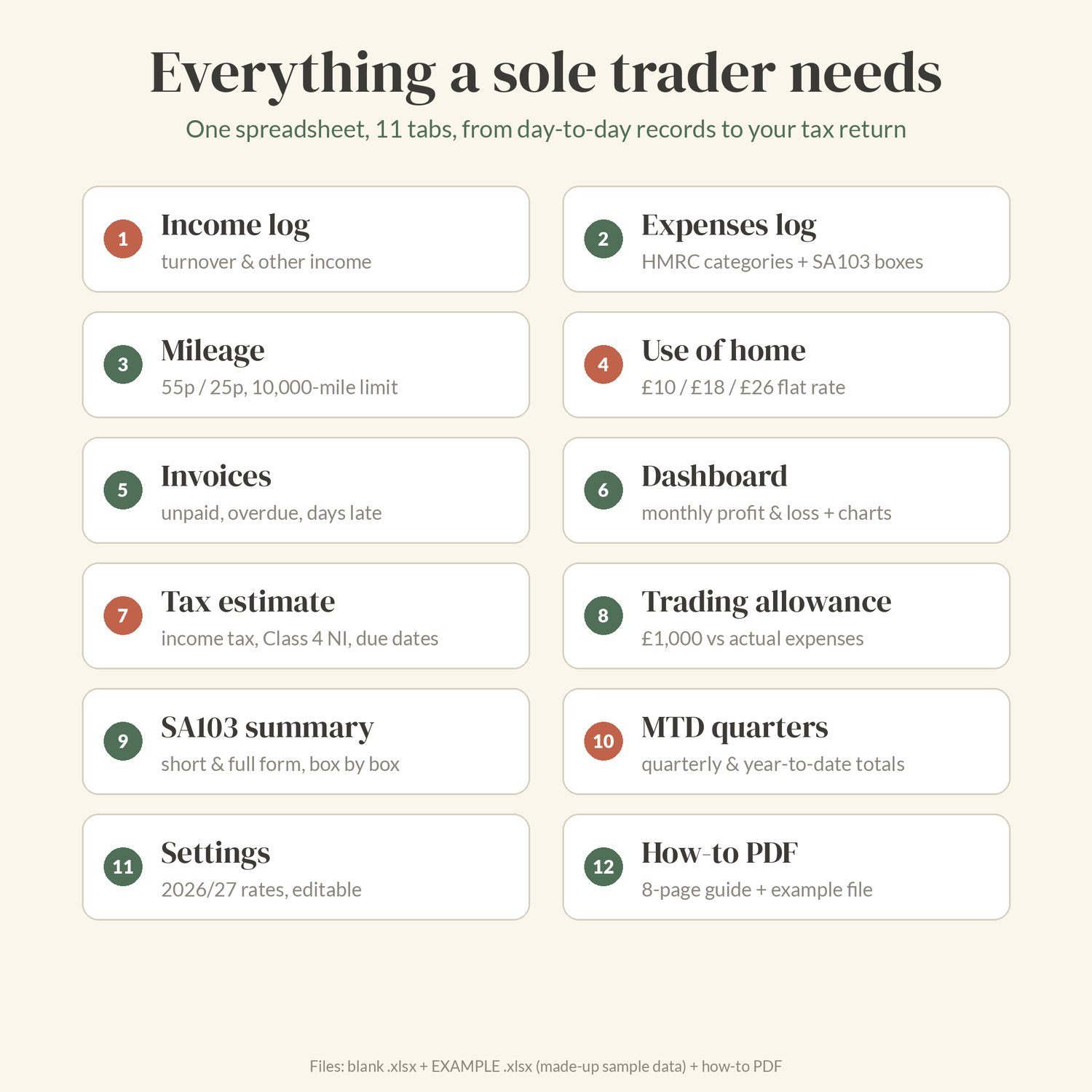
• Income log: turnover and other business income, with a check that flags anything dated outside the tax year.
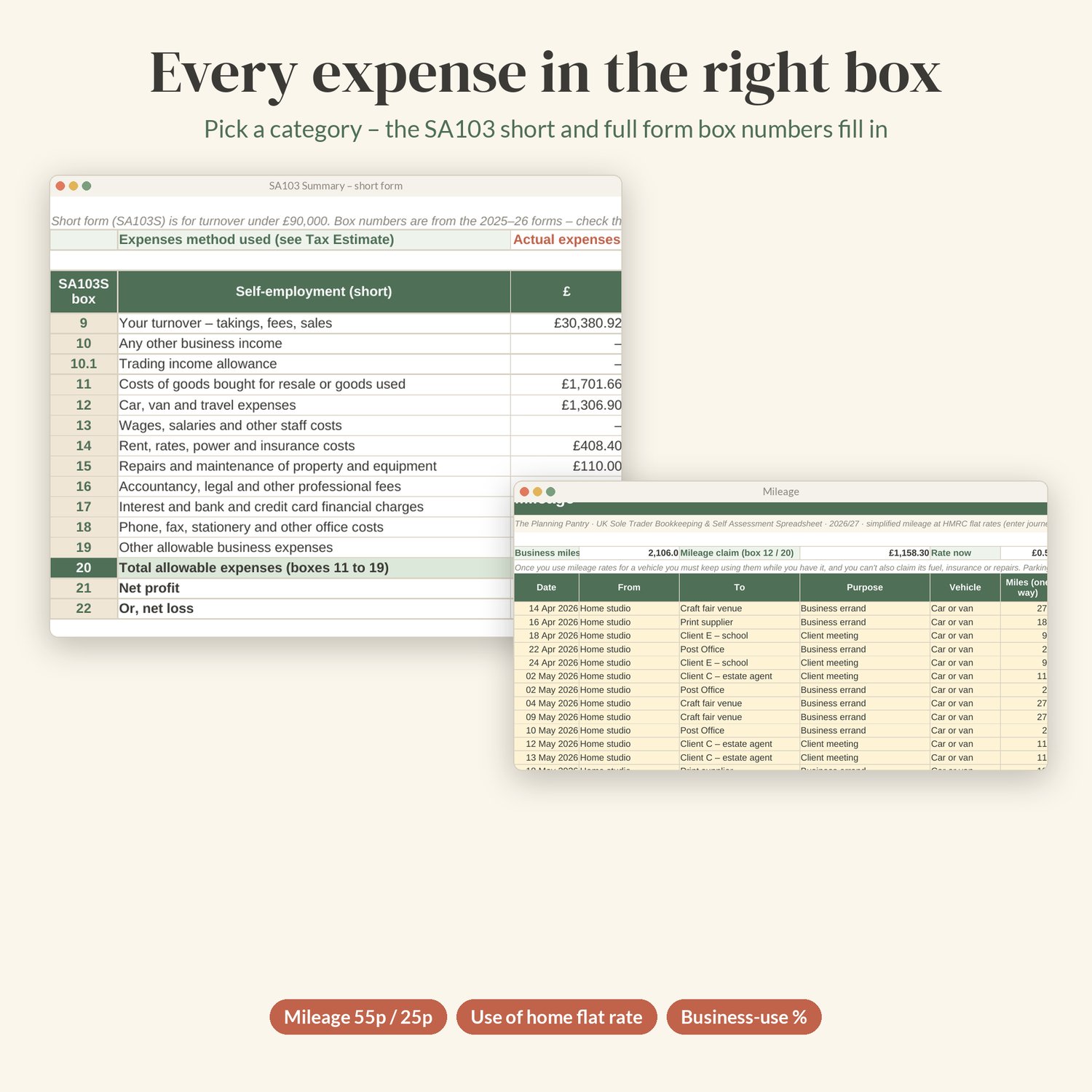
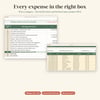
• Expenses log: 27 plain-English HMRC-style categories, with the SA103S (short) and SA103F (full) box numbers filled in automatically. Add a business-use % for mixed costs like a phone used 60% for work, and tick off receipts as you keep them.
• Mileage log: HMRC simplified mileage at the 2026/27 rate of 55p a mile for the first 10,000 car or van miles, then 25p (motorcycles 24p). The 10,000-mile split is tracked for you.
• Use of home: HMRC's flat rate (£10 / £18 / £26 a month by hours worked), with a warning if you also claim actual home costs.
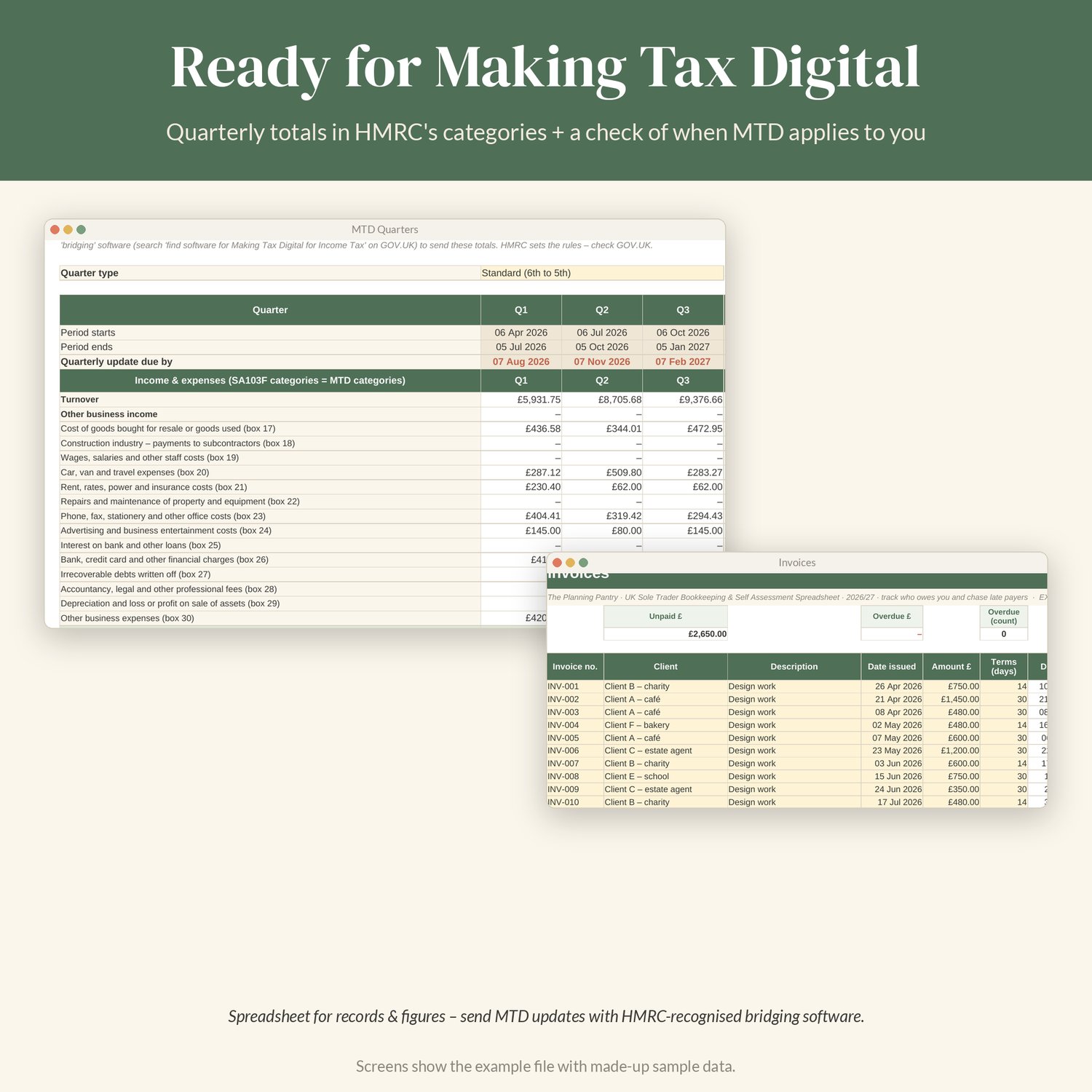
• Invoice tracker: due dates from your payment terms, Paid / Due in 7 days / Overdue status, days late, and a check that paid invoices have been logged as income.
• Monthly profit & loss dashboard: income, costs, profit and profit to date for each month, expenses by category, two charts, and how much to put aside for tax.
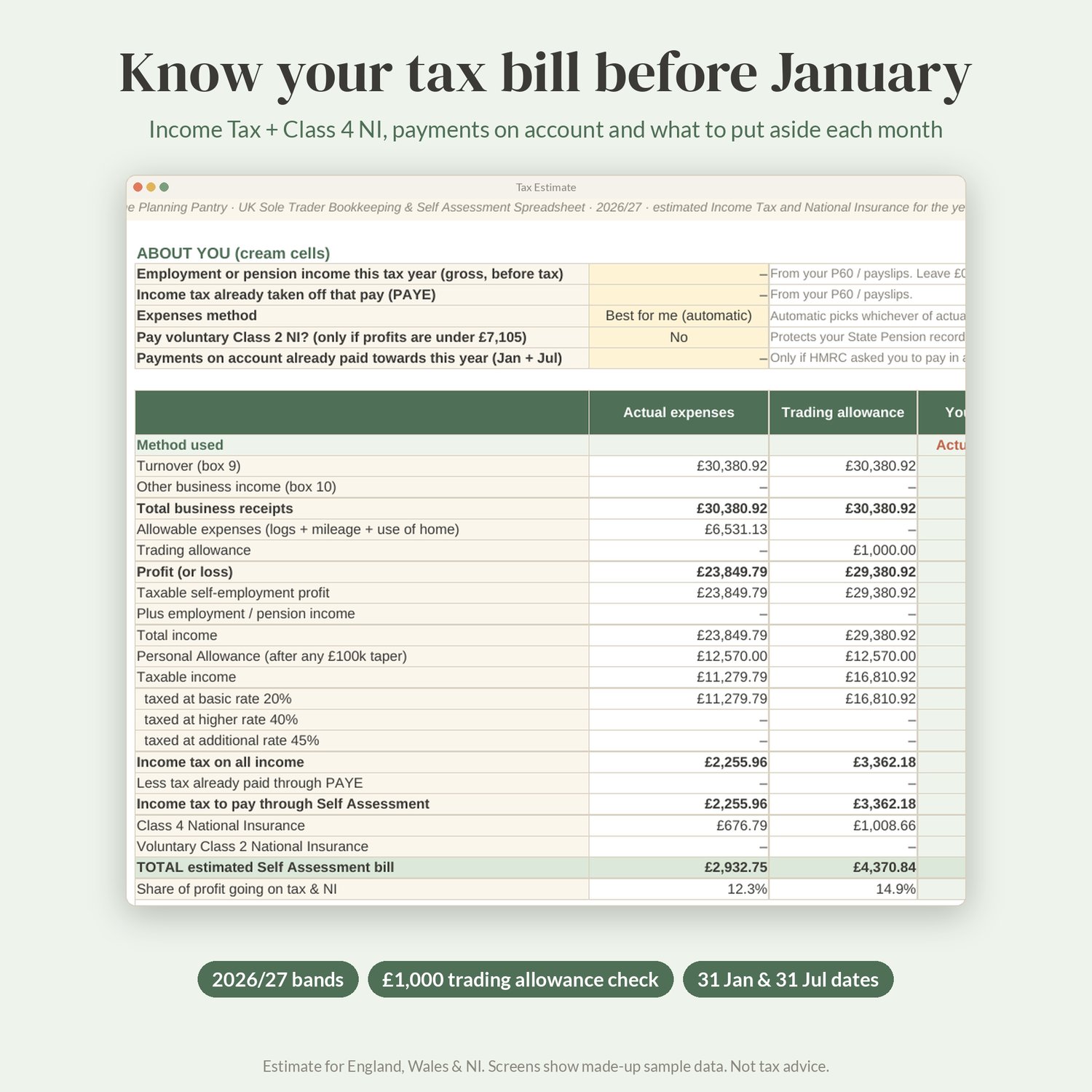
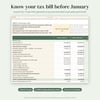
• Tax estimate: Income Tax (2026/27 bands: £12,570 Personal Allowance with the £100k taper, 20/40/45%) plus Class 4 NI (6% / 2%) and optional voluntary Class 2. Add any employment income and PAYE, and see payments on account and the 31 January / 31 July amounts.
• £1,000 trading allowance vs actual expenses: works out both and picks the one that means less tax.
• SA103 summary: box-by-box figures for the short and full Self-employment pages, with checks for losses, the £90,000 VAT threshold, and mileage claimed alongside actual car costs.
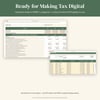
• Making Tax Digital: quarterly and year-to-date totals in HMRC's categories (standard or calendar quarters, with update deadlines), plus a check of whether MTD for Income Tax applies to you (over £50,000 from April 2026, over £30,000 from April 2027, over £20,000 from April 2028).
• Settings: every rate in one editable place, with its GOV.UK source, so you can update it next year.
What's included
1. UK_Sole_Trader_Bookkeeping_2026-27.xlsx: the blank spreadsheet (11 tabs).
2. UK_Sole_Trader_Bookkeeping_2026-27_EXAMPLE.xlsx: the same spreadsheet filled with made-up sample data for a fictional design studio, so you can see how it all works.
3. How_to_use_UK_Sole_Trader_Bookkeeping.pdf: an 8-page guide with a category-to-SA103-box quick reference.
Works with Google Sheets (free, including on your phone) and Microsoft Excel 2010+, Excel for Mac and Excel for the web. No macros.
Instant digital download. Nothing is posted.
Please read before buying
• This isn't tax advice, and it doesn't file anything. It's a record-keeping and estimating tool. HMRC's calculation is the one that counts.
• The income tax estimate covers England, Wales and Northern Ireland. Scottish taxpayers can use the bookkeeping, SA103, mileage, NI and MTD parts, but the income tax estimate won't match Scottish bands.
• The estimate leaves out savings and dividend income, student loans, pension contributions and Gift Aid, the High Income Child Benefit Charge, capital allowances and losses.
• It isn't MTD-compatible software. If Making Tax Digital applies to you, send the quarterly figures with HMRC-recognised bridging software.
• It suits non-VAT-registered sole traders. VAT returns and CIS refunds aren't covered.
How to use it
Google Sheets: drive.google.com → New → File upload → choose the blank .xlsx → open it → File → Save as Google Sheets. Start on Start Here. (Google Sheets drops Excel's sheet protection, so take care not to type over the white formula cells.)
Excel: open the .xlsx and click Enable Editing if Protected View appears.