
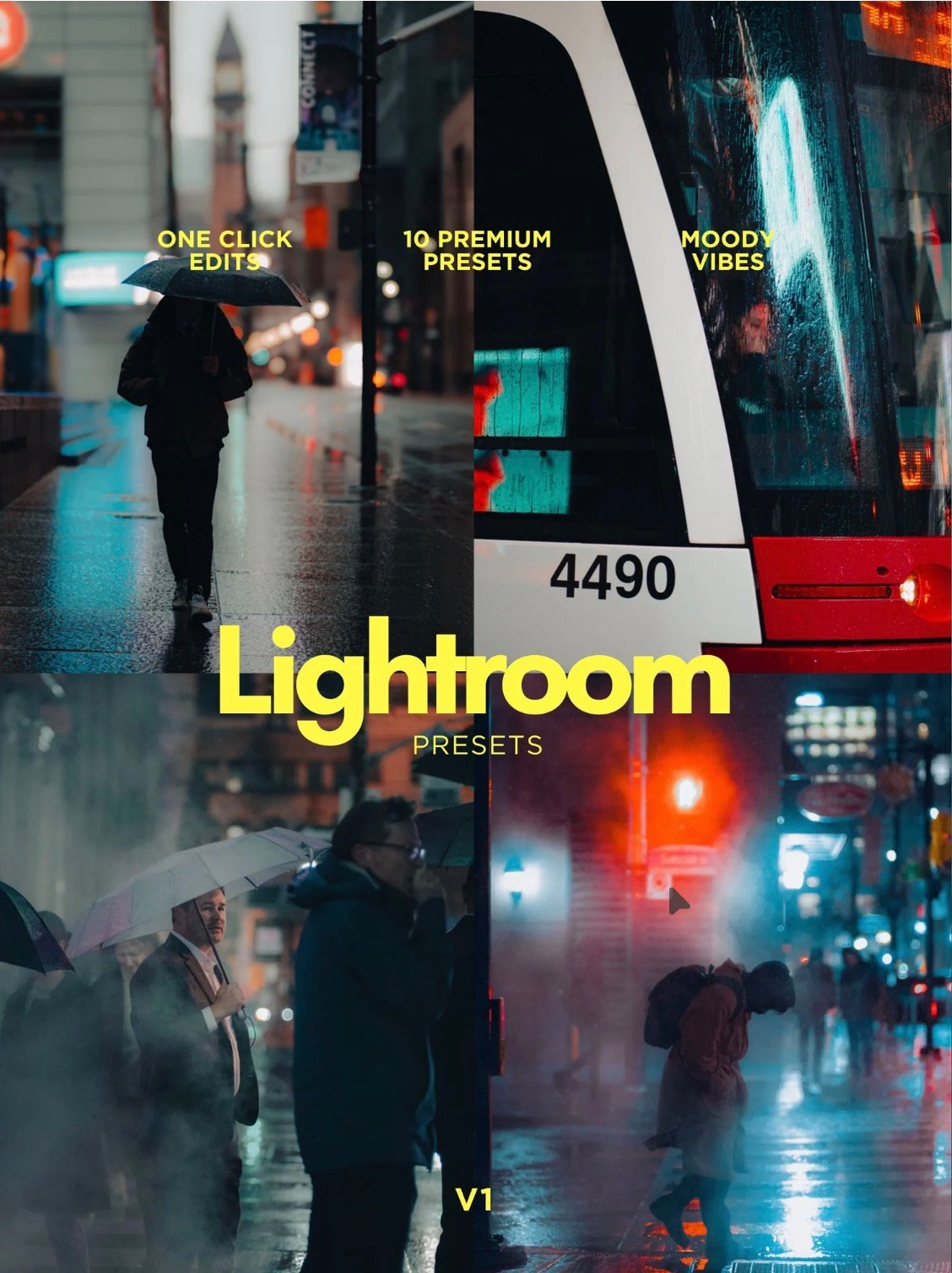
Lightroom Presets
Bring your photos to life with my Lightroom Preset Pack, created to help you achieve beautiful colours, tones, and moods in your photography without spending hours editing every image from scratch.
Whether you’re editing street photography, portraits, city scenes, sunsets, or everyday moments, these presets give you a starting point to develop your own style and create a more consistent look across your photos.
This pack works with Lightroom Mobile and Lightroom Classic, so you can edit on your phone or computer.
What’s Included?
- 10 Lightroom presets designed to give your photos different looks and moods.
- Compatibility with Lightroom Mobile and Lightroom Classic.
- Easy-to-follow installation instructions.
- Instant digital download so you can start editing right away.
How to Use the Presets
Option 1: Lightroom Mobile
Step 1 — Download your files
After purchasing, download the preset pack to your phone or computer. The download may include DNG files, XMP files, or both, depending on the version provided.
Step 2 — Import the presets
If your pack includes DNG files:
- Save the DNG files to your phone.
- Open Lightroom Mobile.
- Import the DNG files into Lightroom as photos.
- Open a DNG file and tap the three-dot menu.
- Select Create Preset.
- Give the preset a name, choose a preset group, and save it.
- Repeat for the remaining presets.
If your pack includes XMP files, you can import them using a compatible Lightroom workflow or install them through Lightroom Classic and sync them to Lightroom Mobile with an eligible Adobe account.
Step 3 — Apply a preset
Open the photo you want to edit, go to the Presets panel, and select the preset you want to try.
Step 4 — Make your adjustments
Every photo is different. Adjust exposure, white balance, contrast, highlights, shadows, or other settings as needed to get the result you want.
Your photo, your style.
Option 2: Lightroom Classic (Desktop)
Step 1 — Download and extract the files
Download the preset pack to your computer. If it arrives as a ZIP file, extract it first. Locate the XMP preset files inside.
Step 2 — Import the presets
- Open Adobe Lightroom Classic.
- Go to the Develop module.
- Find the Presets panel on the left.
- Click the + icon and select Import Presets.
- Locate the XMP files you downloaded.
- Select the files and click Import.
Your presets should now appear in the Presets panel.
Step 3 — Apply a preset
Open a photo in the Develop module, select a preset from the panel, and watch the look transform.
Step 4 — Fine-tune your edit
Adjust exposure, temperature, tint, and other settings to suit your image. The preset provides a starting point, not a one-click guarantee of identical results for every photo.
Tips for Getting the Best Results
- Start with a properly exposed photo whenever possible.
- Try the presets on RAW images for greater editing flexibility.
- Adjust exposure and white balance after applying a preset.
- Different lighting conditions, cameras, and skin tones can produce different results.
- Experiment with the settings to make each edit your own.
Important Information
- This is a digital product. No physical item will be shipped.
- You will receive access to the downloadable files after purchase.
- Adobe Lightroom is required to use the presets.
- A compatible version of Lightroom is required; features and syncing options may vary by version and subscription.
- Presets are editing tools, not finished edits. Results will vary depending on the original photo and your adjustments.
- Please check that your device and Lightroom version support the included file formats before purchasing.
- Due to the digital nature of this product, all sales are final once the files have been delivered, except where applicable law requires otherwise.