
Elektron Digitone Overbridge Ableton Template
Elektron Digitone Overbridge Ableton Template
Turn your Elektron Digitone songs and patterns into a fully organised Ableton Live arrangement in seconds.
This Ableton Live 12 template handles the repetitive Overbridge routing, so you can connect your Digitone and start recording immediately.
Before opening the template
Make sure you have Ableton Live 12 and Elektron Overbridge installed, including the Digitone plugin.
- Download and install the latest version of Elektron Overbridge:
- https://www.elektron.se/support-downloads/overbridge
- Download and install the latest Digitone OS version https://www.elektron.se/support-downloads/digitone#resources
- Connect your Digitone to your computer via USB.
- Set the Digitone to Overbridge USB mode.
- Open Ableton Live and allow it to scan the installed plugins.
- Once Ableton recognises the Elektron Digitone Overbridge plugin, open the template.
Details
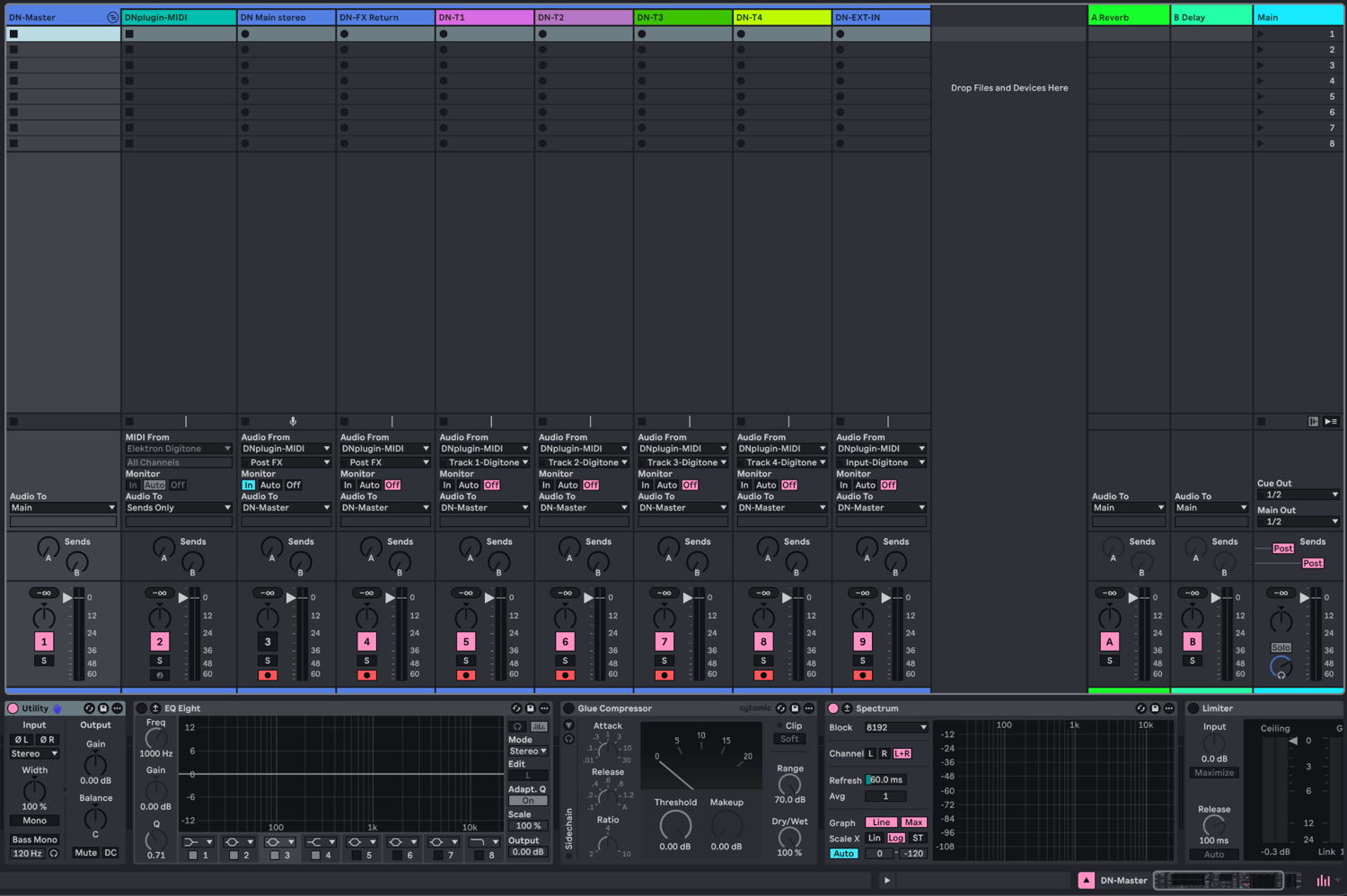
Everything is already routed and organised for you:
- Main Digitone stereo output
- Dedicated Digitone FX Return channel
- Check notes explaining the required Digitone FX routing in Disclaimers below and in Ableton track info.
- All four individual Digitone synth tracks
- External stereo input
- Utility and EQ Eight on every audio channel
- Digitone master bus with Saturator and Glue Compressor
- Spectrum monitoring
- Colour-coded and organised routing
Perfect for:
- Recording hardware jams
- Multitrack recording
- Capturing the complete Digitone stereo mix
- Recording the original Digitone chorus, delay and reverb returns
- Recording Digitone patterns into Arrangement View
- Processing individual Digitone voices with Ableton effects
- Hybrid hardware/software production
- Starting new Digitone projects without rebuilding your routing
No third-party plugins are required besides Elektron Overbridge.
Requirements
- Ableton Live 12
- Elektron Digitone 1 (NOT compatible with Digitone 2)
- Elektron Overbridge
Disclaimer - FX Returns
The individual Digitone tracks stems are recorded without the shared chorus, delay and reverb effects. The template includes two labelled channels for choosing between the complete stereo mix and an FX-only return each one needing a separate recording pass.
Full stereo mix:
On the Digitone, open Settings → Audio Routing → Route to Main and enable T1–T4, Chorus, Delay and Reverb.
FX-only return:
Under Route to Main, disable T1–T4 while leaving Chorus, Delay and Reverb enabled. Keep the required tracks enabled under Send to FX.