

Insta180 v1.0.1 - Beta
Insta180: The "Aspect Ratio Lock" Breaker for Insta360 Studio 🚀
Stop re-editing from scratch. Start Pivoting.
Have you ever finished a complex 40-minute edit in 360 (2:1) only to realize you also need a 16:9 cinematic version without re-doing all your cuts? Or back? Insta360 Studio locks the "project" into the Flat or Sphere aspect ratio you started with—Insta180 breaks that lock.
Insta180 is a specialized utility that allows you to "Pivot" your project instantly. Whether you’re prepping a VR experience or a cinematic flat export, Insta180 handles the technical heavy lifting, allowing you to clone your exact timeline into any ratio (2:1, 16:9, 9:16, 1:1, etc.) in seconds.
This does NOT edit non 360 videos back into 360. This program is flipping the Project File Ratio itself. That has been Locked by the software. The source media must support the aspect ration you are flipping too.
✨ Key Features
- Lossless Logic: Modify your project files directly while maintaining your creative work.
- Streamlined Workflow: Spend less time in menus and more time creating.
- Flexible Outputs: Easily move between 360 (2:1) and all Flat formats.
⚠️ BETA SOFTWARE & SAFETY (Read Before Using)
This tool is currently in v1.0.1 Beta. While designed for efficiency, you use this software at your own risk.
- BACKUP FIRST: Always manually copy your project folder before using this tool.
- COMPATIBILITY: Optimized for Windows 10/11 and Insta360 Studio 5.x or higher.
- FILE TYPES: Tested with dual-lens .insv files. (Single-lens .insv and mixed-file timelines are currently untested).
- THIS TOOL DOES NOT edit the Media files. It cannot change aspect ratios of your media files.
🛠 The "Pivot" Process (How to Use)
To ensure a successful conversion, please follow the "Handshake" method:
- PREP: Note your project name, CLOSE Insta360 Studio, and create a backup of your project folder.
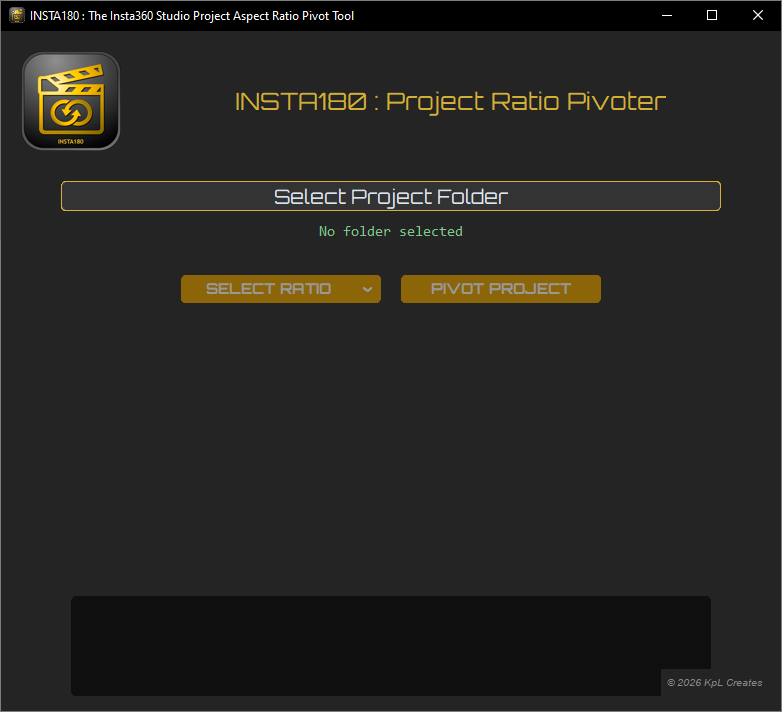
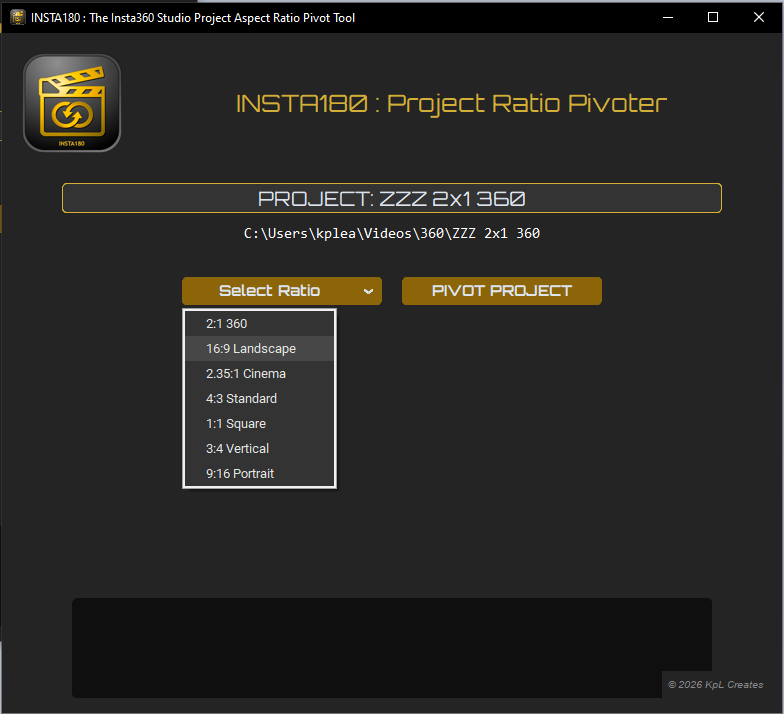
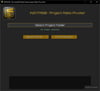
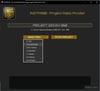
- EXECUTION: Launch Insta180.exe, select your project folder, and choose your new desired ratio (e.g., 9:16).
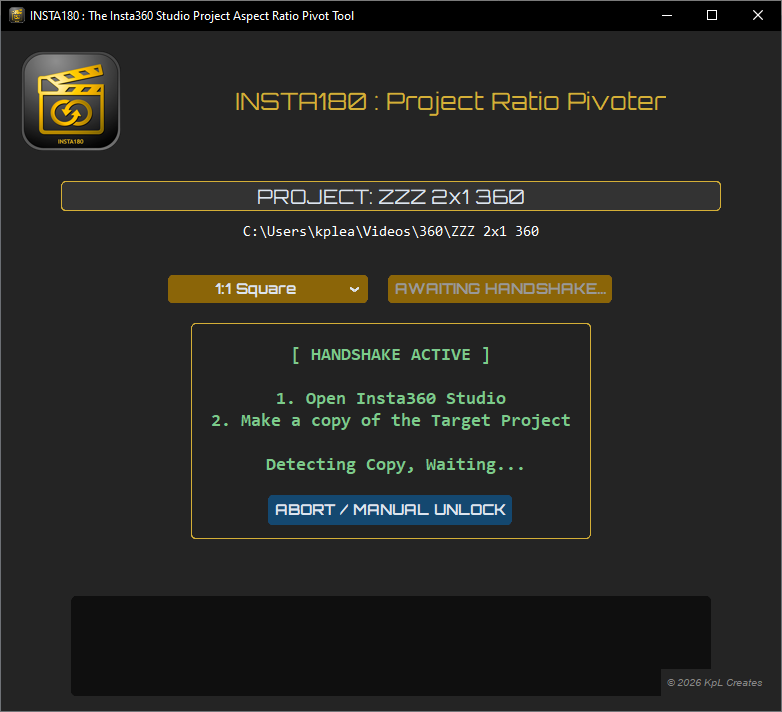
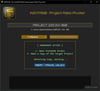
- THE HANDSHAKE: Click [Pivot Project]. The app will display "Handshake Active: Waiting...".
- CLONE: Open Insta360 Studio and open your project. You will see it is now in the NEW ratio. Right-click the project thumbnail and select COPY.
- FINISH: Once the copy (e.g., "ProjectName_Copy") is created, Insta180 will automatically detect it, unlock your original file, and revert the original back to its starting ratio.
- CLEANUP: Use the new "Copy" for your new edits!
💡 Troubleshooting & Tips
- Windows SmartScreen: Because this is an independent, unsigned release, Windows may show a warning. Click "More Info" and "Run Anyway" to proceed.
- Manual Unlock: If the process hangs, simply use the [Abort / Manual Unlock] button to reset your file permissions.
📬 Support the Project
Found a bug or have a suggestion? We are building this for the creator community and love feedback!
- Facebook: facebook.com/Insta180App
- Email: kpl.creates@gmail.com
- Community: If this tool saved you hours of work, consider following our Facebook page for future updates and C++ plugin news!
Developed by KpL Creates Creator & Jack of all Trades—Building the tools we wish already existed.
#Insta360 #Insta360Studio #Insta360App #ShotOnInsta360 #Insta360Video #Insta180 #Insta180app
#VideoEditing #PostProcessing #ContentCreatorTips #WorkflowHacks #FilmmakingTools #videotutorial
#Reels #Viral #TechTips #Innovation #Entrepreneur #CreatorEconomy #KpLCreates