



Full IDM
How to Download and Install IDM on Windows 11
If you are searching for how to download and install IDM on Windows 11, this complete guide will help you understand the installation and setup process.
Internet Download Manager, commonly known as IDM, is a download management application designed for Windows. It can help users manage supported downloads and integrate with compatible web browsers.
A proper installation is important because IDM browser integration depends on both the main IDM application and its browser integration components being configured correctly.
In this guide, you will learn how to download IDM safely, install it on Windows 11, configure basic settings, enable browser integration, and troubleshoot common installation problems.
Whether you are installing IDM for the first time or reinstalling it after a browser integration problem, this guide provides a clear and easy-to-follow process.
What Is Internet Download Manager?
Internet Download Manager (IDM) is software designed to help Windows users manage compatible downloads.
Instead of relying only on the built-in download manager in a web browser, IDM provides a dedicated application interface for handling supported downloads.
Depending on the download source and server capabilities, IDM may offer features related to:
- Browser integration
- Download management
- Download categories
- Queues
- Scheduling
- Download organization
- Resuming supported downloads
The exact features and behavior may depend on the version of IDM and the website or server from which a file is being downloaded.
Why Use IDM on Windows 11?
Windows 11 users often download software, documents, archives, and other files from the internet.
A download management application can make it easier to organize these downloads.
Some users prefer IDM because it provides a dedicated interface for managing supported downloads.
It can also integrate with compatible browsers such as:
- Google Chrome
- Microsoft Edge
- Mozilla Firefox
Browser compatibility can depend on the current IDM and browser versions.
Before You Download IDM on Windows 11
Before downloading any software, make sure your computer is ready.
It is a good idea to check:
- Your internet connection
- Available storage space
- Windows updates
- Your browser version
You should also close unnecessary applications before starting the installation.
Most importantly, download software from a legitimate and trusted source.
Avoid:
- Cracked versions
- Modified setup files
- Suspicious activation tools
- Unknown key generators
- Unofficial extensions
Using modified software can create security, stability, and compatibility problems.
Download IDM Safely for Windows 11
To begin the process, obtain the IDM installer from a legitimate source.
The official Internet Download Manager website provides installation files and information about the software.
Before opening the installer, make sure:
- The file completed downloading.
- The source is legitimate.
- The installer is the file you intended to download.
- You have not accidentally downloaded a suspicious file.
It is always safer to avoid downloading software installers from random websites.
Locate the IDM Installer
After the download is complete, open the folder where your browser saves downloaded files.
- For many Windows 11 users, this is the Downloads folder.
- Look for the IDM setup file.
- The file name can vary depending on the version you downloaded.
- Before opening the file, check that you recognize the installer and trust the source.
Open the IDM Setup File
- Double-click the legitimate IDM installer.
- Windows 11 may display a security or permission prompt.
- Review the information shown on the screen before continuing.
- If the installer is from a legitimate source, continue with the installation process.
- The IDM setup wizard should guide you through the available installation options.
Follow the Installation Instructions
The installation wizard may display information about:
- The application
- Installation options
- Program files
- License information
- Setup preferences
- Read the information before continuing.
- Follow the instructions provided by the installer.
Once the installation is complete, Internet Download Manager should become available through the Windows Start menu or another location selected during installation.
Open IDM After Installation
After installation, open Internet Download Manager Free. The IDM interface allows users to manage supported downloads.
Depending on the version, you may see sections related to:
- Active downloads
- Completed downloads
- Categories
- Queues
- Scheduler
- Options
For new users, it is generally a good idea to start with the default settings before making advanced changes.
Enable Browser Integration in IDM
Browser integration is an important part of using IDM on Windows 11. Without browser integration, supported downloads may continue to be handled directly by your web browser.
- Open IDM and go to the Options section.
- Look for browser integration settings.
- Depending on the version of IDM, you may see an option related to:
- Advanced browser integration
- Make sure the appropriate browser integration option is enabled.
- Then check whether your preferred browser is recognized.
Set Up IDM With Google Chrome
- After installing IDM, open Google Chrome.
- Go to the Chrome Extensions section.
- Look for the genuine:
- IDM Integration Module
- Make sure the extension is enabled.
- You may also need to review the available extension permissions and site access settings.
- After making changes, close Chrome completely and restart it.
- Then test IDM using a legitimate downloadable file from a trusted source.
- If IDM detects the supported download, the integration is likely working correctly.
Set Up IDM With Microsoft Edge
Microsoft Edge is included with Windows 11 and uses Chromium-based extension technology. Open Microsoft Edge and go to the Extensions section.
- Look for the genuine IDM Integration Module.
- Make sure it is enabled.
- Review available permissions if necessary.
- After changing extension settings, restart Microsoft Edge.
- Then test a supported download.
Restart Your Browser
- After installing IDM or changing browser integration settings, restart your browser.
- Close all browser windows.
- Then open the browser again.
- This helps reload extensions and browser integration components.
- If you are using both Chrome and Edge, restart each browser separately after configuring IDM.
Test IDM After Installation
After completing the installation, test IDM using a legitimate download.
- Open a trusted website that provides a normal downloadable file.
- Click the download link.
- If IDM browser integration is configured correctly, IDM may detect the supported download.
- The IDM download window may display information such as:
- File name
- File size
- Save location
Check the information before starting the download.
Configure Your Download Location
After installing IDM, review where downloaded files are saved.
You can organize your downloads into folders such as:
- Software
- Documents
- Work Files
- Archives
- Media
- Other Files
Organizing files does not directly increase download speed, but it can make your computer easier to manage.
Before downloading large files, make sure that your storage drive has enough available space.
Configure IDM Download Categories
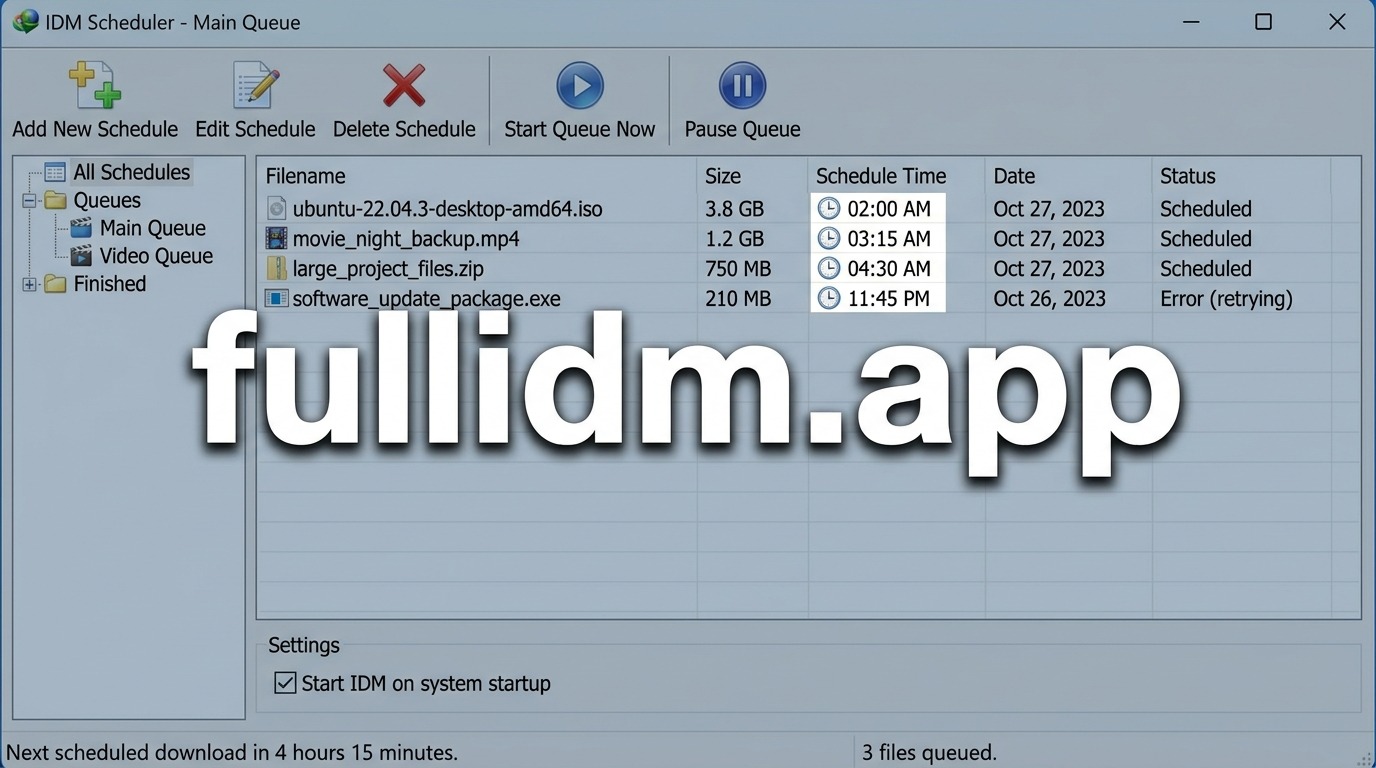
IDM can help organize supported downloads into categories.
For example, you can separate:
- Programs
- Documents
- Compressed files
- Work projects
- Media files
This makes it easier to locate files after downloading.
How to Use IDM After Installation
Once IDM is installed and browser integration is configured, you can start using it to manage supported downloads.
When you click a supported download link in your browser, IDM may detect it.
Depending on the file and website, IDM may display a download dialog.
Review:
- The file name
- The save location
- The file type
- Then start the download.
IDM can monitor the progress through its main application interface.
How IDM Download Performance Works
Many users install IDM because they want better download performance.
However, it is important to understand that download speed depends on several factors.
Your Internet Connection
Your internet plan provides a maximum amount of available bandwidth.
IDM cannot permanently create more bandwidth than your connection provides.
The Download Server
The server hosting the file can limit how quickly the file is delivered.
A slow server may result in a slow download even when your internet connection is fast.
Other Devices
If multiple devices are connected to your network, they may share your available bandwidth.
For example:
- Video streaming
- Game downloads
- Cloud backups
- Software updates
Reducing unnecessary network activity may improve the available bandwidth for an important download.
Wi-Fi Signal
A weak Wi-Fi signal can affect download stability.
If possible, use a reliable Wi-Fi connection or a stable wired connection.
Keep IDM Updated
Keeping IDM updated can help maintain compatibility with Windows 11 and modern web browsers.
Updates may provide:
- Browser compatibility improvements
- Bug fixes
- Stability improvements
- Integration updates
Check for legitimate updates through trusted sources.
Avoid downloading updates from unknown websites.
Keep Windows 11 Updated
Windows updates can include:
- Security improvements
- System fixes
- Compatibility improvements
Keeping Windows reasonably updated can help maintain overall system stability.
Restart Windows when required after important updates.
Keep Chrome and Edge Updated
Browser updates can affect extension compatibility.
After updating Chrome or Edge, check whether the IDM Integration Module is still enabled.
If IDM stops detecting downloads after a browser update, restart the browser and review the integration settings.
Common IDM Installation Problems on Windows 11
Sometimes the installation is successful, but IDM does not work as expected.
Below are some common issues.
IDM Does Not Open
If IDM does not open after installation:
- Restart Windows.
- Check whether the installation completed successfully.
- Use a legitimate installer.
- Review Windows security notifications.
If the problem continues, use official support resources.
IDM Is Not Detecting Downloads
Possible reasons include:
- Browser integration is disabled.
- The IDM Integration Module is disabled.
- The browser is outdated.
- IDM is outdated.
- Another extension is causing a conflict.
Check each item before reinstalling IDM.
IDM Integration Module Is Missing
If the genuine IDM Integration Module does not appear in your browser:
- Check IDM browser integration settings.
- Restart your browser.
- Check whether IDM is updated.
- Review the legitimate installation process.
Avoid installing random extensions that simply use the IDM name.
IDM Download Panel Is Not Showing
The download panel may not appear for every website or every type of content. Different websites use different technologies.
Test IDM with another legitimate downloadable file from a trusted website.
Also check:
- Browser integration
- Extension status
- Extension permissions
- Browser updates
Check for Extension Conflicts
Other browser extensions can sometimes interfere with IDM.
Possible conflicts include:
- Other download managers
- Download-related extensions
- Video download tools
- Browser modification extensions
If IDM stops working, temporarily disable unnecessary extensions and test again.
Enable extensions individually if you need to identify a conflict.
Use Trusted Download Sources
Always download files from websites that you trust.
Before downloading software, verify:
- The publisher
- The website
- The file name
- The file type
Avoid suspicious download buttons and advertisements that may look like legitimate download links.
Using trusted sources is important for security.
Best Practices for IDM on Windows 11
After learning how to download and install IDM on Windows 11, follow these useful practices:
- Use legitimate software sources
- Keep IDM updated
- Enable browser integration
- Keep the IDM Integration Module enabled
- Restart your browser after changing settings
- Keep Windows and your browser updated
- Use trusted download sources
- Keep enough storage space available
- Organize your downloaded files
- Avoid unnecessary changes to advanced settings
Frequently Asked Questions
Is IDM Compatible With Windows 11?
IDM is designed for Windows and is commonly used on modern Windows systems. Always check the current official requirements and compatibility information before installation.
How Do I Install IDM on Windows 11?
Download the legitimate installer, open the setup file, follow the installation instructions, open IDM after installation, and configure browser integration.
Why Is IDM Not Detecting Downloads?
The most common causes are disabled browser integration, a disabled IDM Integration Module, outdated software, or browser extension conflicts.
How Do I Enable IDM in Google Chrome?
Enable browser integration in IDM and check Chrome Extensions for the genuine IDM Integration Module.
Make sure the extension is enabled and restart Chrome.
How Do I Enable IDM in Microsoft Edge?
Open IDM settings and enable browser integration. Then check the Edge Extensions section and make sure the genuine IDM Integration Module is enabled.
Can IDM Resume Interrupted Downloads?
The ability to resume a download depends on the download server and whether the source supports resuming.
Why Are My Downloads Still Slow?
Download speed depends on your internet connection, Wi-Fi quality, other network activity, and the server hosting the file.
IDM cannot create unlimited internet speed.
Conclusion
Learning how to download and install IDM on Windows 11 is straightforward when you follow the correct installation and browser integration process. Start by obtaining the software from a legitimate source and running the official installer. After installation, open IDM and check the browser integration settings. Then make sure the genuine IDM Integration Module is enabled in your preferred browser.
For the best experience, remember these important points:
- Install IDM from a trusted source
- Enable browser integration
- Keep the IDM Integration Module enabled
- Restart Chrome or Edge after configuration changes
- Keep IDM and your browser updated
- Use trusted download sources
- Keep enough storage space available
With the correct setup, Internet Download Manager can help you manage supported downloads and organize your downloading activity on Windows 11.
For more helpful tutorials about IDM installation, browser integration, download settings, troubleshooting, Google Chrome, Microsoft Edge, and Windows, Full IDM can provide useful guides for users who want to understand Internet Download Manager more effectively.