



DeskTV — PC Remote & Keyboard for Google TV / Android TV
On Sale
$3.00
$3.00
Control your Google TV or Android TV from your Windows PC, and type with your real keyboard.
Typing Wi-Fi passwords, Netflix logins, and YouTube searches with a TV remote D-pad is slow and frustrating. DeskTV turns your Windows PC or laptop into a fast, dark-mode remote control over your home Wi-Fi, with no phone, no cables, and no developer mode required. It works with any TV or streaming box that runs Android TV or Google TV, whatever the brand.
Key Features
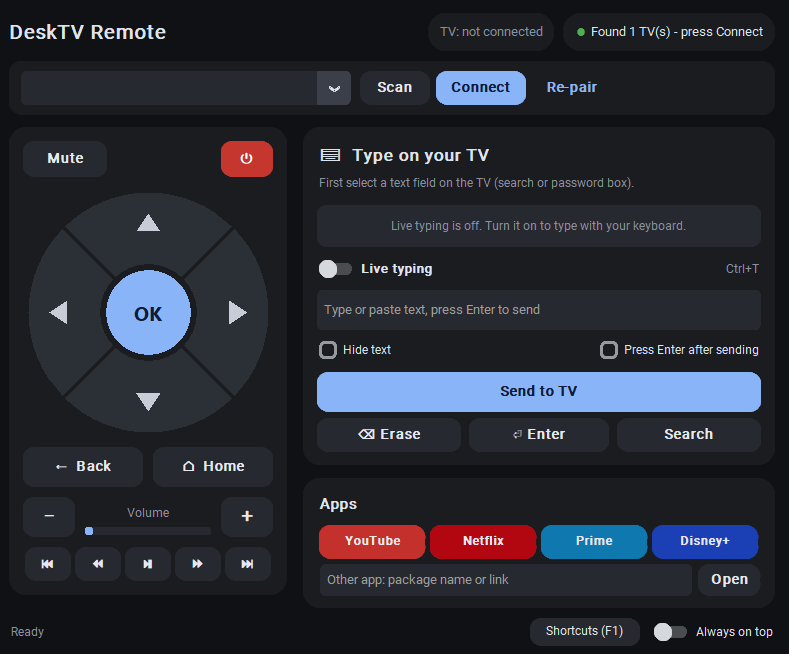
- Live Keyboard Typing (Ctrl+T): Press Ctrl+T and type directly into any search bar or login field on your TV using your real keyboard. Supports English, Arabic, and other languages, plus Ctrl+V paste, Backspace, Delete, and Enter.
- Password & Text Box: Paste long passwords safely using the “Hide text” toggle and optional auto-Enter after sending.
- 1-Click Auto-Discovery: Click Scan and DeskTV finds your TV on your Wi-Fi automatically, with no need to look up IP addresses. Pair once with the TV’s on-screen code and it reconnects automatically next time.
- Complete Remote Control: Round D-pad ring with long-press OK, hold-to-scroll arrows, live volume bar, Mute (hold 3s for accessibility shortcuts), Power, Home, Back, and full media playback buttons.
- 1-Click App Launcher: Open YouTube, Netflix, Prime Video, or Disney+ with one click, or launch any installed TV app by its package name.
- Always on Top & Shortcuts: Pin DeskTV above your other windows while you work, and control everything with keyboard shortcuts (press F1 anytime for the full shortcut list).
Requirements
- A PC or laptop running Windows 10 or Windows 11.
- Any TV or streaming box that runs Android TV or Google TV, including Chromecast with Google TV, Google TV Streamer, NVIDIA Shield, Xiaomi Mi Box/Stick, and Android TV models from Sony, TCL, Hisense, Philips, and more. (Amazon Fire TV devices are not supported.)
- Both your PC and TV connected to the same home Wi-Fi or local network (guest Wi-Fi or hotel networks with AP isolation may block discovery).
Quick Setup & Windows SmartScreen Note
- Download DeskTV.zip, right-click it, and click Extract All.
- Double-click DeskTV.exe (no installation or extra setup needed).
- First-time Windows popup: Because DeskTV is an independent app without an expensive corporate certificate, Windows Defender SmartScreen may show a “Windows protected your PC” popup on first launch. Simply click “More info” → “Run anyway” (and allow access on Private networks if Windows Firewall asks).
Note: DeskTV is an independent product and is not affiliated with, endorsed by, or sponsored by Google LLC. Google TV and Android TV are trademarks of Google LLC.