
BeneG Toolkit
BeneG Toolkit — one panel for the work you do every day in After Effects
This toolkit is available under the Pay What You Want model, which means you decide what it's worth. To download it for free, just enter 0. If you'd like to support the work, any amount is welcome — the suggested tip is $5, but it's entirely voluntary.
I built this panel for the community, out of the tools I kept rebuilding for myself on every project. It started as an easing curve editor, a preset library and the hundred little things you click through a menu for every single day. It has grown a long way past that since, but the idea has not changed: all of it in one place, inside After Effects.
What's in it
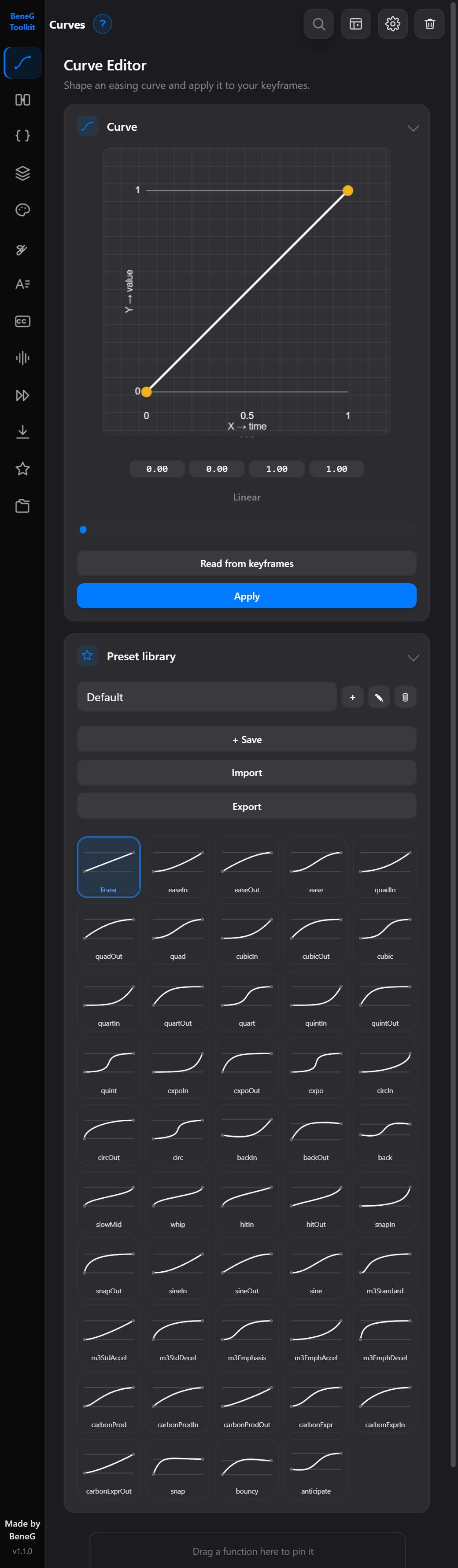
Curves. Shape an ease by dragging its handles, or pick one from a library of 45 presets, select your keyframes and hit Apply. It reads existing eases back in for tweaking, and tells you in plain words what the curve you drew actually does — Ease Out, Slow → Fast, and so on. Save your own, sort them into named libraries, and import or export whole libraries so the ones you already have come across.
Transitions. Fade, Slide, Zoom, Blur, Spin, Wipe, Pop, Bounce and Iris, each with a live preview playing right in the panel. Set the direction and the duration, then apply to the selected layers.
Expressions. Wiggle, Bounce, Bounce Out, Loop Out, Random Seed, Sine Wave, Throw, Hover Float and Sway, applied to the property selected in the timeline in one press. Every one has a live preview, sliders for its parameters, and its actual code in an editor you can change before applying — or copy out and paste wherever you like.
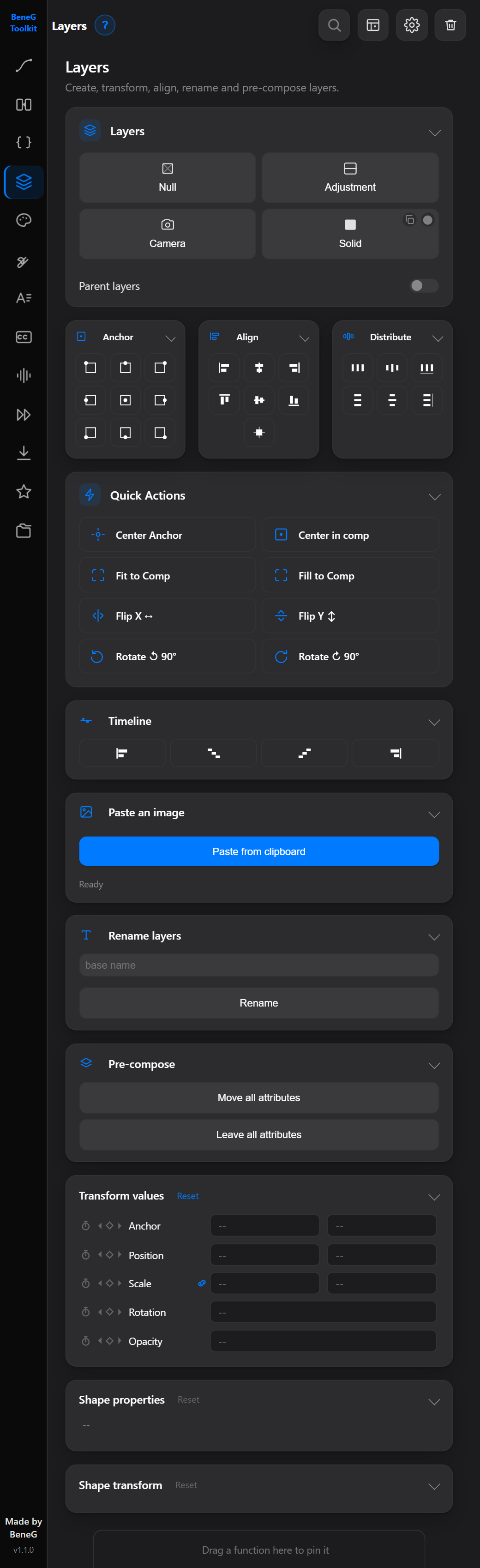
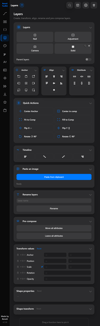
Layer tools. Solids, nulls, adjustment layers and cameras. Centre anchor points, fit and fill to comp, flip on either axis, rotate, align, distribute, arrange in the timeline, batch rename, pre-compose each layer into its own trimmed comp, and parent a whole selection. Transform and shape values are shown and editable in the panel. Paste an image straight from the clipboard onto a new layer.
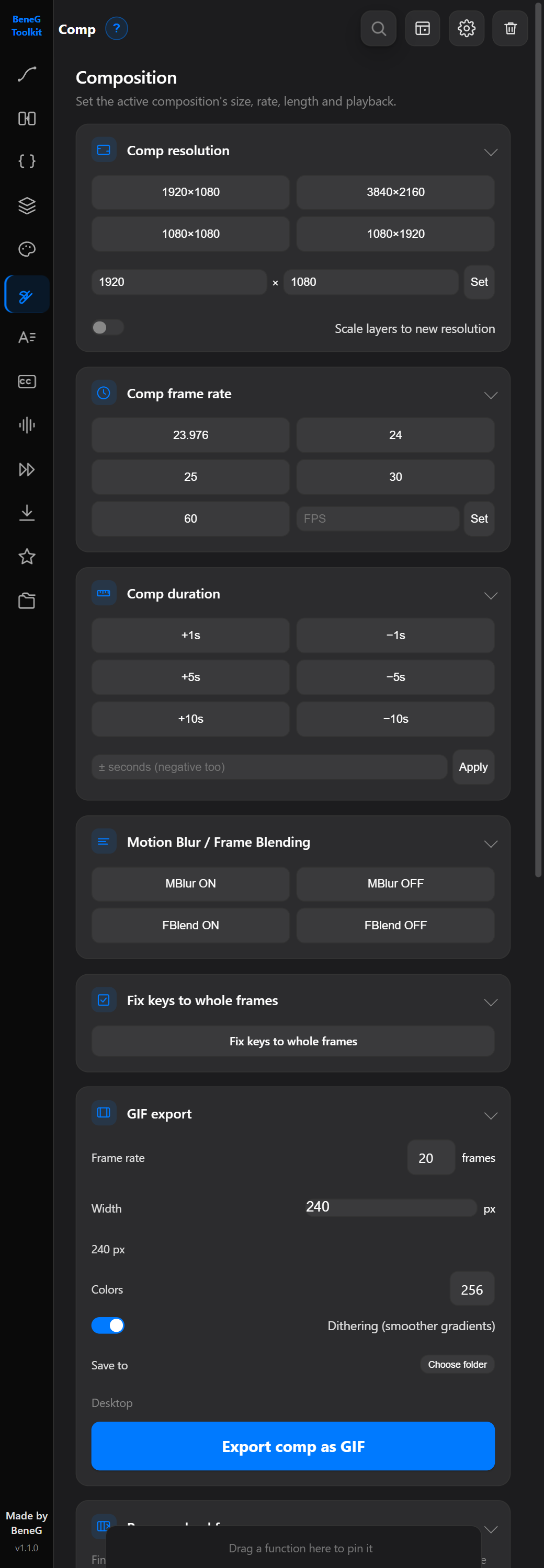
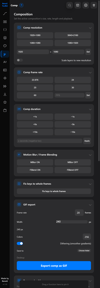
Comp tools. Resolution, frame rate and duration in one click, with presets for the common ones. Motion blur and frame blending switches. Snap keyframes to whole frames. Layout guides — centre cross, rule of thirds, or a custom grid with your own gutter and margin — and one button to take them away again. Cache purging. Export a comp straight to GIF, with control over frame rate, width, colours and dithering.
Remove dead frames. Finds duplicate held frames on a footage layer and pulls the unique ones together, shortening the layer. For anime drawn on 2s and 3s, and for any recorded or downloaded clip carrying repeated frames. Analyse first and see exactly what it found before anything changes.
Split at scene cuts. Finds the cuts in a footage layer and splits it so every shot becomes its own layer. Preview the cuts before committing.
Open in an older After Effects. Writes a copy of a project that an older release will open, and checks which effects that release actually has — including plugins from other vendors — so you know in advance what would come up missing. The original file is never touched.
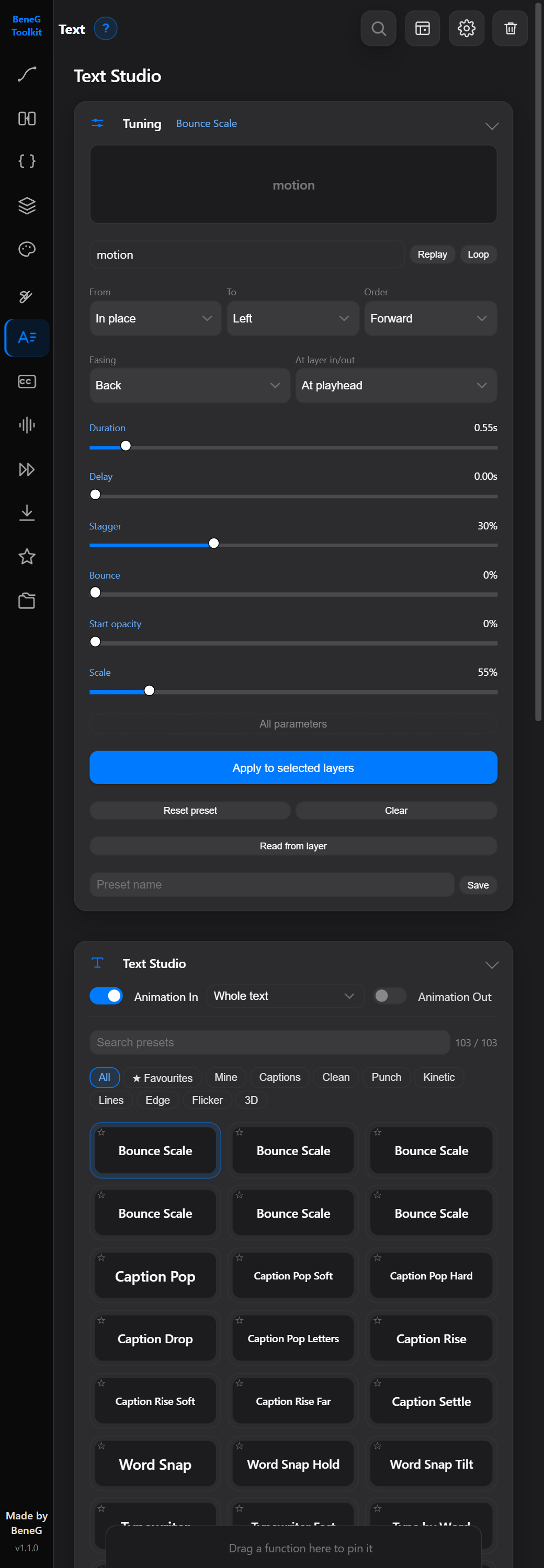
Text Studio. Over a hundred text animations, built entirely from expressions — no keyframes, so they stay editable and re-timeable after you apply them. Search them, filter by category, star the ones you keep coming back to, tune every parameter against a live preview, and save your own. In and out animations, whole text or per word or per letter.
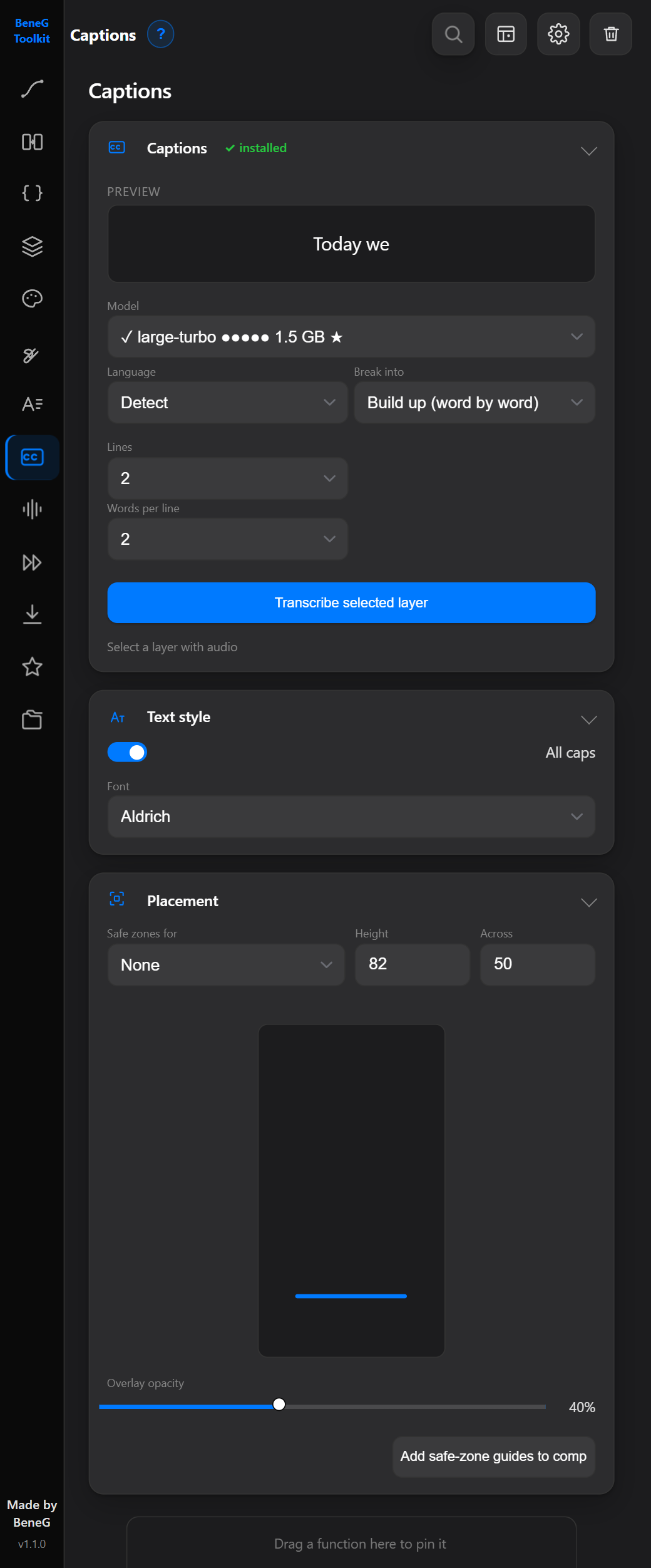
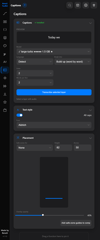
Captions. Transcribes the selected audio layer and builds the caption layers for you. Several models to pick from, automatic language detection, and a choice of how the text breaks — by sentence, by line, word by word, or building up. Font, all-caps, styling, placement and safe zones for the common social formats, all against a live preview.
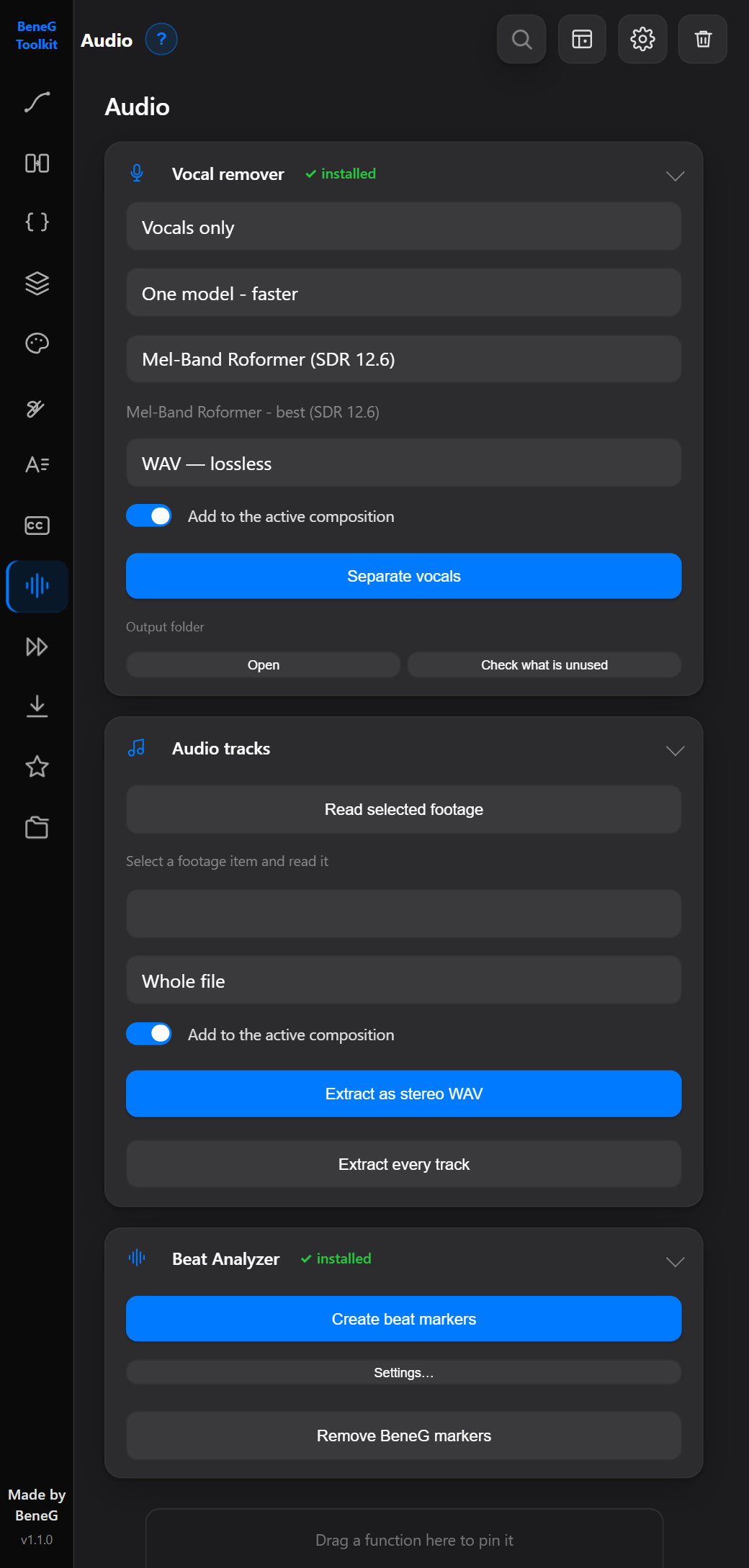
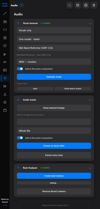
Audio. Finds the beat in a track and drops markers on it: kicks, snares, hi-hats, downbeats and peaks, each on its own switch, with a strip showing exactly what you will get before you commit to it. It reports the tempo and how confident it is, and can align the markers to what the audio is actually doing rather than a fixed grid. It also separates the vocals out of a track.
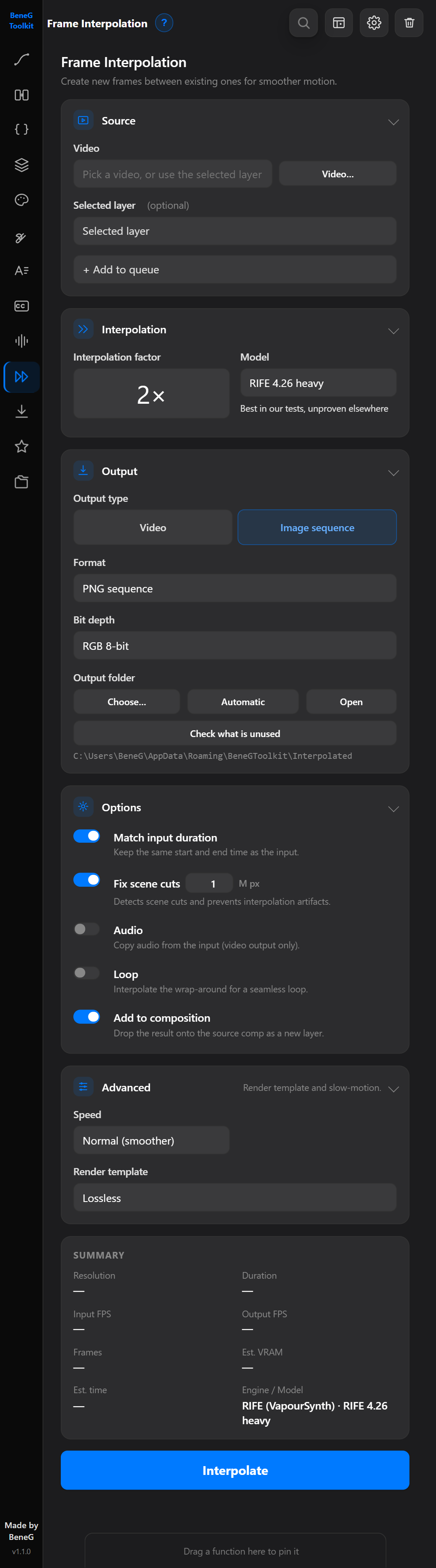
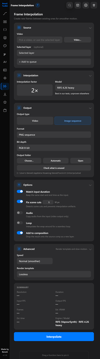
Frame Interpolation. Generates new frames between the existing ones, for smooth slow motion or a higher frame rate. Several RIFE models, 2× and up, scene-cut detection so cuts don't smear, video or image-sequence output at your choice of format and bit depth, slow-motion and render templates, and a queue for doing several clips in a row.
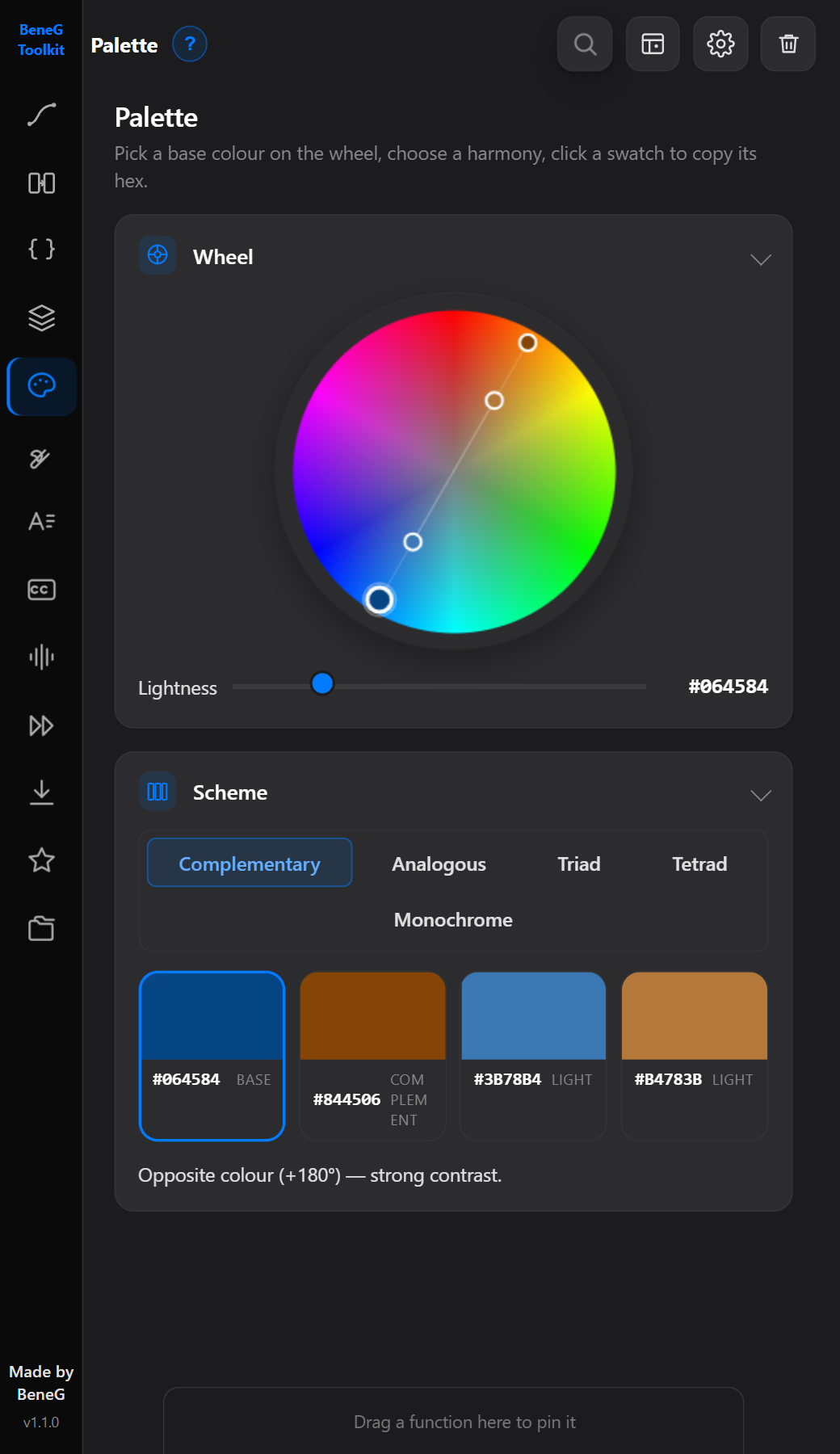
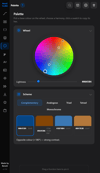
Palette. Pick a base colour on a wheel, choose a harmony — complementary, analogous, triad, tetrad or monochrome — and click a swatch to copy its hex.
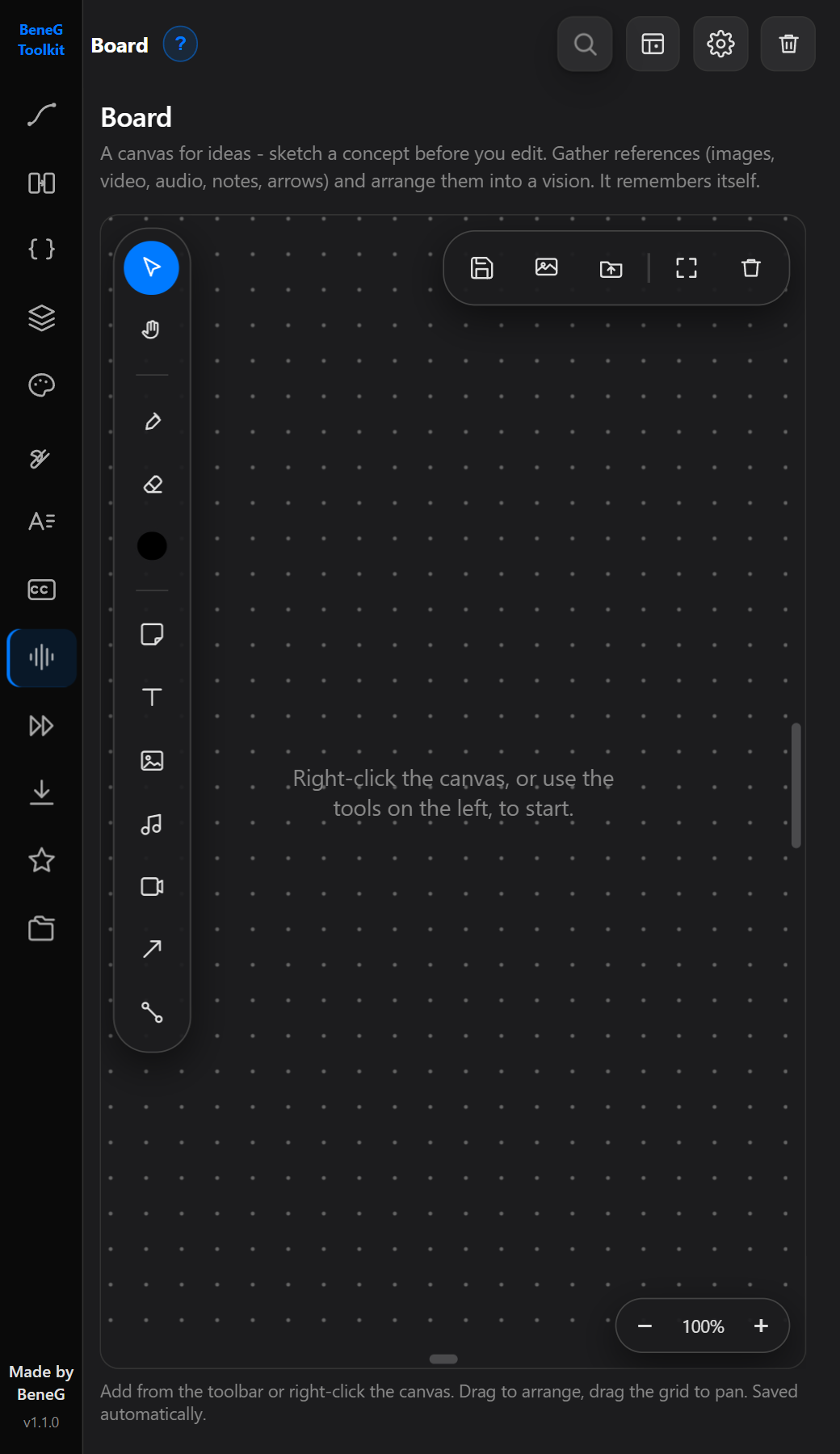
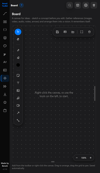
Board. A canvas for the thinking that happens before the edit. References, notes, text, arrows, freehand pen, images, video and audio, arranged however you like, with connectors between them. Drop a composition on it to keep a frame of it in view. It remembers itself between sessions and keeps its own backups.
Effect presets. Browse your After Effects preset folder from inside the panel, filter it, star your favourites and apply with one click. Optionally fit the preset's timing to the layer, or fit keyframes already on the layer to the layer or the work area.
Download. Pull a video down from a link at the quality and format you choose, straight into your footage folder — and a check that tells you which files in that folder the open project isn't using.
Organize. Sorts every item in the project into folders by type. One button, one undo step.
Search and quick panel. Start typing to find any function in the panel and run it from there. Drag the ones you reach for constantly onto a bar along the bottom and they stay pinned.
Keyboard shortcuts. Every action also ships as a standalone script. One button installs them into every version of After Effects you have, then bind whatever keys you like.
Made to be readable. Dark, light and a custom theme, six accent colours or your own, and an interface scale so it stays legible whatever size you dock it at. Every control has a tooltip and every section has a ? that explains what it does, plus a guided tour of the whole panel.
One place for the heavy tools. Captions, vocal separation, beat detection and interpolation all take their processor or graphics card from a single setting, along with how hard to push it. Everything they download lives in the panel's own folder and can be cleared from one button.
Stays current. The panel checks for new versions once a day and installs them itself, and can offer beta versions if you want them. Your presets and settings are never touched.
Languages
English, Czech, German, Spanish, French, Italian, Polish, Portuguese, Russian, Chinese, Japanese, Korean and Hindi — thirteen in all, switchable at any time from Settings. English is the original wording; the others beyond Czech are machine-assisted, so if something ever reads oddly, switch to English and you'll have the original.
Works with After Effects CC 2019 and newer, on Windows and macOS.
Installing
Five minutes, and only once.
1. Allow unsigned panels. After Effects blocks panels that aren't signed by Adobe, so this has to be switched on first. The download includes a ready-made enable.reg file for Windows, and a one-line Terminal command for macOS. Full walkthrough in the README if this step is unfamiliar.
2. Unzip the download. You'll get a folder called BeneGToolkit. Keep it whole — don't rename it and don't move the files around inside it.
3. Put that folder into your CEP extensions folder.
There are two places it can go. Installing it just for yourself is the simpler route and needs no special rights:
- Windows: %APPDATA%\Adobe\CEP\extensions — paste that straight into the Explorer address bar
- macOS: ~/Library/Application Support/Adobe/CEP/extensions
Or install it for every user on the machine, which asks for administrator rights when you copy it in:
- Windows: C:\Program Files (x86)\Common Files\Adobe\CEP\extensions
- macOS: /Library/Application Support/Adobe/CEP/extensions
If the extensions folder isn't there yet, create it.
One thing worth knowing if you pick the second option: the panel updates itself by rewriting its own files, so it needs write access to wherever you put it. In a system-wide folder that usually stays with the account that installed it, and updates carry on working — but not on every machine, and not for other users of the same computer. If the panel ever reports that it can't install an update, that's why. Dropping the new version in by hand fixes it, and installing per-user avoids the question entirely.
4. Restart After Effects and open Window → Extensions → BeneG Toolkit.
If the panel doesn't appear in that menu, it's almost always step 1 — the unsigned-panel setting didn't get applied, or After Effects wasn't fully restarted afterwards. Quit it completely rather than just closing the project window, then try again.
Full instructions, screenshots of both paths and a troubleshooting section are in the README on GitHub.
Found a bug? Missing a feature?
Report it here: https://github.com/BeneGCZ/BeneGToolkit/issues
Please don't use the Payhip comments for problems — I won't see them reliably, and on GitHub I can actually track the issue and tell you when it's fixed. When reporting, mention your After Effects version and what you clicked.
If this toolkit is useful to you, I'd appreciate support through a follow, a mention in your description, or a voluntary tip. It all helps.
You can find my social networks HERE