

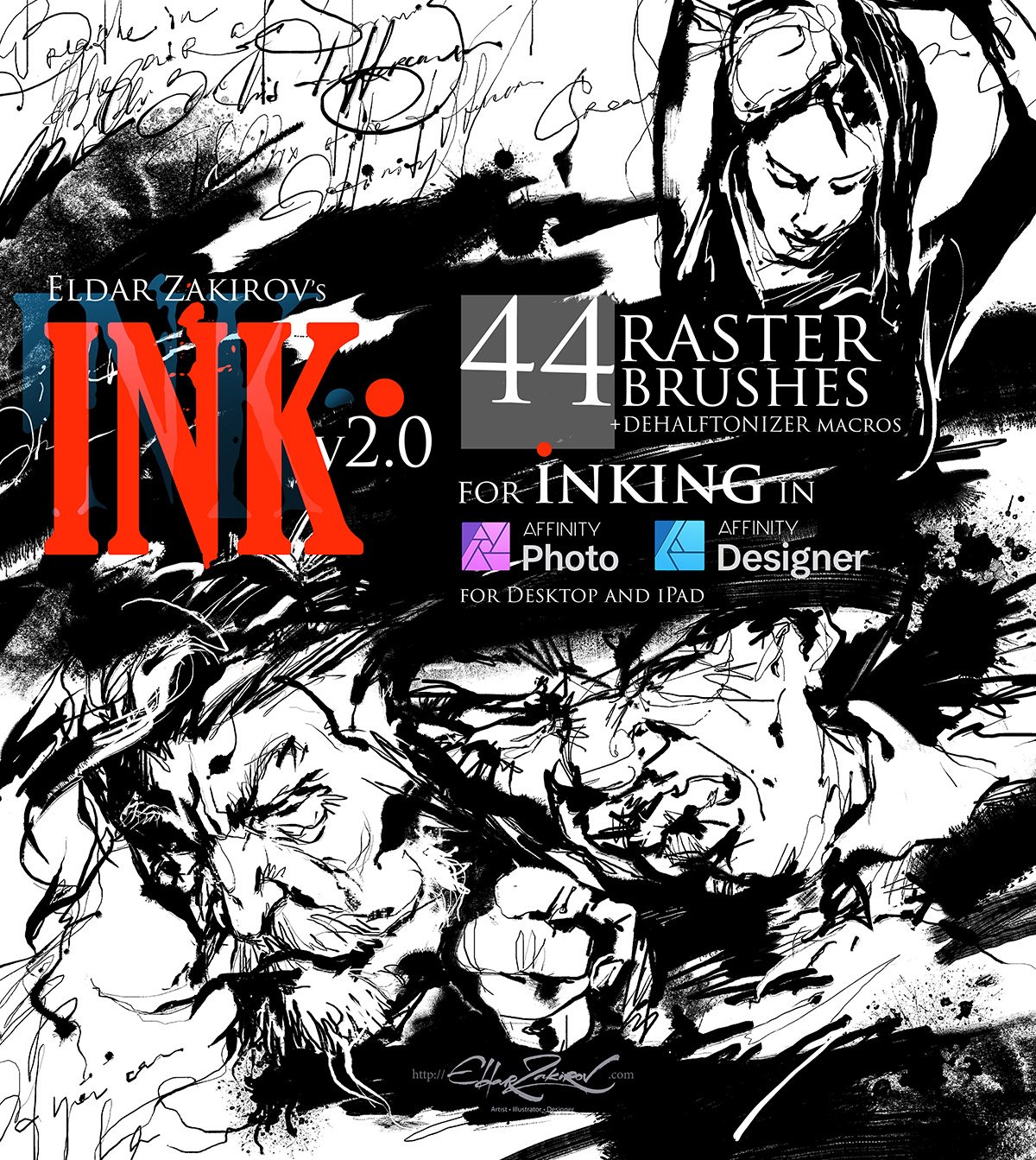



INK. for Affinity Photo & Designer: 44 raster Brushes + Dehalftonizer macros — for desktop & iPad
No PayPal required:
👉 Get it instantly HERE (card, Apple Pay, Google Pay) →
💳 PayPal is still available above if preferred (Add to cart or Buy now button) ↑
INK. for Affinity Photo & Affinity Designer:
44 raster Brushes + Dehalftonizer macros
🟢 For desktop and iPad
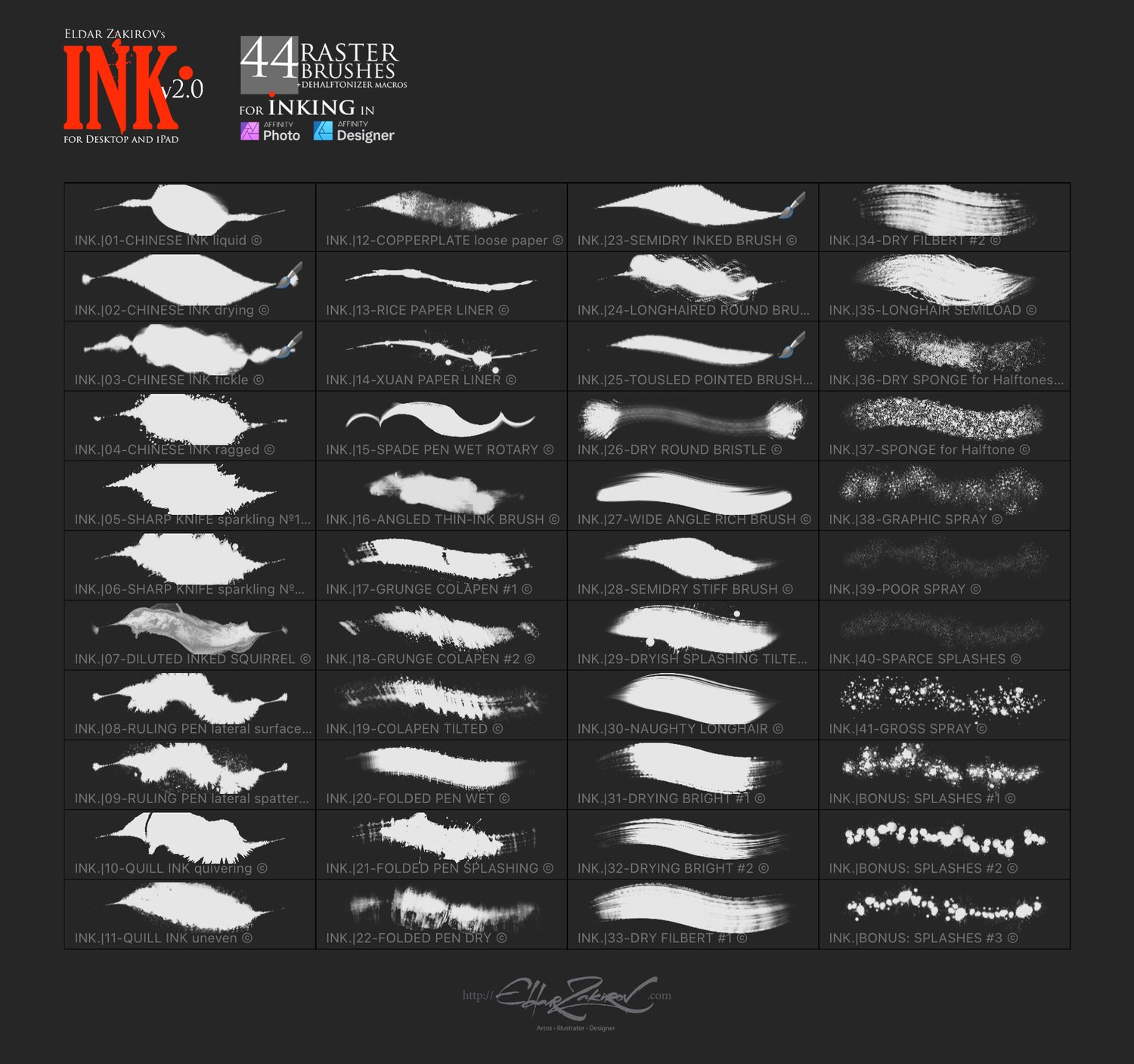
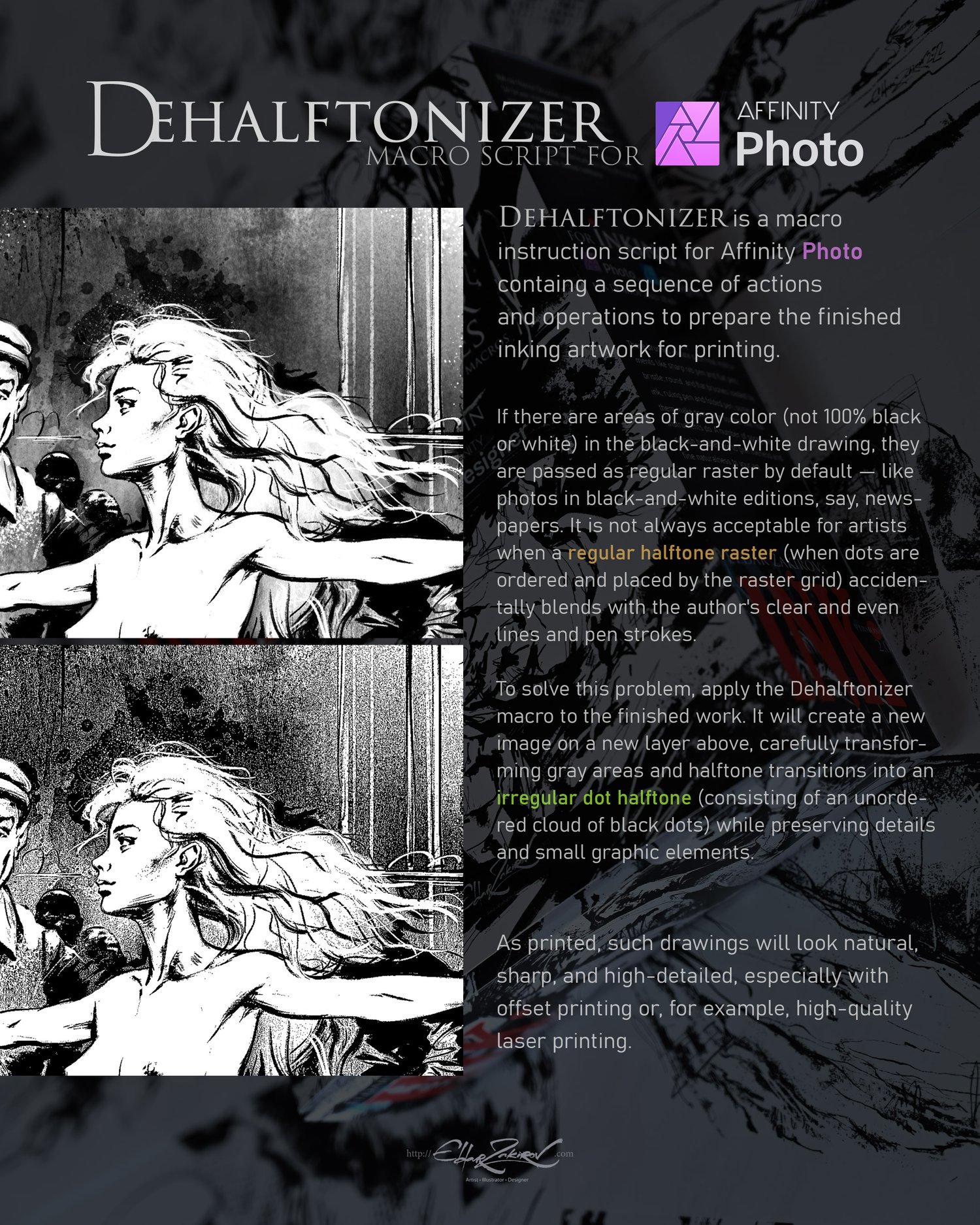
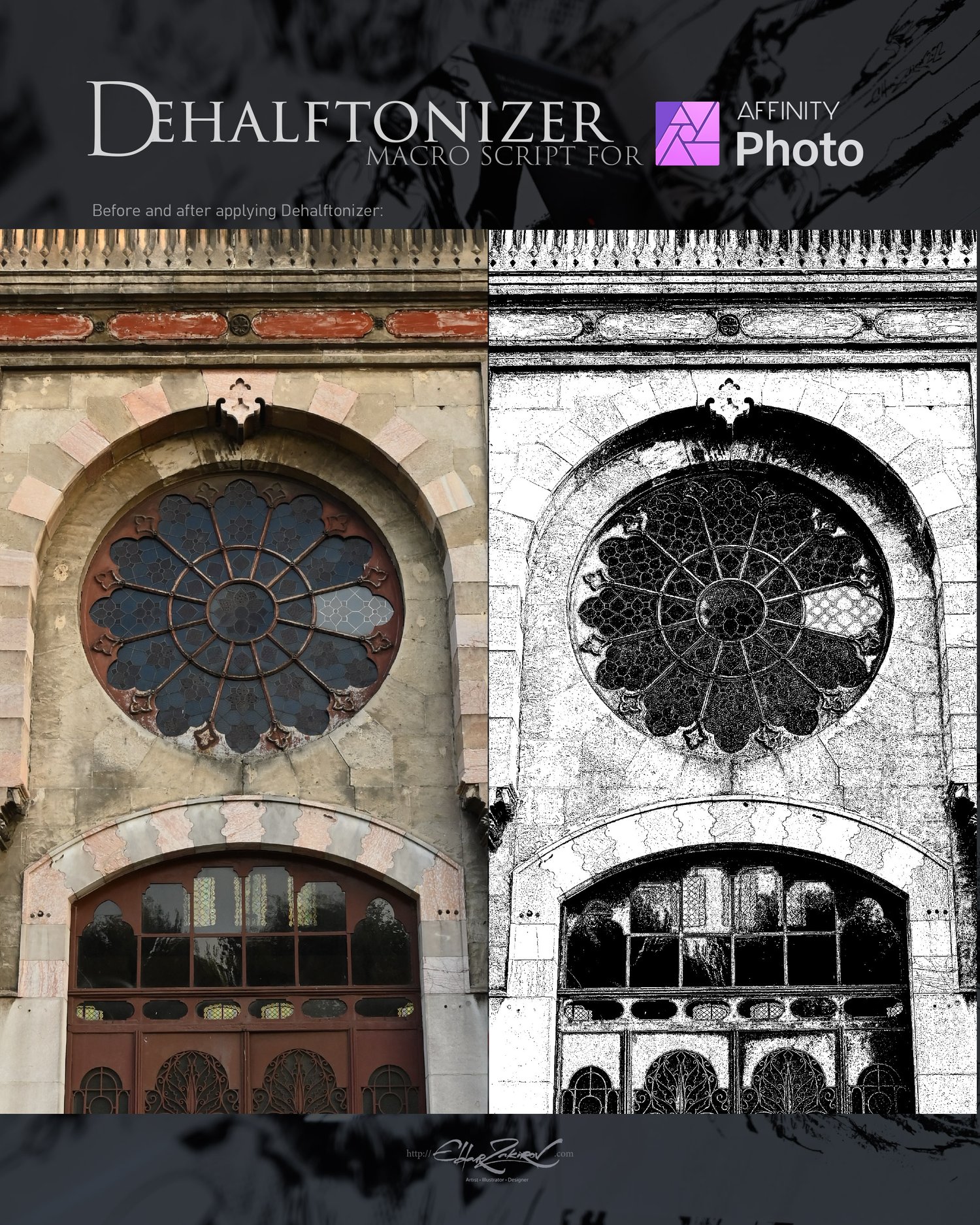
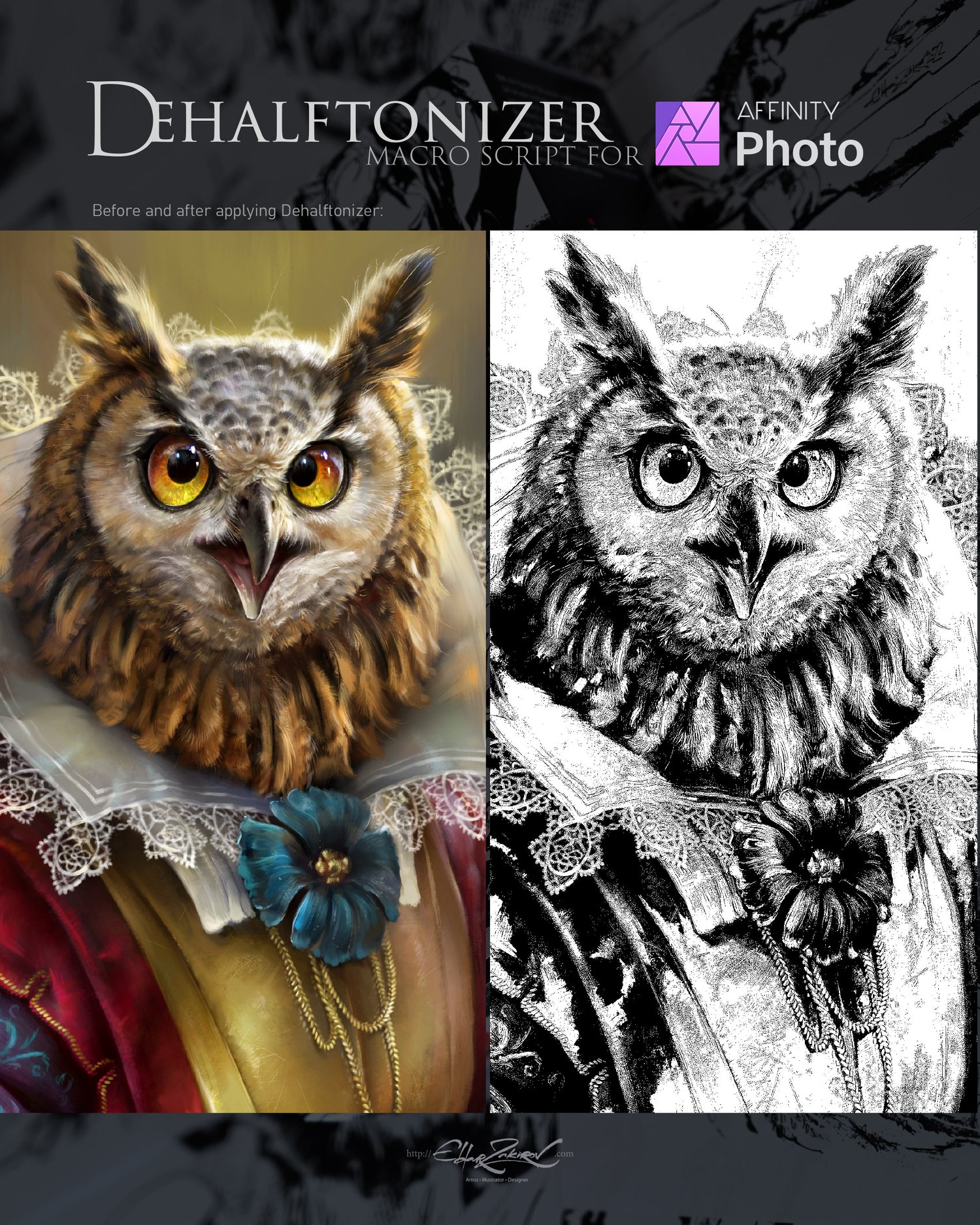
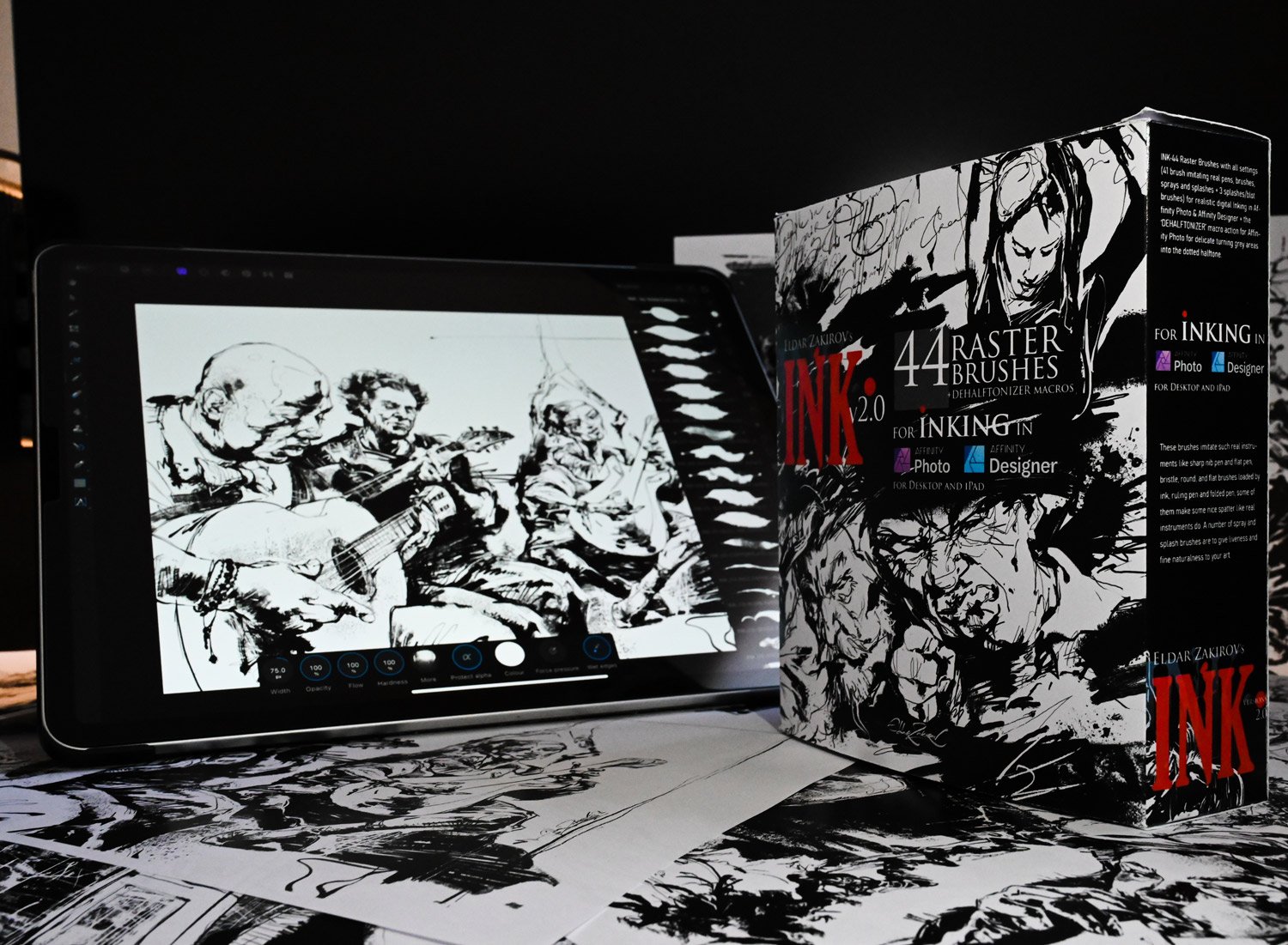
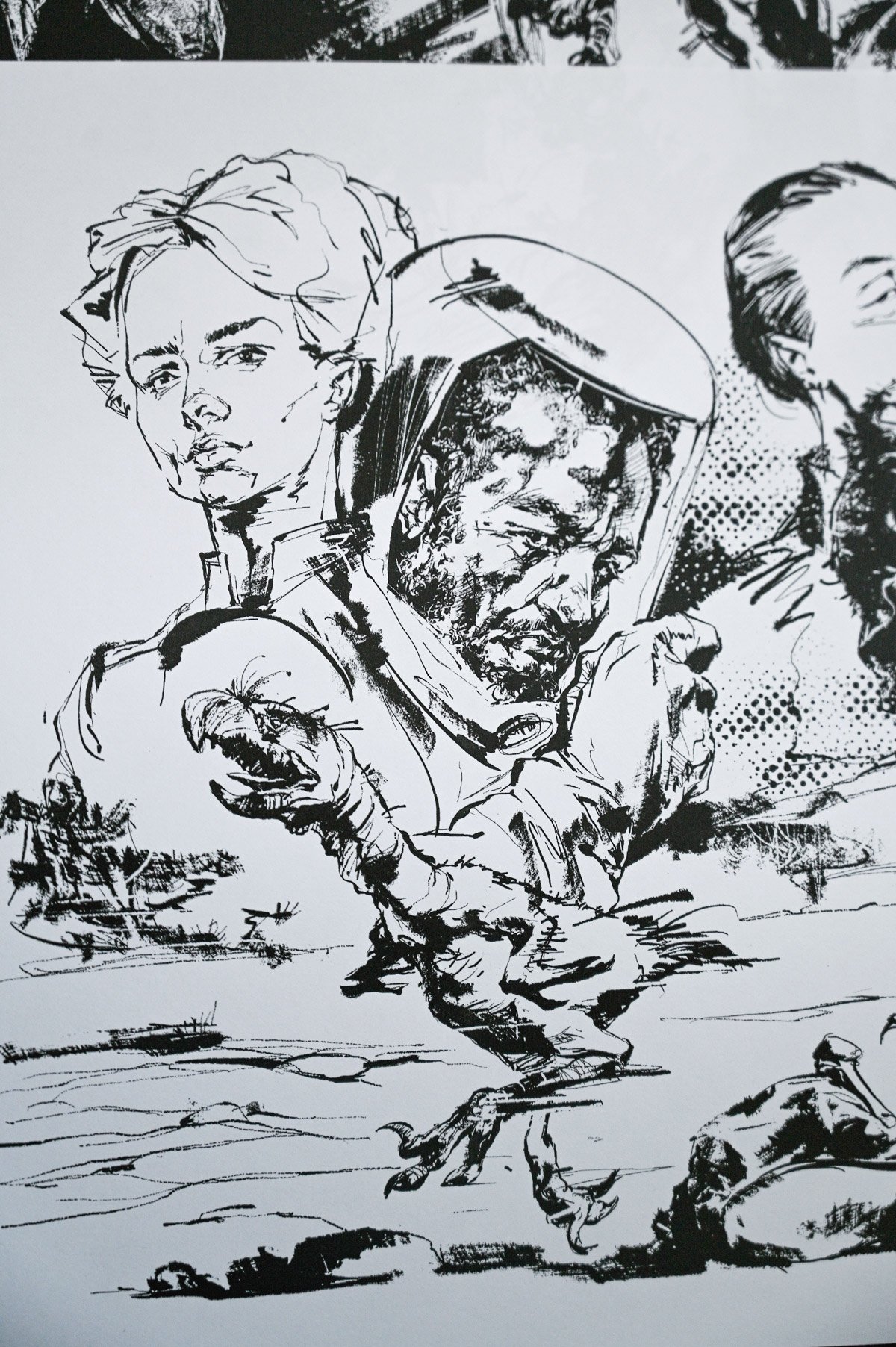
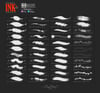
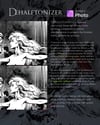
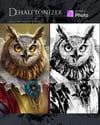
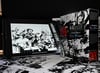
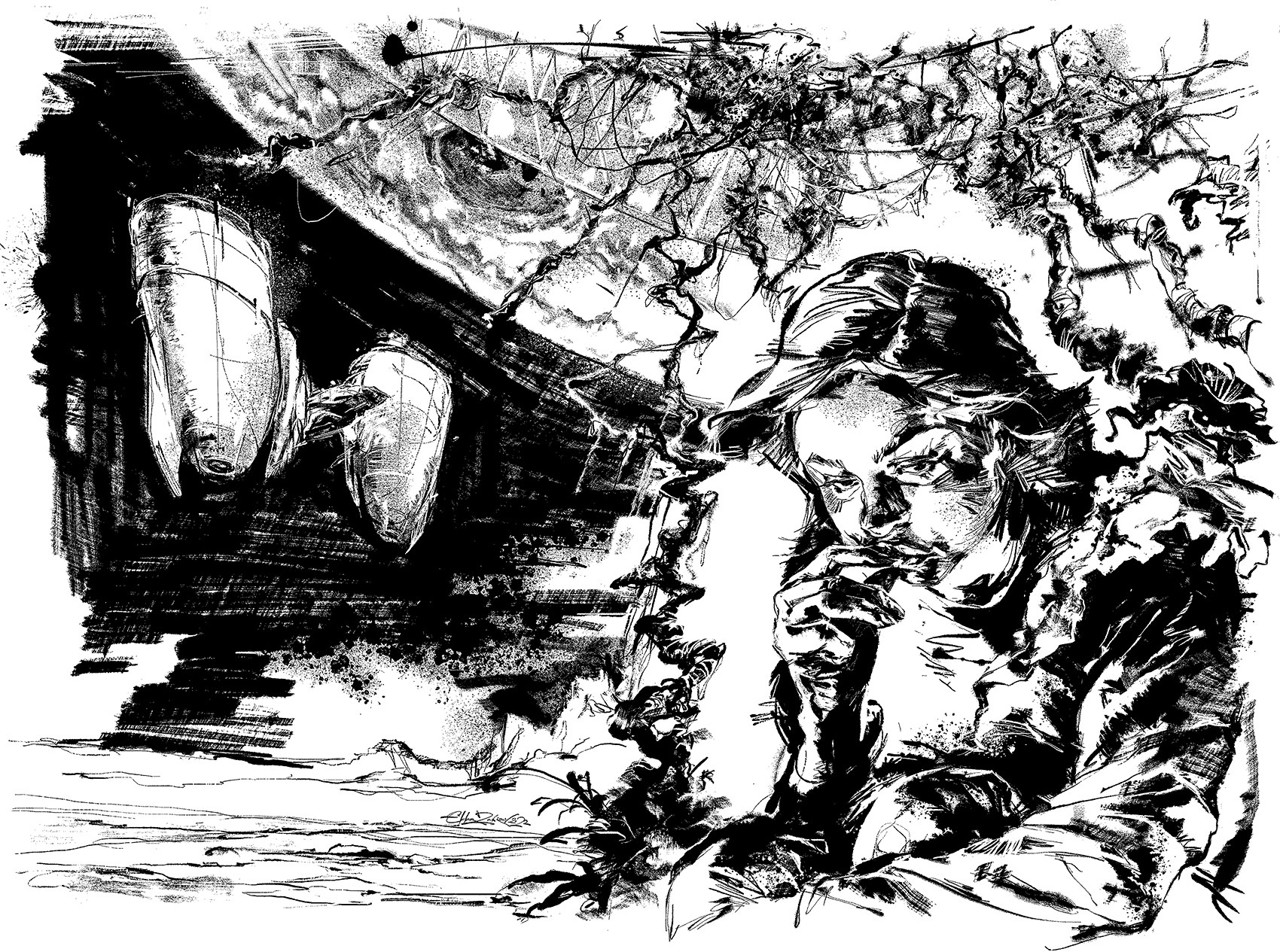
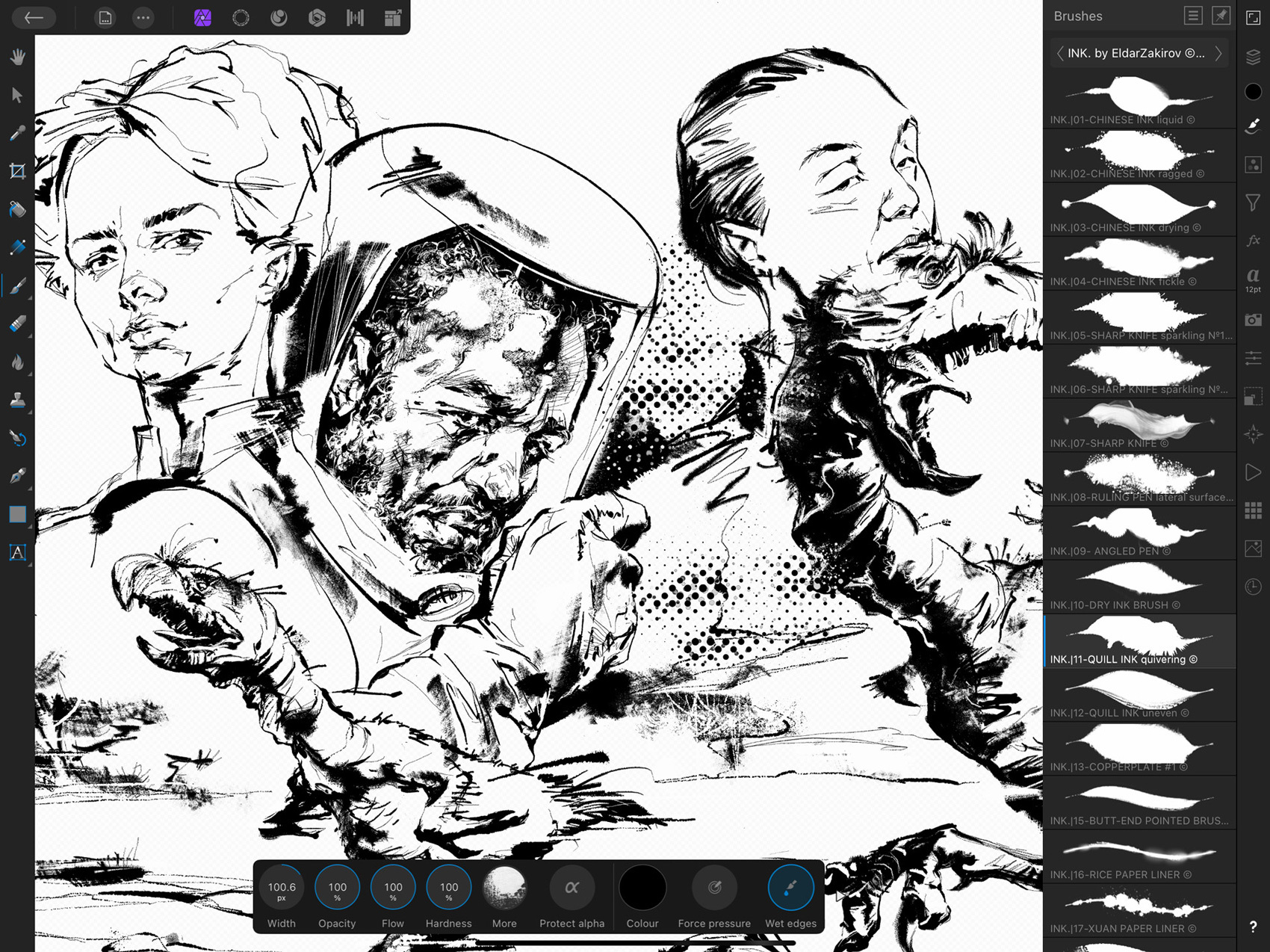
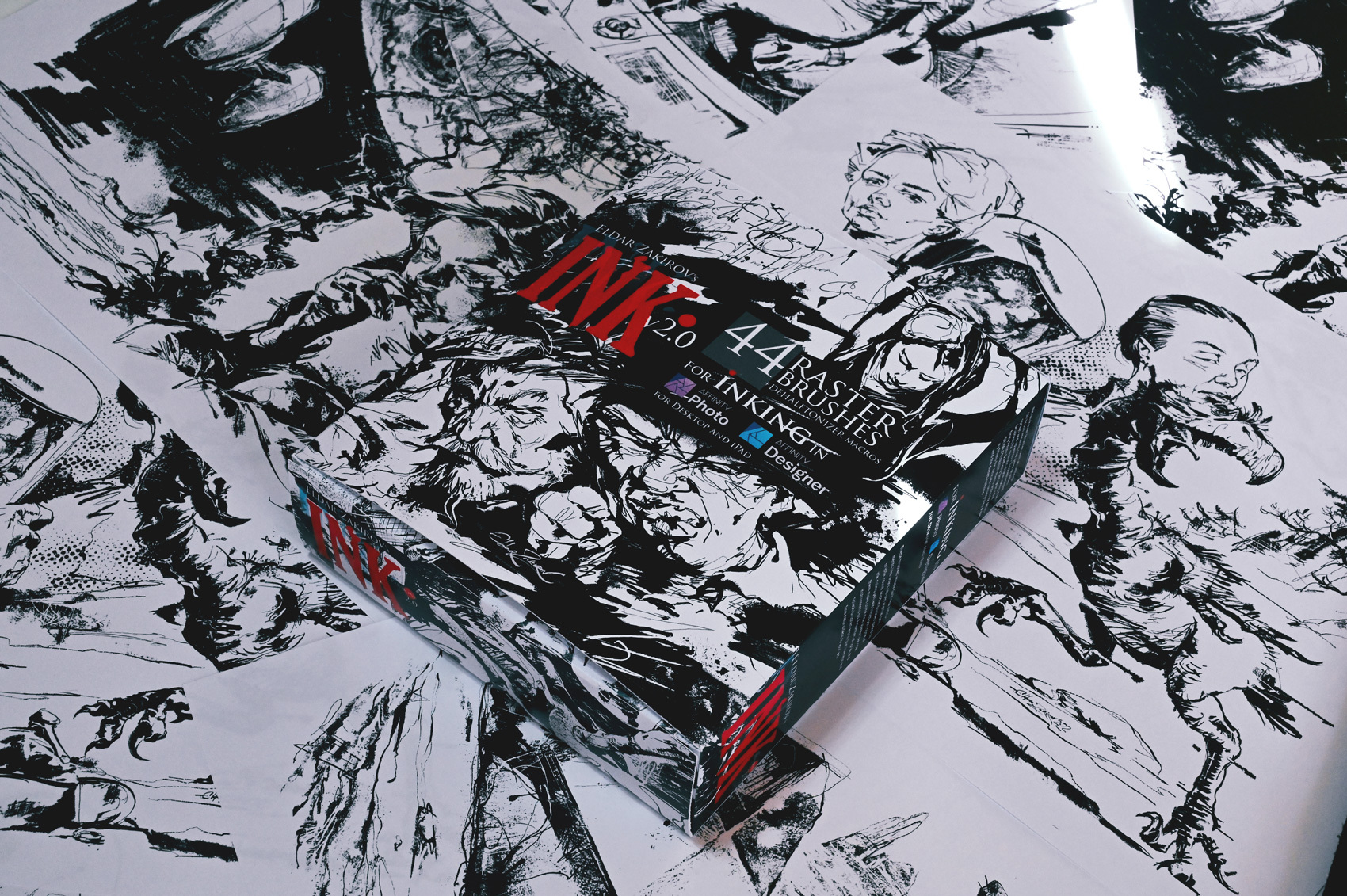
INK•44 Raster Brushes with all settings (41 brushes imitating real pens, brushes, sprays, and splashes + 3 splashes/blot brushes) for realistic digital Inking in Affinity Photo & Affinity Designer + the ‘DEHALFTONIZER’ macro action for Affinity Photo for delicate turning grey areas into the dotted halftone.
■
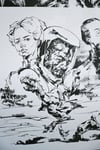
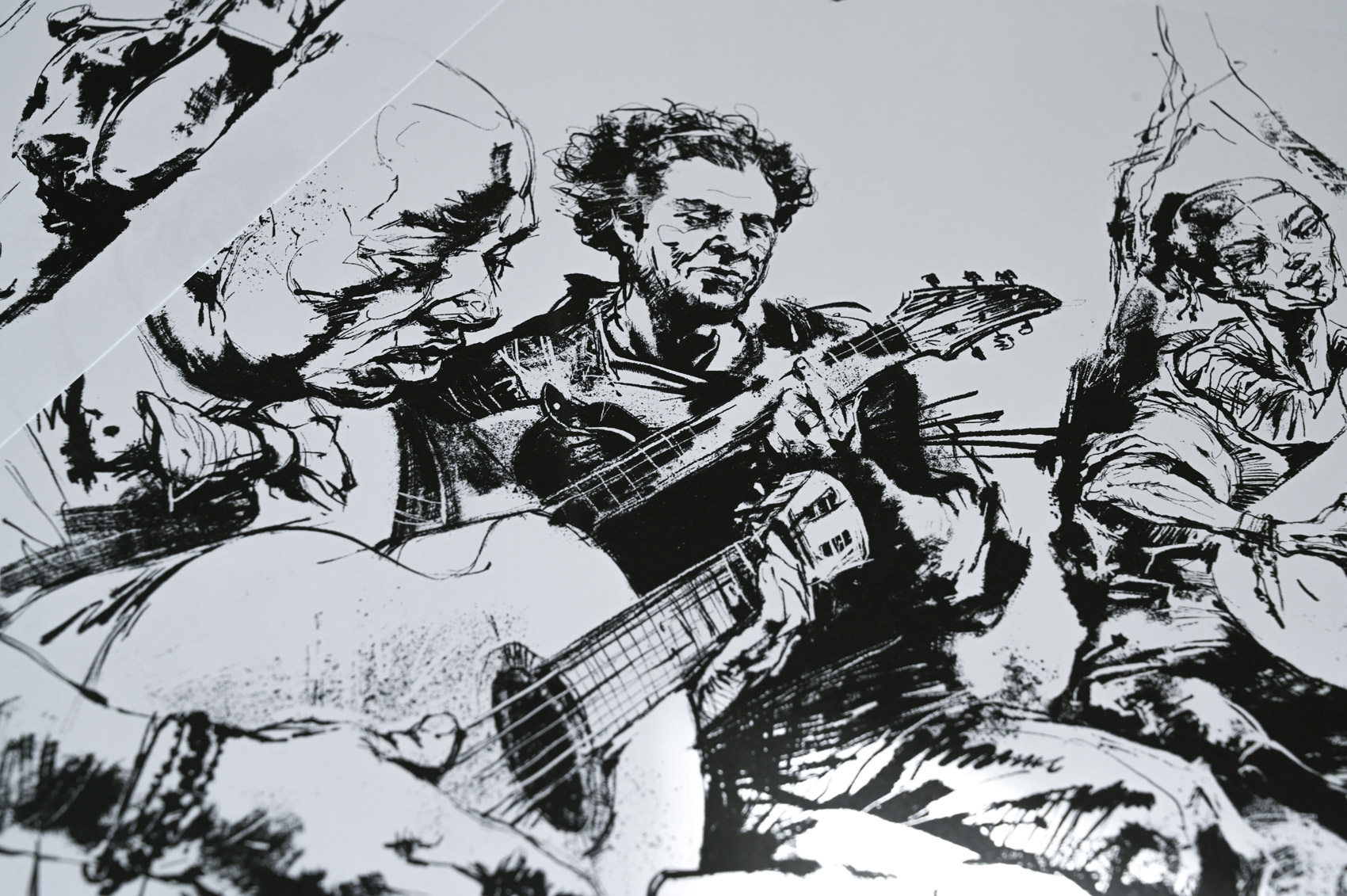
The brushes imitate real instruments such as sharp-nib pens and flat pens, bristle, round, and flat brushes loaded with ink, ruling pens, and folded pens; some make nice spatter as real instruments do. Several sprays and splash brushes are used to give your art a sense of liveliness and a pleasing naturalness.
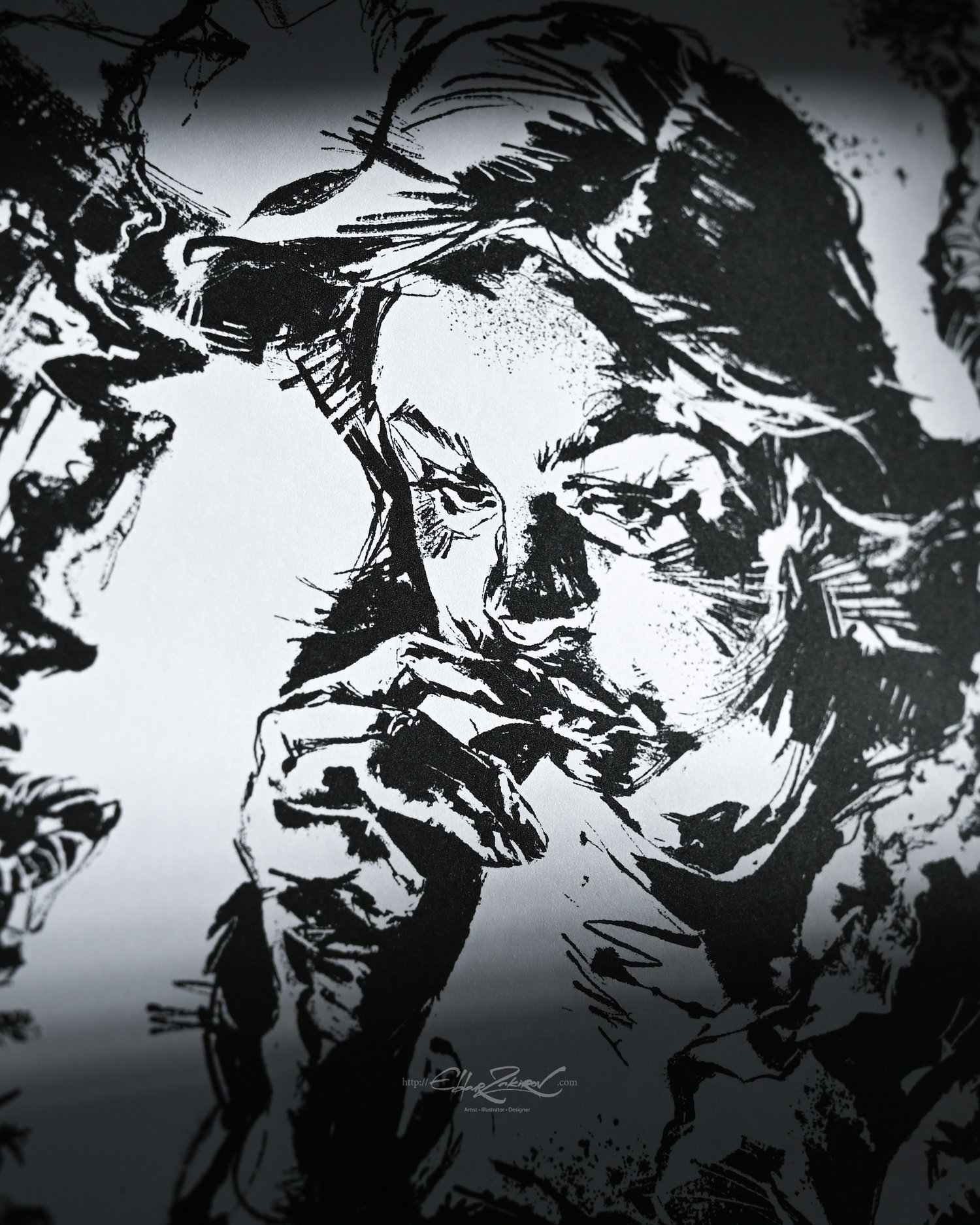
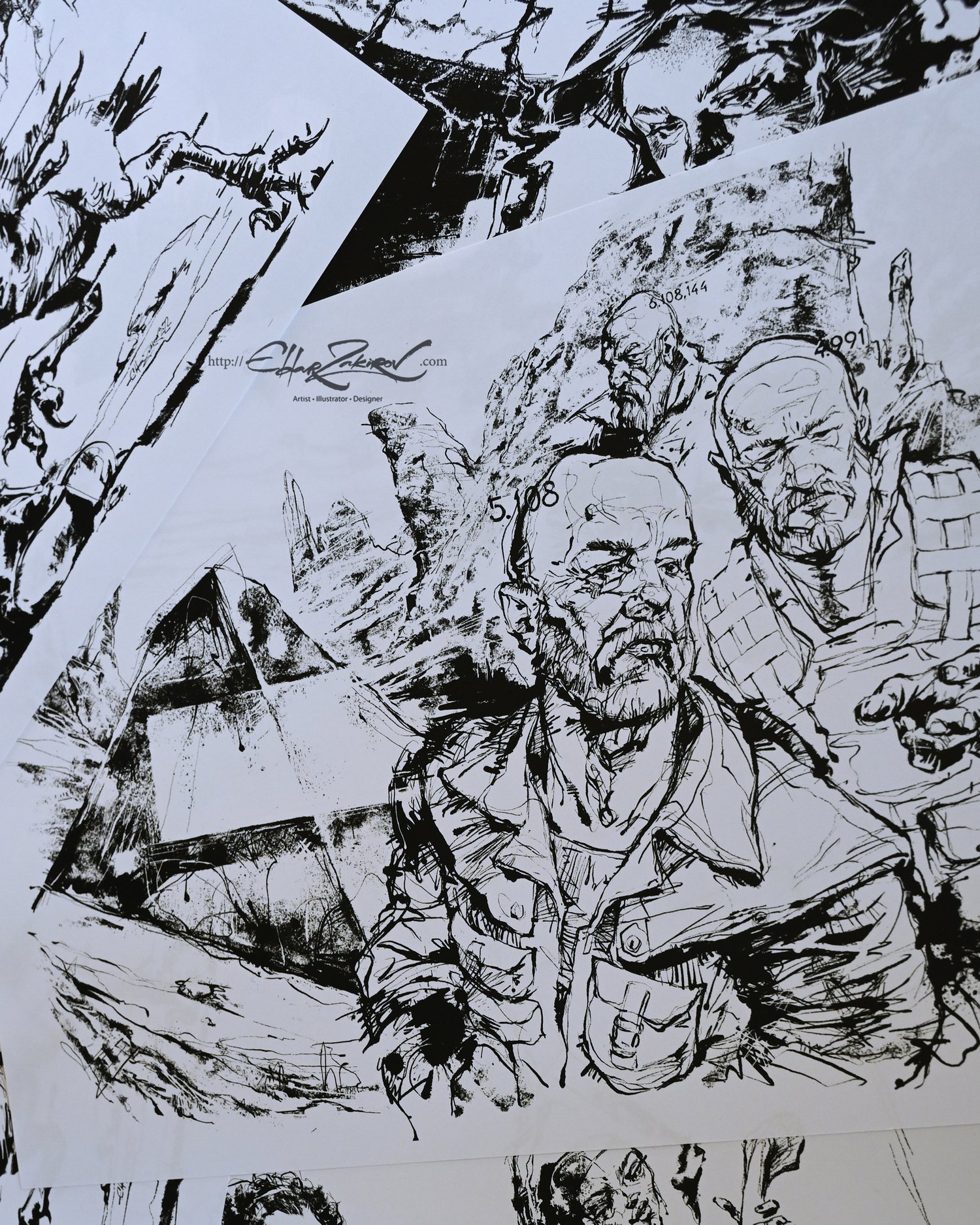
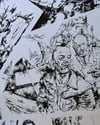
Use them to create drawings, illustrations, comics, handwritten inscriptions, and more. The range of brushes provides a wide choice of expressive techniques and tools for each task and individual artist's style.

■
🟢 Minimal versions where the brushes were tested:
- Affinity Photo v. 1.8.2 v. 1.10.5.1342 (Desktop version)
- Affinity Photo v. 1.10.5 (iPad version)
- Affinity Designer v. 1.7.0 (Desktop version)
■
🟢 You will receive:
- 44 Affinity raster brushes saved in the "INK. by EldarZakirov R2.0 ©2016-2022.afbrushes" file;
- INK. Dehalftonizer by Eldar Zakirov.afmacros. The macro action for turning gray areas to dotted halftones with 100% black or white for printing is saved as a Library macro. This is a more convenient option than the previous one.
No PayPal required:
👉 Get it instantly HERE (card, Apple Pay, Google Pay) →
💳 PayPal is still available above if preferred (Add to cart or Buy now button) ↑
■
• How to install the brushes:
• In Affinity Designer, click on the icon next to the logo (which looks like a series of squares) to enter the Pixel Persona. You'll be here by default in Affinity Photo.
• Drag and drop the brushes file (INK. by EldarZakirov R2.0 ©2016-2022.afbrushes) into the working area or the program window. After receiving approval, you'll find the brushes in the Brushes tab in the top-right corner of the window, under "INK. by EldarZakirov ©2016-2020" in the dropdown list.
• Alternative way: Find the Brushes tab in the top right corner of the screen. Click the Options icon (four in your right-side panel that looks like a tower of 4 horizontal lines). Select 'Import Brushes.' This will then open your computer files. Then specify the file with the downloaded “INK.” brush set (INK. by EldarZakirov R2.0 ©2016-2022.afbrushes). After receiving approval, you'll find the brushes in the Brushes tab in the top-right corner of the window, under "INK. by EldarZakirov ©2016-2022" in the dropdown list.