

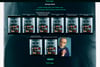


MovieIndex v1.1
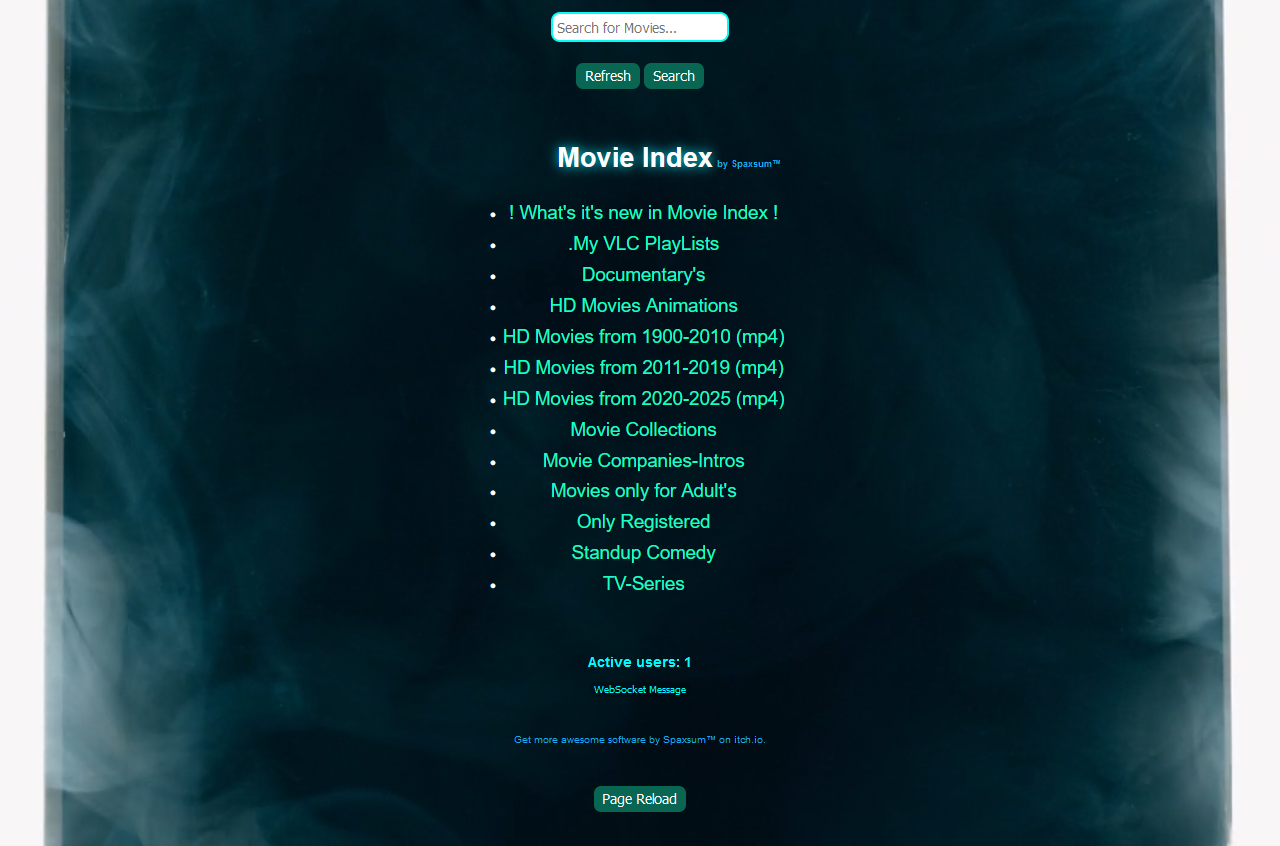
Your Movie Database Creator! Create your own Movie database using the video files stored on your computer and share it online within a VPN private network or local network with family and friends. Supported video formats include: .mp3, .mp4, .webm, .aac, .ogg, .opus, .wav, .m4a, .3gp, .aiff, .au, and .amr. If your browser does not support certain formats, those files will be automatically downloaded, allowing you to play them with another player, such as VLC. If you have VLC Player and VLC playlists, you can download and play them directly from Movie Index as well.
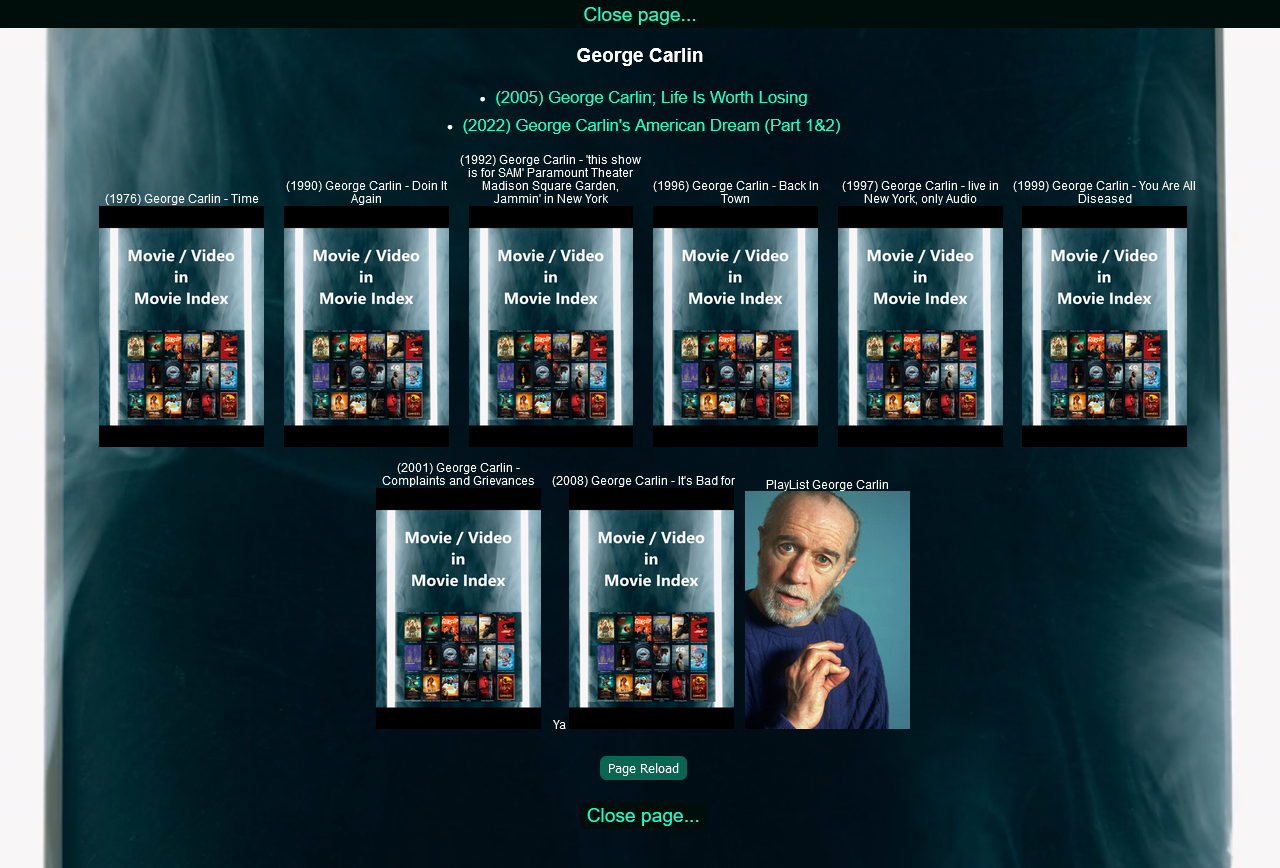
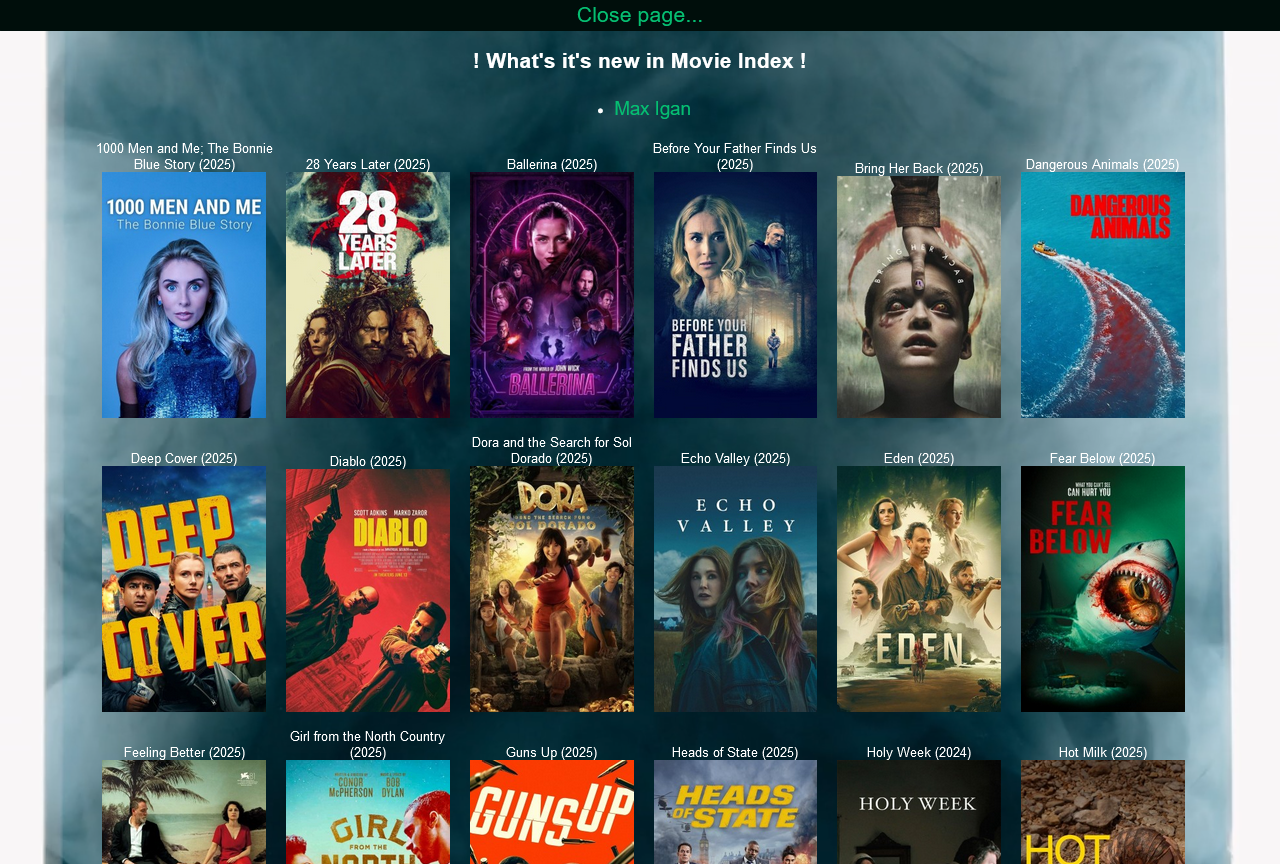
Additionally, if you save an image in formats like .jpg, .jpeg, .gif, .png, .webp, or .bmp with the same name as your video file, that image will be displayed alongside the video file. The HTML structure is organized similarly to your directory structure on your hard drive, and you have the option to hide specific directories. By renaming a directory with the extension _no order _private, it will be excluded from the system and not listed. Each time you launch Movie Index, you can specify your drive, and your HTML network will be created. Any changes made to your directory structure or Movie files will be updated automatically upon startup. The search function is designed to yield more results the fewer characters you enter.
If you decide to stop using Movie Index, you can utilize the CleanIndex option to delete the entire HTML structure you created, leaving no remnants behind.
Installation Instructions
Download the MovieIndex Package
Download the packaged MovieIndex.rar file.
Extract the Files
Unpack it using a RAR extraction tool.
Install the Program
Run MovieIndex Installer.exe with administrator rights.
If you run the program via the shortcut and it opens after your entry, then close it without showing any errors.
There is an error with the administrator rights, please go to the installation directory "C:\Program Files (x86)\Movie Index\ and set administrator rights to CleanIndex.exe, CleanUP.exe and Movie Index.exe.
Running the Program
As Movie Index Server:
Double-click on the "Movie Index Server" icon, or use the shortcut from the Windows Start menu or your desktop to launch the program.
Enter your VPN or local host IP address and press Enter.
Then, enter your working directory where you want to create the Movie index. (Note: Movie files are only read in the sub directories of the main directory. So, if D:\ is the main directory, all Movie files located in sub directories of D:\ will be read and included.)
This will open Movie Index in your browser, enabling seamless interaction.
As Movie Index Visitors:
Double-click on the "Movie Index Visitors" icon, or use the shortcut from the Windows Start menu or your desktop to launch the program.
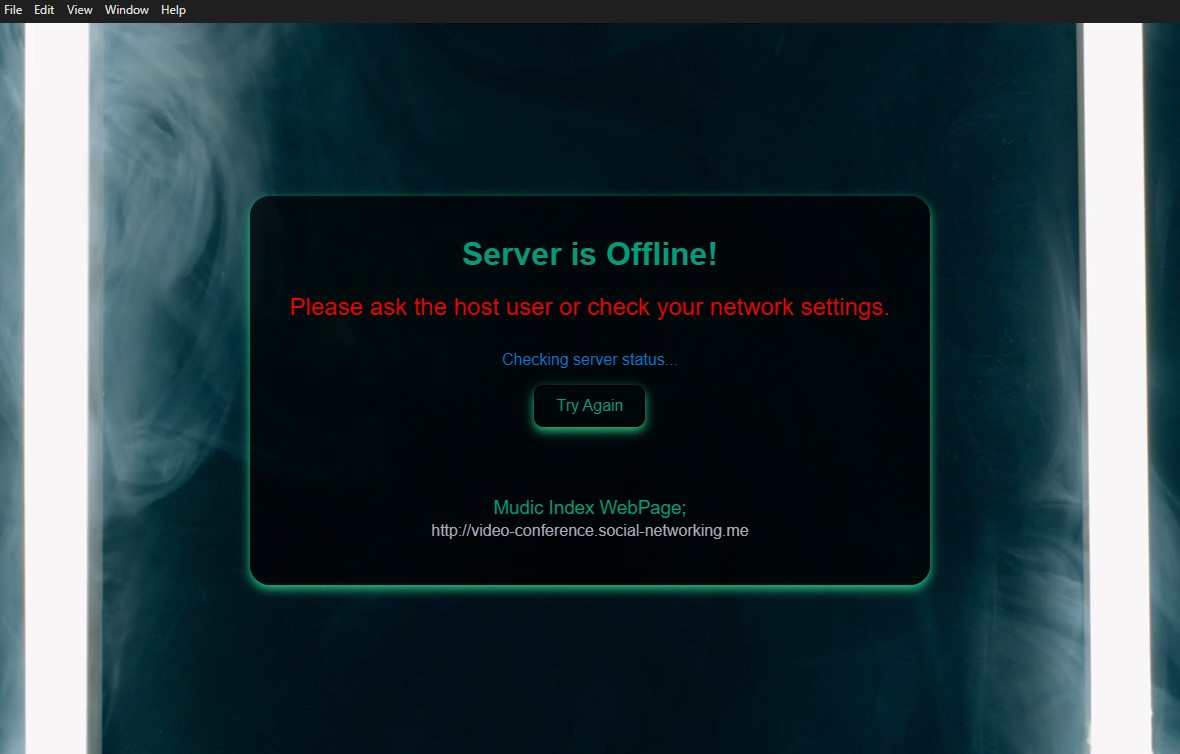
Enter the VPN or localhost IP address provided by the Host-User and press Enter.
This will open Movie Index in your browser, allowing for seamless interaction as well.
As Movie Index CleanUp:
Double-click on the "Movie Index CleanUp" icon, or use the shortcut from the Windows Start menu to launch the program.
A prompt will appear: "Do you want to clean up the Movie Index immediately? (Y/N)"
If you choose "No," the CleanIndex-Server will start after 20 seconds. You can then start the process from Movie Index.
Press Y for Yes or N for No. The cleanup process can be used on Movie Index as a host user only. CleanUp always uses the last directory path you used to create the Movie Index.
VLC Playlists
This feature is available exclusively to the host user.
To create your own VLC playlists, use the VLC Player in your movie series directory. This function is designed for those who want to watch multiple movies in succession or several episodes of a TV series.
Additionally, if you have movies or TV series stored on another drive that are not included in the Movie Index, you can create a VLC playlist there and then copy it into the ".My VLC PlayLists" directory created by the Movie Index. If you want to include an image, ensure that the image file has the same name as your VLC playlist file, and Movie Index will incorporate it.
Please install VLC Media Player, create a VLC playlist and copy it to the "/.My VLC PlayLists" directory. On the Movie Index webpage, Click on the label and then on your VLC Playlist here on the web page ".My VLC PlayLists" to access your VLC playlists. A download will begin in your browser; once the file has downloaded, click on it to open it in VLC Player. The downloaded file will be automatically deleted from your downloads folder after 20 seconds.
Important Notes:
The downloaded file will be removed from the user’s downloads folder after 20 seconds.
Ensure that all files have the extension .xspf. If you are not quick enough, you will need to repeat this process. This feature is available only to the host user.
Sharing Playlists with Remote Users:
There is a way to make the VLC playlist accessible to remote users, but this is only applicable to VLC playlists created in the Movie Index directory. To do this, share the drive containing the Movie Index on your local network. The remote user must map this shared drive with the same drive letter as the host user. Once this is done, they will be able to play the VLC playlists, as the file paths will match those of the host user.
Enjoy your online Movie Index experience with your new Movie Database Creator!
Thank you for using Movie Index!
For feedback, please visit: https://onlyregistered.github.io/appfeedback/
This software is provided for free for personal and non-commercial use. You may share the compiled application, but the source code is not available for public use or redistribution. All rights reserved.