
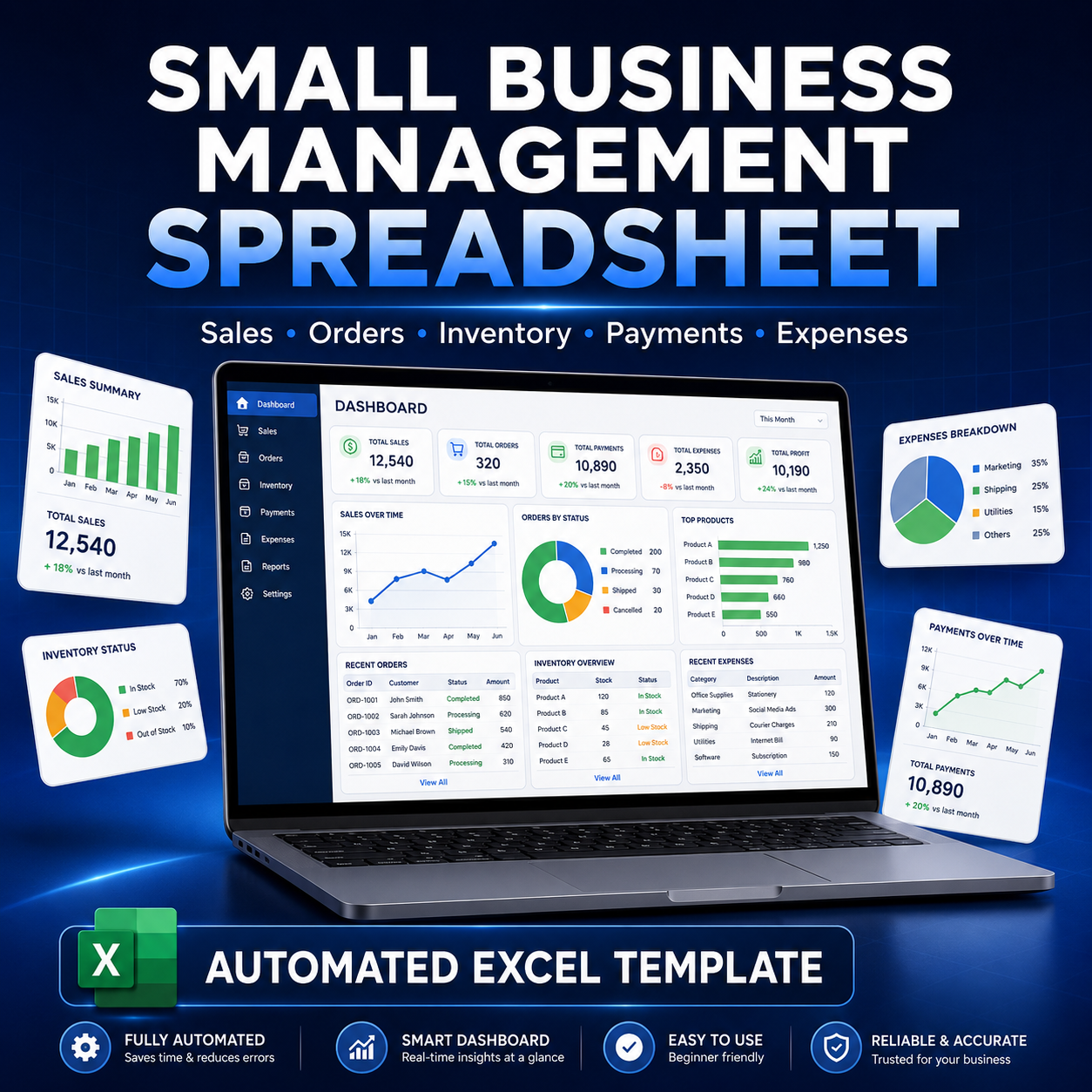
Small Business Management Spreadsheet | Automated Sales, Orders, Inventory, Payments and Expense Tracker for Excel
Small Business Management Spreadsheet | Automated Sales, Orders, Inventory, Payments and Expense Tracker for Excel
Simplify your business records and see your important numbers in one organized place.
The Small Business Management Spreadsheet is a beginner-friendly Microsoft Excel template designed for small-business owners, online sellers, freelancers, service providers, and home-based businesses.
Use it to record orders, monitor customer payments, track products and inventory, organize expenses, calculate outstanding balances, and review your monthly business performance—all without creating complicated formulas yourself.
Simply enter your information in the designated input cells, and the spreadsheet will automatically calculate your sales, payments, expenses, inventory levels, balances, gross profit, and monthly results.
What You Will Receive
Your purchase includes one downloadable Microsoft Excel workbook:
Small Business Management Template.xlsx
The workbook contains nine connected worksheets:
1. Dashboard
Get a quick overview of your business performance.
The Dashboard automatically displays:
- Total sales
- Total payments received
- Total expenses
- Net cash flow
- Total number of orders
- Gross profit
- Outstanding customer balances
- Number of low-stock products
- Monthly sales, expenses, and cash-flow chart
- Product stock overview
The Dashboard updates automatically when information is added to the other worksheets.
2. Settings
Customize the template with your own business information.
You can update:
- Business name
- Owner’s name
- Currency
- Financial year
- Starting cash balance
- Default tax rate
- Low-stock threshold
- Business type
- Country
- Payment methods
- Order statuses
- Expense categories
The workbook is initially formatted in Philippine pesos (₱). Currency formatting may be changed manually in Microsoft Excel if you use another currency.
3. Products and Services
Create a complete list of the products and services you offer.
Record:
- Item ID
- Product or service name
- Item type
- Category
- Unit cost
- Selling price
- Beginning stock
- Reorder level
The spreadsheet automatically calculates:
- Quantity sold
- Current stock
- Stock status
- Profit per unit
Stock status is clearly identified as:
- In Stock
- Low Stock
- Out of Stock
- N/A – Service
Services are separated from physical products so they do not affect inventory quantities.
4. Customers
Keep customer information and balances organized.
Record:
- Customer ID
- Customer name
- Phone number
- Email address
- Date added
- Customer status
The spreadsheet automatically calculates:
- Total orders
- Total sales
- Total payments
- Outstanding balance
Customers with unpaid balances are automatically highlighted.
5. Orders and Sales
Record every product or service sold.
Enter:
- Order ID
- Order date
- Invoice number
- Customer ID
- Item ID
- Quantity
- Payment method
- Order status
The spreadsheet automatically retrieves the customer name, selling price, and unit cost. It then calculates:
- Total sale
- Amount paid
- Balance due
- Payment status
- Total cost
- Gross profit
Payment statuses include:
- Paid
- Partially Paid
- Unpaid
- Cancelled
- Refunded
Cancelled and refunded orders are excluded from valid sales totals.
6. Payments Received
Record customer payments separately to handle both full and partial payments.
Enter:
- Payment ID
- Order ID
- Payment date
- Payment method
- Amount received
- Reference number or notes
The matching customer information automatically appears based on the selected order.
Payments are automatically reflected in:
- Order balances
- Customer balances
- Monthly payment totals
- Dashboard totals
- Net cash-flow calculations
7. Expenses
Organize your daily and monthly business expenses.
Record:
- Expense ID
- Date
- Expense category
- Description
- Supplier or payee
- Payment method
- Amount
- Notes
These expenses automatically update the Monthly Summary and Dashboard.
Suggested expense categories are already included, but they can be edited in the Settings worksheet.
8. Monthly Summary
Review your business results from January through December.
The Monthly Summary automatically displays:
- Number of orders
- Total sales
- Payments received
- Business expenses
- Gross profit
- Net cash flow
- Outstanding sales
Annual totals are calculated automatically at the bottom.
9. Read Me
A simple instruction guide is included inside the workbook.
It explains:
- Where to begin
- Which worksheets to complete
- Which cells are for data entry
- Which cells contain formulas
- What the spreadsheet colors mean
- How the worksheets connect
How to Use the Spreadsheet
Step 1: Customize the Settings
Open the Settings worksheet first.
Replace the sample business information with your own details, including your business name, owner’s name, financial year, and low-stock threshold.
You may also customize the payment methods, order statuses, and expense categories.
Step 2: Add Your Products and Services
Open the Products worksheet.
Replace the sample products with your own products or services. Give every item a unique ID, such as:
- P001 for a product
- P002 for another product
- S001 for a service
Enter the item’s cost, selling price, beginning stock, and reorder level.
Do not type over the automatic formula columns.
Step 3: Add Your Customers
Open the Customers worksheet.
Replace the sample customers with your own customer information. Give every customer a unique ID, such as C001, C002, or C003.
Customer sales, payments, and balances will calculate automatically after you begin recording orders and payments.
Step 4: Record Your Orders
Open the Orders worksheet.
Create a unique Order ID and Invoice Number for every sale. Select the appropriate Customer ID and Item ID from the dropdown menus, then enter the quantity, payment method, and order status.
The spreadsheet will automatically calculate the selling price, total sale, balance, cost, and gross profit.
Step 5: Record Customer Payments
Open the Payments worksheet whenever you receive payment from a customer.
Select the matching Order ID and enter the amount received. You may record multiple payments for the same order when a customer pays in installments.
The payment will automatically reduce the order and customer’s outstanding balance.
Step 6: Record Business Expenses
Open the Expenses worksheet.
Record every business-related expense, including rent, advertising, delivery charges, internet bills, supplies, subscriptions, and transportation.
These expenses will automatically appear in the Monthly Summary and Dashboard.
Step 7: Review Your Results
Open the Monthly Summary and Dashboard worksheets to review your business performance.
These reports will update automatically based on the information you entered.
Spreadsheet Color Guide
- Light yellow cells: Enter or replace information
- Light blue cells: Automatic formulas—do not overwrite
- Green cells: Completed, paid, or healthy status
- Yellow or orange cells: Partial payment or warning
- Red cells: Unpaid balance, negative result, or urgent stock warning
Important Instructions
- Open the file using Microsoft Excel for the best experience.
- Keep a backup copy of the original template.
- Always use a unique ID for every product, customer, order, payment, and expense.
- Enter information only in the designated input cells.
- Do not delete or overwrite cells containing formulas.
- Sample information is included for demonstration and may be replaced.
- The workbook contains 200 prepared rows on each major data-entry worksheet.
- If you need more rows, copy an existing blank row to preserve its formulas, formatting, and dropdown menus.
- Save the workbook regularly after adding new information.
- Some formatting, charts, tables, or dropdown menus may display differently if the workbook is uploaded to Google Sheets.
Who Is This Template For?
This template is ideal for:
- Online sellers
- Small retail stores
- Home-based businesses
- Freelancers
- Service providers
- Handmade-product sellers
- Food businesses
- Resellers
- Startup businesses
- Virtual assistants managing business records
- Entrepreneurs who want a simple alternative to complicated accounting software
No advanced Excel experience is required.
Digital Product Notice
This is a digital download. No physical product will be shipped.
Because this is a digital product, refunds may not be available after the file has been downloaded. Please review the product description and compatibility information before purchasing.
This template is intended for general business organization and recordkeeping. It does not replace professional accounting, tax, financial, or legal advice. Buyers remain responsible for verifying their records and complying with applicable tax and business requirements.
Usage License
This purchase is for personal or single-business use only.
You may:
- Use and customize the spreadsheet for your own business
- Enter and manage your own business information
- Save and print reports for your records
You may not:
- Resell, redistribute, share, or upload the original spreadsheet
- Claim the template as your own creation
- Give copies to other individuals or businesses
- Modify and sell the template as another digital product
Take control of your orders, payments, expenses, customers, and inventory with one simple, organized, and automated business spreadsheet.