
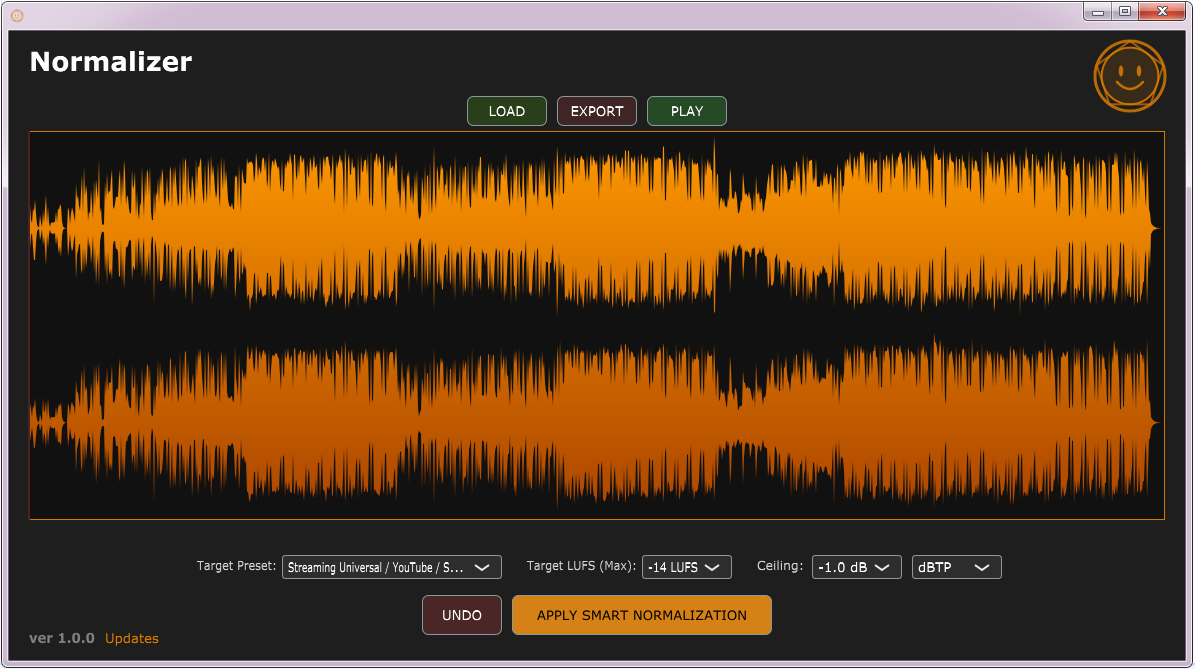
Normalizer - Desktop
Normalizer is a standalone, mathematically transparent audio tool designed to perfectly balance your
audio for streaming platforms, broadcast, and physical media. It only changes the volume of your audio,
meaning absolutely zero saturation, compression, or coloration is added. Your audio retains its original
dynamic punch, just at the correct industry-standard volume.
Includes free demo version of Humanizer Mastering.
✅ OS: Windows 7 to 11 (64-bit).
✅ Mac not currently supported.
✅ Desktop Installation: No installation needed! Simply place the .exe file on your desktop and double-click to run.
✅ Windows Defender may show a blue "Windows protected your PC", click "More info" and "Run anyway".
Use this AFTER mastering.
How it Works:
When you set a Target LUFS (average loudness) and a Peak Ceiling (maximum allowed peak), the
software calculates two separate volume adjustments:
The gain required to perfectly hit your LUFS target.
The gain required to perfectly hit your Peak ceiling.
The software then acts as a smart safety net: it will always choose the safer (lower) of the two volume
changes. If turning your track up to hit -14 LUFS would push your loudest peak above your -1.0 dB ceiling, the
software prioritizes the ceiling. It stops boosting exactly when the loudest peak hits -1.0 dB,
guaranteeing your exported file will never clip or distort, no matter how dynamic the track is.
Quick Start Guide:
LOAD: Click the LOAD button to import your WAV, AIFF, or MP3 file.
SET TARGETS: Choose a platform from the Target Preset dropdown (e.g., Spotify, Apple Music, CD), or
manually set your desired LUFS and Peak Ceiling.
Tip: Set the Peak Mode to dBTP (True Peak) for streaming/broadcast to prevent speaker distortion, or
dBFS (Sample Peak) for raw digital alignment (like in Audacity).
Tip: If you only want to normalize the loudest peak and ignore average loudness, set LUFS to "Off (Peak
Only)".
APPLY: Click the orange APPLY SMART NORMALIZATION button. The software will process the math and
visually scale the waveform on your screen.
PLAY (Optional): Use the built-in transport to preview the adjusted audio. If you don't like the result,
click UNDO.
EXPORT: Click EXPORT to save your perfectly optimized track at your chosen sample rate and bit depth
(16-bit, 24-bit, or 32-bit float).