
sapaXchat-ext
sapaXchat-ext
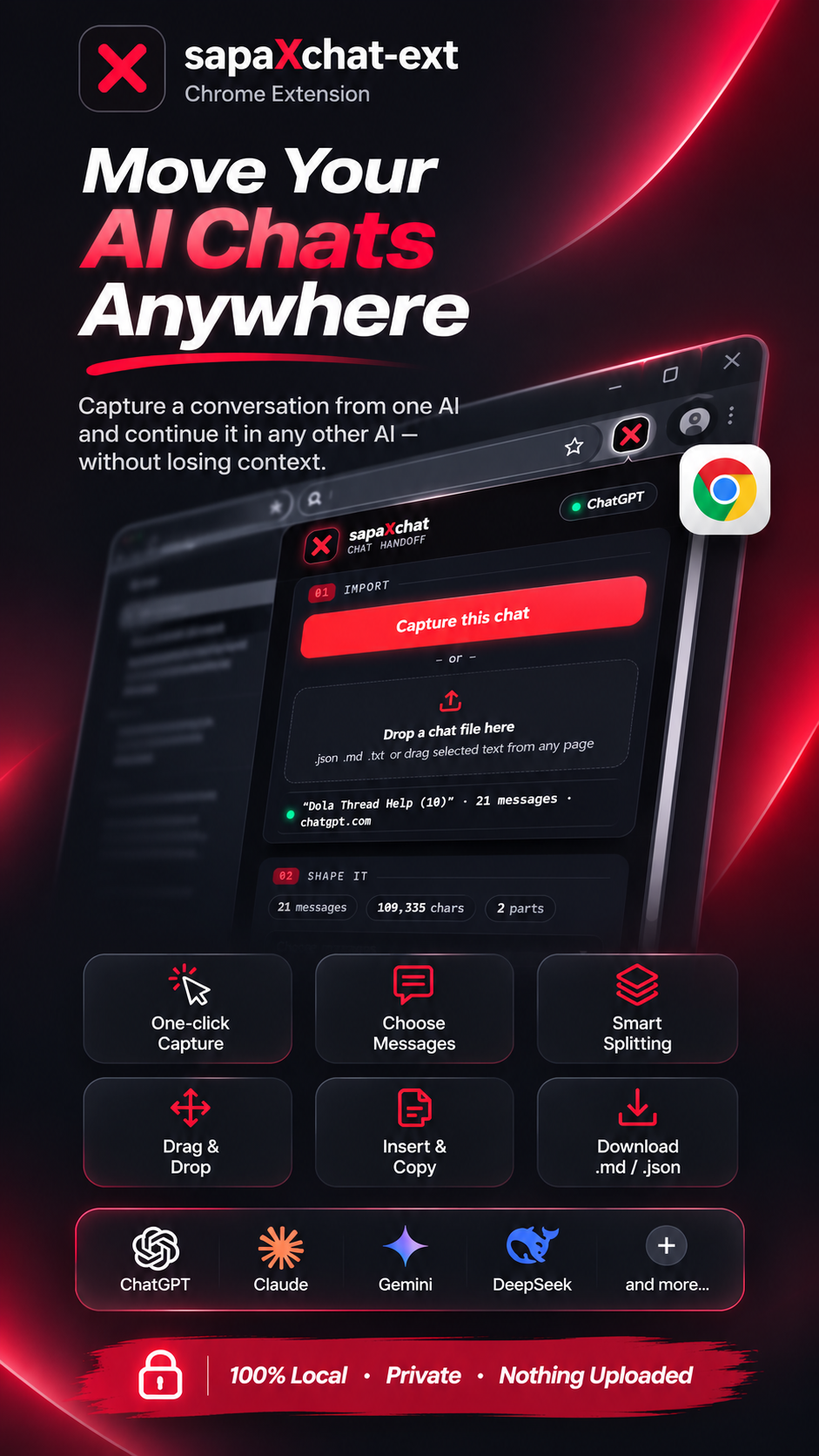
Move your AI chats anywhere. Capture a conversation from Claude or ChatGPT, then send it to any other AI chat (Gemini, Google Flow, ChatGPT, Claude, DeepSeek and more) and carry on with your work, without losing context.
Version 1.4 · Works in Google Chrome (version 114 or newer). Everything runs on your own computer. Nothing is uploaded anywhere.
Features
- One-click capture of your current chat on Claude or ChatGPT.
- Drag and drop out: drag the captured chat onto the message box of any AI.
- Drag and drop in: drop a chat file (.json, .md, .txt) or selected text into the panel.
- Insert button that fills the message box for you, plus a Copy button.
- Choose messages: tick or untick individual messages before sending.
- Smart splitting: long chats are cut into parts the new AI can handle.
- Next task note: tell the new AI what to do next.
- Download the result as a .md or .json file.
- Ready-made instructions are added so the new AI reads the chat, summarizes it and continues.
- Private: no accounts, no servers, no tracking.
How to install
- Unzip sapaXchat-ext.zip. You will get a folder named sapaXchat-ext. Keep this folder somewhere permanent (for example, Documents). Do not delete it later, or the extension will stop working.
- Open Chrome and type chrome://extensions in the address bar, then press Enter.
- Turn on Developer mode (switch at the top right).
- Click Load unpacked.
- Select the sapaXchat-ext folder and click Select Folder.
- Click the puzzle-piece icon in the Chrome toolbar and press the pin next to sapaXchat-ext, so the red X icon is always visible.
- Click the red X icon. The sapaXchat panel opens on the right side of your browser.
How to update to a new version
- Go to chrome://extensions and click Remove on the old sapaXchat-ext.
- Unzip the new file and repeat the install steps above.
- Refresh any Claude or ChatGPT tabs you already had open.
How to use
Move a chat from Claude or ChatGPT to another AI
- Open the chat you want to move on claude.ai or chatgpt.com.
- Click the red X icon, then press Capture this chat.
- Adjust the settings if you want (see below).
- Open the AI you want to continue in (Gemini, ChatGPT, Claude, DeepSeek, etc.) and start a new chat.
- Either drag the part card onto the message box, or press Insert.
- Press Send in the AI. It will read the chat and summarize where you are.
If the chat was split into several parts, send them in order (Part 1, then Part 2, and so on). The AI will reply "Received part 1" and wait. After the last part it will summarize the work and continue.
Import a chat from a file
Drag a file onto the panel (or click the drop area to browse). Supported files:
- conversations.json from a Claude or ChatGPT data export
- A handoff.json you downloaded earlier
- Any .md or .txt file with a chat copied into it
If the file contains many chats, a list appears so you can pick the one you want.
You can also select text on any web page and drag it into the panel.
Settings explained
Setting What it does
Capture this chat Reads the chat in your current Claude or ChatGPT tab. The button is greyed out on other websites. Drop a chat file here Import a chat from a file or dragged text. Choose messages Open the list and untick any messages you do not want to send. Use All or None for quick selection. Last N messages Send only the most recent N messages. Leave at 0 to send everything. Split into parts Cuts a long chat into smaller parts: One piece, about 30k, 60k or 100k characters. 60k is a good default. Choose a smaller size if the AI says the message is too long. Next task Optional note added at the end, for example: "Continue and return the full .sql file". Copy Copies a part to the clipboard so you can paste it yourself. Insert Types the part into the message box of the page you are on. You still press Send yourself. Download .md / .json Saves the handoff as a file you can keep or attach. Site badge (top right) Shows which website you are on. On sites like Gemini it may say "tap to enable drop". Tap it once and allow the permission, and drag and drop will work on that site. The three small counters (messages, characters, parts) show the size of what you are about to send.
Tips
- A chat needs at least one message before it can be captured.
- For very long chats, Download .md and upload the file to the new AI instead of pasting.
- Drag and drop works right away on ChatGPT, Claude and DeepSeek. On Gemini and some other sites, tap the badge once first.
- Your captured chat stays in the panel until you capture or import another one.
Troubleshooting
"No messages found" when capturing Send at least one message so the chat has its own page address, refresh the tab, then try again. If it still fails, copy the full message shown and send it to the developer.
Drag and drop does nothing on a site Tap the badge at the top right to enable drop for that site. If it still does not work, press Insert, or press Copy and paste with Ctrl+V.
Insert says "Copied - press Ctrl+V in the chat" The extension could not find the message box. Click inside the message box and paste.
The panel does not open Make sure you are using Chrome 114 or newer. Re-pin the extension from the puzzle-piece menu.
Capture is greyed out Open a Claude or ChatGPT chat tab first, then click the extension again.
Privacy
sapaXchat-ext works only in your browser. Your chats are never sent to any server and are stored only on your computer until you capture another chat or remove the extension.