

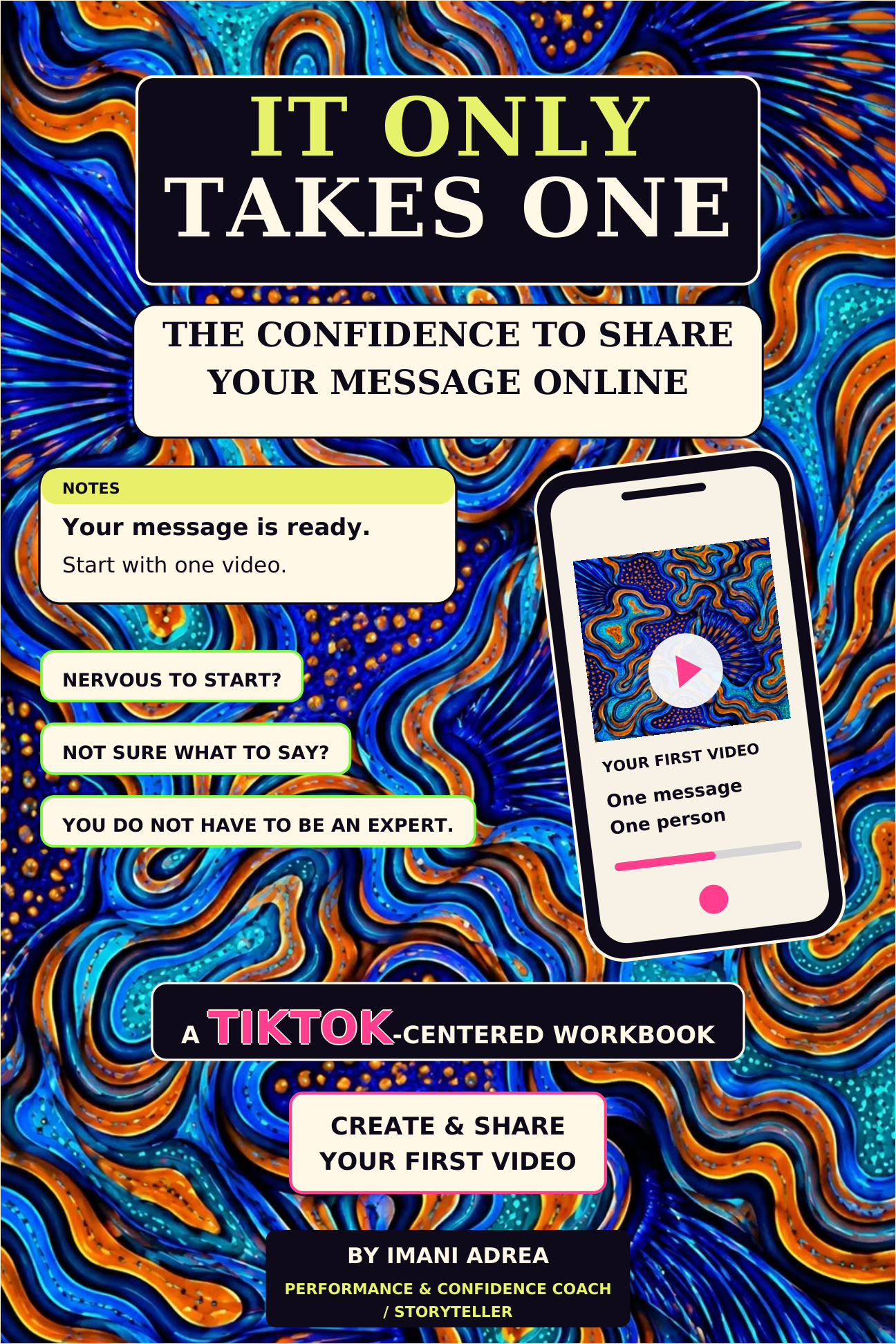
It Only Takes One — Typeable Digital Workbook
Your message has someone waiting for it.
One message. One video. One person who needs to hear what you have to say.
You have stories, knowledge, interests, and experiences worth sharing. But when it’s time to press record, you might find yourself wondering: Where do I start? What would I even say? Who would listen?
It Only Takes One: The Confidence to Share Your Message Online is a TikTok-centered workbook by Imani Adrea, storyteller, inspirational speaker, and performance and confidence coach.
Through personal stories, guided reflection, faith-filled encouragement, and practical steps, this workbook helps you move from thinking about creating to preparing and sharing your first video.
Inside, you’ll find support to:
- Recognize the value in your voice and lived experience.
- Choose a message and the people you want to reach.
- Find a natural way to begin, tell, and end your video.
- Navigate recording, captions, titles, and hashtags.
- Build confidence through practice and keep creating beyond your first post.
You don’t need a perfect life, professional equipment, or every answer before you begin.
What you receive
A downloadable, typeable PDF with 103 workbook pages, plus a phone and computer instruction page—104 pages total. Type your answers into the designated fields using free Adobe Acrobat Reader, or print the workbook and write by hand.
$44 · One-time purchase · Digital download
Your download will be available after checkout, with a download link also included in your email receipt. This purchase is for the digital workbook; no physical book will be shipped.
Phone and computer instructions are included. A paid PDF-app subscription is not required to fill in the workbook.
You do not have to be an expert. You can start with one video.
HOW TO DOWNLOAD AND USE YOUR WORKBOOK
New to digital workbooks? Follow the steps below.
Take your time—you can return to your saved workbook whenever you’re ready.
1. Open your download
After checkout, use the download page or open the download link in your purchase email. If you don’t see the email, check Spam or Promotions.
Tap Download beside the workbook’s filename. The PDF may open automatically. Seeing it on your screen does not always mean it has been saved to your device, so follow the saving steps below.
2. Save it on your iPhone or iPad
With the workbook open:
Look beside the website address for the menu button—it may look like three horizontal lines. Tap it to reveal more options. Its appearance and position can vary by browser.
Tap Share, represented by a square with an arrow pointing upward. If the Share button is already visible, tap it directly.
A menu will slide up from the bottom of your screen. You may only see part of it at first. Put your finger on the menu and swipe upward to expand it.
Scroll through the expanded menu until you see Save to Files. Tap it.
If you’d like, add a colored tag (so you can easily locate the download in your files) such as green or purple — to help you find it later. Then, tap save.
You could use that location already selected or you may also see the option of: choose a folder under On My iPhone, On My iPad, or iCloud Drive. Either way, remember which folder you choose, then tap Save.
If your email app’s viewer doesn’t show these options, open the download link in Safari and try the steps there.
3. Find your saved workbook
If you did choose to save it in your files app, return to your Home Screen and open the Files app
Can’t find the app? Swipe down from the middle of your Home Screen, type Files into the search box, and open it.
In Files, check Recents, or tap Browse and go to the folder where you saved the workbook.
Optional tip: If you didn’t the first time I encouraged it, Add a colored tag.To make your workbook easier to find, press and hold its filename in Files. Choose Tags, select a color you’ll remember—like purple—and tap Done if shown.
Later, go to Browse → Tags and select that color to find your tagged workbook.
4. Open the workbook in Adobe Acrobat Reader (download the app — PDF READER)
Use Adobe Acrobat Reader by Adobe Inc.
In the Files app:
Press and hold your workbook’s filename.
Tap Share.
Choose Acrobat from the row of apps.
If Acrobat isn’t visible, swipe across that app row and tap More to look for it.
Acrobat must be installed on your device to appear as an option.
A paid subscription is not required to fill in this workbook. If Acrobat presents an optional subscription or free-trial offer, dismiss it using the close or skip option to continue with the free features.
Once you’ve opened the workbook in Acrobat, you can find it again in Acrobat’s Recent list. Saving it to Files alone does not add it to Acrobat’s Recent list—you need to open it in Acrobat first.
Using Android or a computer?
Download the PDF, locate it in your Downloads folder or chosen save location, and open it in Adobe Acrobat Reader.
5. Type, save, and check
Tap or click inside a designated answer box and type your response. You do not need the paid Edit PDF feature to fill in these boxes.
Before completing several pages:
Type a short test answer.
Finish entering your answer and save your changes.
Close the workbook.
Reopen the same saved copy in Acrobat.
Confirm that your answer is still there.
Keep using that saved copy as you work. Downloading the workbook again gives you a fresh copy, without the answers you entered previously.
Prefer handwriting? You can print the workbook and complete it with a pen.
Need help?
Email : hello@shinestudios222.com. Tell us which device you’re using and which step you’re having trouble with.
A note about sharing
This workbook is for your personal use. Each PDF is personalized with the purchaser’s email address and purchase date at the top left corner of each page.
Please support the author by sharing the product link rather than distributing the workbook. If someone you know would enjoy it, send them here: https://payhip.com/b/ivfUe
And, remember: You do not have to be an expert. You can start with one video.