

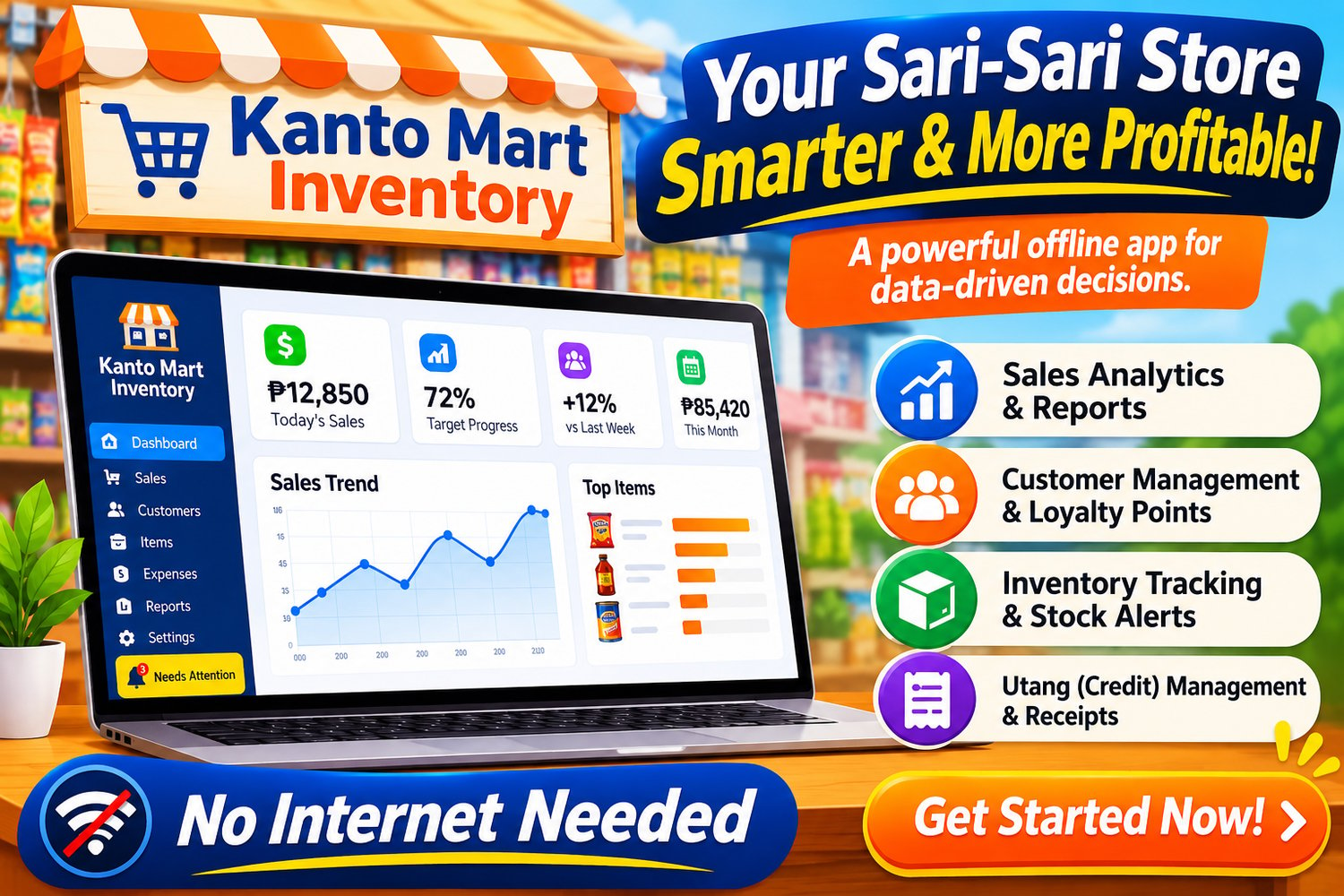
Kanto Mart Inventory and Sales Tracker
This is a browser-based app that focuses on collecting data from your customers for your small sari-sari store. This is not a POS system. This is only for data analytics so you will have data-driven decisions for your store.You can also use this as a starter template for your own web app.
Kanto Mart Inventory: all features
It runs as one offline file in a browser, and your data stays on your own device.
Cash register-style interface
- Tap items to add them to the cart, filtered by category or search.
- Pick a customer by typing a name, or add a new customer on the spot.
- Pay in cash with quick amount buttons and automatic change, or put the sale on utang (credit).
- Apply a Senior Citizen or PWD discount, or any discount you add in Settings.
- Active promos apply automatically, and VAT is added or included depending on your setting.
- Loyalty points can be used on a sale, with the amount taken off shown in the cart.
- Receipts can be viewed on screen, printed, or saved as a PDF. They show the VAT, discount, points used and points earned.
- Stock goes down with each sale, and you can’t sell more than you have.
Customers
- Each customer has contact details, an address and basic profile details.
- A ranking shows top buyers, and customers get a tier based on how much they spend.
- A customer’s page shows their buying behavior, spending, visits, utang balance and loyalty points.
- A list shows customers who haven’t visited in 14, 30, 60 or 90 days, each with a “we miss you” message button.
- You can send a thank-you, a miss-you, an utang reminder or your own message, either by opening your phone’s text app or by copying the text.
Loyalty points
- Customers earn 1 point per ₱100 on each sale, rounded down, and each point is worth ₱1 off. You can change both in Settings.
- Utang sales and walk-in customers earn no points.
- Points can be redeemed on the next sale, never below ₱0.
Utang (credit)
- Each customer has a credit limit, and a ledger of utang and payments.
- A banner warns you when utang is overdue, and Needs attention lists those customers.
- A ready-made reminder message can be sent to the customer, and the app records when you sent it.
Dashboard
- Pick a period: Today, 7 days, 14 days, 30 days, Year, or a custom range.
- Cards show revenue today, daily sales target progress, today versus the same day last week, the last 7 days versus the 7 before, and this month versus last month.
- Charts cover sales by hour, revenue per day, fast-moving items, customers by hour, a day-by-hour heat map, and revenue and items by category.
- You can switch between pie and bars, and between units and revenue.
- It also maps sales by address and by sex and age, and shows the items most often bought together.
Sales tracking
- It lists recent transactions with filters and a custom range, and shows when each item tends to be bought.
- You can remove an item from a past sale with a required reason, and put the stock back.
- A Removed items log records each removal.
Sales reporting
- Pick a period and choose which sections to include, then print the report or download it as a CSV.
Items
- Add, edit and delete items with a price, cost price, stock, icon or photo, and an optional expiry date.
- Items are grouped in categories, which you can add, sort and delete. Deleted categories move their items to Other.
- You can add +10 stock in one tap.
- A list shows items currently on sale.
- Price changes apply to new sales only. Past sales and reports keep the price and cost they were sold at.
Expenses
- Add expenses by category with a note, and see them in a list for a chosen period.
- Deleting an expense needs a reason and is kept in a Deleted expenses log.
Needs attention
This tab flags problems for you to review:
- out of stock, running low, expired or expiring soon
- no cost price, selling below cost, very thin margin
- duplicate item names, and items sitting in Other
- items not sold in 30 days
- duplicate customer names and customers missing contact details
- utang near the credit limit, and utang overdue
- no expenses recorded, and spending higher than earnings
A badge on the menu shows how many need your attention.
Settings
- Store and appearance: store name, title and icon, plus a choice of five styles: Standard, Glassmorphism, Soft UI, Flat minimalist and Vibrant pastels. There are also several color themes and a dark or light mode.
- Loyalty and reminders: loyalty rate and point value, and how many days before utang counts as overdue.
- Clock: check the time online or set it yourself, with a warning if the device clock looks wrong.
- Automatic backup: back up to a folder you choose, download a file once a day, restore from a file, or copy and paste backup text.
- VAT, credit, stock alerts, promos and discounts: VAT rate and mode, the credit limit, and when to flag low stock or expiry. You can also create promos and discounts.
- Change history: every price, name, category, customer and setting edit is recorded, along with removed items and deleted expenses.
General
- It works fully offline, with built-in charts and PDF receipts.
- It works on a phone, with a slide-in menu and a View cart bar.
- It uses ₱ throughout and Philippine date formats.
Since this is a browser app, keep these quick tips in mind to avoid losing your data.
Rules to avoid data loss
Your data is saved directly in the browser on your device—not on an external server. Follow these quick tips to keep it safe.
Where the data lives
- Always open the same file from the same place. Use one browser and one folder. Don’t rename or move the file. Data is tied to the file’s location and the browser, so a copy opened from another folder or browser starts empty.
- Don’t use private or incognito windows. Everything is erased when they close.
- Never clear browser data. Clearing “cookies and site data”, “cache” or “storage” deletes your sales. Check the options carefully before cleaning the browser or running a phone “cleaner” app.
- Open the app in one tab or window only. The app saves everything as one block, so two open tabs can overwrite each other’s changes.
- Open the file directly from the folder you keep it in. Don’t open it from an email attachment, a zip preview or a download notice, which are temporary copies.
Backups (the most important part)
- Set up the automatic backup on a computer. In Settings, under Automatic backup, press Choose backup folder in Chrome or Edge and pick a folder that Google Drive, OneDrive or Dropbox syncs. That gives you a copy in the cloud too.
- If you can’t use a folder, switch on the daily download. On phones and other browsers, tick “Download a backup file automatically once a day” in the same card. Otherwise press Back up now yourself.
- Back up before anything risky. Do it before updating the app file, restoring, erasing data, changing browsers or phones, or clearing the browser.
- Don’t ignore the yellow backup banner. It appears when there is no recent backup, or when the browser has paused folder access. Tap Allow backups to resume.
- Keep several backups. The app keeps the latest 14 by default, and you can change that in Settings. Keep at least one copy on another device or in the cloud, away from the one running the app.
- Test a restore once. Restore from file replaces your current sales, customers and items, so try it with a spare browser or after a fresh backup. A backup you have never restored is not a proven backup.
Daily habits
- Check that the device clock is right. Wrong dates make wrong reports. The app warns you if the clock jumps back.
- Be careful with “Copy backup text or erase data”. Erasing all data cannot be undone.
- Download the history CSV from time to time. The Change history keeps the latest 3,000 entries, and the CSV is your permanent copy.
- Keep the phone or computer healthy. A full or nearly full device, an unexpected shutdown and a lost device all risk data. The synced backup folder protects you against the last one.
A good routine is a daily backup, a weekly copy to the cloud or another device, and a backup before every change.