

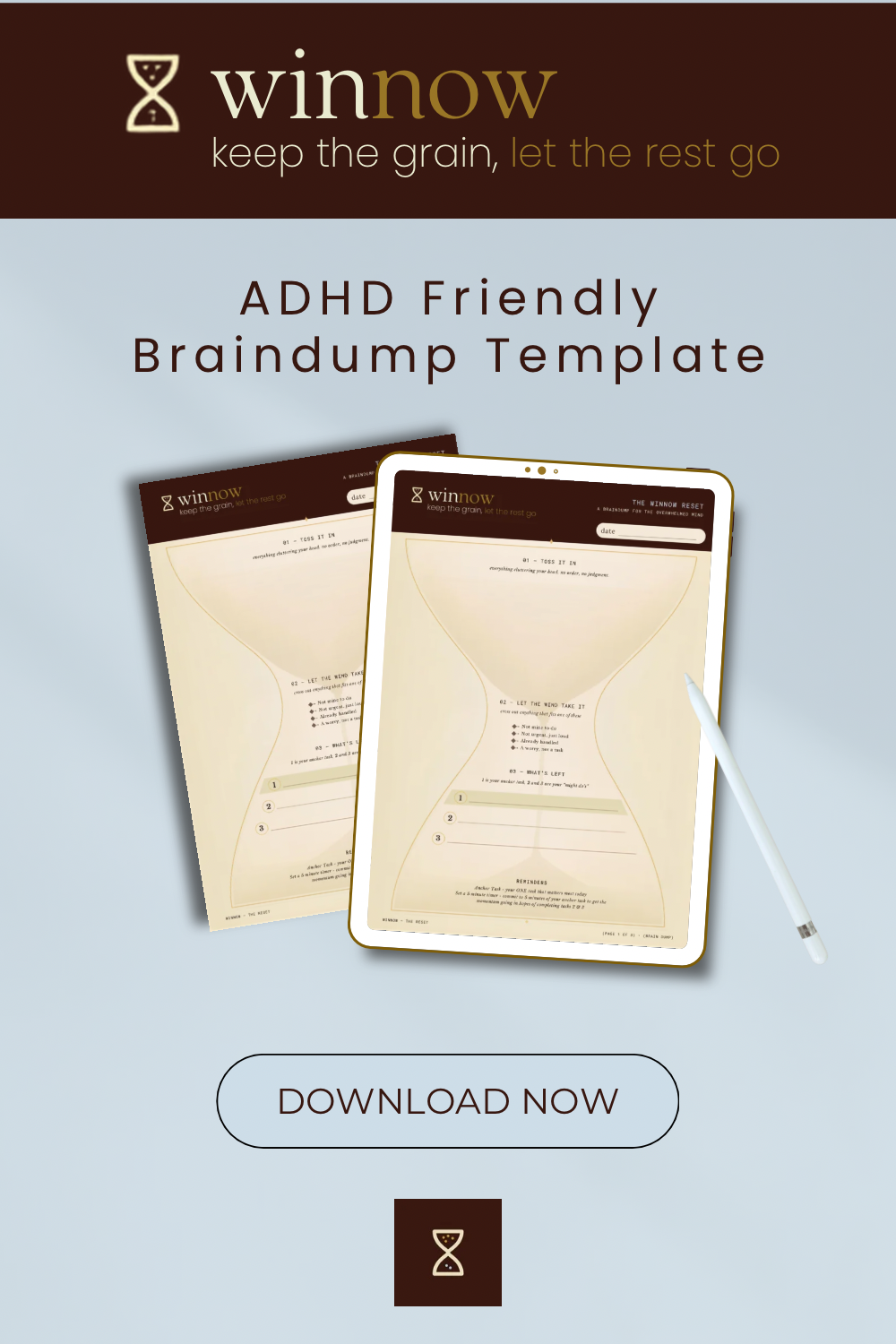

The Winnow Reset Braindump Template
The Winnow Reset is a 3-step brain dump built for minds that don’t work in straight lines. Instead of asking you to organize your thoughts before you’ve even written them down, the Winnow Reset flips the process: dump everything first, sift second, commit last.
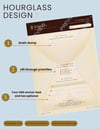
Shaped like an hourglass — because the format is the method — the page narrows as you move through it, guiding you from total chaos down to just three things that actually matter in your day to day life.
• 01 — Toss It In: Everything cluttering your head, no order, no judgment. Just get it out.
• 02 — Let the Wind Take It: Cross out anything that isn’t yours to do, isn’t urgent, is already handled, or is just a worry, not a task.
• 03 — What’s Left: Your ONE anchor task, plus two “might-do’s” if you have the capacity. That’s it.
Includes built-in reminders for using the 5-minute-timer trick to build momentum on your anchor task, so you’re not relying on willpower alone.
Use it however works for your brain:
• Print it — a full letter-size page, ready to fill in by hand
• Go digital — drop it straight into GoodNotes, Notability, or any PDF annotation app and write on it with your iPad/tablet, reusable every single day
There isn’t another productivity system shaped like an hourglass ⏳ so have fun with it!
How to Use It Digitally in GoodNotes
1. Download the file from your purchase confirmation email or the platform’s download link — it’ll save as a PDF (usually to your device’s Files/Downloads folder).
2. Open the GoodNotes app on your iPad or tablet.
3. Tap the ”+” (New) button on your library screen, then choose “Import PDF.”
4. Locate the Winnow Reset file in your Files app (check Downloads, or wherever your device saves downloaded files) and select it.
5. GoodNotes will import it as a new document — this becomes your template. Rename it something like “Winnow Reset — Template” so you don’t accidentally write on your only copy.
6. To reuse it daily: open the template, tap Share → Duplicate, and rename each new copy with the date. This keeps your original blank and gives you a fresh page every time.
7. Use the Pen tool to fill it in by hand, just like paper — or switch to the Text tool if you prefer typing directly into each section.
Tip: If you want the Reset to live in a recurring daily planner instead of a one-off document, you can also insert it as a page template inside an existing GoodNotes notebook via Document Settings → Add Page → Import.