
Studio School Photography Backdrop Bundle, Birthday Portrait Background Set, Studio Photo Props, Digital Download
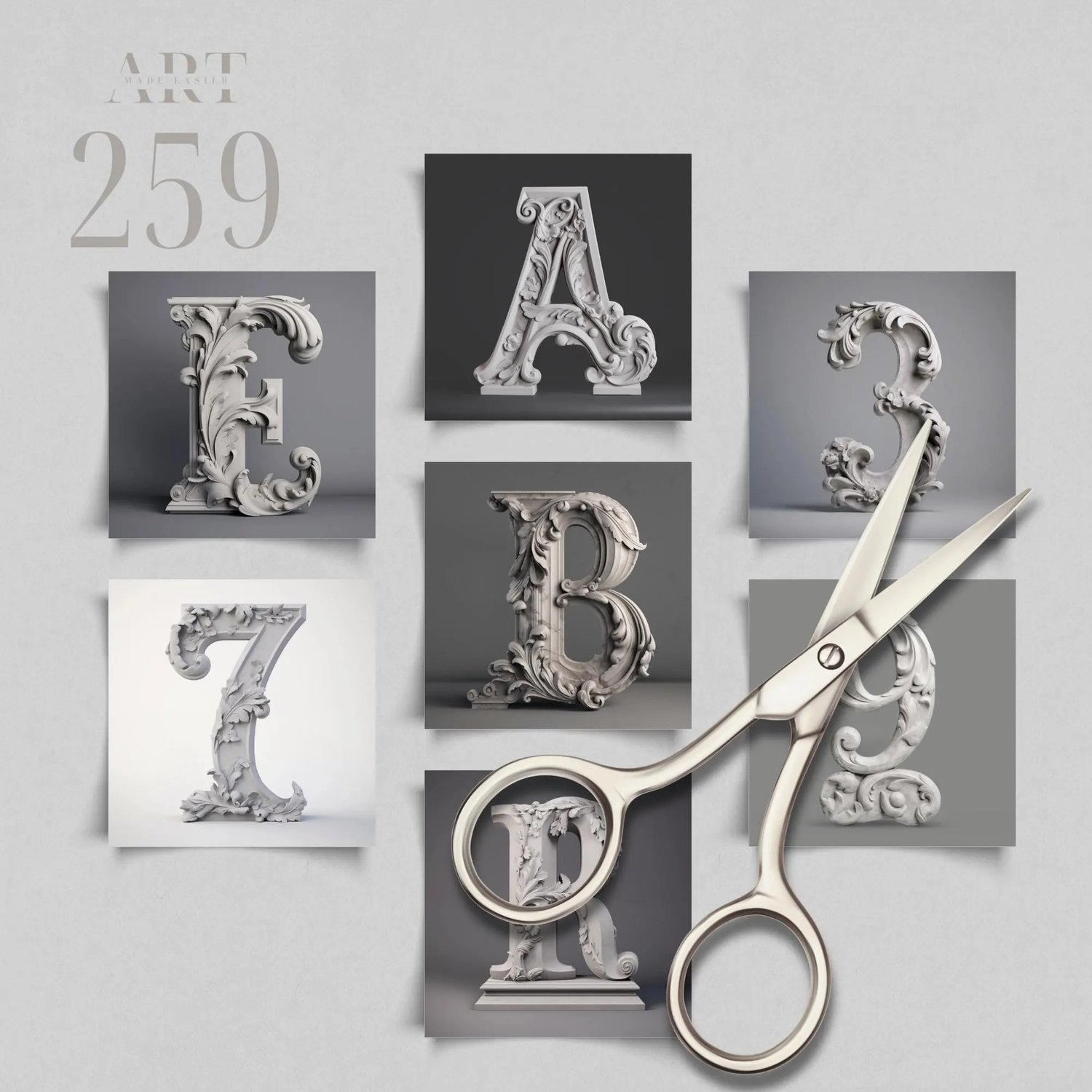
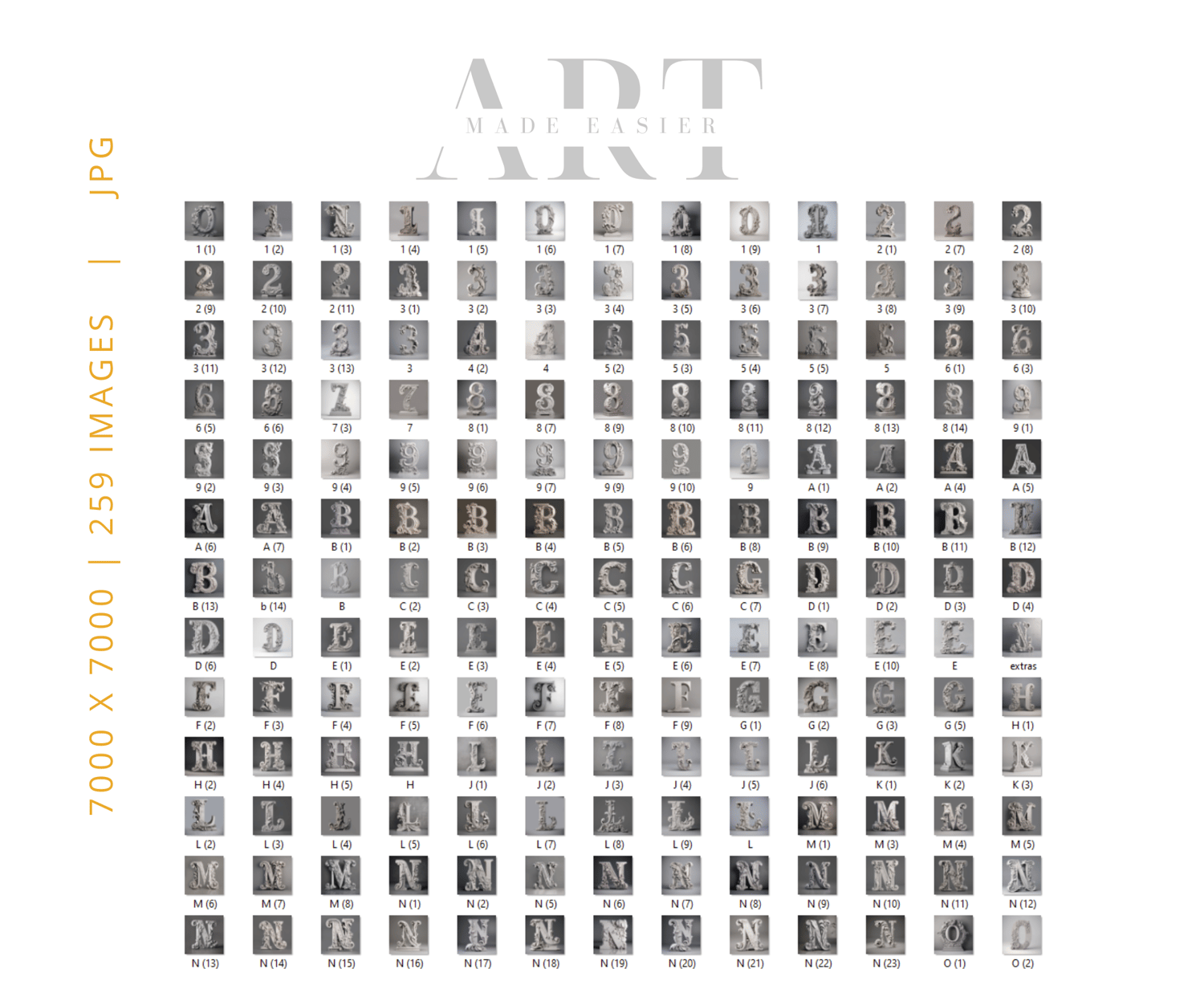
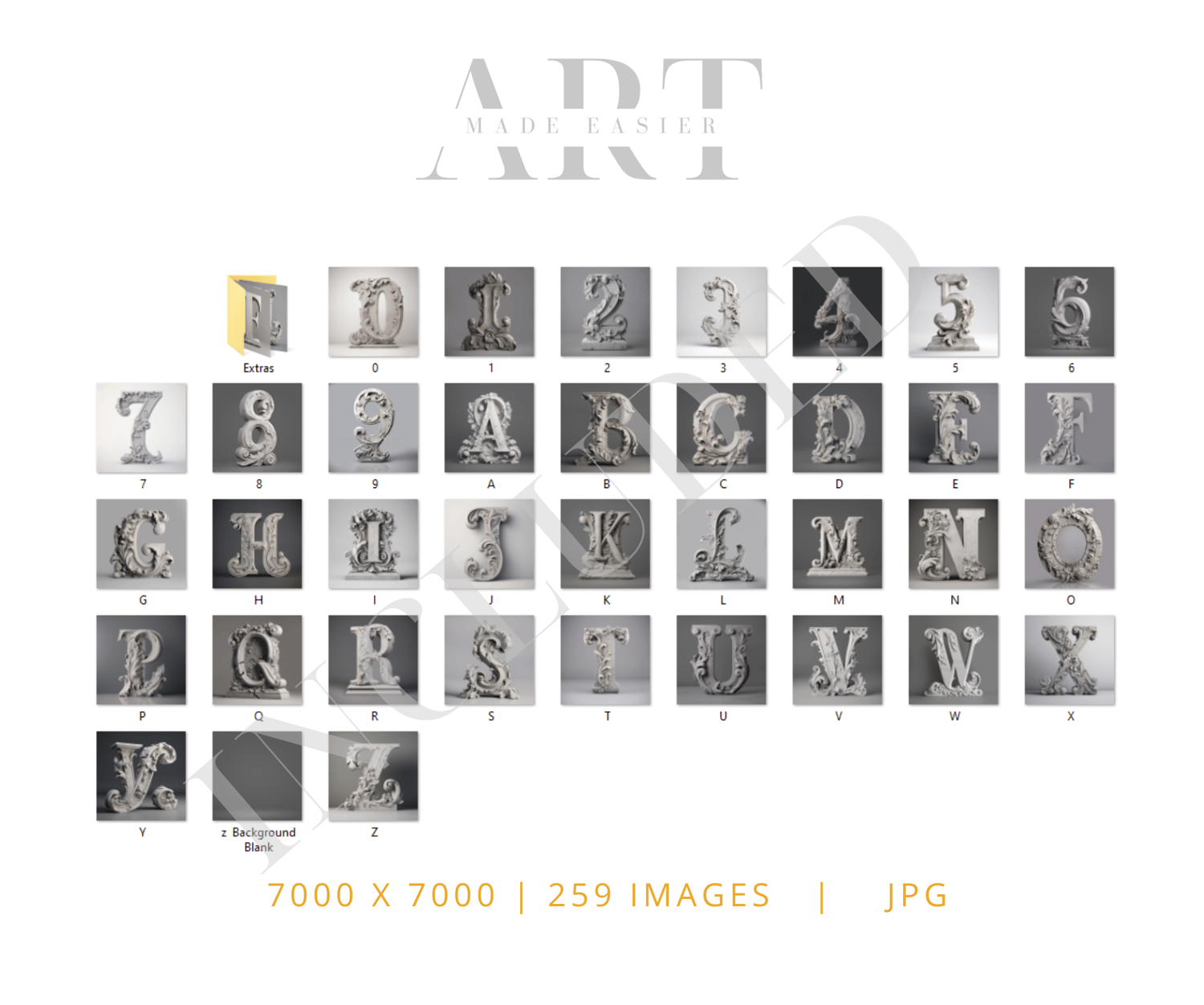
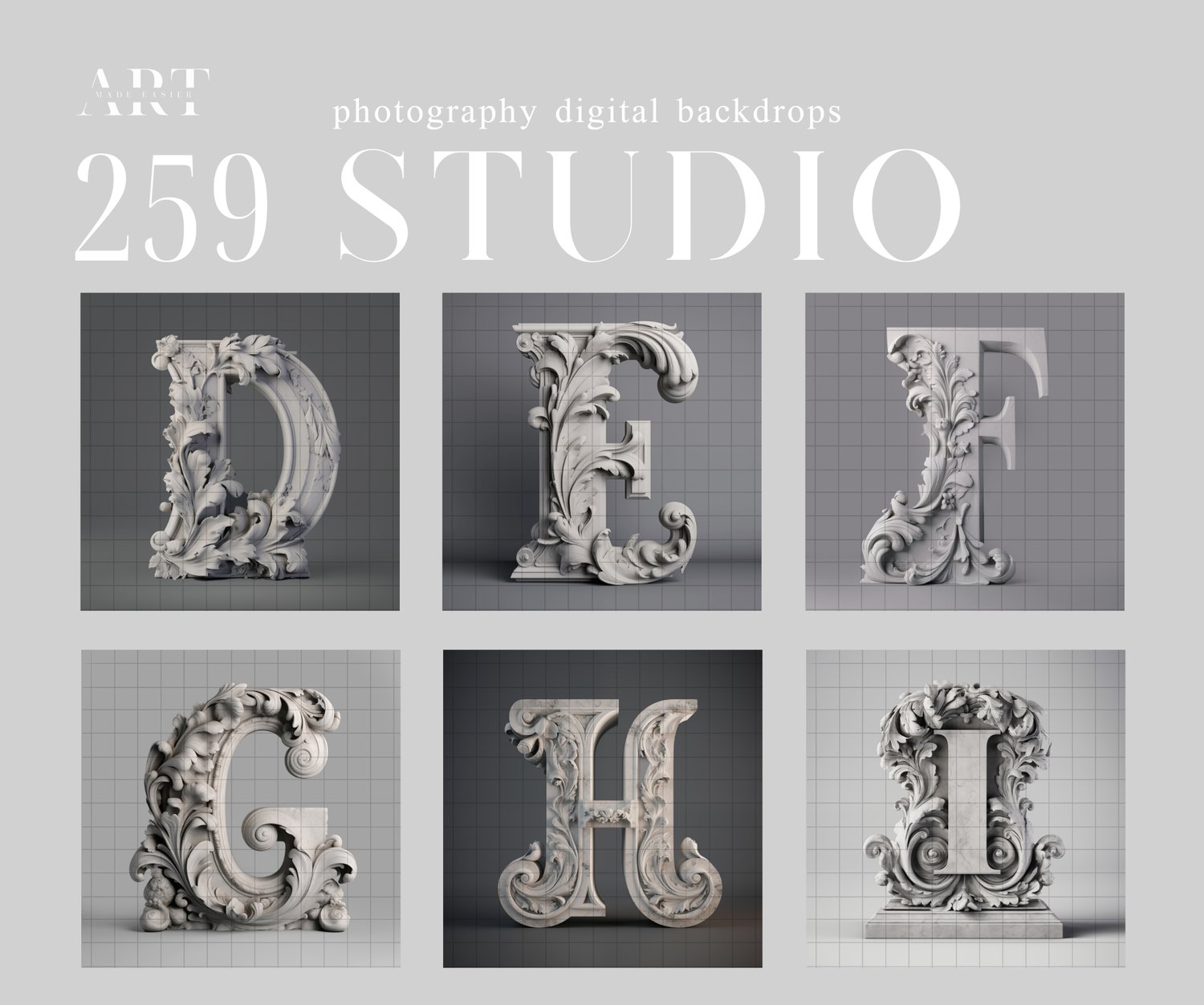
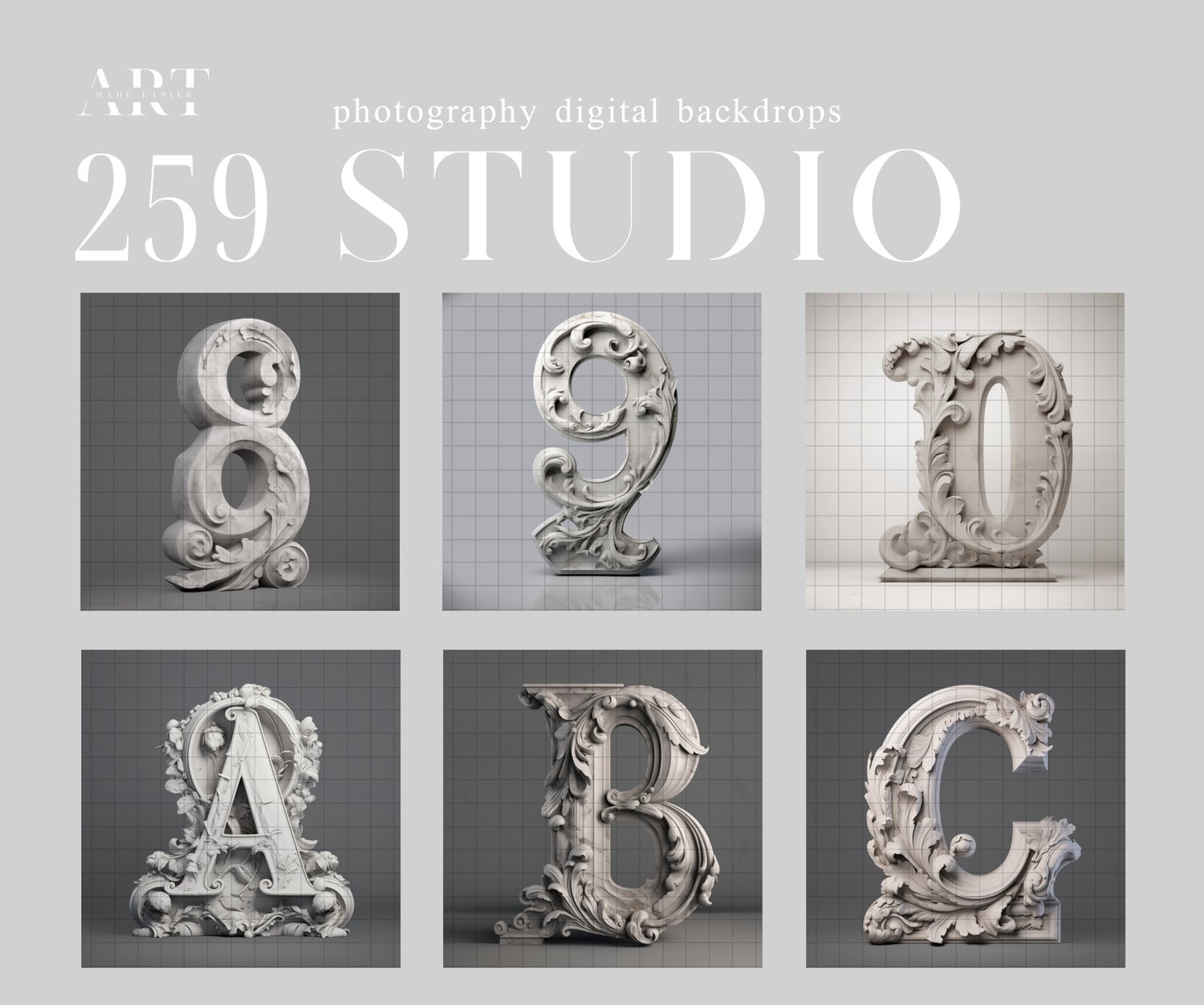
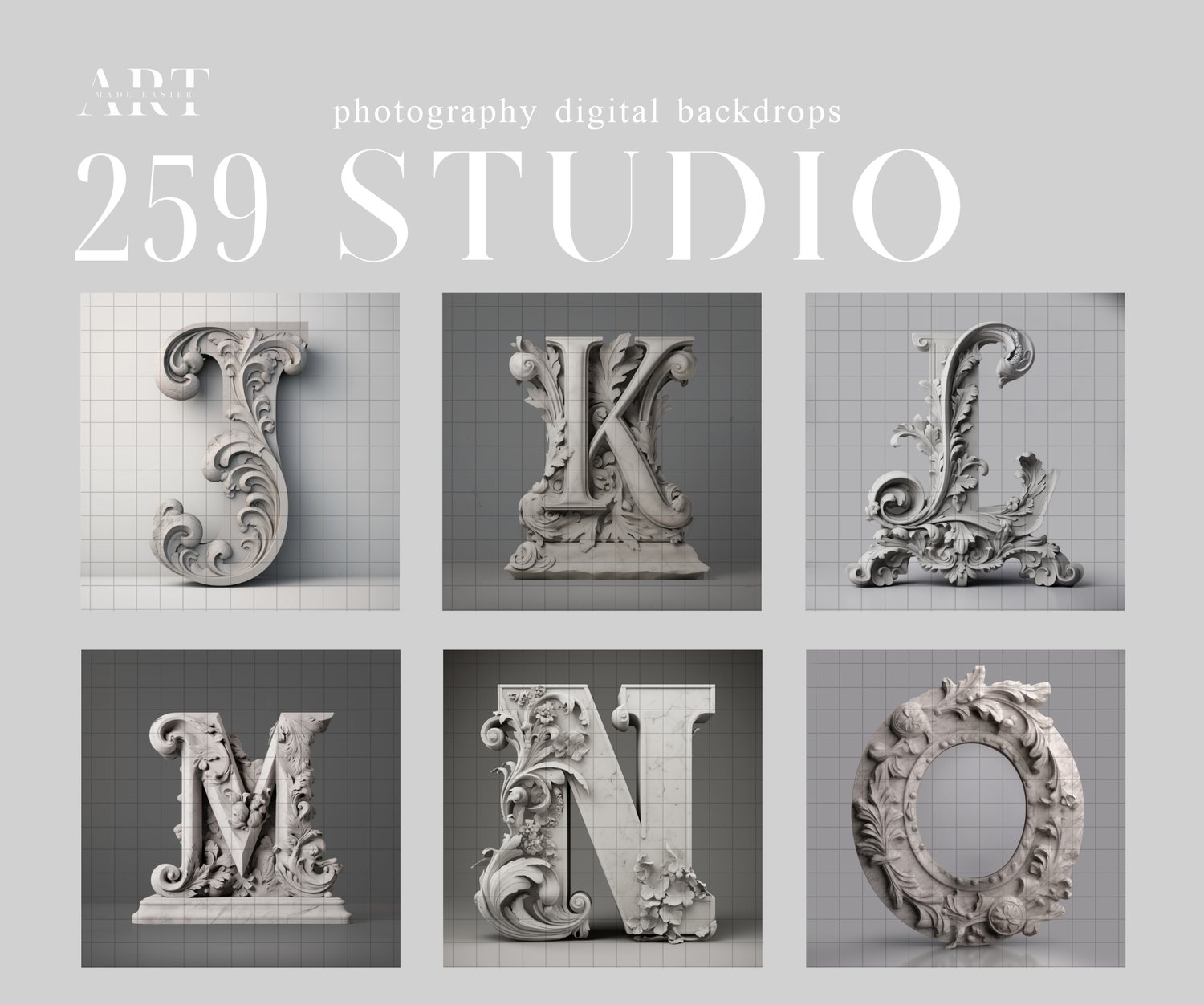
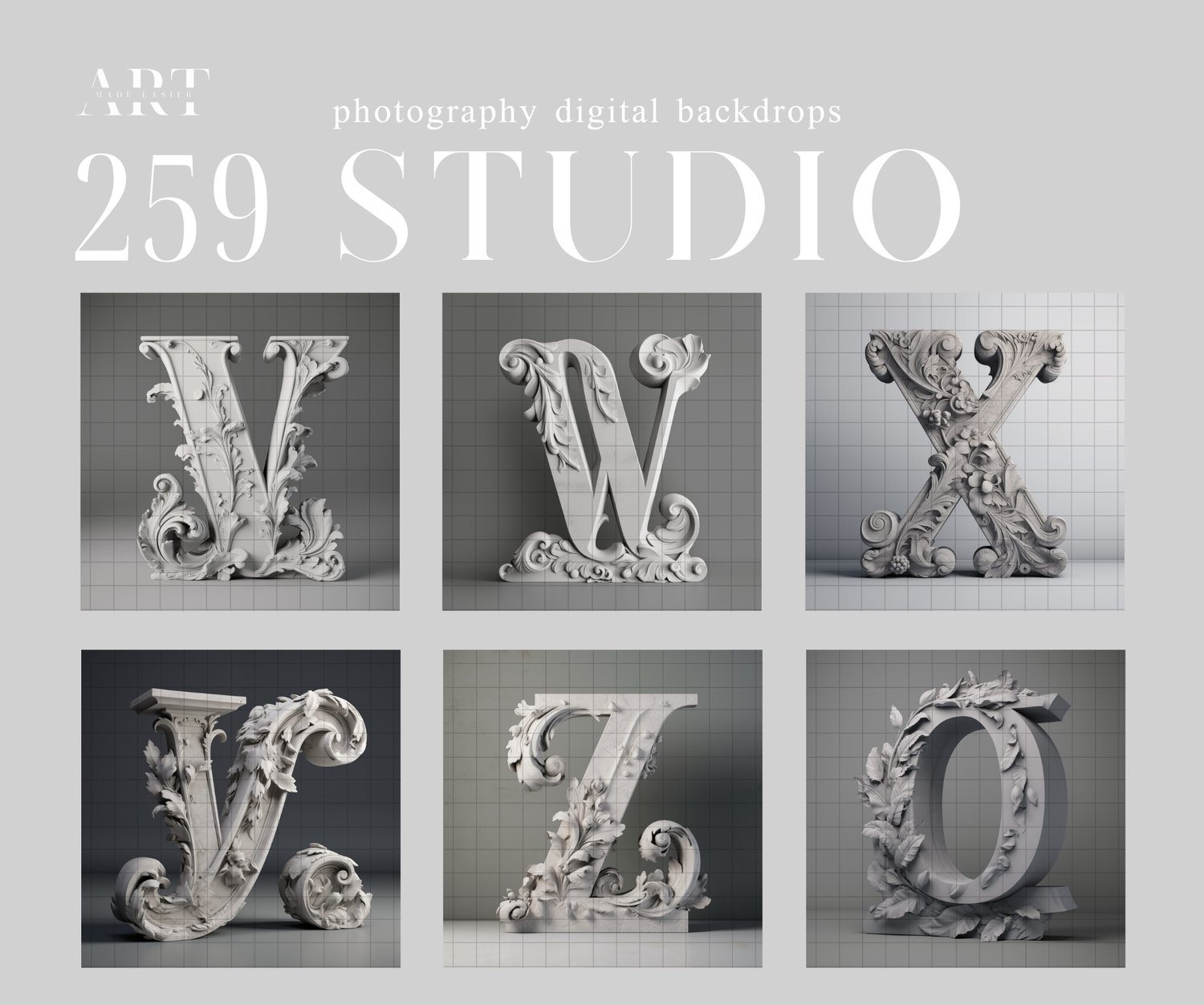
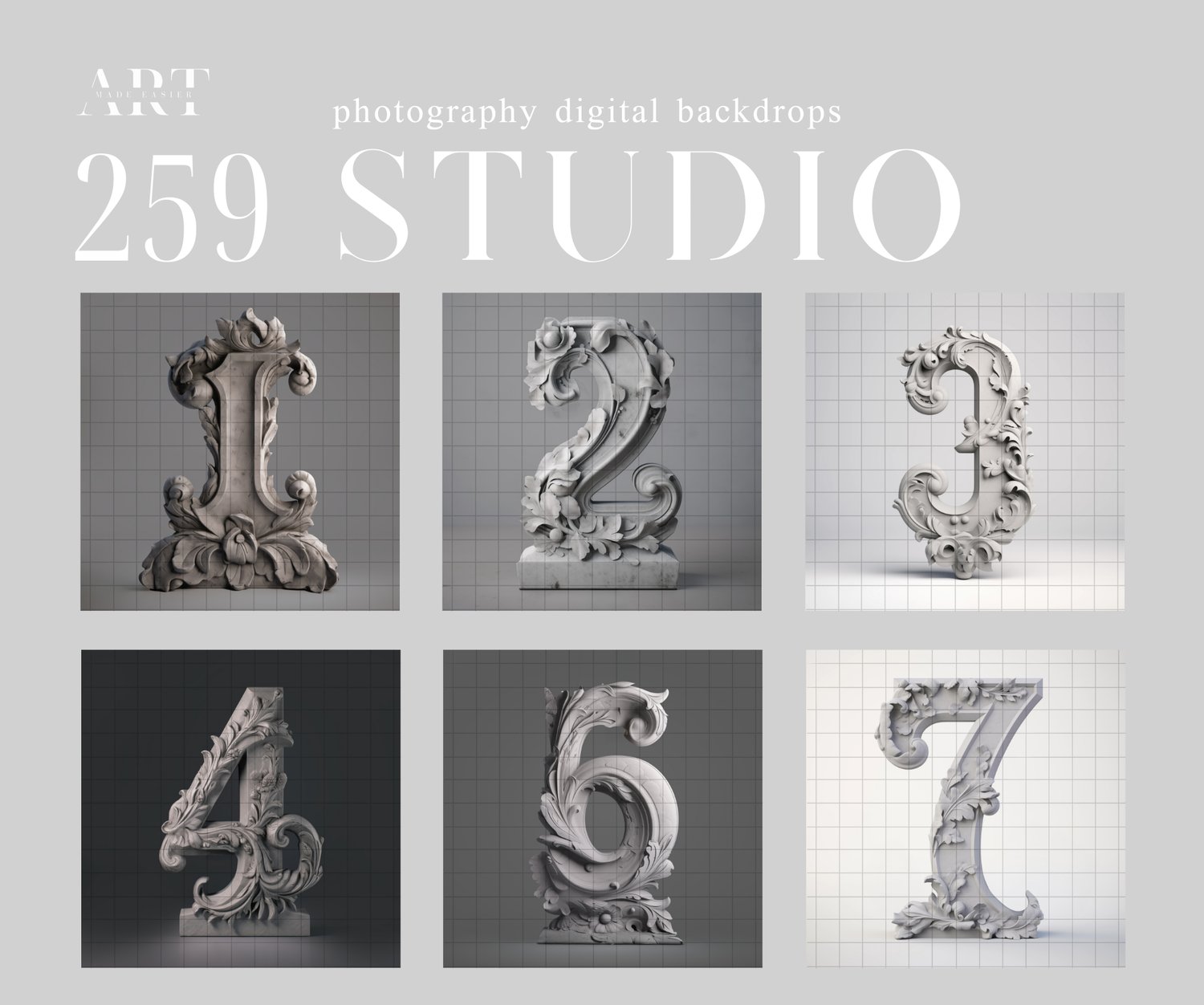
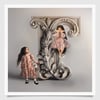
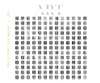
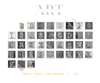
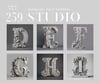
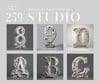
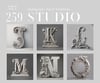
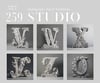
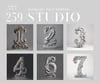
This collection contains a whopping 259 digital backgrounds inspired around large concrete rococo letters and numbers that you could use for a variety of composites.
Think about birthday composites, family card composites, first day of school composites, and portraits with initials.
This collection is ideal for a studio composite using the letters for initials behind your subject. If you are after a clean studio background effect, I believe this will add a touch of interest to your next composite set.
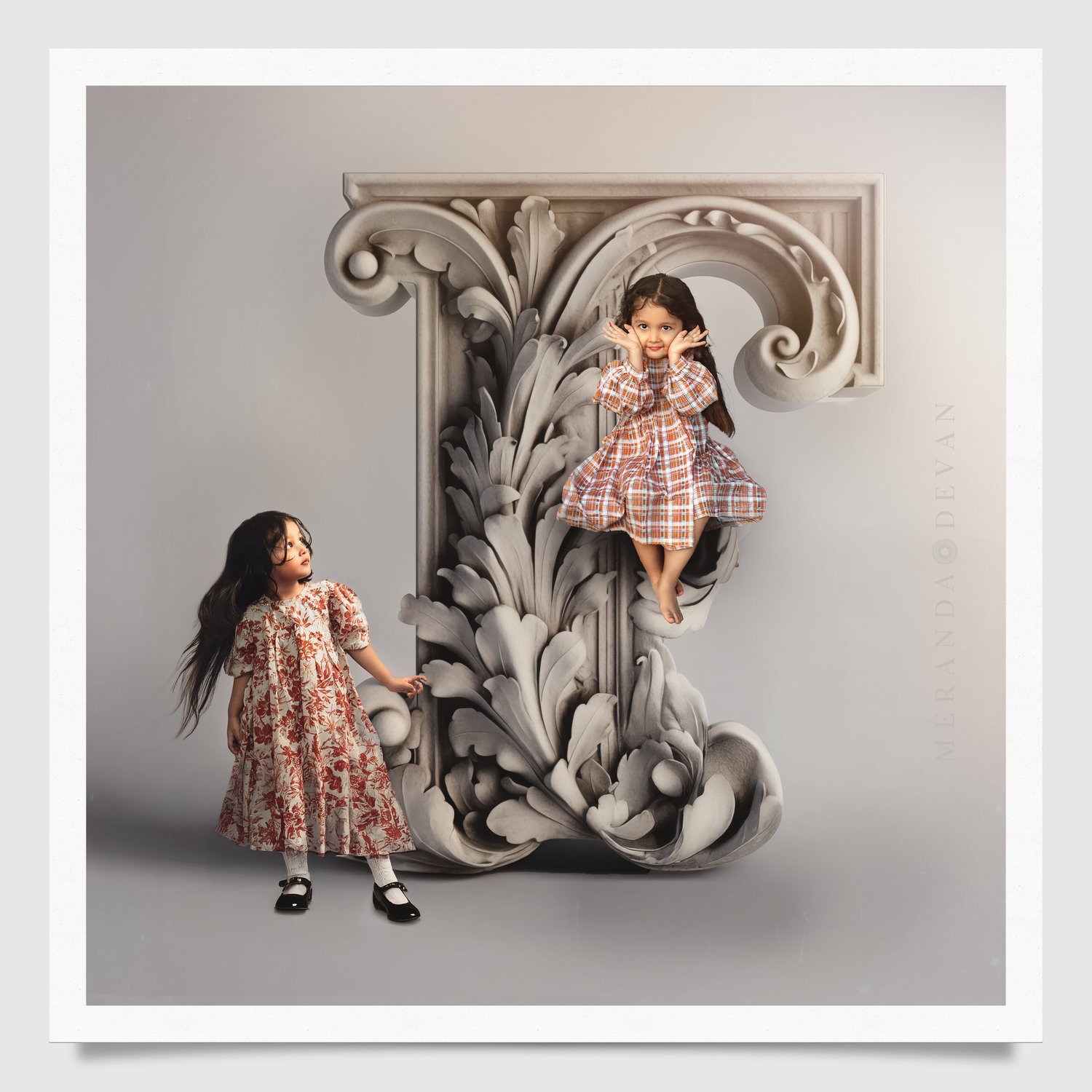
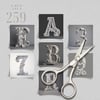
Position your kids inside the letters, sitting on the letters, or leaning back on the letters or numbers. Or do something like I did, where I took the same girl, and duplicated her in two or three different positions. She is featured in one dress standing up, and one dress sitting on the letter. It makes for a whimsical effect with the same child.
If you photograph on a background with similar tones, the blending will be easier. Use your generation fill in photoshop for easy shadows. This is what I do to make quick composites. I use my lasso tool and select around their skin, around the hair, and around the dress, and photoshop blends the composite and the image for me using a feature called "generation fill" . At one time if you wanted extra hair, you had to find hair that matched, but not anymore. For shadows, I select the image, and copy it on to another layer, and just paint in a low opacity under, below and behind the subject and lower the opacity. Its never been easier to composite with Photoshop's new tools.
The backgrounds were created in AI and altered in photoshop.
........................
The link to the products are contained in a PDF that you will download. After opening it, simply click on the link and it will take you to the product to download.
Because this is a digital product, I do not accept returns. However, if there is an issue, please feel free to email me, and I can try to remedy it as quick as possible.
........................
Follow My Work
STUDIO Composites On Pinterest - https://bit.ly/3TkDKD0
PNG Composites on Pinterest - https://bit.ly/48Ff9gs
BLUE Composites on Pinterest - https://bit.ly/3uLxrPu
BROWN Composites On Pinterest - https://bit.ly/3V4xNuZ
GREEN Composites On Pinterest - https://bit.ly/3TjRX30
More Composites - Pinterest - https://bit.ly/3UZQd09
My Discontinued Free Composites - https://bit.ly/freecomposites
- Follow My Pinterest: https://bit.ly/artmadeeasiercomposites
- Follow My Facebook profile - https://bit.ly/artmadeeasierfacebook
- Follow My Pixabay - https://bit.ly/MerandaDevanPixabay
- Art Made Easier On Etsy - https://www.etsy.com/shop/Artmadeeasier
........................
No Refunds Purchase Policy
Please read this policy carefully before making a purchase. I do not offer refunds because of the nature of the digital product. Please read the description of the product you are interested in to ensure that it will work with your selected composite. All composites are designed to work with Photoshop. Most PNG or JPG files will work in a variety of programs, however PSD files work only in photoshop. These products are designed for photographers that have the ability to be able to use programs like Photoshop that can work with layers, masking, transforming tools and cutting out subjects. I take great care to ensure the quality of my digital products, however, I do not warrant that any digital download will meet your specific requirements or expectations. If you encounter any issues with your digital download, please contact me and I am more than happy to resolve any problems promptly.
-------------------
Photoshop Tips For Compositing
Here are some tips to making them blend the best with your photography in Photoshop:
The very best compositing tip - Use your LASSO tool in photoshop around your subject, selecting small sections at a time, and click your generate fill. This creates a beautiful seamless transition every single time. There is no need to create shadows anymore between the composite and your subject with this AI feature. ( This is photoshop beta version )
PhotoRoom - is a terrific resource for background removal. https://www.photoroom.com/tools/background-remover. It even cuts out hair.
PIC WISH is a terrific resource for background removal. It still does a better job that the most recent PS update in June 2024. They seem to cut out hair better than PS, and you buy a bundle of credits, and simply pay for each background removal edit. They give you a fairly good size file back. This program works from your own computer.
Use LEVELS Adjustment Layers - Levels pretty much darkens your photo, but also can give it a matte appearance, adjusting the highlights and the blacks. This is my go-to-adjustment. What I do is apply this, mess around with it until I can get it close enough to blend well. If you notice light coming in at a certain direction, simply erase off where the light is coming from.
LOWER THE OPACITY A TOUCH - Sometimes at the end, for a final adjustment, I lower the opacity of my overlay. I sometimes duplicate the layer, and just paint in at high opacity the details I want to bring back at 100%. I find this just softens the overlay, rather than it looking like a cutout.
CHANGE THE HIGHLIGHTS IN CAMERA RAW - I find this is another way of adjusting the highlights and blacks.
Use CURVES Adjustments - This is another adjustment as above, but darkens or lightens the object you are hoping to change. Simply CLIP this adjustment to your crown and it will only lighten or darken the crown rather than the whole picture.
SHADOWS USING BLANK LAYERS WITH A PAINT BRUSH - Use a blank layer to create shadows. Sample the color of the hair and paint in the shadows around the crown. Set it to overlay, and erase off from the skin. This file is placed under or behind the subject. BLUR it, lower the opacity.
USE GENERATION FILL - Photoshop has made compositing simpler than ever. I select the area I need fixed, and simply type in "remove". You can do this around your cutouts for a better transition. For some reason AI calculates removing the section I selected, and fills it in better than would take me 20 or more minutes to do.
USE A LIGHT SPOTLIGHT LIGHT PNG OVERLAY - You can find these png light overlays for free on the internet. I like something with a bit of yellow tone to it. Overlay it in the direction of the light and BLUR it. It gives you a soft BLEND effect, which you can then remove from the face. Its an extra layer of blending for my composites.
ADD A MATTE FINAL LAYER - I find that at the end of my edits, I add a final slight matte effect because it further blends my composite together. I find that this matte effect gives me the fine art effect.
CHANGING A COLOR of A Graphic: To change the color in photoshop, go into "Image" - "Adjustments", "Replace color". Use the eye dropper to select the color you want changed, and shift it around to your desired hue.
BLEND IT MATCH IT: To match the brightness and the mat effect of the photo, go into "LEVELS", and clip it to the png graphic. From there, you have several sliders to adjust. This will give you a slightly matt effect, or a darkening or lightening effect.
Add A Slight COLOR MATCH : To Match the overall tones of the composite, use a "COLOR BALANCE LAYER". This can give you the color matching effect the best.
** Thank You for choosing my store, and I value you as my customer. Have fun editing!
Keywords :
photography studio, Newborn background, one year old, 1 year old background, 2 year old digital background, 3rd birthday background, 5th birthday background, 6th birthday background, 7th birthday digital, 8th birthday backdrop, 9th birthday background, 10th birthday background, Initials background, family holiday card background, holiday composite, Studio Backdrop, Studio equipment, studio backdrops, studio backdrop, 1st birthday backdrop, Christmas backdrop, Butterfly Backdrop, Backdrop Bundle, Backdrop Images, Enchanted Backdrop, Cake Smash Backdrop, Child Photo Backdrop, Portrait Backdrops, Texture Overlays, Stock Photography, Stock Images, Photography Ideas, One Year Old, Fine Art Backdrops, Composite Image