

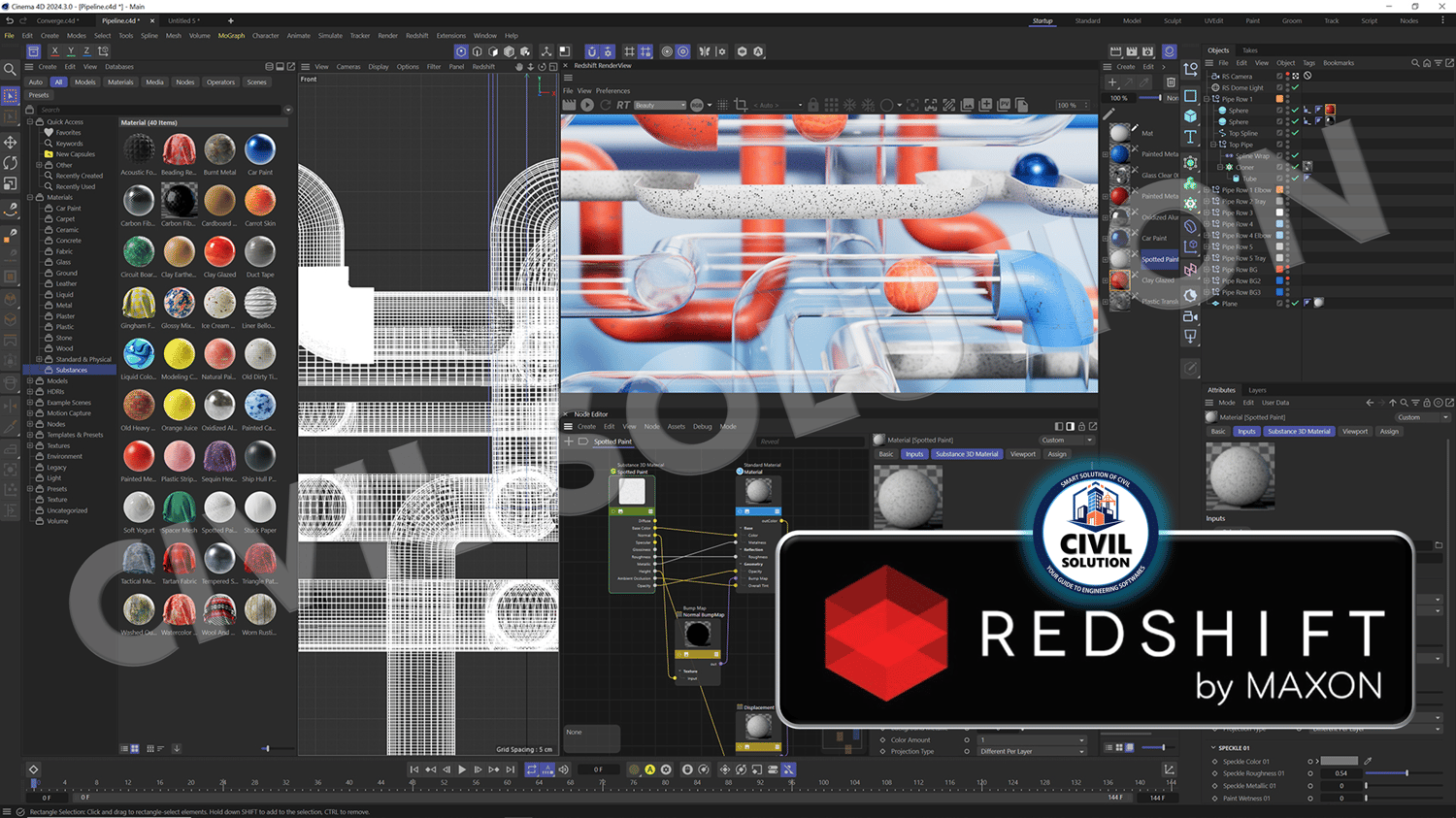
Maxon RedShift 2026.3.0
➔ Click to Order on Telegram 🛒
Note: 💳 Payments accepted via PayPal, Payoneer & UPI
👑 Redshift 2026.3.0 (for Cinema 4D, Maya, Houdini, 3ds Max) is a high-performance GPU-accelerated rendering engine developed by Maxon. It is designed for professional 3D artists and studios who require fast, production-quality rendering for animation, VFX, motion graphics, and architectural visualization.
Redshift integrates seamlessly with:
• Cinema 4D
• Autodesk Maya
• Houdini
• Autodesk 3ds Max
It delivers biased GPU rendering with optimized memory management, enabling artists to render complex scenes efficiently without sacrificing quality.
📁 Installation Instructions: Please refer to the READ ME file included after purchase for complete setup guidance.
🔑 Key Features
• GPU-accelerated biased rendering engine
• Fast production-ready rendering
• Advanced shaders, materials & lighting
• Out-of-core memory management
• Volumetrics, hair, and particle rendering support
• Seamless integration with major 3D platforms
✅ Best For
• 3D Artists & Motion Designers
• VFX & Animation Studios
• Architectural Visualization Professionals
• Cinema 4D, Maya, Houdini & 3ds Max Users
📦 Package Includes
• Maxon Redshift 2026.3.0 (Full Version)
• Support for Cinema 4D, Maya, Houdini & 3ds Max
• Lifetime license after activation
• Complete installer + step-by-step installation guide
📌 Frequently Asked Questions (FAQ)
❓ 1. Error: “Devices not available! Failed Communicate to server! (Error: -17)”
Solution:
Make sure the CGHotman Server is running.
- Open Task Manager
- Check if CGHotman_server is active
- If not, start it
❓ 2. License Manager says: “No licenses available”
Solution:
- In the License Manager window, click the Maxon App (Curtain icon) in the top-right corner.
- Select RLM Server.
- Click OK.
If it asks for Server / Port details, ensure that:
- CGHotman_server is running in Task Manager.
Then restart the blueprint.
❓ 3. Missing files or folders
Problem: Some folders or files are missing.
Solution:
- Your antivirus likely removed the files.
- Disable your antivirus temporarily or restore the quarantined files.
- Make sure you are checking the correct directory.
- Note: The ProgramData folder is hidden by default.
o Enable “Show Hidden Files” in Windows
o Or manually type the path in File Explorer
❓ 4. Blueprint does not start / RLM server error / Render not working
Solution:
Most likely a step was missed during installation.
✔ Follow the installation instructions carefully again from Step 4.
✔ Make sure to:
- Turn off CGHotman Server from Task Manager before retrying
- Restart the application after correcting the issue
❓ 5. Chinese error appears when launching CGHotman_Server_Redshift.exe
Solution:
Right-click the file and select “Run as Administrator.”
❓ 6. Error: 0xC0000142 when launching blueprint
Cause: Antivirus software is blocking the application.
Solution:
- Disable antivirus
- Reinstall the blueprint over the existing installation
❓ 7. CGHotman_server_redshift.exe opens and closes immediately
Cause: Antivirus is blocking execution.
Solution:
- Disable or uninstall antivirus
- If needed, restore quarantined files
- Reinstall required system components
- Then reinstall the software properly
❓ 8. My issue is not listed here
Solution:
- Review the installation instructions again carefully.
- Check user comments or community discussions related to this version.
- Post your issue with detailed error messages so others can help.