

Allen-Bradley MQTT Client Add-On Instructions
Native MQTT for Allen-Bradley PLCs
Rockwell Automation Allen-Bradley Logix 5000: CompactLogix & ControlLogix
This AOI library adds native MQTT 3.1.1 client functionality directly to Allen-Bradley PLCs — no gateways, PCs, or middleware required.
Publish and subscribe to MQTT topics using standard Logix Add-On Instructions with full support for QoS 0/1/2, authentication, LWT, and automatic reconnect.
✅ Key Benefits
- Native PLC implementation using Ethernet sockets
- No external hardware, OPC servers, or middleware
- Industrial-grade state machines & diagnostics
- JSON payload formatting for time-series data
- Designed for SCADA, IIoT, and cloud integration
🔒 One license per PLC device
⚠️ TCP only (no TLS/SSL)
📦 Included Add-On Instructions (AOIs)
- MQTT_ConnectHandler
- MQTT_MonitorHandler
- MQTT_PublishHandler
- MQTT_SubscriptionHandler
- MQTT_JsonPayloadFormatter
🧠 What Each AOI Does
MQTT_ConnectHandler
- Handles complete MQTT client lifecycle: socket creation, TCP connection, MQTT CONNECT/CONNACK handshake, username/password authentication, LWT, auto-reconnect, keep-alive supervision
- Supports full MQTT 3.1.1, QoS 0/1/2
- Industrial-grade error codes and diagnostics
MQTT_PublishHandler
- Publishes PLC data to MQTT topics with configurable QoS, retain, and duplicate flags
- Designed for cyclic or event-based publishing
MQTT_SubscriptionHandler
- Subscribes/unsubscribes to MQTT topics (wildcards supported)
- Provides subscription state feedback
MQTT_MonitorHandler
- Monitors incoming messages
- Processes only new messages with timestamps, QoS, retain, and duplicate flags
MQTT_JsonPayloadFormatter
- Formats PLC values into compact JSON payloads for dashboards and time-series storage
- Optimized for Telegraf → InfluxDB pipelines
🎁 Bonus Content Included
- Windows 11 IoT Stack Setup Guide (Docker-based)
- Raspberry Pi IoT Stack Setup Guide (Docker-based)
- End-to-end demo architectures, including:
- Allen-Bradley PLC → MQTT → Node-RED → MS SQL → Grafana
- Allen-Bradley PLC → MQTT → Telegraf → InfluxDB → Grafana
- Allen-Bradley PLC → MQTT → Node-RED → Teams / Email / Telegram alerts
- Allen-Bradley PLC ↔ MQTT ↔ FUXA
🎥 Demo Videos Included
See the AOI library in action with real-world, end-to-end examples:
- Importing the AOI library & applying a license & Connecting to an MQTT broker
- PLC ↔ Broker ↔ PLC communication
- Simple setup: PLC → Broker → Telegraf → InfluxDB → Grafana
- Simple dashboard: PLC ↔ Broker ↔ FUXA
📦 Delivered Files & Versions (Current Release)
v1.0.0➡️📄MQTTclientLibrary_Program.L5X
v1.0.0➡️📘 Allen-Bradley MQTT Client Add-On Instructions.pdf
v1.0.0➡️📘 License Activation Guide.html
v1.0.0➡️🚀 Windows 11 IoT Stack Setup Guide.html
v1.0.0➡️🚀 Raspberry Pi IoT Stack Setup Guide.html
v1.0.0➡️🎥 Demo Videos (.mp4)
⚡ Recommended Setup: Standalone PLC Data Aggregation
Use one PLC as a local MQTT aggregator to collect data from multiple source PLCs. Reduces network load, centralizes processing, and keeps your IIoT architecture modular and scalable.
⚡ Quick Start (10–15 Minutes)
- Import the AOI library into Studio 5000
- Download the controller to the PLC
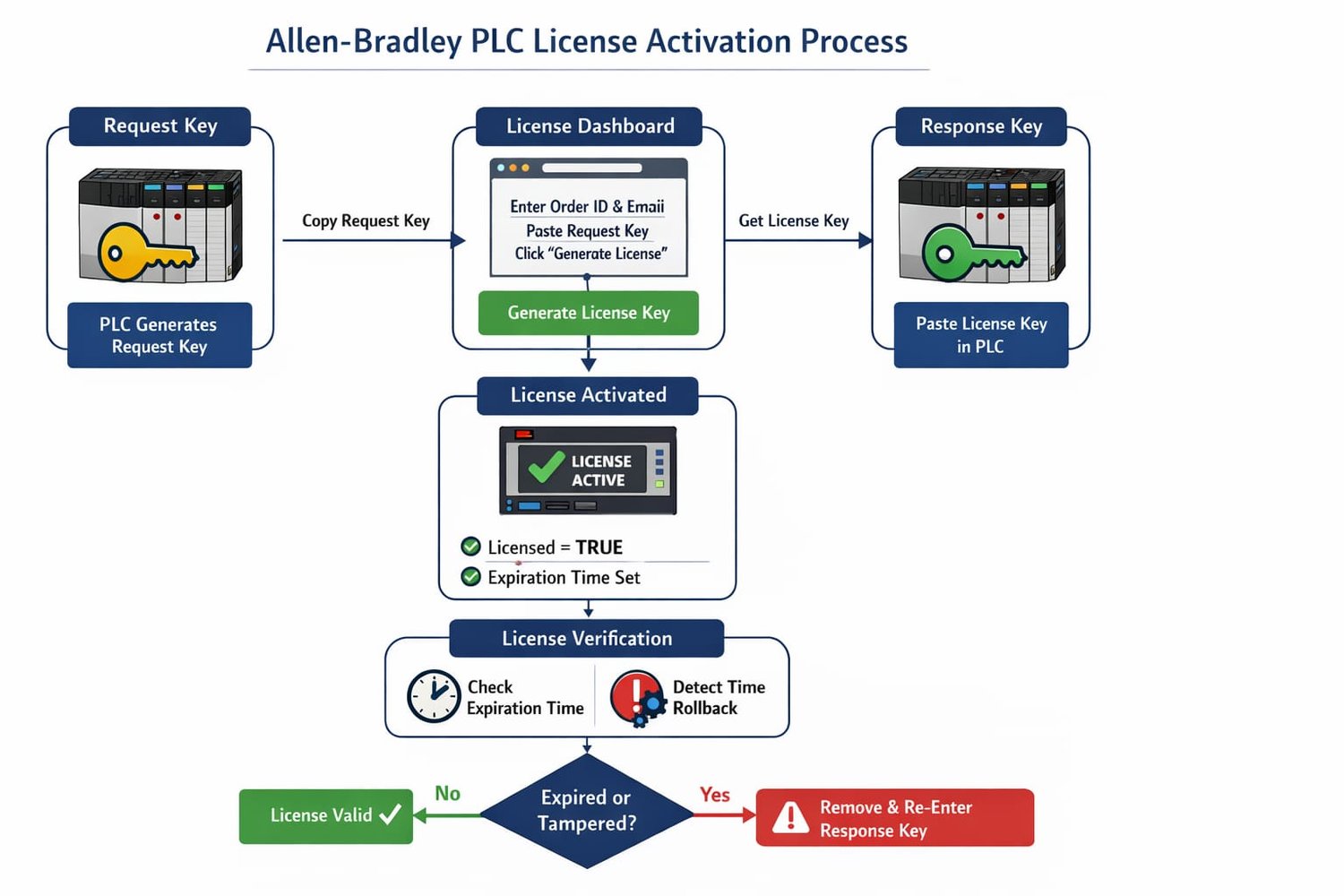
- On first scan, the PLC generates a Request Key
- Activate the license via the License Dashboard
- Paste the Response Key into the PLC
- Configure broker IP, port, and topic
- Publish your first MQTT message
🔐 Licensing Model (Important)
- One license per PLC device per order
- License is cryptographically bound to the PLC hardware
- License duration is selected via the product variant
- To license another PLC, a new license is required
📘 License Activation Guide (Summary)
- Retrieve your Payhip Order ID from the invoice
- Open the License Dashboard
- Verify Order ID + purchase email
- Paste the PLC Request Key
- Generate the License Key
- Paste it into the PLC Response Key
- License activates automatically on next scan
PLC License Tags
- mqttClient.License.requestKey
- mqttClient.License.responseKey
- mqttClient.License.licensed
- mqttClient.License.expirationTime (UTC)
🗈 PLC License Behavior (Transparent & Predictable)
- Validation runs only on first scan or when a new response key is entered
- License drops if the controller wall clock time is set backwards
- Adjusting time zone or daylight saving does NOT drop the license
- To reactivate: clear the response key and re-enter the license key
❓ FAQ
Does it work without internet?
Yes. Any local MQTT broker is supported.
Does the license survive power cycles?
Yes.
Can I move the license to another PLC?
No. Licenses are bound to one PLC device.
What happens when the license expires?
MQTT functionality is disabled until a new license is applied.
Is TLS/SSL supported?
No. Use broker-side security or network isolation.
🧪 Tested & Compatible With
- CompactLogix 5370 / 5380
- ControlLogix 5570 / 5580
- Studio 5000 v30+
- Mosquitto, EMQX, HiveMQ
- Standard Rockwell Ethernet modules with socket support
🛠 Technical Notes / Rockwell Compatibility
- Uses native TCP sockets supported on Logix 5000 controllers (QA77472)
- License validation relies on the controller UTC wall clock
- Behavior is consistent with Rockwell’s time synchronization and daylight saving practices
⚙️ Performance (Verified)
Tested on real Allen-Bradley Logix controllers under disconnect/reconnect and publish stress.
- Stable operation across QoS 0/1/2
- QoS 1 & 2 add near-zero overhead
- Performance scales predictably with payload size up to the max (~65KB)
Guidance:
Small telemetry → all PLCs
High-rate / large payloads → ControlLogix 5580
🔒 Security & Privacy
- No PLC logic or source code is uploaded
- License requests are cryptographically verified
- All licenses are device-bound
✔ Summary
- Native MQTT for Allen-Bradley PLCs
- No gateways or middleware required
- Industrial-grade AOIs with demo architectures
- Device-based licensing for one PLC per order
- Bonus IoT stack setup guides and scalable architectures included
🛡️ Legal Notice
Allen-Bradley is a trademark of Rockwell Automation, Inc.
This AOI library is an independent library developed by PLC App Tools and is not affiliated with or endorsed by Rockwell Automation.
📘 License Activation Guide
(Allen-Bradley PLC Add-On Licenses)
This guide explains how to find your Payhip Order ID and activate your license using the License Dashboard.
🔑 Step 1: Get Your Payhip Order ID
Your Order ID is required to activate your license.
- Open the purchase confirmation email from contact@payhip.com
- In the email, find the section titled “Need an invoice?”
- Click Generate
- Fill in your billing information (any valid info is acceptable)
- Click Download Invoice
- Open the downloaded PDF
- At the top of the invoice, locate Reference
- This Reference number is your Payhip Order ID
📌 Keep this Order ID — you will need it to activate your license.
🧾 Step 2: Open the License Dashboard
- Open your web browser
- Go to the License Dashboard: link
- Click Request License in the menu
✅ Step 3: Verify Your Order
- Enter:
- Payhip Order ID (from the invoice)
- Email address used during purchase
2. Click Verify
If the information is correct, you will proceed to the license request page.
❗ If verification fails:
- Double-check spelling
- Make sure the email matches the Payhip purchase email
🔐 Step 4: Generate Your License Key
- In your Allen-Bradley PLC, generate a PLC Request Key This key is generated on first scan when no response key exists (mqttClient.License.requestKey)
- Copy the entire request key
- Paste it into the PLC Request Key field on the dashboard
- Click Generate License
⚠️Note: Each order can generate one license per PLC device only. A license is bound to a specific PLC.
The system will securely generate your license.
🎉 Step 5: Apply the License to Your PLC
- Copy the generated License Key from the dashboard
- Paste it into your PLC Response Key field (mqttClient.License.responseKey)
- On the next scan, the PLC will automatically activate the license.
✅ Your license is now active.
mqttClient.License.licensed will now be TRUE.
mqttClient.License.expirationTime will reflect the license’s expiration (UTC).
🔁 Re-Accessing Your License
- If your order was already activated, the dashboard will display your existing license key.
- Each order can generate one license per PLC device.
- To license a different PLC, a new order or additional license is required.
❓ Troubleshooting
Order shows as refunded
→ Refunded orders cannot generate licenses.
License generation failed
→ Ensure:
- The request key is complete
- The PLC date/time is correct
- The request key was generated recently
License expired immediately
→ PLC clock set backwards
- Remove the response key and re-enter the license key
Still stuck?
→ Contact support with:
- Order ID
- Email used for purchase
- Screenshot of the error (if available)
🔒 Security & Privacy
- No PLC logic or source code is uploaded
- License requests are cryptographically verified
- All licenses are bound to your specific device
✔ Summary
- Get Order ID from Payhip invoice
- Verify order on License Dashboard
- Paste PLC Request Key
- Generate License
- Activate in PLC
> Important: One license per PLC device per order.
🗈 Notes on PLC Behavior
- License validation and activation is executed only on first scan or when a new response key is entered.
- The license is dropped if the controller wall clock time is changed backwards.
- Adjusting time zone or Daylight Saving does not drop the license.
- To reactivate, simply remove the response key and re-enter it.