




Wisemen
# Wisemen AI — Your AI Council
## Product description
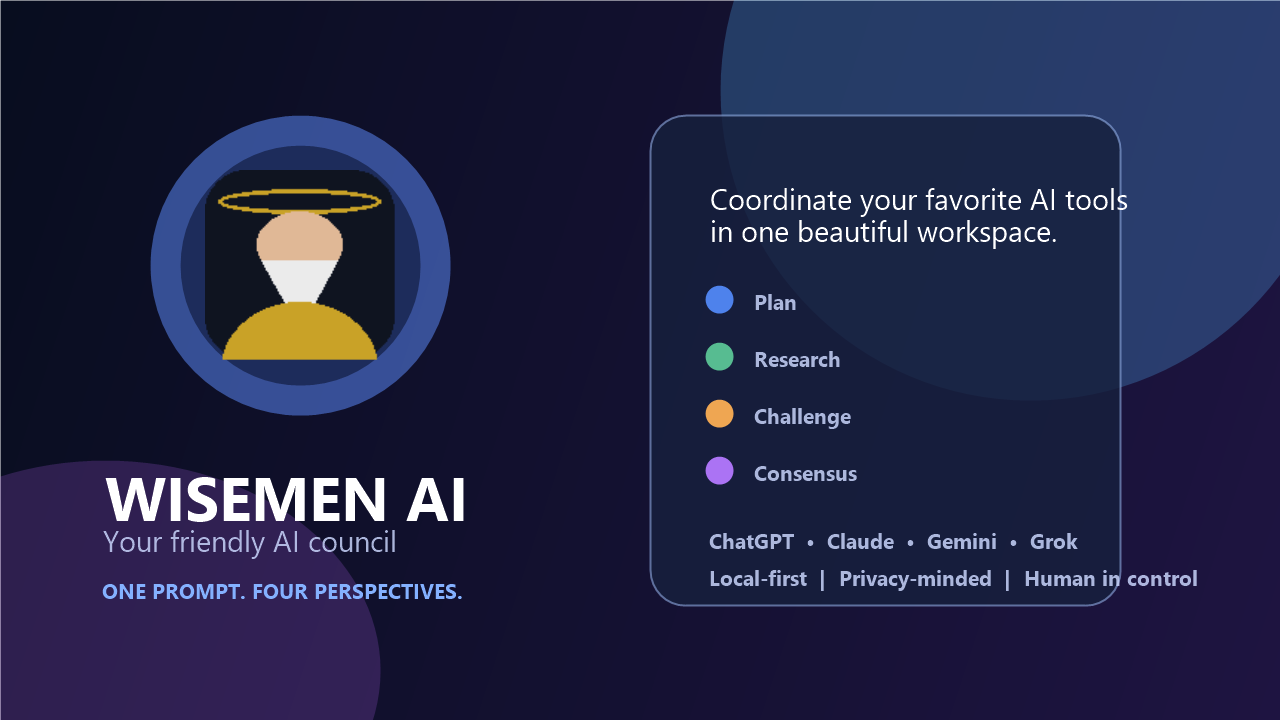
Wisemen AI turns your browser into a collaborative workspace for the AI services you already use. Instead of copying one prompt between separate tabs and trying to compare answers manually, bring your AI council together in one focused side panel.
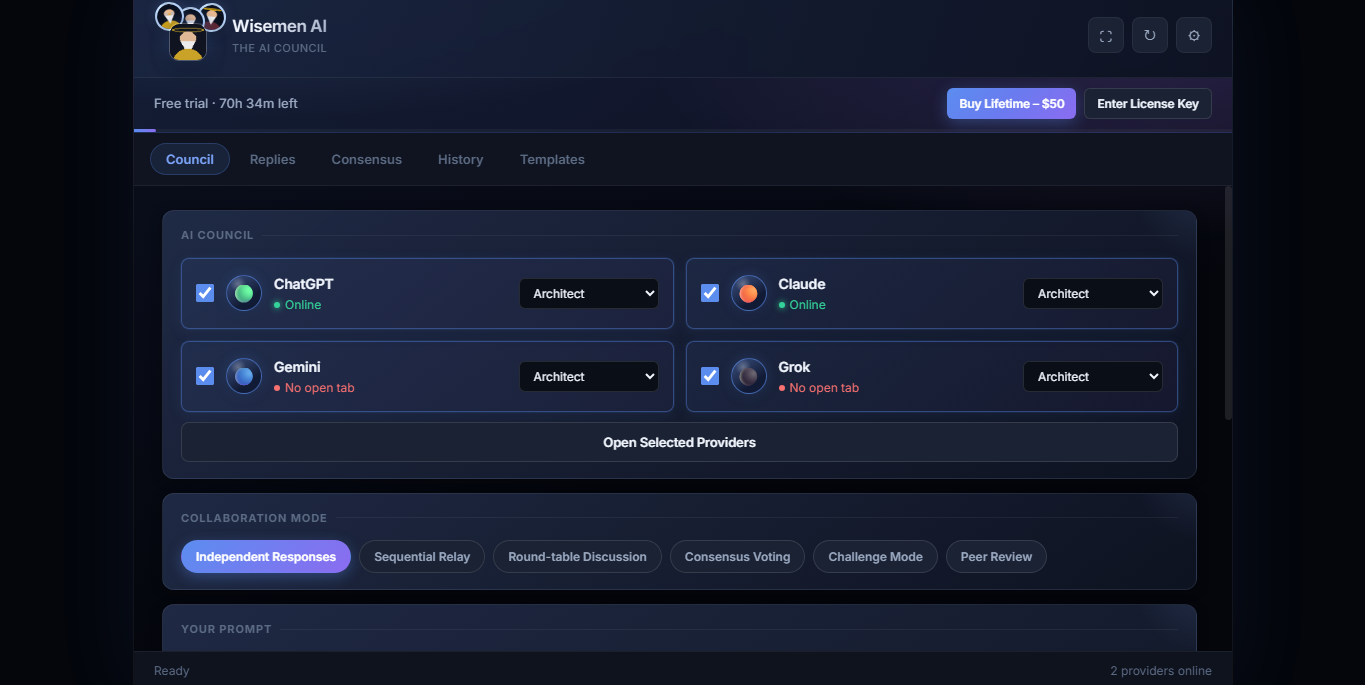
Choose the providers you want to consult, give each one a role, send the same task to your council, collect the replies, and create a structured consensus that highlights agreements, differences, and missing information.
Wisemen AI is built for people who want better thinking—not just more answers. Use it for planning, coding, research, business strategy, reviews, creative work, and complex decisions.
### What you get
- One browser workspace for ChatGPT, Claude, Gemini, and Grok
- Custom roles for each provider, including strategist, engineer, researcher, reviewer, critic, security expert, and fact checker
- Independent, sequential, round-table, consensus, challenge, and peer-review collaboration modes
- **Collect All Results** to capture visible replies from your council
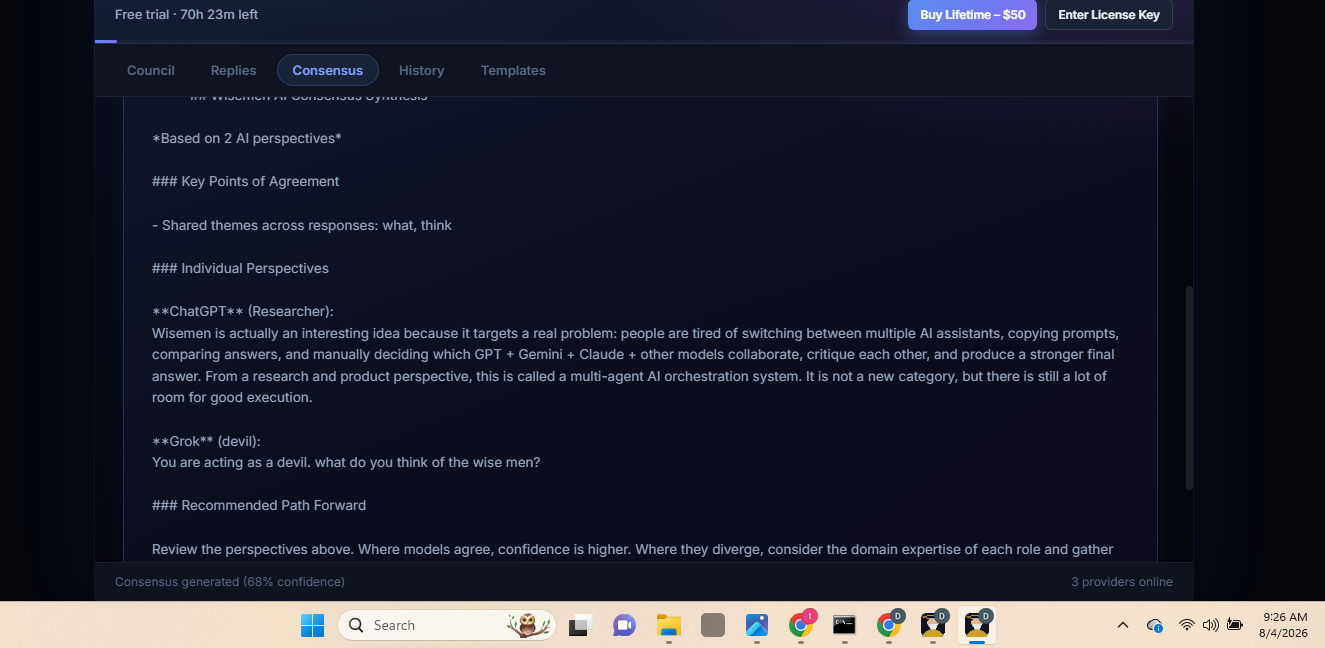
- Consensus analysis that surfaces shared ideas, disagreements, missing information, and confidence
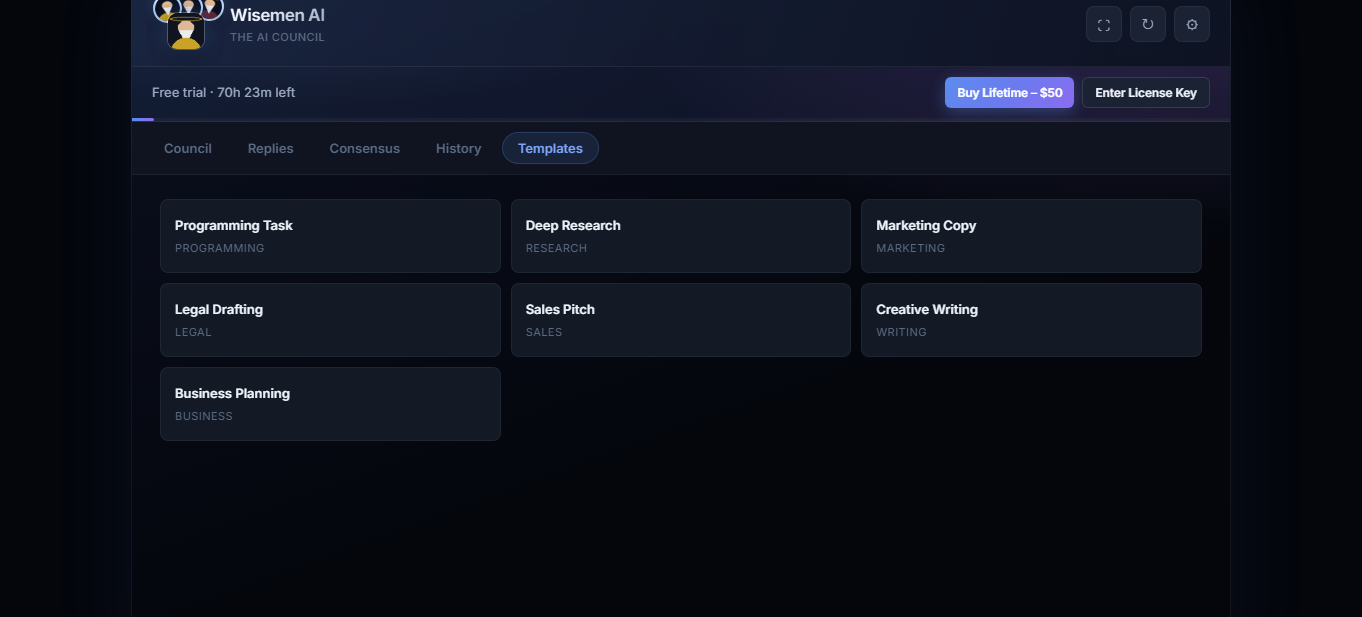
- Local session history, prompt templates, and JSON/Markdown export
- Friendly 3D council interface with dark-mode polish
- Local-first storage: your sessions and settings remain in your browser
- Safety-first browser assistance: page-changing actions require your confirmation
### Important
Wisemen AI works with your own existing accounts for the supported AI services. You remain in control: Wisemen AI types your prompt into each selected service, but you click **Send** yourself. It does not collect passwords or bypass login screens.
This purchase includes the current Wisemen AI extension package and future updates made available through this product page.
ChatGPT, Claude, Gemini, Grok, OpenAI, Anthropic, Google, xAI, and X are trademarks of their respective owners. Wisemen AI is an independent productivity tool and is not affiliated with or endorsed by them.
---
# Installation and quick-start guide
## Before you begin
You need:
- Google Chrome or a Chromium-based browser
- Your own active account(s) for any AI service you plan to use
- The downloaded Wisemen AI ZIP file
> Until Wisemen AI is available in the Chrome Web Store, installation uses Chrome’s Developer Mode. Only install the package you received from the official Wisemen AI product page.
## Install Wisemen AI in Chrome
1. Download the ZIP from your purchase receipt.
2. Extract the ZIP to a permanent folder on your computer. Do not delete this folder after installing.
3. Open Chrome and go to `chrome://extensions`.
4. Turn on **Developer mode** in the upper-right corner.
5. Click **Load unpacked**.
6. Select the extracted `wisemen` folder—the folder that contains `manifest.json`.
7. Pin Wisemen AI from Chrome’s Extensions menu if you want quick access.
8. Click the Wisemen AI toolbar icon to open the side panel.
## Your first AI council
1. Open the Wisemen AI side panel.
2. Select the AI providers you want to use.
3. Click **Open Selected Providers** if their tabs are not already open, then sign in to each service you selected.
4. Choose a collaboration mode and adjust the role for each provider if desired.
5. Write your task in **Your Prompt**. You may also attach supported text files.
6. Click **Type Prompts to Council**. Wisemen AI places the prompt in each selected provider’s input box.
7. Visit each provider tab, review the prompt, and click **Send** yourself.
8. Wait until each reply has finished streaming.
9. Return to Wisemen AI and click **Collect All Results**. The button is available in the Council workspace and Replies tab.
10. Review each captured response, then open the **Consensus** tab and click **Generate Consensus**.
## Tips for best results
- Give each provider a distinct role. For example: GPT for planning, Claude for engineering review, Gemini for research, and Grok for alternative ideas.
- Use clear, specific prompts and state the desired output format.
- Do not collect a reply until the service has finished generating it.
- Use **Focus Next** in the Replies tab to jump to a provider still waiting for you to send its prompt.
- Save or export valuable sessions from the History/Settings areas.
## Troubleshooting
**The extension cannot find a provider:** Open the provider’s website in a normal browser tab, sign in, and refresh provider status.
**A prompt was not typed:** Refresh that provider tab, make sure you are logged in, then run the council again.
**No reply was collected:** Make sure you clicked Send on the provider’s site and wait until its reply has fully finished. Then use **Collect All Results** again or the provider’s individual capture button.
**The side panel does not open:** Visit `chrome://extensions`, make sure Wisemen AI is enabled, then click the extension’s toolbar icon.
## Privacy and support
Wisemen AI stores sessions and settings locally in Chrome. Prompts are sent only to the AI services you choose to use through your own browser sessions. Review the included Privacy Policy and Terms pages before use.
For support, use: **[replace with your support email or website before publishing]**