

🎵 AI Sound Generator for Unity
Generate, review, organize, and process AI-created sound effects directly inside the Unity Editor.
The CyberLuna AI Sound Generator connects Unity to a locally installed Stable Audio 3 Small-SFX model, allowing you to create short game-ready sound effects from text prompts without uploading your prompts or audio to an external generation service.
Create magical impacts, elemental attacks, footsteps, teleport sounds, weapon effects, ambient details, UI sounds, creature noises, and many other short audio assets without leaving your Unity project.
⚠️ Important: Advanced Installation Required
This is not a simple drag-and-drop install as usual.
The Unity Editor tool itself can be imported normally, but the local AI model must be installed separately before sound generation will work.
Installation requires:
- Windows x64
- Python
- Git
- A local installation of Stable Audio 3 Small-SFX
- Running a few PowerShell or command-line instructions
- Selecting the installed model folder inside Unity
A detailed beginner-friendly installation guide is included with the package. The guide provides copy-and-paste commands and explains each step, but users should still be comfortable installing development tools and troubleshooting basic local software issues.
The AI model is not included in this package and must be downloaded separately.
✨ At a Glance
🎵 Text-to-Sound Generation
Describe the sound you need using a prompt and optional negative prompt.
🎵 Audio-To-Audio Generation
Create variations of an audio clip using the AI.
🧠 Local AI Processing
Generation runs through a locally installed Stable Audio 3 Small-SFX model rather than a paid cloud API.
🎲 Batch Variations
Generate multiple variations with randomized or fixed seeds.
🎧 Built-In Audio Review
Preview generated clips directly inside the Unity Editor.
✅ Keep or Discard Results
Quickly review a batch and keep only the sounds that fit your project.
🌊 Waveform Previews
View compact waveforms, playback progress, elapsed time, and total duration.
✂️ Integrated Audio Processor
Trim silence, define a custom clip range, add fades, normalize peaks, and export mono WAV files.
📝 Generation Recipes
Save the prompt, negative prompt, seed, model settings, and processing information beside each generated sound.
💾 Prompt Preset Library
Save successful prompt configurations for reuse in future projects.
🎮 Unity Import Controls
Configure how generated WAV files are imported into Unity.
📁 Organized Project Output
Audio clips, recipes, and presets are stored in separate configurable project folders.
How It Works
The tool acts as a Unity interface for a local Stable Audio installation.
The general workflow is:
- Ask an AI assistant to help write a sound-effect prompt, or write one yourself.
- Paste the prompt and optional negative prompt into the Unity tool.
- Choose the duration, seed behavior, generation steps, CFG value, and number of variations.
- Generate one or more WAV files.
- Preview the results directly in Unity.
- Keep the useful clips and discard the unwanted variations.
- Generate additional variations as needed.
- Optionally process the chosen sound before using it in your project.
This makes the tool especially useful for iterative sound design. Rather than creating one sound and hoping it works, you can rapidly generate several related variations and select the result that best fits your animation, particle effect, ability, avatar feature, or game mechanic.
🎛️ Generation Controls
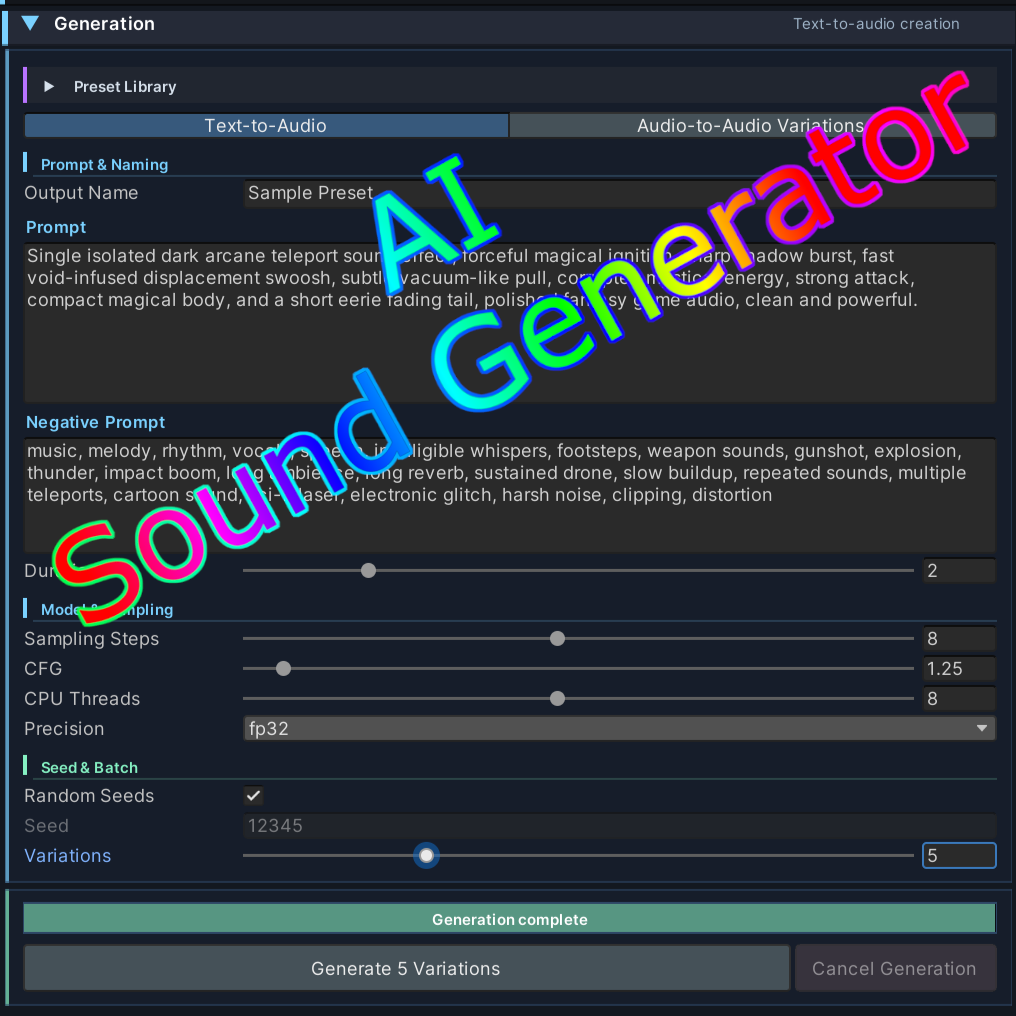
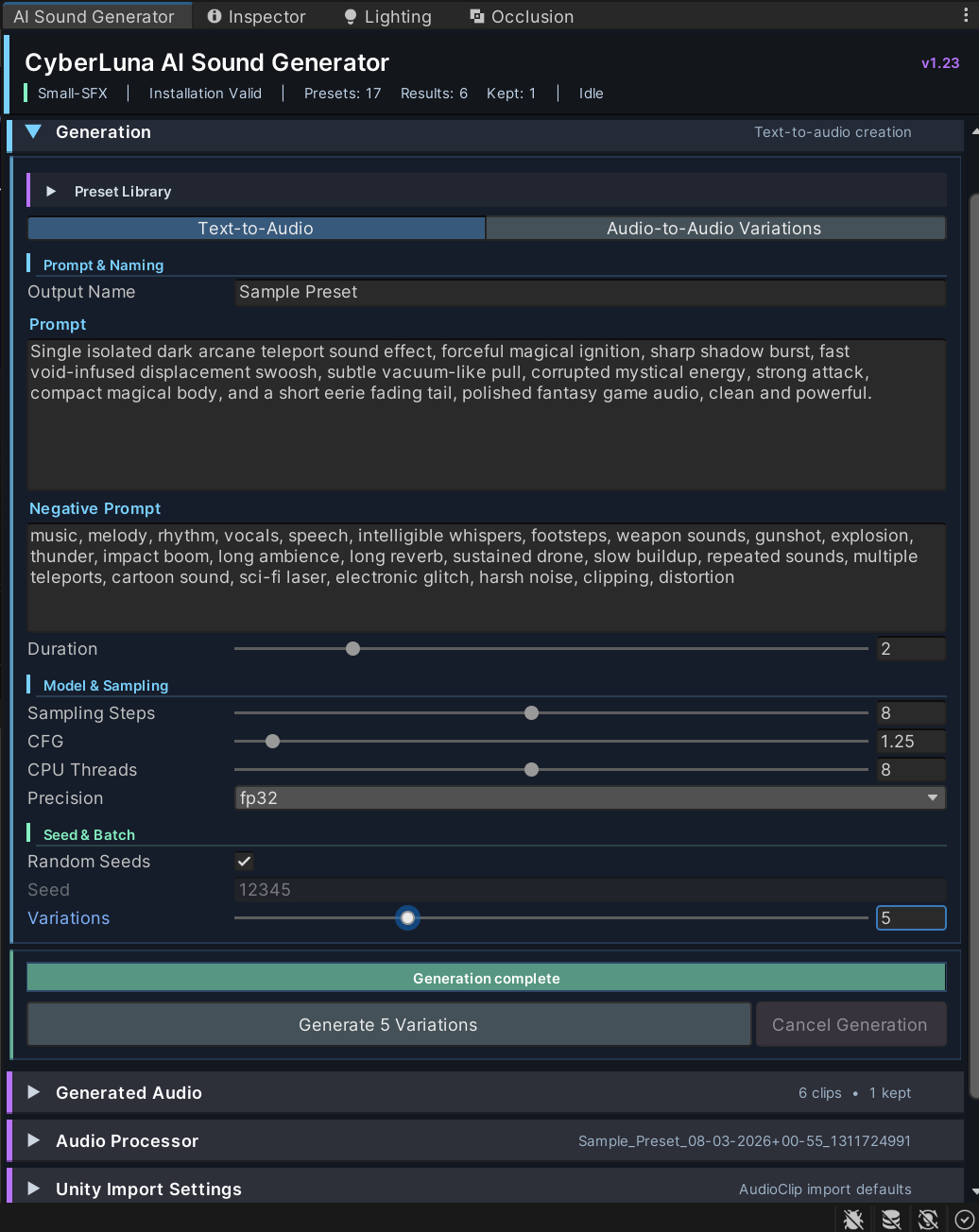
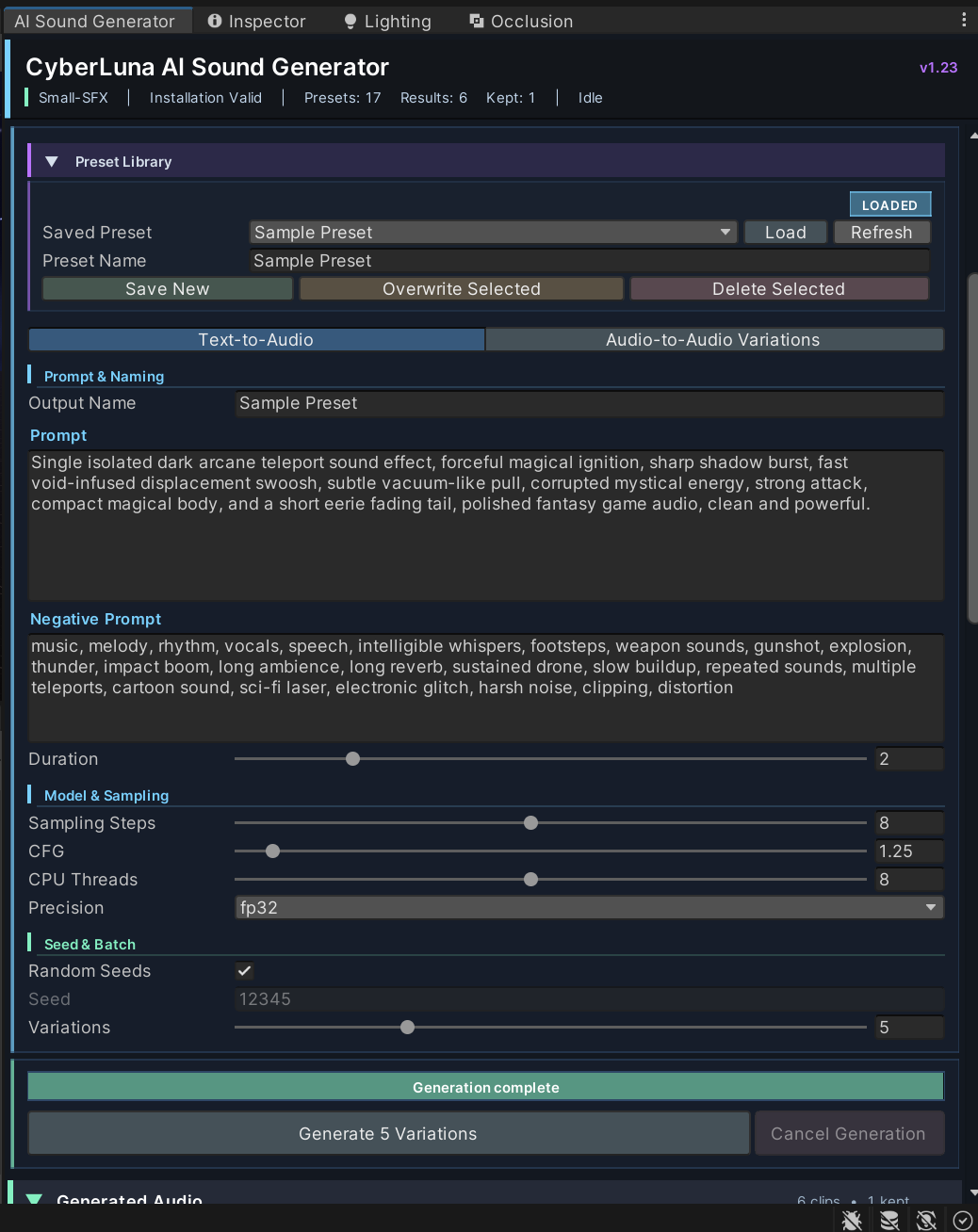
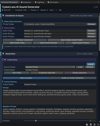
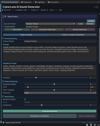
The Generation section provides control over the main Stable Audio parameters.
Available controls include:
- Positive prompt
- Negative prompt
- Output filename
- Clip duration
- Generation steps
- CFG scale
- Fixed or randomized seeds
- Starting seed
- Number of variations
- CPU thread count
- Model selection
- Decoder selection
- Precision selection
- Optional audio-to-audio input
- Audio-to-audio noise strength
The tool can generate multiple clips sequentially, automatically assigning each variation its own seed and filename.
Generated files use clear names containing the chosen output name, generation date, time, and seed.
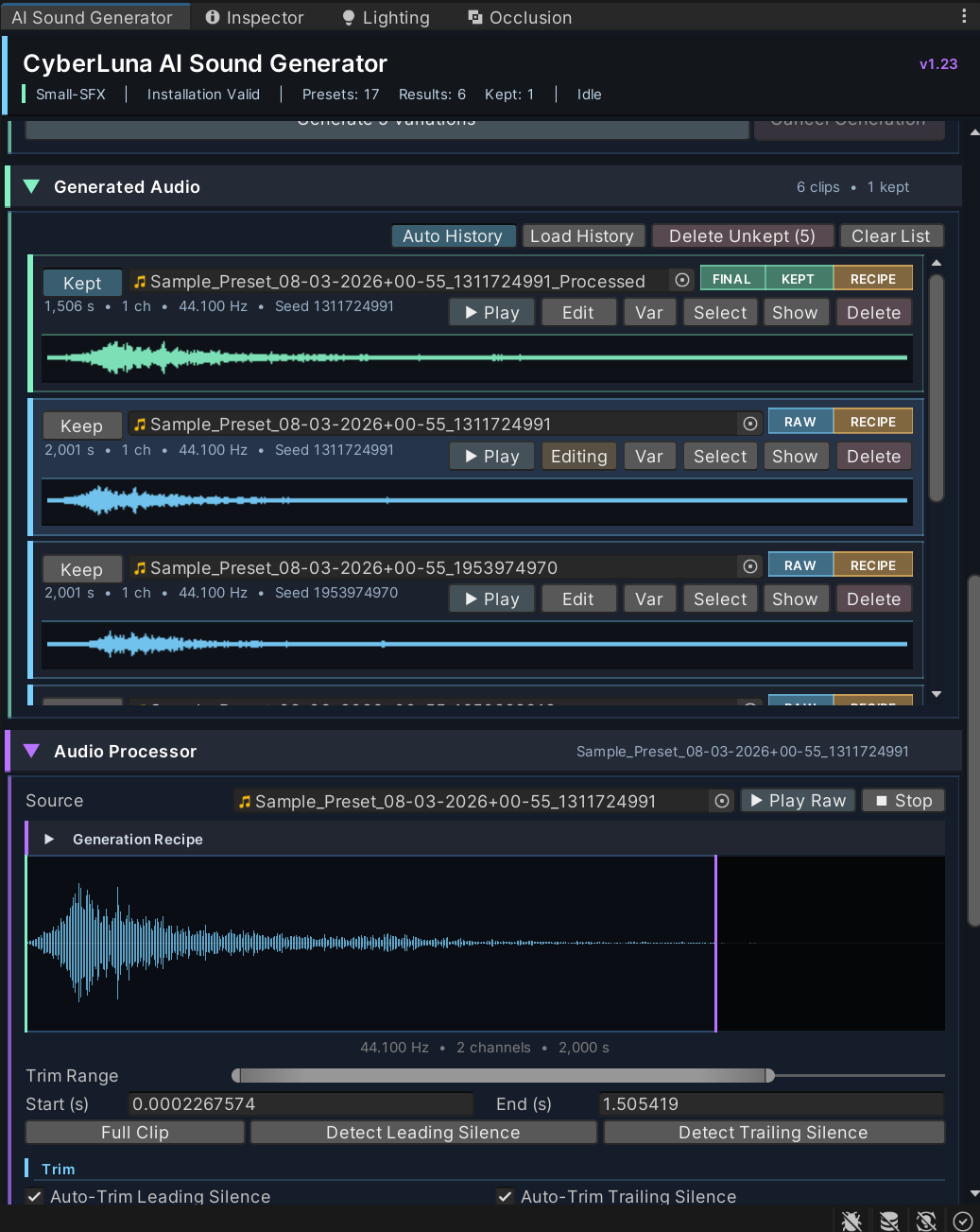
🎧 Generated Audio Review
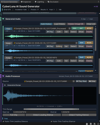
Generated clips appear inside the tool with:
- Filename
- Seed
- Keep status
- Audio waveform
- Play and stop controls
- Live playback position
- Elapsed and total duration
- Project selection controls
- File reveal controls
- Delete controls
This allows you to review a complete generation batch without repeatedly searching through the Unity Project window.
The intended workflow is simple:
Generate → Listen → Keep or discard → Generate more
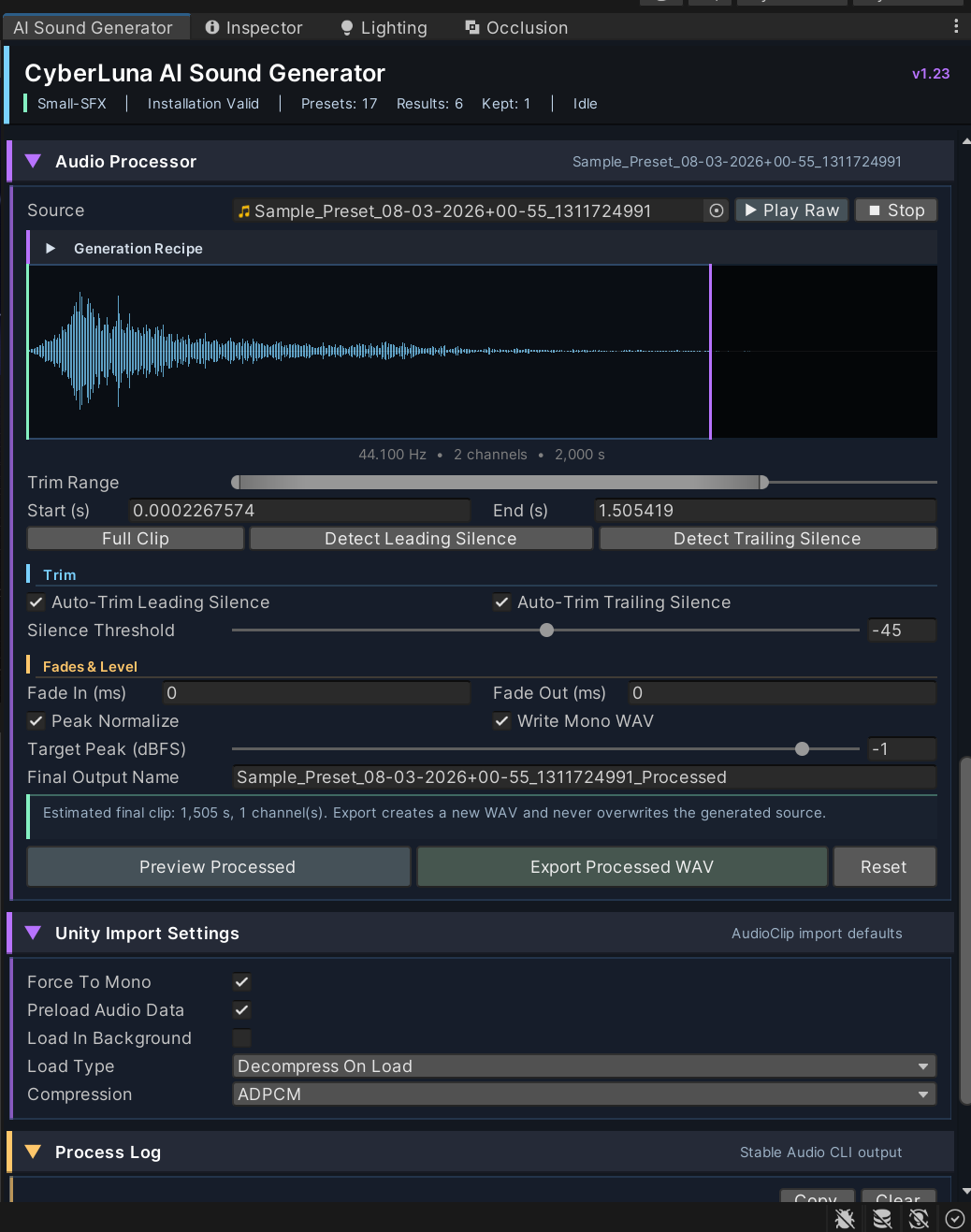
✂️ Built-In Audio Processor
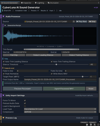
The included Audio Processor can create a new processed WAV without modifying the original generated clip.
Processing options include:
- Manual start and end trimming
- Automatic leading-silence trimming
- Automatic trailing-silence trimming
- Configurable silence threshold
- Fade-in duration
- Fade-out duration
- Peak normalization
- Configurable normalization target
- Mono WAV export
- Waveform preview
- Processed playback preview
- Non-destructive export
The processor is useful when the model creates a good sound with extra silence, an overly long tail, inconsistent volume, or unnecessary stereo information.
Processed files receive their own recipe metadata so the original generation and later processing steps remain documented.
📝 Generation Recipes
Each generated clip can have a matching .ai-sfx.json recipe file.
Recipes can store information such as:
- Prompt
- Negative prompt
- Seed
- Duration
- Generation steps
- CFG scale
- Selected model
- Decoder
- Precision
- Thread count
- Audio-to-audio settings
- Keep status
- Processing settings
- Export information
This makes it easier to understand how a sound was created and recreate similar results later.
Recipes are stored separately from the WAV files so your audio folder remains clean.
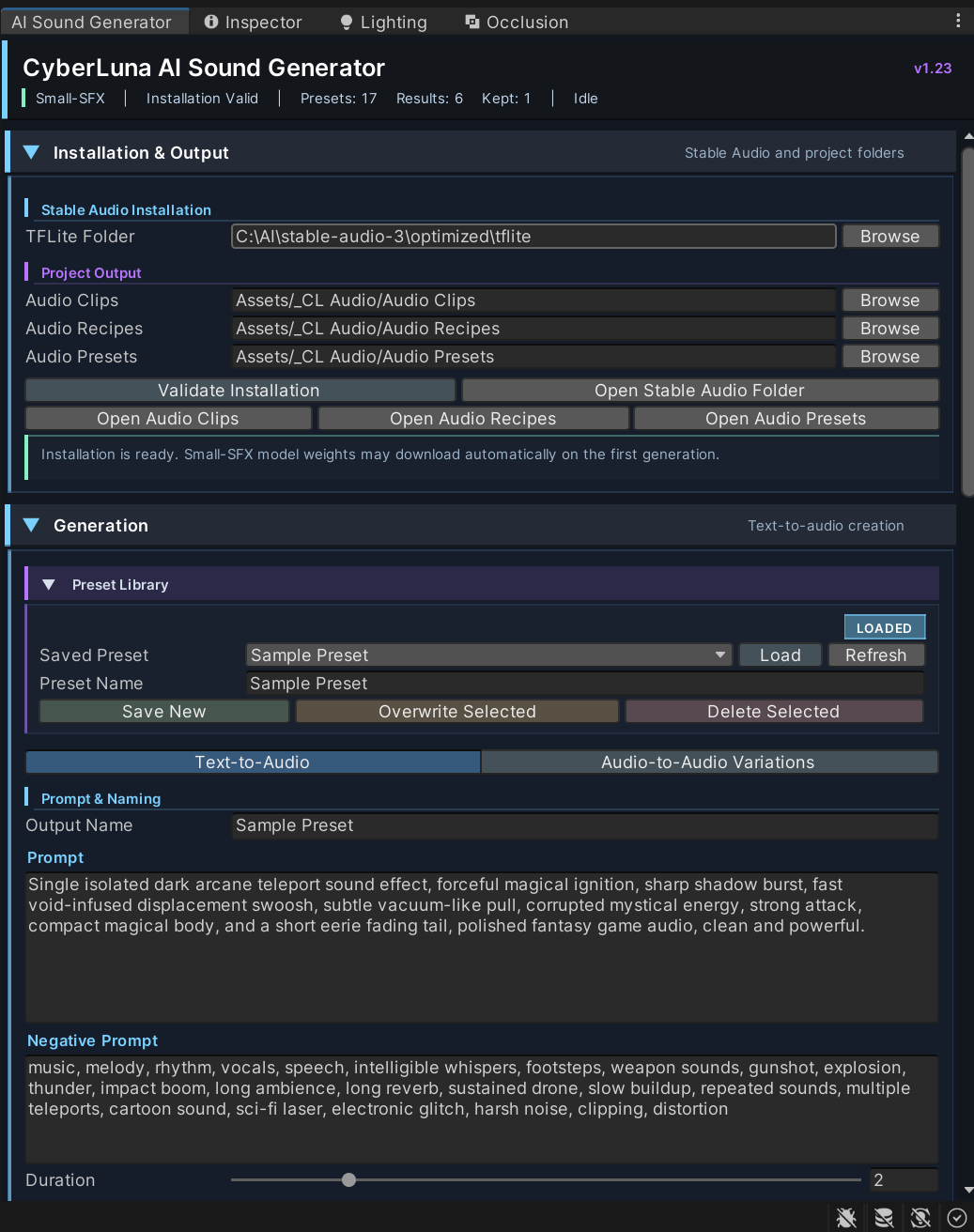
💾 Prompt Preset Library
The Preset Library is intended as an advanced productivity feature.
Once you discover a prompt and configuration that consistently produces useful results, you can save it as a reusable preset.
Presets can contain:
- Prompt
- Negative prompt
- Duration
- Steps
- CFG
- Seed settings
- Model settings
- Audio-to-audio settings
The package also includes example presets designed around short fantasy and game-style dash effects.
The Preset Library is collapsed by default so it does not interfere with the standard generation workflow.
🎮 Unity Import Settings
Generated and processed audio can automatically receive configurable Unity import settings.
Available options include:
- Force mono
- Load in background
- Preload audio data
- Ambisonic
- Compression format
- Load type
- Sample-rate settings
- Compression quality
This helps generated clips enter the project with settings appropriate for game audio, VRChat assets, avatar effects, and other real-time Unity applications.
📦 Included
The package contains:
- CyberLuna AI Sound Generator Editor Window
- Local Stable Audio command integration
- Generation controls
- Batch variation system
- Audio preview system
- Waveform display
- Keep and discard workflow
- Audio Processor
- Generation recipe system
- File-backed preset library
- Example sound presets
- Unity Audio Import controls
- Process and progress log
- Configurable output folders
- Installation validation
- Beginner-focused Windows installation guide
The Stable Audio model, Python, Git, and other external runtime components are not included.
💻 Requirements
- Unity 2022 or a compatible newer Unity version
- Windows x64 for the included installation workflow
- Python supported by the Stable Audio installation
- Git for Windows
- Sufficient free storage for the repository, Python environment, and model files
- A reasonably modern multi-core CPU
- Permission to run local scripts and PowerShell commands
A dedicated GPU is not required for the included LiteRT/TFLite setup. Generation runs locally on the CPU, so generation speed depends heavily on the user’s processor, selected duration, generation steps, and number of variations.
This is an Editor-only tool. It generates assets during development and does not add an AI model to the final game, world, avatar, or application build.
Example Prompt
Prompt
Single isolated dark magic dash and short-range teleport sound effect, sudden low arcane ignition, fast shadowy forward swoosh, brief spatial displacement pulse, swirling void energy, subtle corrupted whisper-like texture without voices, compact magical impact, dark powerful fantasy game sound design, immediate attack and short clean decay.
Negative Prompt
music, melody, speech, intelligible whispers, vocals, footsteps, explosion, gunshot, thunder, long ambience, long reverb, repeated sounds, slow buildup, sustained drone, cartoon sound, clipping, distortion
This type of prompt can produce several distinct dark-magic dash variations, which can then be reviewed and processed directly inside Unity.
Installation Summary
A complete installation guide is included at:
Assets/_CyberLuna/AI Sound Generator/Documentation/
Stable Audio 3 Small-SFX - Windows Installation Guide.txt
The guide covers:
- Installing Python
- Installing Git
- Downloading Stable Audio
- Creating the Python environment
- Installing dependencies
- Downloading the Small-SFX model
- Running a command-line test
- Connecting the installation to Unity
- Validating the setup
- Troubleshooting common installation problems
- Updating and uninstalling the model
Summary
CyberLuna AI Sound Generator turns a local Stable Audio installation into a focused Unity sound-design workflow.
It does not hide the technical installation requirements, and it is not intended as a beginner-level one-click AI product. Instead, it provides advanced Unity users with a practical interface for generating, reviewing, documenting, processing, and organizing short AI-created sound effects directly inside their project.
Once the external model is installed, the everyday workflow becomes fast and convenient:
Paste a prompt, generate variations, listen, keep the best result, process it, and continue building.
License
This package is licensed for personal use only.
Support for upcoming changes of the underlying model etc. are not guaranteed.
You may:
- Install and use the package in your own Unity projects.
- Use the tool to generate and process audio for your own avatars, worlds, games, videos, and other personal projects.
- Modify the included files for your own use.
You may not:
- Share, redistribute, upload, resell, sublicense, or otherwise provide the package—or any of its included files—to another person.
- Include the tool or its source files in downloadable projects, templates, asset packs, repositories, or public packages.
- Purchase one copy for use by multiple people, teams, studios, or organizations.
- Claim the package or its included code as your own work.
Each user must purchase and install their own copy.
This license applies to the CyberLuna AI Sound Generator package itself. External software, AI models, and dependencies are governed by their respective licenses and terms.